What is the difference between Global Block and Theme Sections (Section Builder)?
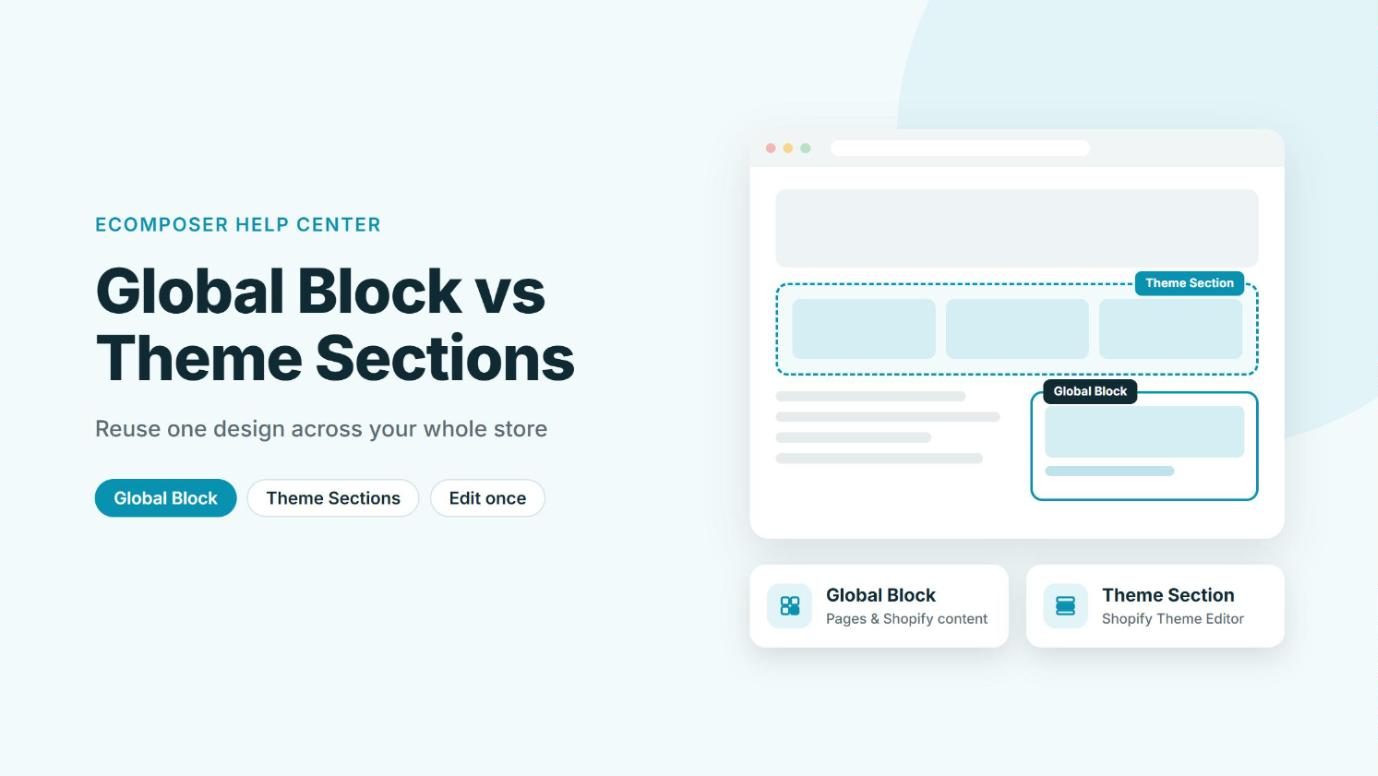
Global Block and Theme Sections (formerly called Section Builder) look alike at first glance, because both let you design a piece of content once in EComposer and reuse it in several places on your store. When you edit it later, the change shows up everywhere it’s used, so you never have to update each page one by one.
The real difference is where you can place them. A Global Block lives inside EComposer pages and Shopify content, while a Theme Section lives in your Shopify theme. Let’s look at each one so you can pick the right tool for the job.
1. Global Block
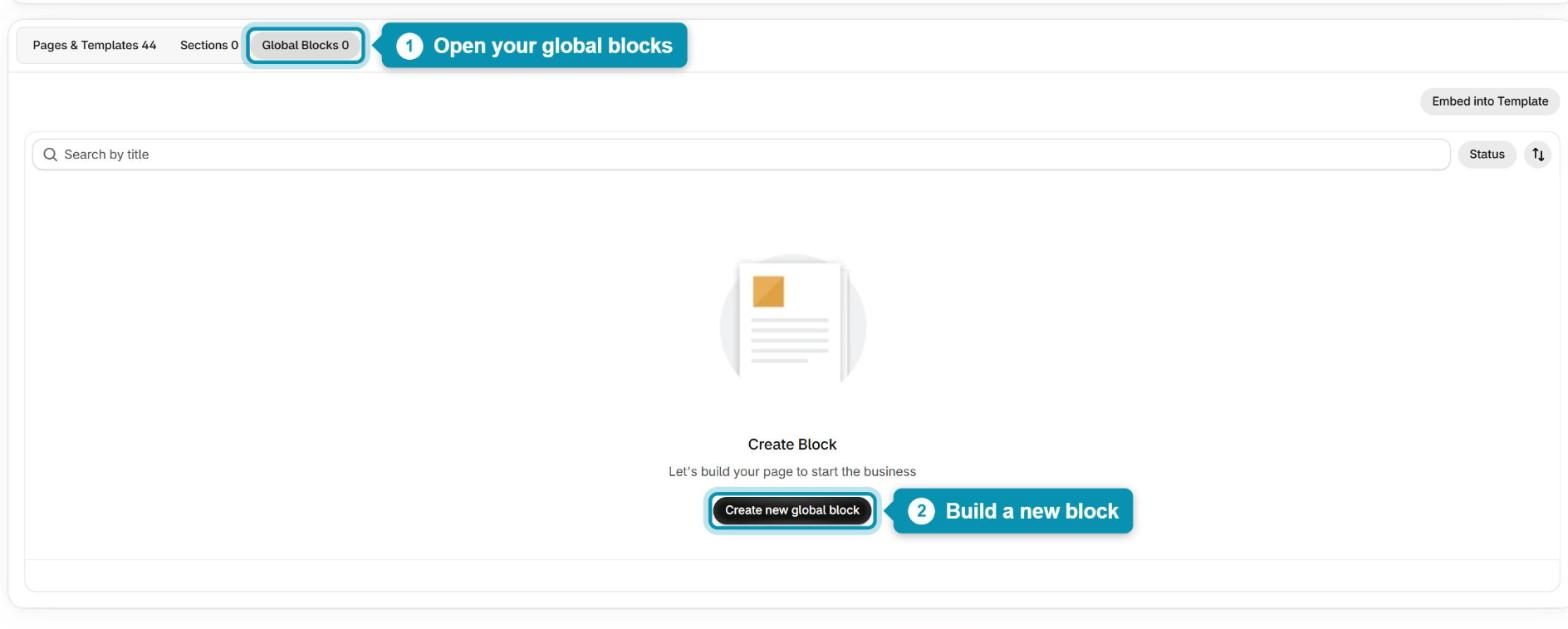
A Global Block works like a reusable element. You create and manage all of your blocks in the app under Build, on the Global Blocks tab, and then show them in two ways.
Inside EComposer pages: open a page in the builder, search for the Global Block element in the Add (+) panel, drag it to the spot you want, then choose which block to show. Since it behaves like any other element, you can drop it into any section, row or column of a page built with EComposer.
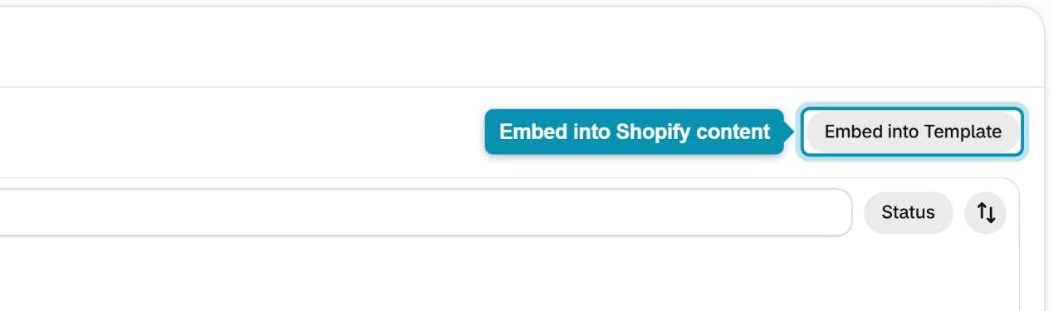
Inside Shopify content: you can also show a Global Block in the content area of a blog post, product, collection or page. Click Embed Into Template on the Global Blocks tab, choose the page type and template, then copy the block’s shortcode and paste it into that content in Shopify. You can find the full steps in Global Block.
A Global Block can’t be added with the Add block or Add section button in the Shopify Theme Editor. If you want your design to sit between the sections of a theme page, use a Theme Section instead.
2. Theme Sections (Section Builder)
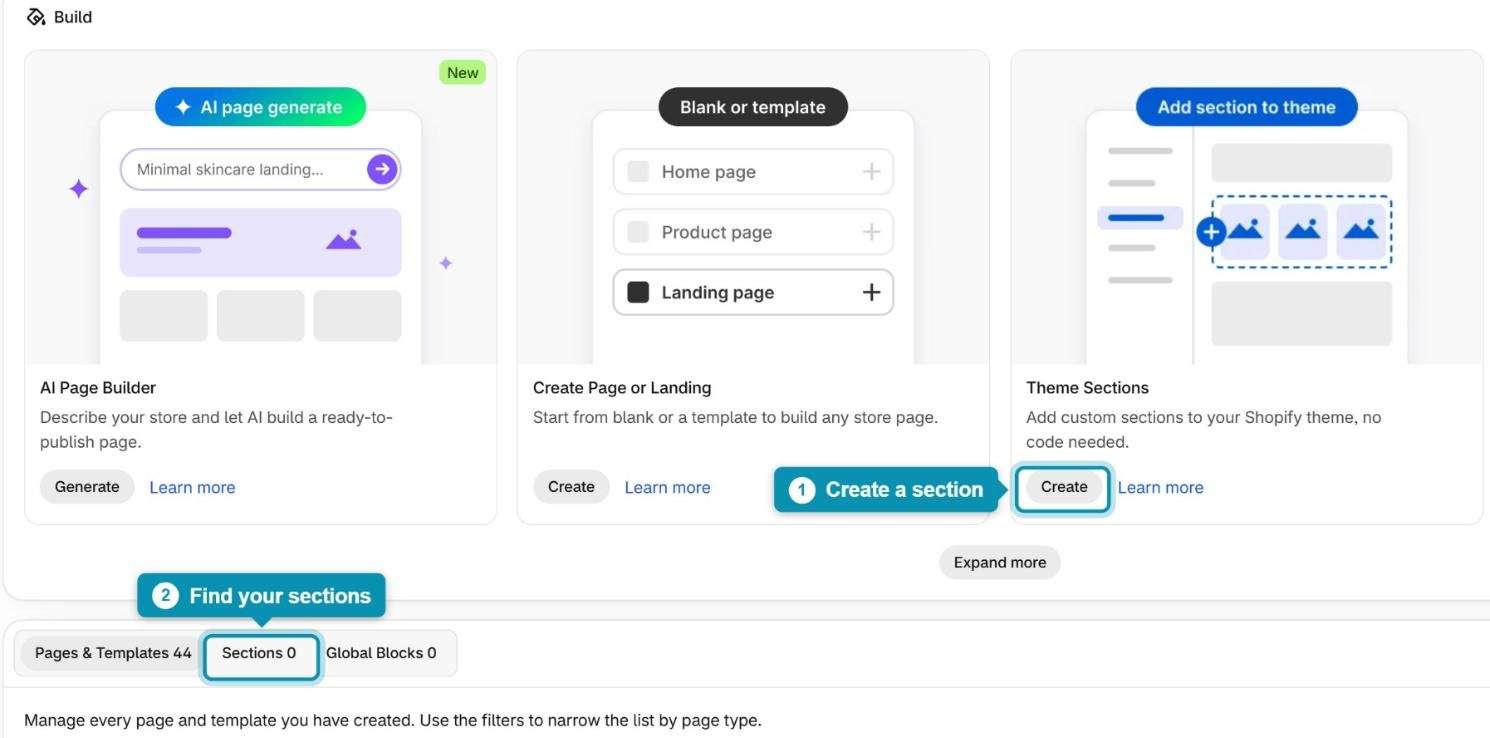
A Theme Section is a custom section you design in EComposer and then add to your Shopify theme. You can start one from the Theme Sections card on the Build page by clicking Create, and every section you make is listed on the Sections tab below.
Once the section is saved and published, open Online Store → Themes → Customize, click Add section on any page, and search for your section’s name. It sits between your theme’s own sections, so you can keep your current theme layout and simply add an extra design where you need it. For more details, see Theme Sections.
Theme Sections work on every page type with Online Store 2.0 themes. With an older (vintage) theme, you can only add sections to the Homepage.
3. Which one should you use?
Here’s a quick side-by-side comparison to help you decide:
| Global Block | Theme Sections | |
| Where you manage it | Build → Global Blocks tab | Build → Sections tab |
| Add it to EComposer pages | Yes, with the Global Block element | No |
| Add it to the content of a blog post, product, collection or page | Yes, by pasting a shortcode | No |
| Add it between sections in the Shopify Theme Editor | No | Yes, with Add section |
| Edit once, update everywhere | Yes | Yes |
In short, choose a Global Block when you build pages with EComposer or want to reuse content inside blog posts, products, collections or pages. Choose a Theme Section when you want to keep your Shopify theme pages and add an EComposer design between their sections. If you’re still not sure which one fits your store, feel free to reach out to us via live chat and we’ll be happy to help.