Features
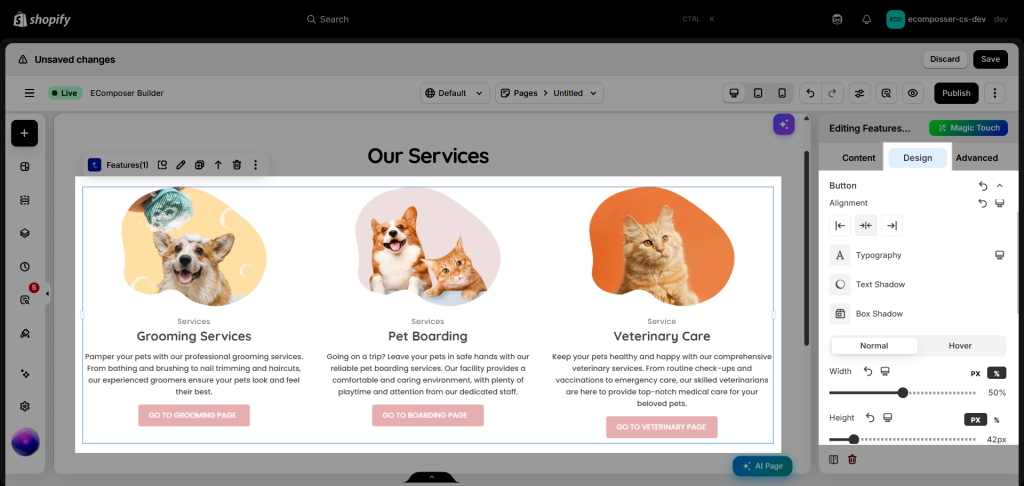
The Features element is designed to highlight key benefits, services, guarantees, or unique selling points in a visually engaging way. It helps merchants communicate important information at a glance, such as shipping policies, payment security, customer support, product quality, sustainability efforts, or reasons customers choose their brand. Commonly used in sections like “Why Customers Love Us”, “Why Choose Us”, or “Store Benefits”, this element combines icons, headings, and descriptions to build trust and improve the shopping experience.
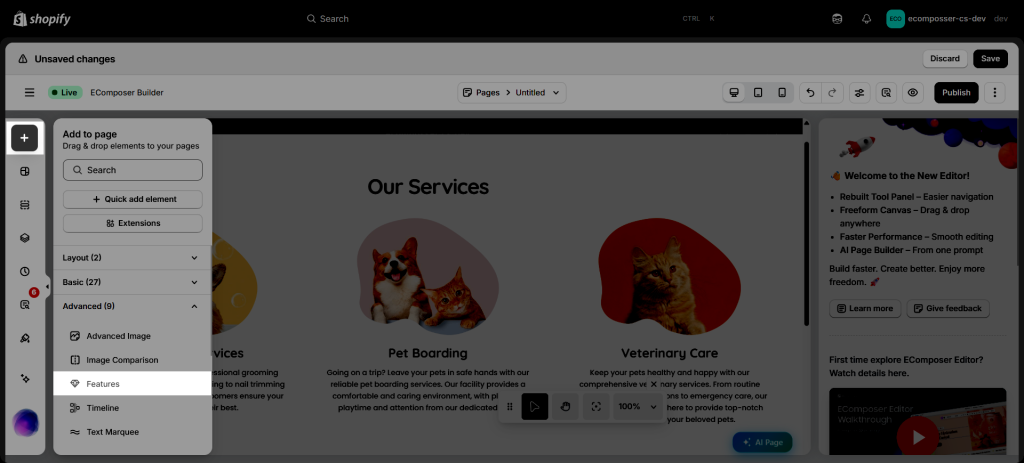
You can open the Elements panel > Advanced > Features to add the element to your page:
1. Content
In the Content tab, you can configure what will be displayed on the element.
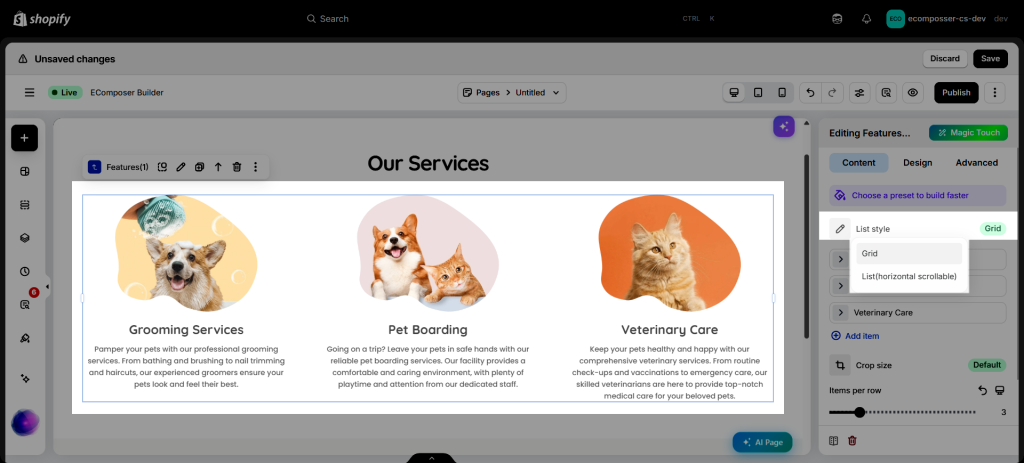
1.1. List style
You can choose the List style between Grid and List (horizontal scrollable).
1.2. Items
Each item provides the following settings:
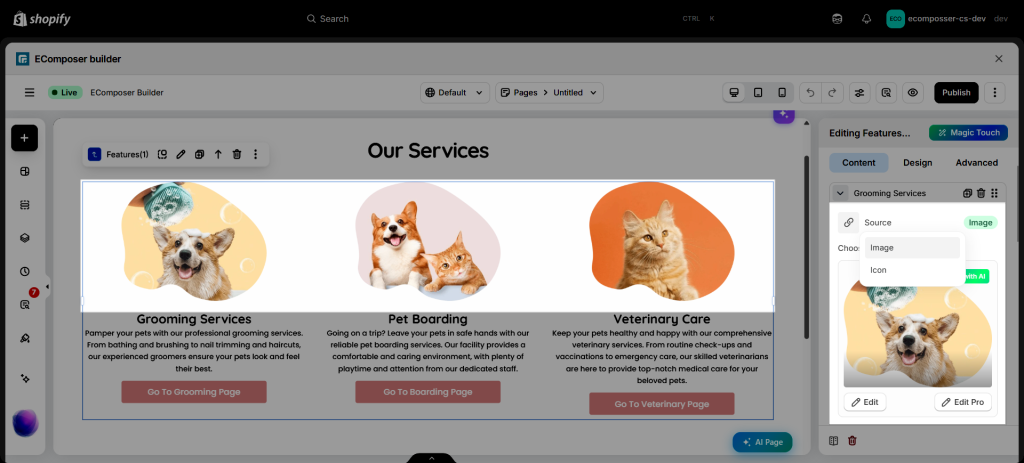
- Source: Choose how the visual is displayed by uploading an image, selecting an icon from the library, or using a custom icon.
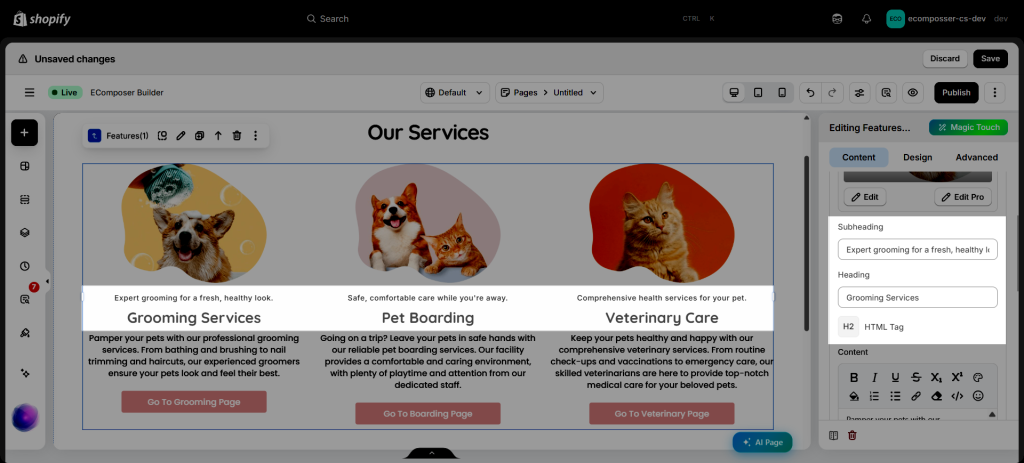
- Heading & Subheading: Enter any text you would like to display. Leave these fields empty if you do not want them to appear.
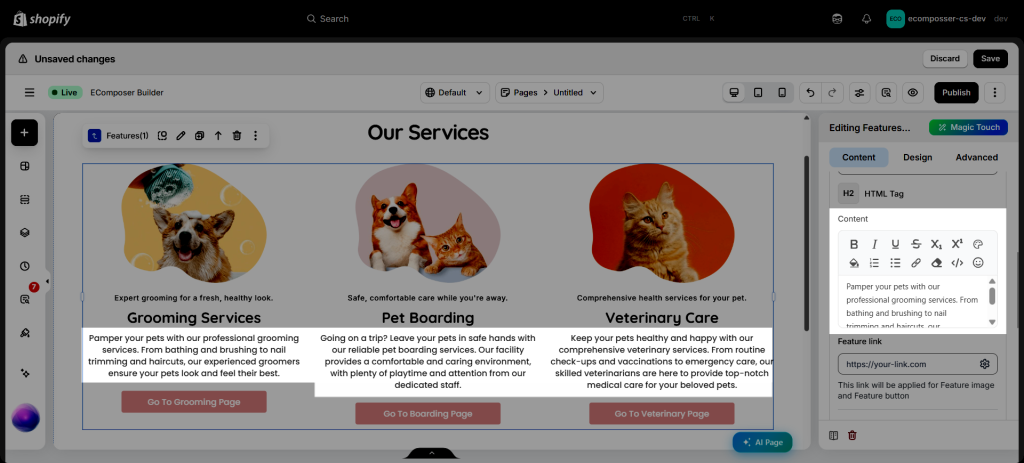
- Content: Add descriptive text and customize its typography, including font size, color, style, and other formatting options.
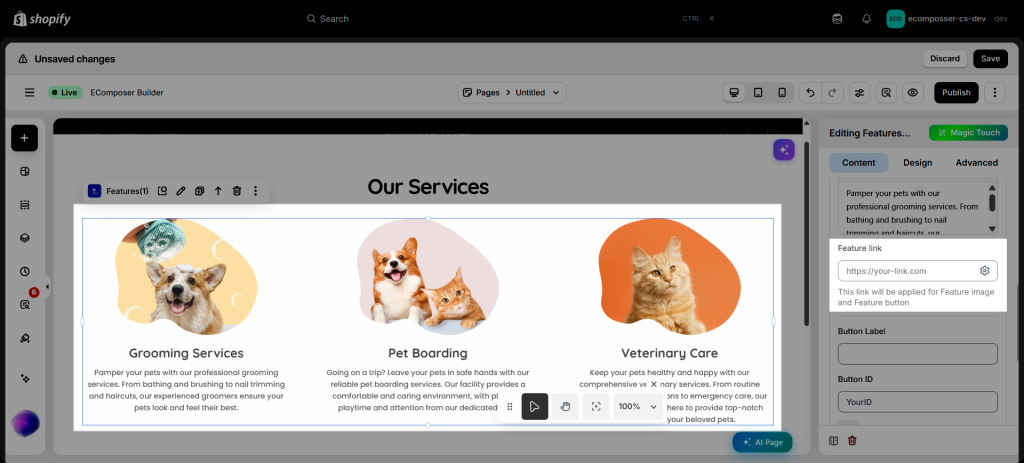
- Feature Link: Add a link to the feature item to redirect visitors to another page, collection, product, or external website when they click on the item. The inserted link will be applied to the Feature image and Feature button.
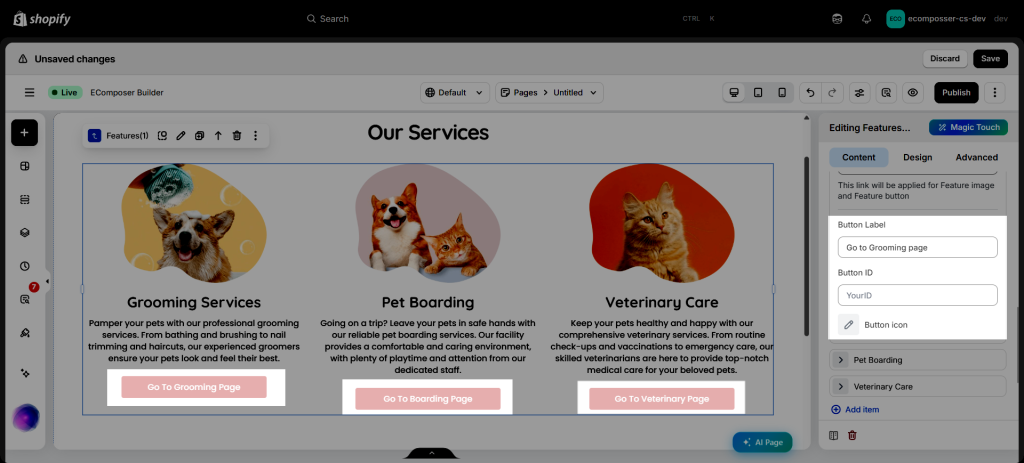
- Button: Customize the button label, link, and icon. If an icon is selected, make sure to configure its color and size in the Design tab for it to be visible.
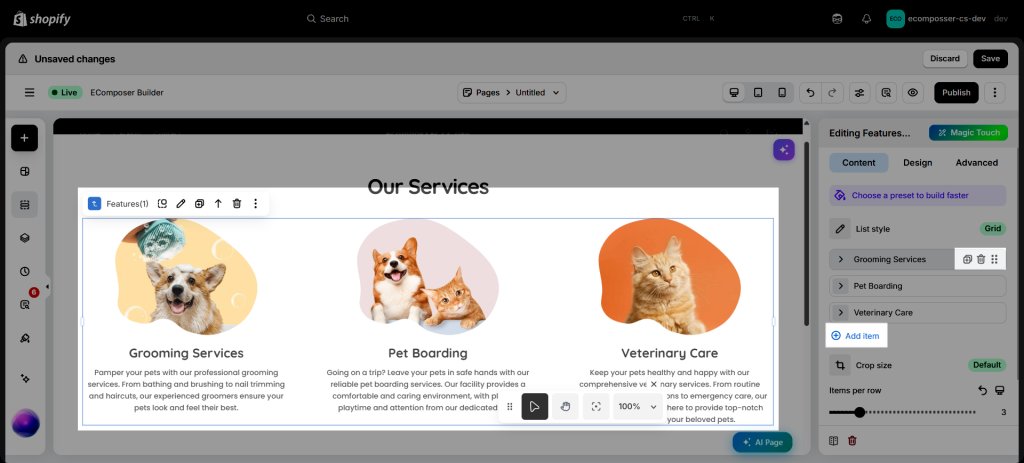
You can easily duplicate an item to reuse its settings, delete items that are no longer needed, or drag and drop items to reorder them within the layout and add new items to match your design.
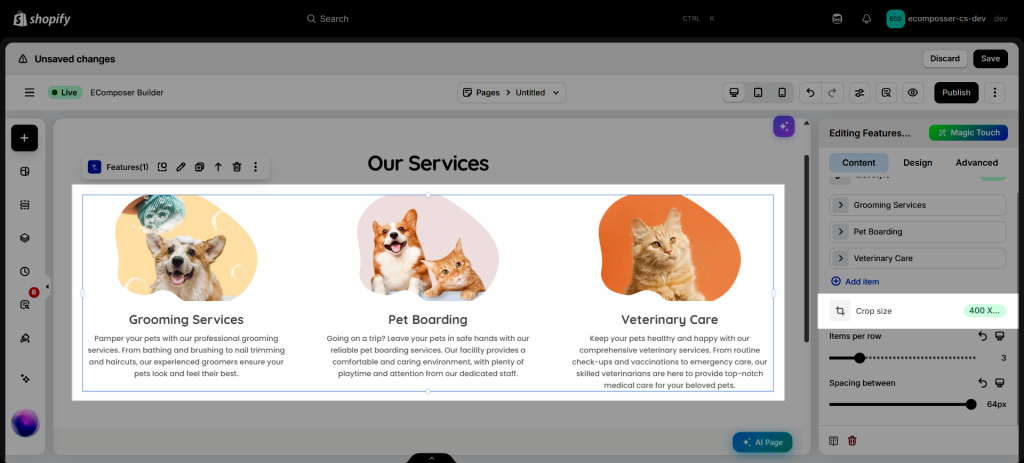
1.3. Crop Size
Control how uploaded images are displayed by selecting from predefined crop sizes or entering custom dimensions. You can also specify only the width or height to maintain the image’s original aspect ratio.
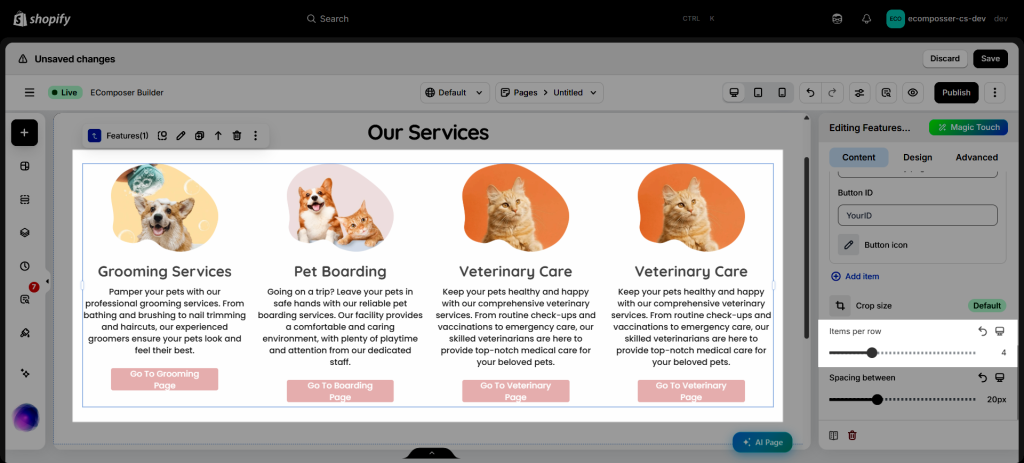
1.4. Item Width/Items per row
The available settings depend on the selected List Style:
- List: Set the width of each item. The maximum width value is 100%, allowing an item to occupy the full row width.
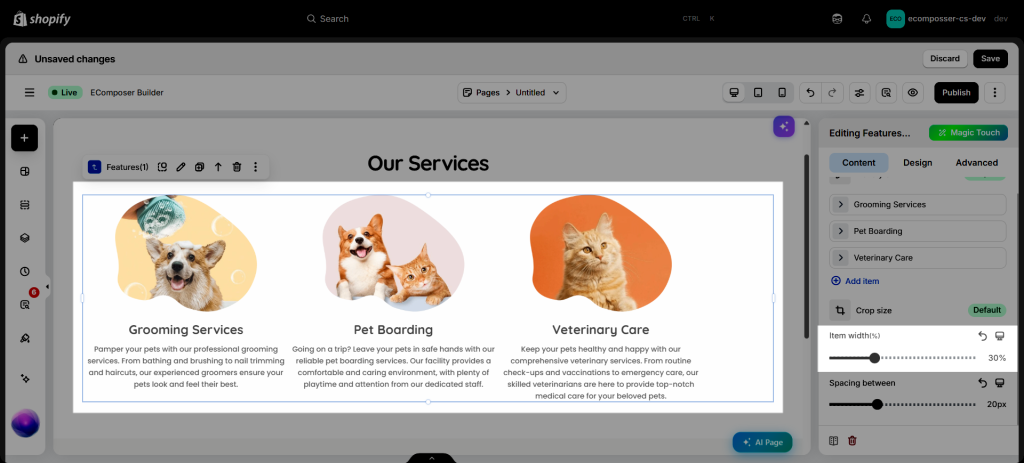
- Grid: Define the number of items displayed in each row. You can display up to 12 items per row.
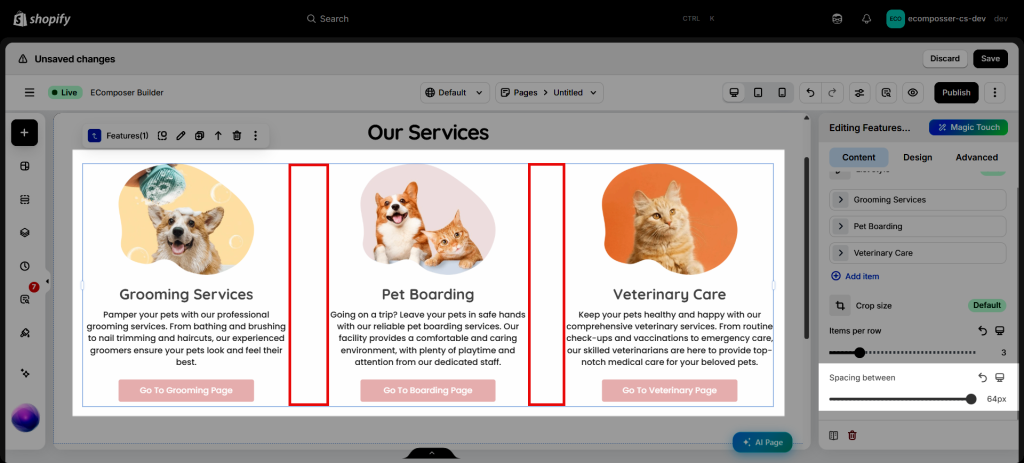
1.5. Space Between
Adjust the spacing between items to create a balanced and visually appealing layout.
2. Design
2.1. General
Control the layout and appearance of feature items by adjusting their Alignment and Spacing. For item styling, you can customize the Background Color, Border, and Border Radius separately for the Normal and Hover states, giving you full control over how items look before and during user interaction.
2.2. Image
You can adjust the images that you added to the items through settings, such as Width, Height, Alignment, Image Fit, Background, and Spacing. Under Normal and Hover tabs, you can adjust the Opacity, Box Shadow, Border and Border Radius of the images.
2.3. Featured icon
You can customize the icon by changing its Color, Size, Rotation, Background Color, Alignment, Border Radius, and Spacing to match your design preferences.
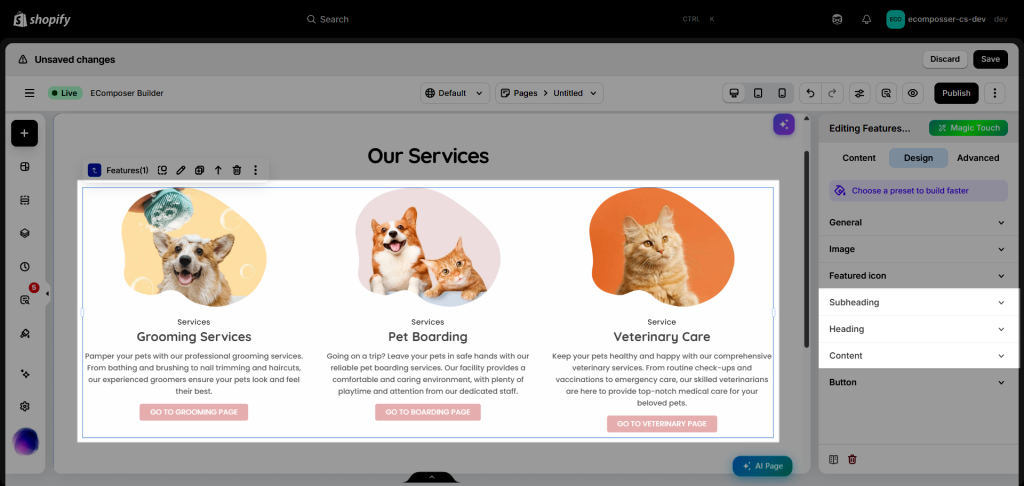
2.4. Subheading, Heading and Content
You can customize the Subheading, Heading, and Content styles in their respective category. For each text element, you can adjust the Typography and Spacing, as well as configure the Text Color separately for the Normal and Hover states.
2.5. Button
Control the button’s layout and appearance by adjusting its Alignment, Typography, and Spacing. For interactive styling, the Normal and Hover tabs allow you to customize the Width, Height, Text Color, Background, Border, and Border Radius independently.