
Buy Now
The “Buy Now” button is a call-to-action button that allows customers to quickly purchase a single item without going through the entire checkout process. When a customer clicks the “Buy Now” button, they are taken directly to the Checkout page where they can enter their payment information and complete the purchase.
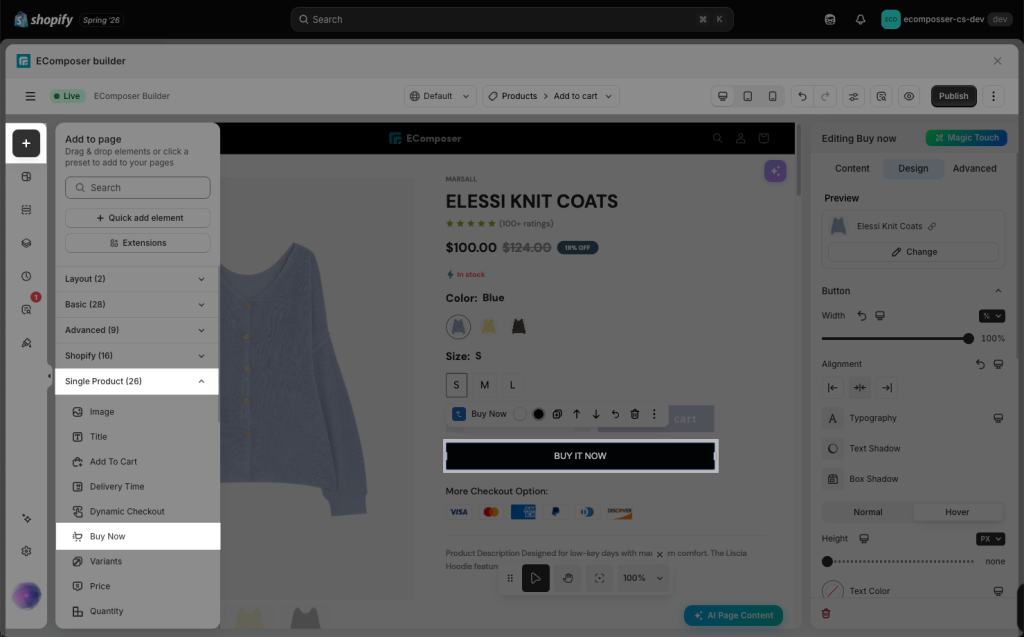
This feature is useful for customers who want to make a quick purchase without having to add items to their cart. It can also be beneficial for businesses that sell limited-edition or one-of-a-kind items, where customers may want to quickly secure their purchase before the item sells out. From the Single Product tab, you can drag and drop the Buy Now element anywhere you want it to be located.
Note: This element doesn’t work with subscriptions app
1. How to Configure the Content of Buy Now button
1.1 Edit button texts and icon
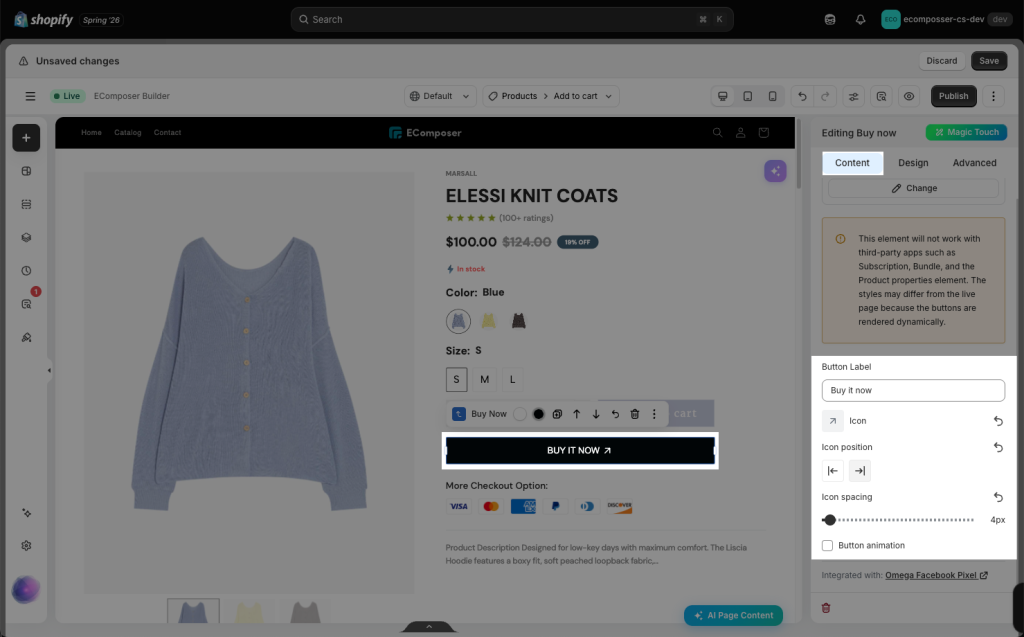
- Button Label: You can change the text of the button here
- Icon: Add an icon to the button to make it more visual and attractive.
- Icon Position: Choose where the icon appears on the button, such as before or after the button text.
- Icon Spacing: Adjust the space between the icon and the button text.
1.2 Add an animation for the button
Enable this option to add an animation effect to the button. Depending on the app settings, available animation effects may include styles such as bounce, shake, pulse, fade, slide, or other motion effects.
2. How to Configure the Design of Buy Now button
2.1 Change Button Design
- Typography: Change the style of the button text.
- Text Shadow: Choose a color > Adjust the position of the shadow using the horizontal and vertical attributes.
- Box Shadow: Add a shadow effect around the button box to make the button stand out more on the product page.
- Height: Set the height of the Buy Now button.
- Text color: Choose the color of the button text.
- Background: Set the background color
- Border: Customize the button border, including border color, width, and style.
- Border radius: Adjust the roundness of the button corners. A higher value will make the button corners more rounded.
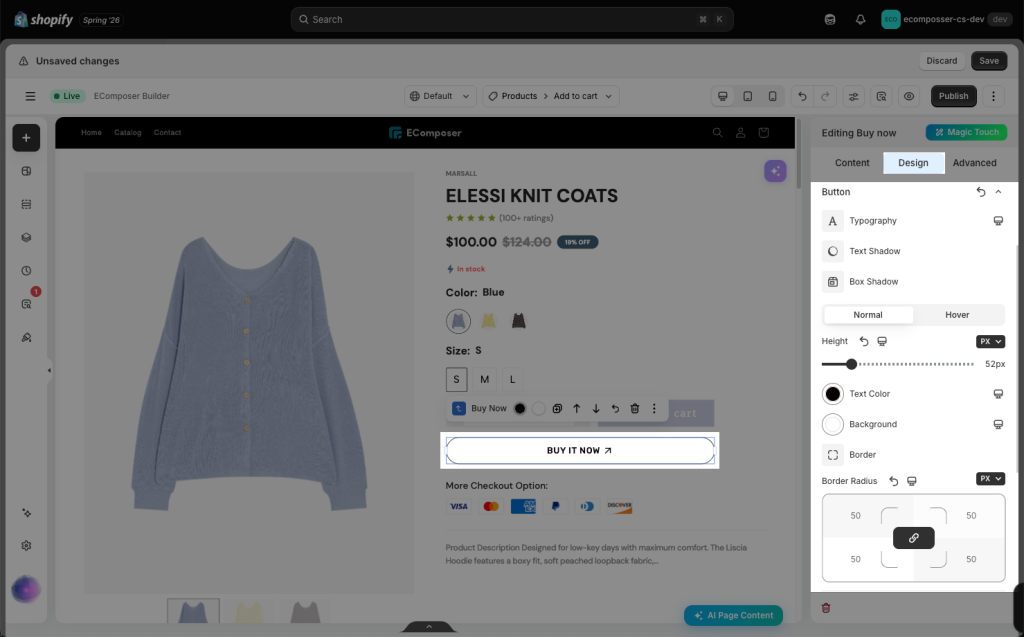
- Hover: Customize the button style when customers hover over the Buy Now button. You can adjust the hover text color, background color, border color, shadow, or other design settings the same as normal mode. Kindly check the video below:
2.2 Change Icon Design
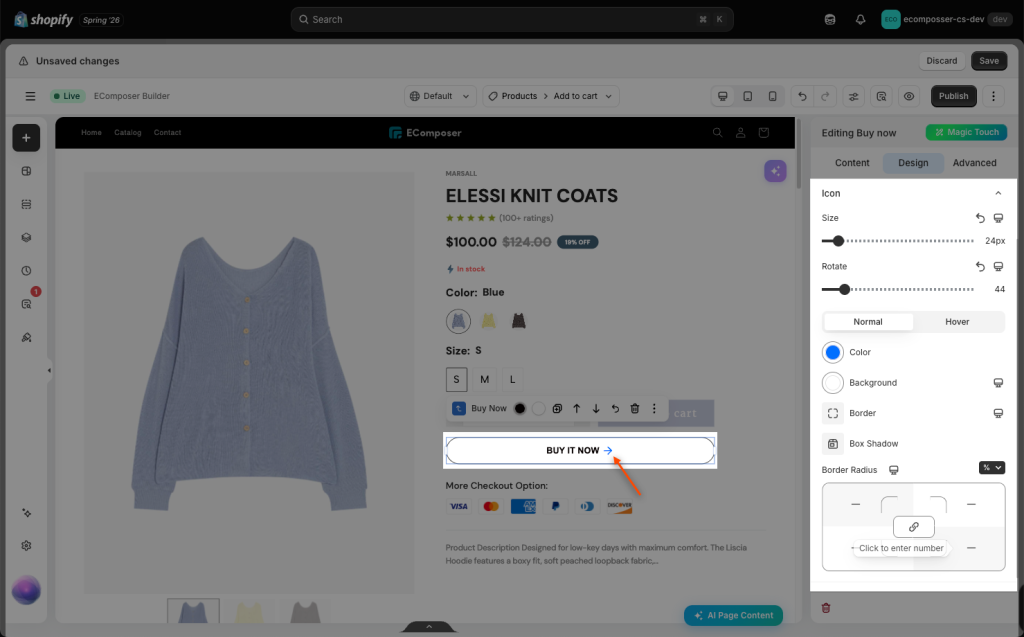
You can mainly change the size and color of the icon.