Masonry
The Masonry Layout is one of the basic elements and plays an important role in your sales page. It is used to display multiple images and is usually shown on the Landing page or Home page to redirect visitors to another promote pages in your store. Let’s go through all the settings you can control for this element.
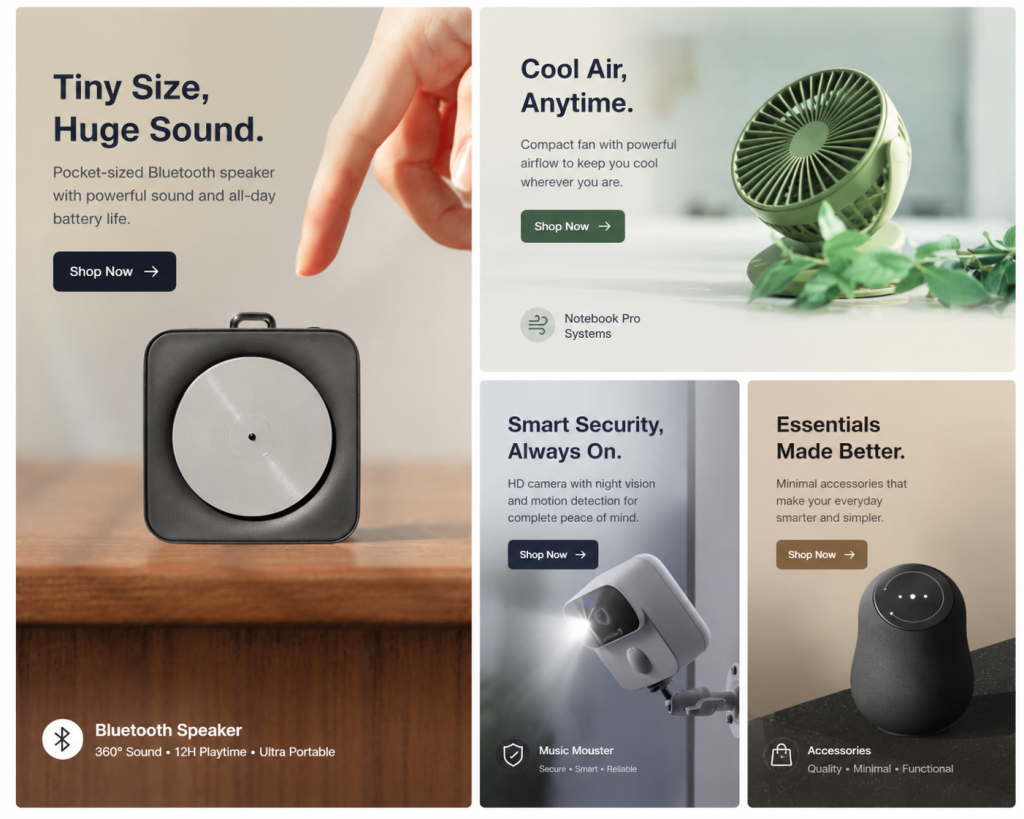
Note: You cannot set a fixed image height using the Height option in the Masonry element because Masonry uses a dynamic column layout and automatically adjusts image sizes based on their aspect ratios.
1. Add Masonry Layout
From the Advanced tab, you can drag and drop the Masonry Layout element wherever you want it to stay.
2. Configure Masonry Layout
2.1. Content
Banner Items
- Banner Name: Enter the name for the banner. This name will be shown in the name option only to let you control the banner more easily. It won’t be shown inside the banner itself on the website.
- Banner Width: Choose the width for the banner here. It will help you change the layout of the whole masonry element. You can adjust it separately on all the devices
Responsive Tip: If you set a banner item to 50% width on Desktop to place two items side-by-side, EComposer automatically scales it to 100% on Mobile to ensure readability. If you want to force a dual-column 50% look on Mobile, you must manually toggle to the Mobile viewport view in the top bar and assign 50% there.
- Content Alignment: This option will arrange the content of the element. Example: Align left, Align center, Align right.
- Horizontal Alignment: This option will arrange the content block of the element horizontally. You can align left, center, and right.
- Vertical Position: Allows you to align the position of the content block within the Banner. You can align it to the top, middle, or bottom.
- Image: You can upload your image or use an image from the library. And put the image link for the banner.
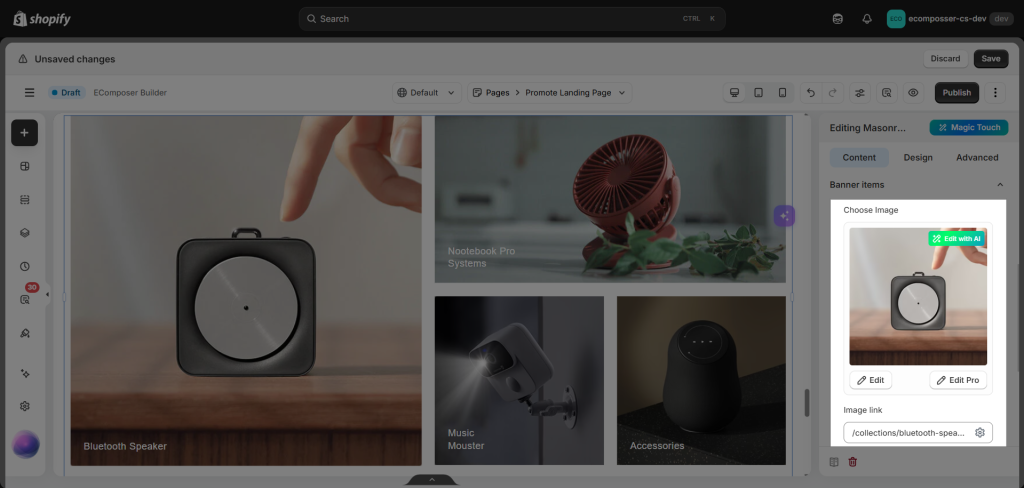
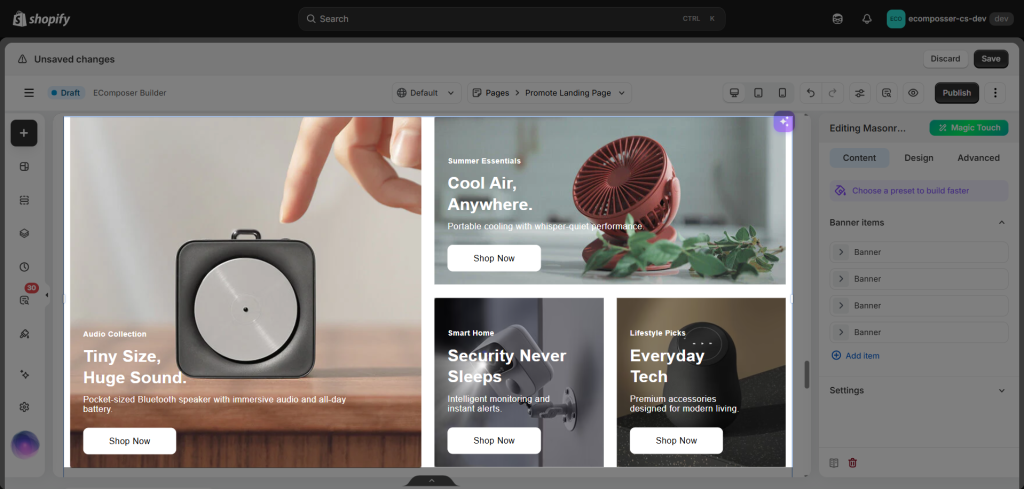
- Content: It includes Heading, Sub heading, and Content fields.
- Button: It includes Button Label, Button Link, Button ID, and Icon fields of the button.
This is the result after you added the content to all the Banner Items:
Settings
- Disable lazyload: Turn off the deferring of the loading of images until they are needed, and make sure all content loads immediately when the page is rendered.
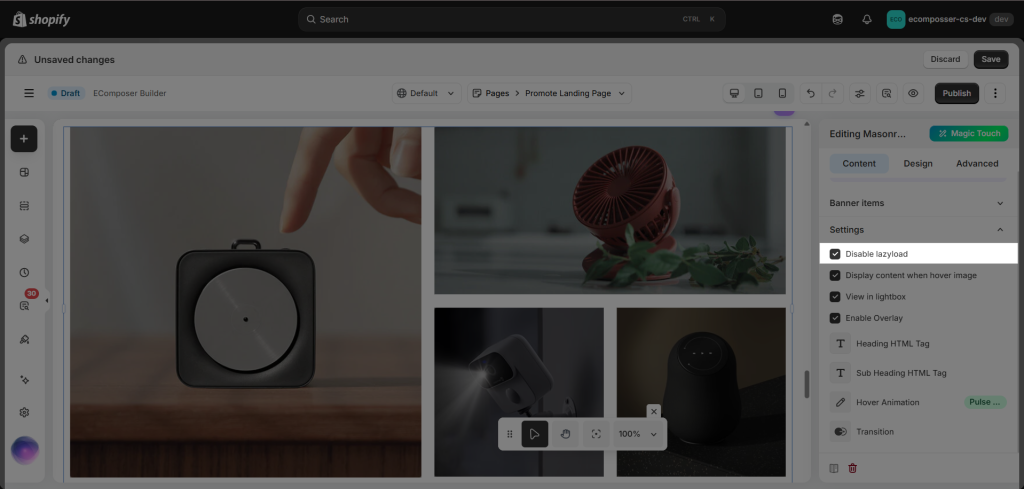
- Display content when hover image: Instead of always displaying content on the image, now you can hover over the image to view content.
- View in lightbox: When clicked, instead of redirecting to a link, the image expands into a pop-up modal. This option will only work on the live site.
- Enable Overlay: Tick this checkbox to enable overlay for the banner. It will help the text show clearly and can be readable. Configured via the Design tab.
- Hover Animation: Choose an animation for the banner when hovering. We have more than 10 animation styles.
- Transition: Allows you to set the transition duration of the border when hovering.
You can add, duplicate, move, and delete the items if you want. Please follow this video below to understand its details:
2.2. Design
General
Spacing: Manually adjust the Margin and Padding. Use this specifically to control the whitespace gaps between your masonry grid pictures to keep them looking clean.
Image
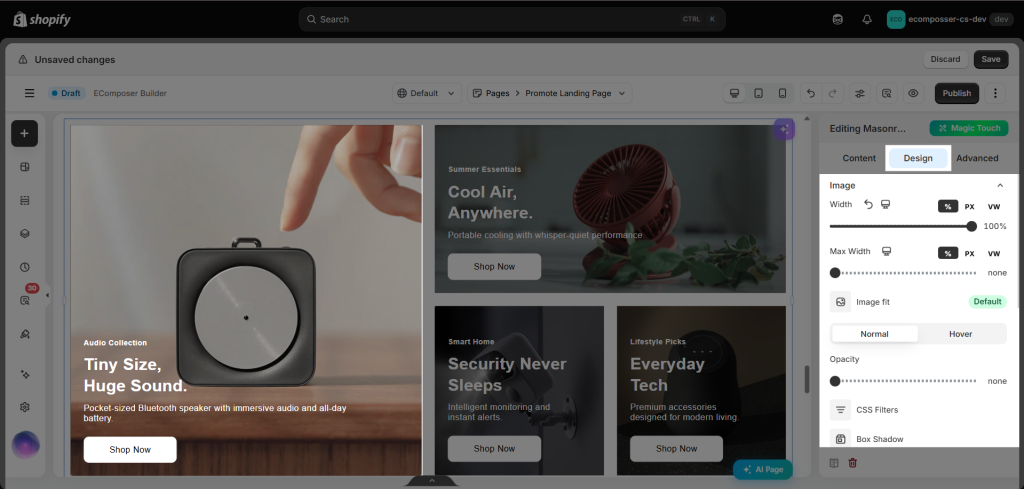
- Width / Max Width / Height: You can control image size per device via these 3 settings.
- Image Fit: Choose how the image is resized to fit into the image container.
- Normal vs Hover Mode: You can configure styles between normal and hover mode with these settings: Opacity, CSS Filter, Border and Border Radius.
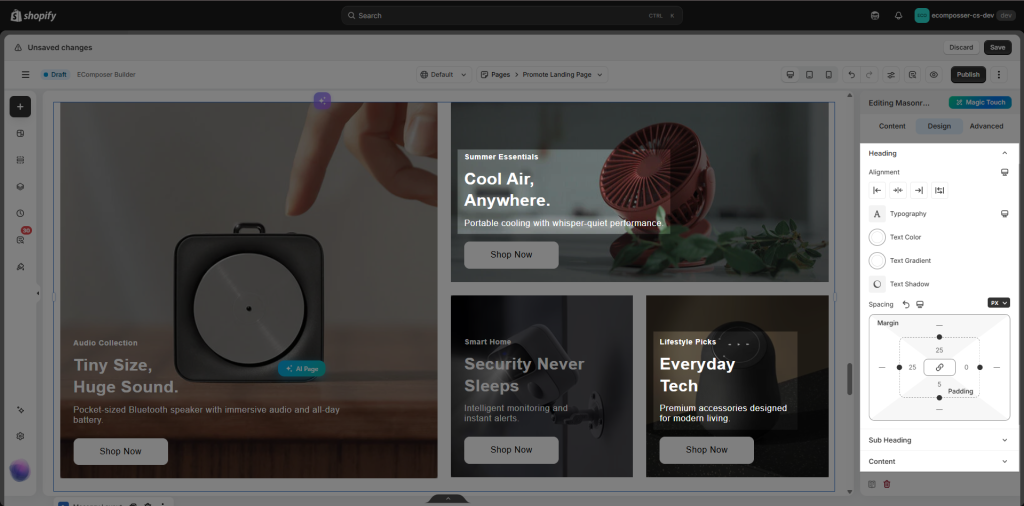
Heading, Sub Heading and Content
You can set Alignment, Typography, Text Color, Text Gradient, Text Shadow, Spacing for Heading, Sub Heading and Content.
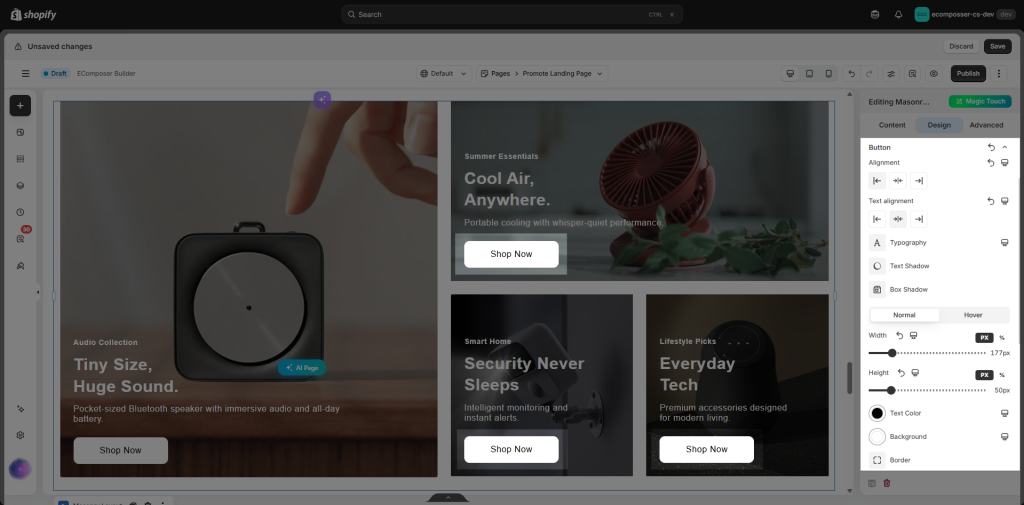
Button
With the Button Design, you can adjust Typography, Text Shadow, Box Shadow.
Also, you can set an effect for a button when you hover over it: You can set up Width, Text color, Background, Border, Border Radius, and Spacing. These settings are only applied when hovering: Hover Animation and Transition Duration.
Icon
Icon Position: Set the Left or Right position within the button label
Icon Customization: You can customize Size, Rotate the icon, and Spacing between Icon and Button Label
The button is only visible to you if you input content for Button Label and Button Link in Banner Item from Content