EComposer Email List
The Email List feature stores all email submissions collected through EComposer’s Contact Form element. This allows you to manage subscribers, identify where each submission came from, and use the data for targeted marketing campaigns.
EComposer automatically organizes email submissions by page, helping you quickly understand which form and which page generated a specific subscriber.
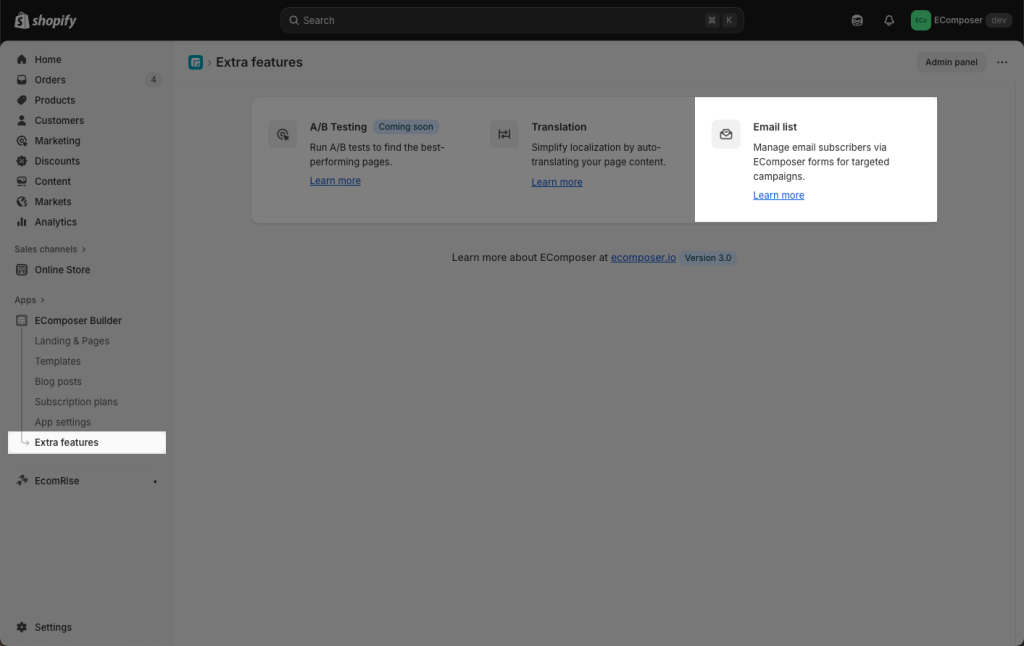
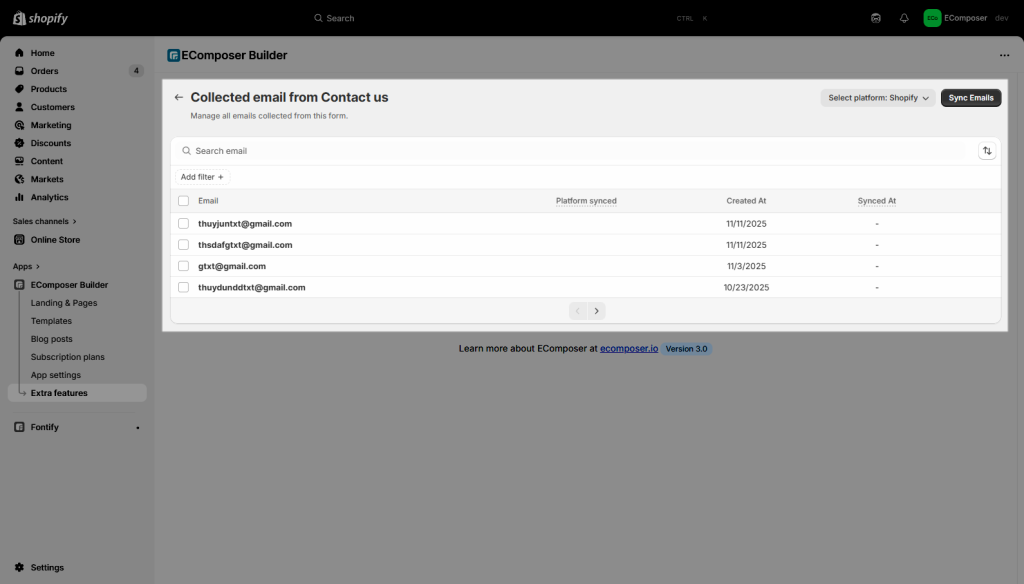
To open this feature, please open App Dashboard -> Extra features -> Email list.
Manage Emails by Page
EComposer groups all collected emails based on the page that contains the form. If multiple pages use forms (e.g., Page A and Page B), each page will have its own list of submissions.
From the Email List dashboard, merchants can:
- View all submitted emails
- Identify which page each submission came from
- Filter emails by page
This page-based structure makes it easy to understand which forms or landing pages perform best.
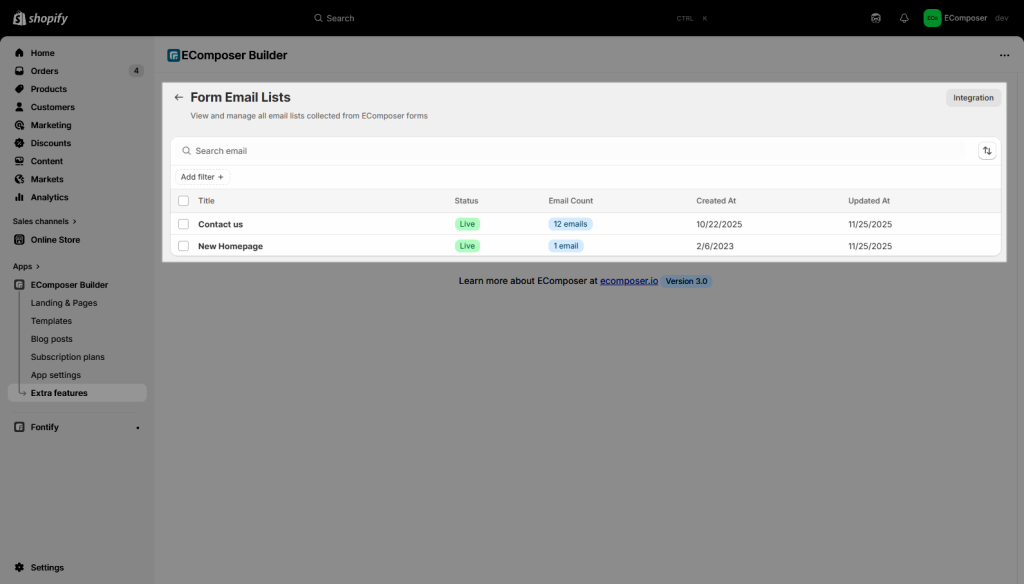
This is the list of emails that have been submitted through all the forms on that page.
Email Sync
EComposer supports syncing collected emails to external platforms to help merchants maintain clean and up-to-date subscriber lists.
Shopify Customers
EComposer can sync collected emails directly to your Shopify Customer list. To sync emails, open the Email List section and select Sync Emails. You can choose to sync Emails from all pages or from the current page only. Additionally, you can select which form fields to include during the sync process, allowing you to control exactly what customer information is sent to Shopify.
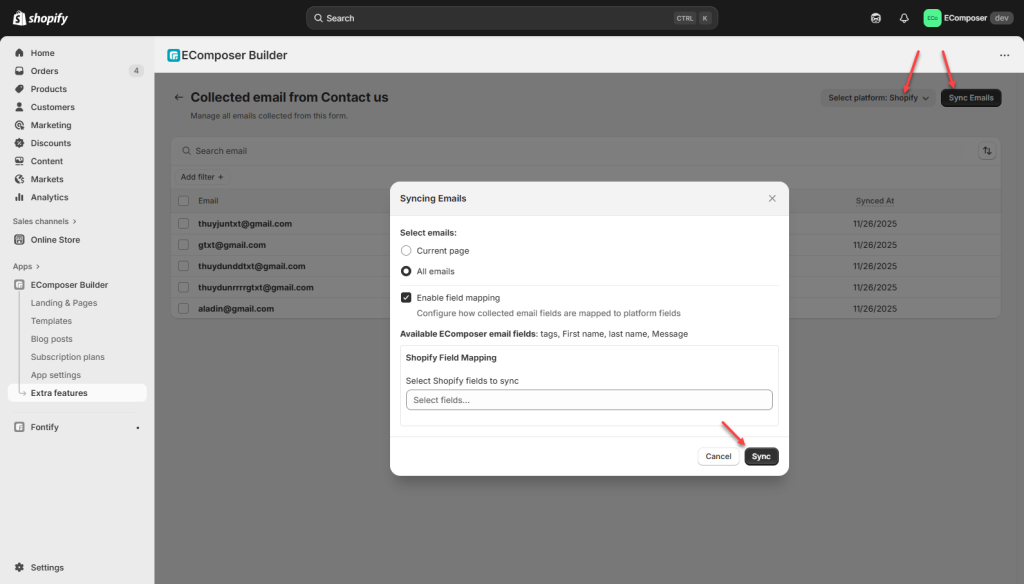
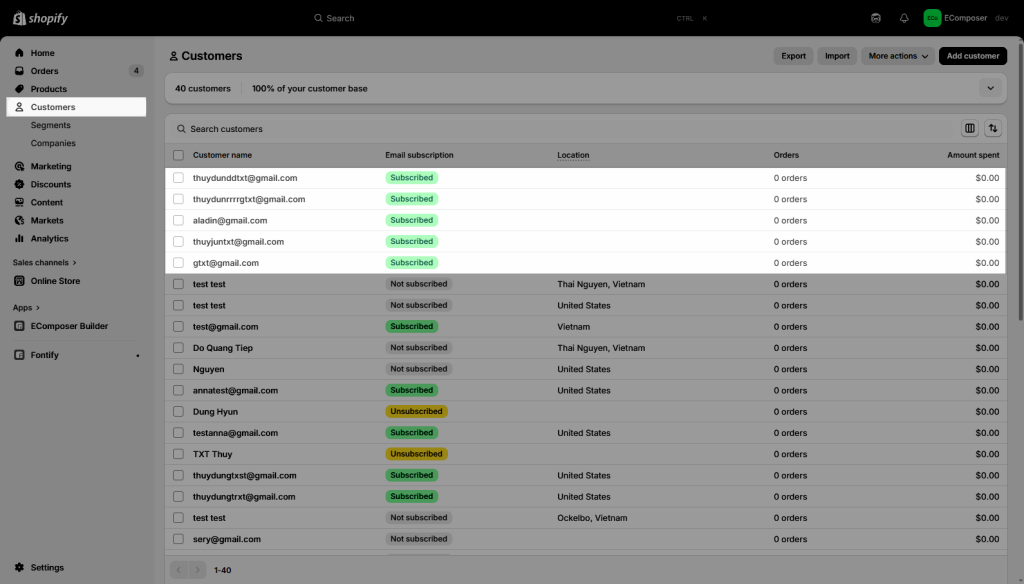
After clicking the Sync button, all emails will be synced to the Customers part in Shopify admin.
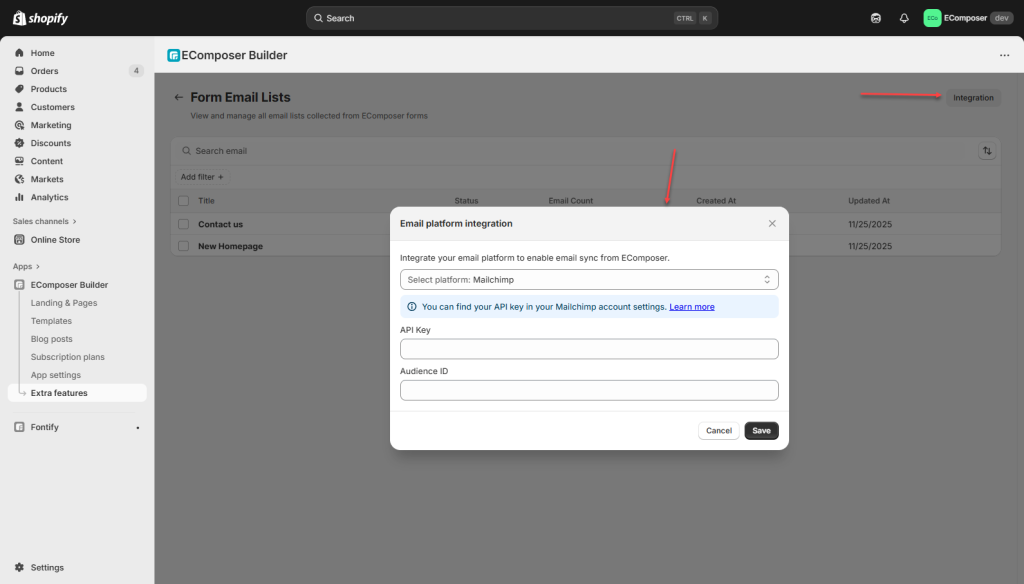
Other Integrations
EComposer also supports syncing to Mailchimp and Brevo. Once connected, new submissions on the selected page will be automatically added to the chosen email list or audience.