

Quick start with EComposer
Following the basic steps is the fastest way to get familiar with any product, and so is EComposer. Please follow the steps required for a new user here.
1. Settings
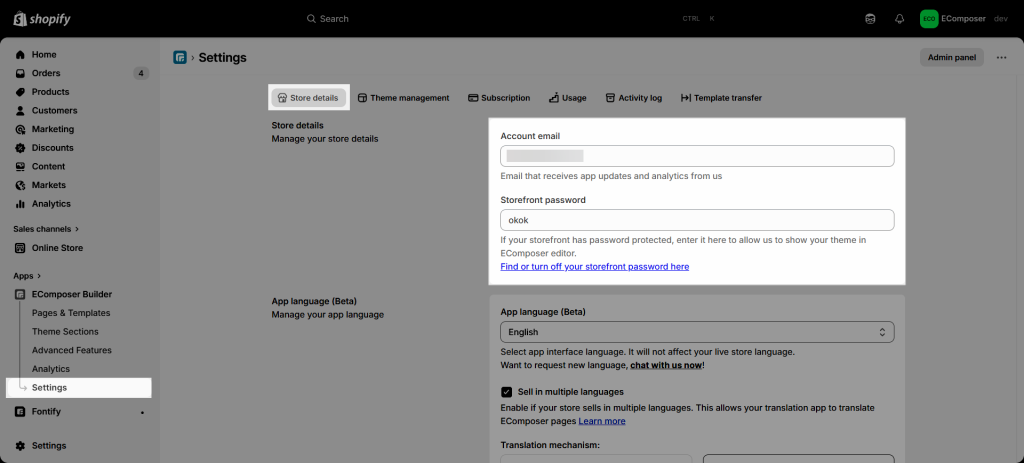
You need to configure two main pieces of information (Email and Store password). This allows EComposer to generate previews and you can view them. To read more about the Storefront password, please refer to this link.
2. Create Your First Page
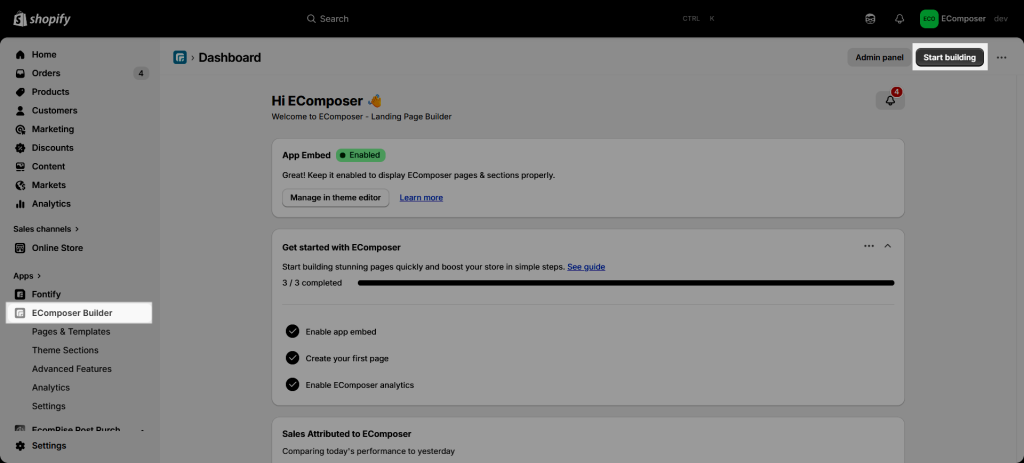
To create a page in EComposer, you can start by clicking the “Start Building” button on the dashboard.
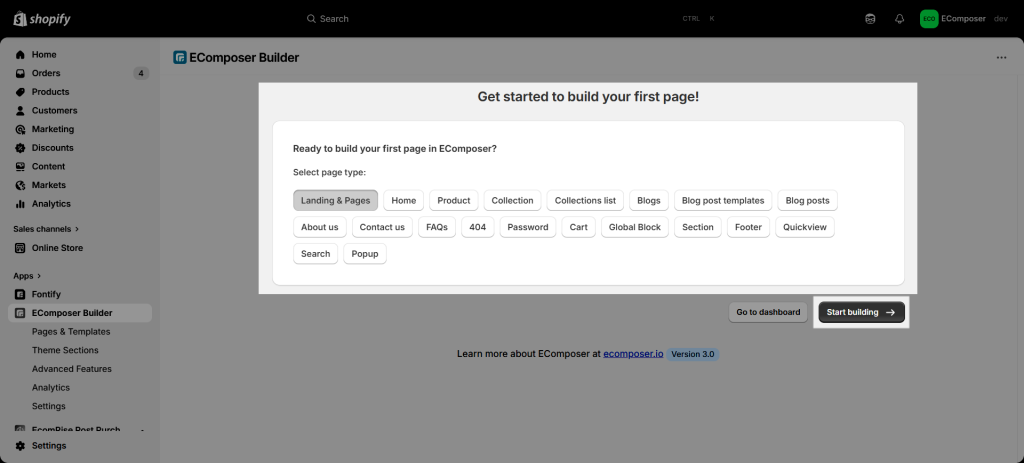
After that, you will be redirected to where you can choose the type of page that you want to create, such as a Home page, Landing page, Product page, Collection page, etc. You can learn about the page types that EComposer supports by clicking here. Once you have selected the page type that you want to build, simply click Start Building to continue editing your page.
From there, you can choose a prebuilt template and insert it to speed up the design process. You can explore our Template Library by clicking here.
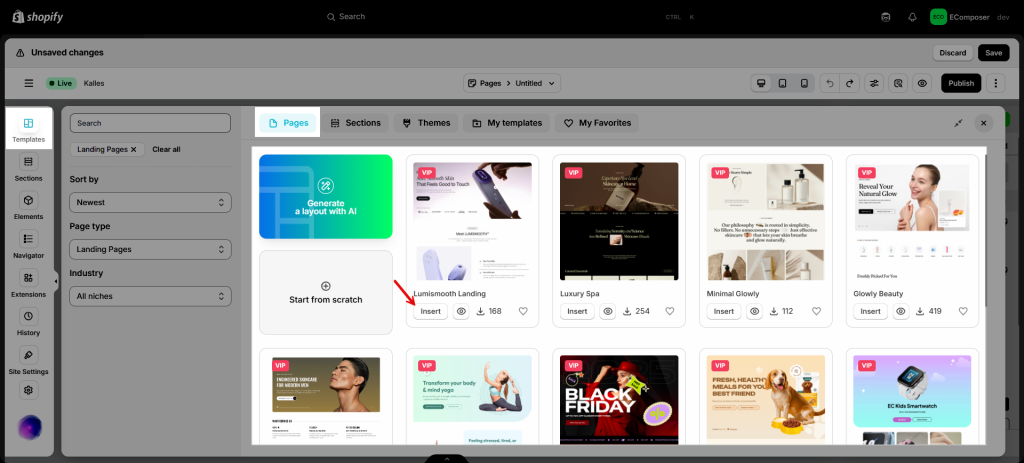
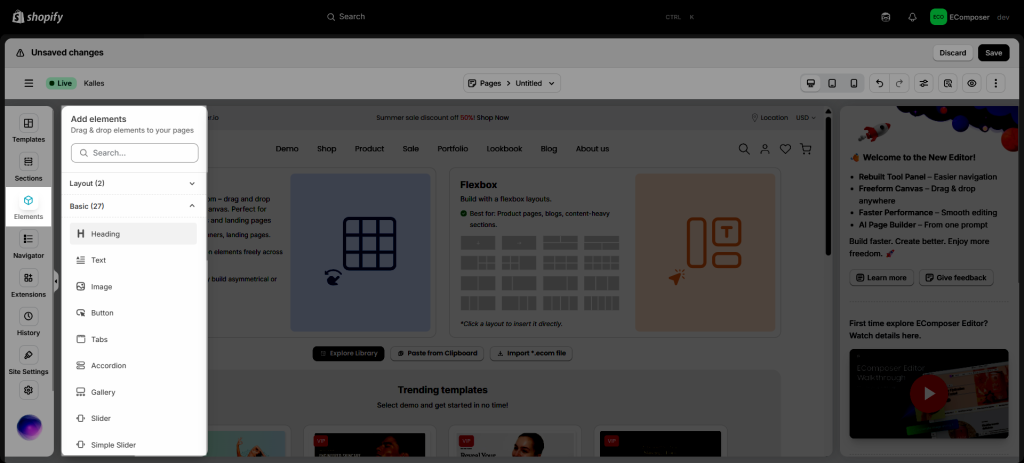
Or start from a blank page, then simply drag and drop elements and customize the content, layouts, images, colors, buttons, and more to match your store design.
3. Site Settings
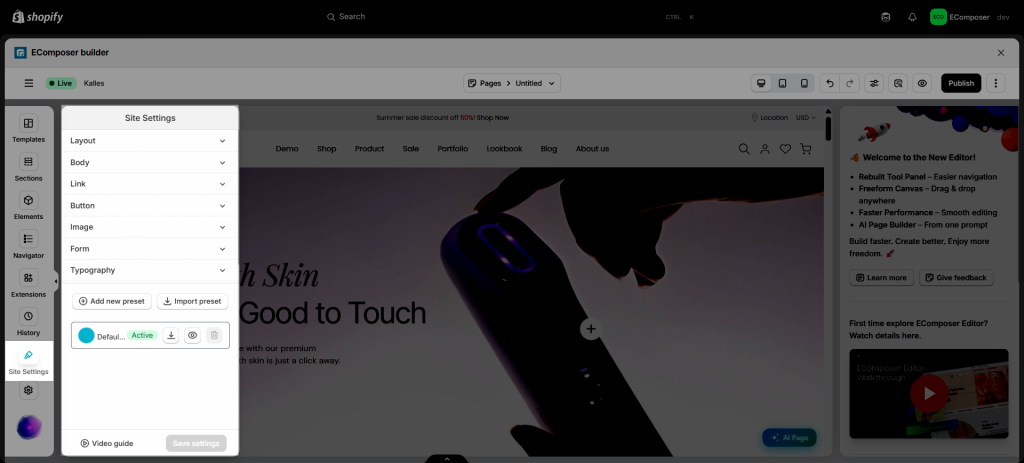
From the Editor, you can easily view the Site settings from the left sidebar, and now you can flexibly change options. Also, there are more very important elements to help you with. Click here to get more details about Site settings.
4. Config Global Color – Global Typography
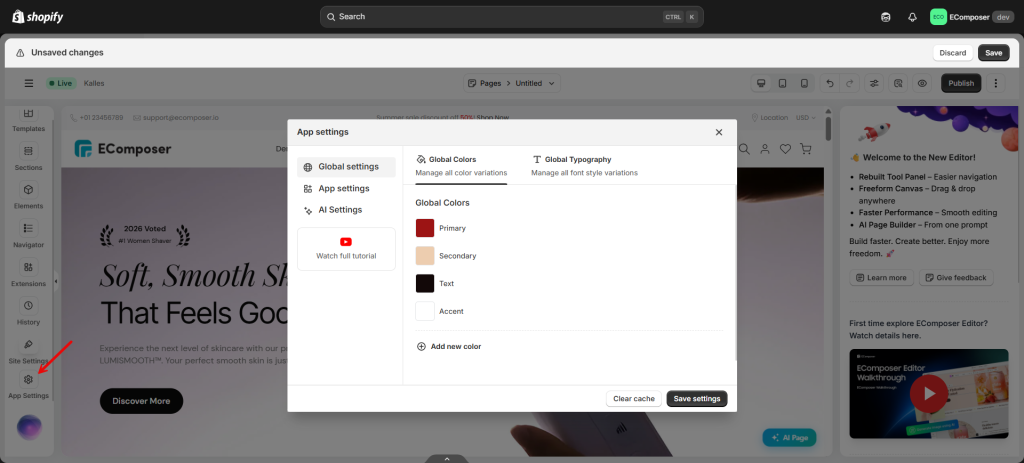
Sometimes, you need to set the main typography Color for the brand that you work on. Those options will help you set the components faster. If you would like to get more details, please click on this link.
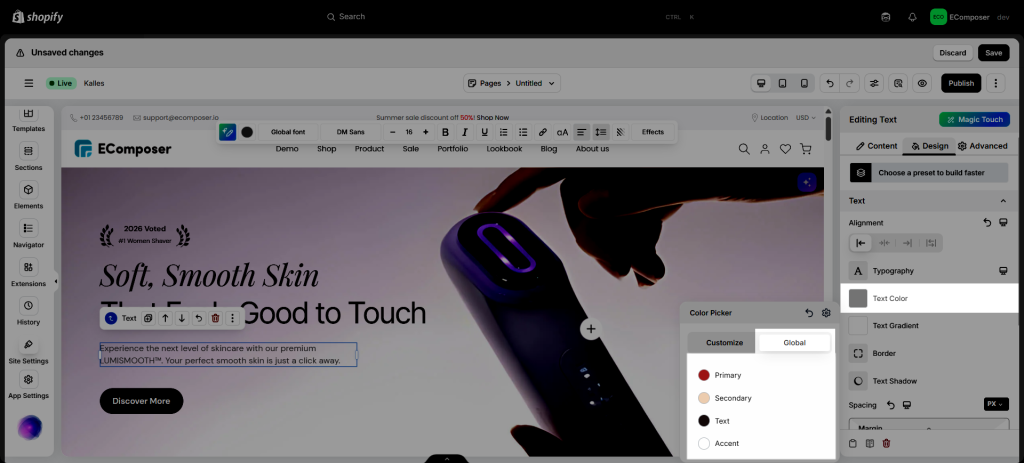
For example: Anywhere that you set the Color/Typography, you can see the options from the Global setting.





2 Comments
Abdel Monem
Hope to success together
Linh Thuy
If you need any further assistance while using the app, please feel free to contact support via live chat.