
Upsell Funnels
The Upsell Funnel features in EComposer allow you to create a sequence of post-purchase offers that are presented to customers after they complete their checkout. Each funnel contains one or more post-purchase offers with customizable rules, products, and display conditions. When a customer completes an eligible purchase, the funnel evaluates the conditions and displays the appropriate offer. If the customer accepts an offer, the additional item is added to their existing order without requiring them to complete checkout again.
The goal is to increase the average order value (AOV) by offering relevant products before the customer reaches the order confirmation page.
Use Upsell Funnels to:
- Recommend complementary products related to the customer’s purchase.
- Increase revenue with one-click post-purchase upsells.
- Create targeted offers based on products, collections, cart value, or customer conditions.
- Deliver personalized post-purchase experiences that improve conversion rates.
1. Setup guide
There are 3 requirements that need to be completed in the Setup Guide before you start creating your offer:
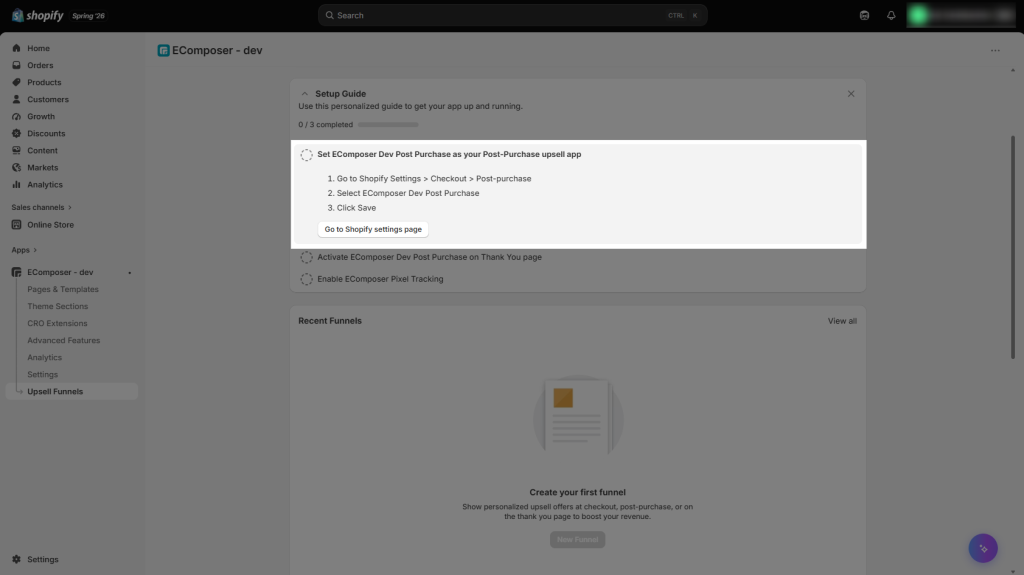
1.1. Set EComposer Post Purchase as your Post-Purchase upsell app
- Step 1: You can follow the provided steps to complete the setup manually, or click the Go to Shopify settings page button to be redirected to the page where you can complete the setup.
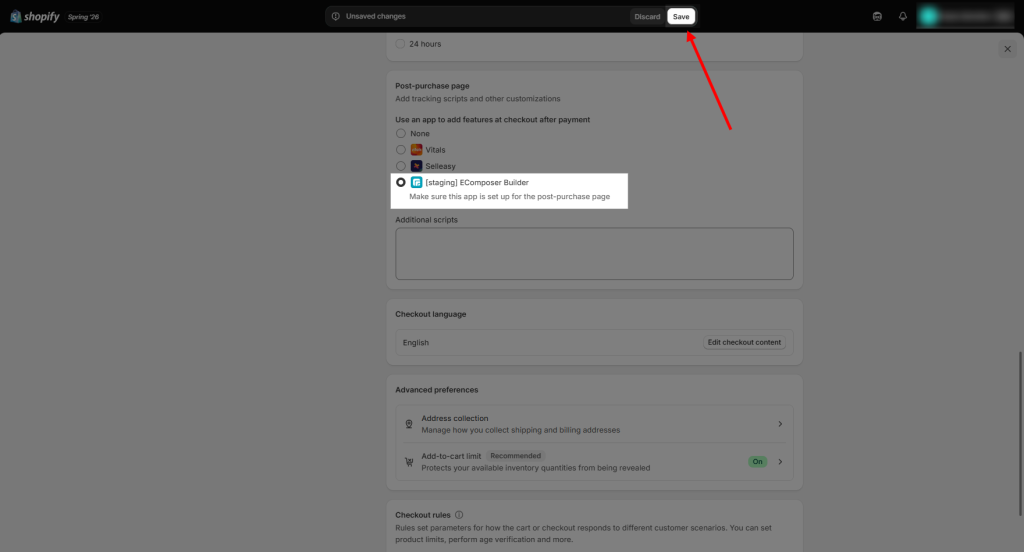
- Step 2: Choose EComposer Builder app > Save
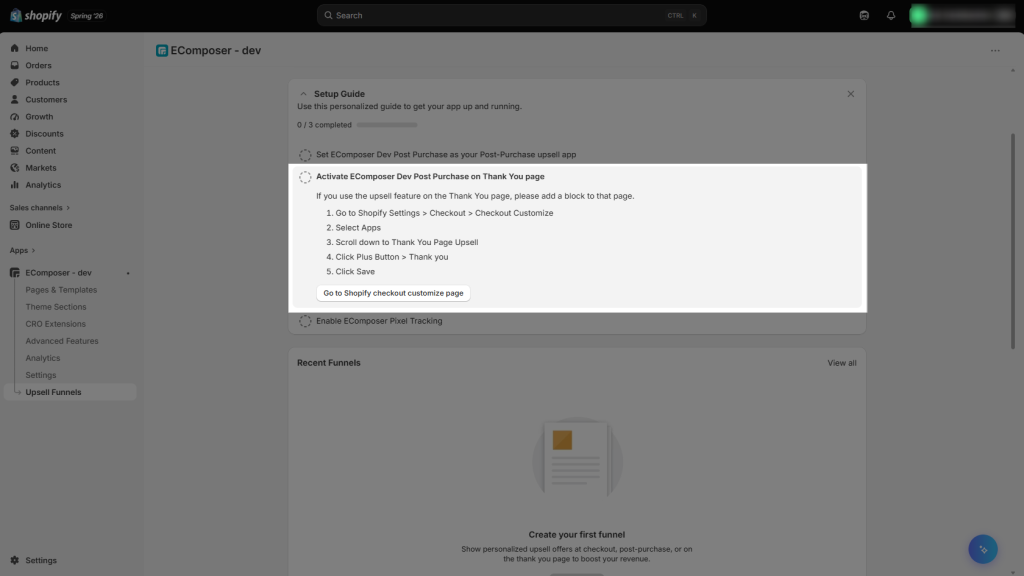
1.2. Activate EComposer Dev Post Purchase on Thank You page
- Step 1: You can follow the provided steps to complete the setup manually, or click the Go to Shopify Checkout Customise page button to be redirected to the page where you can complete the setup.
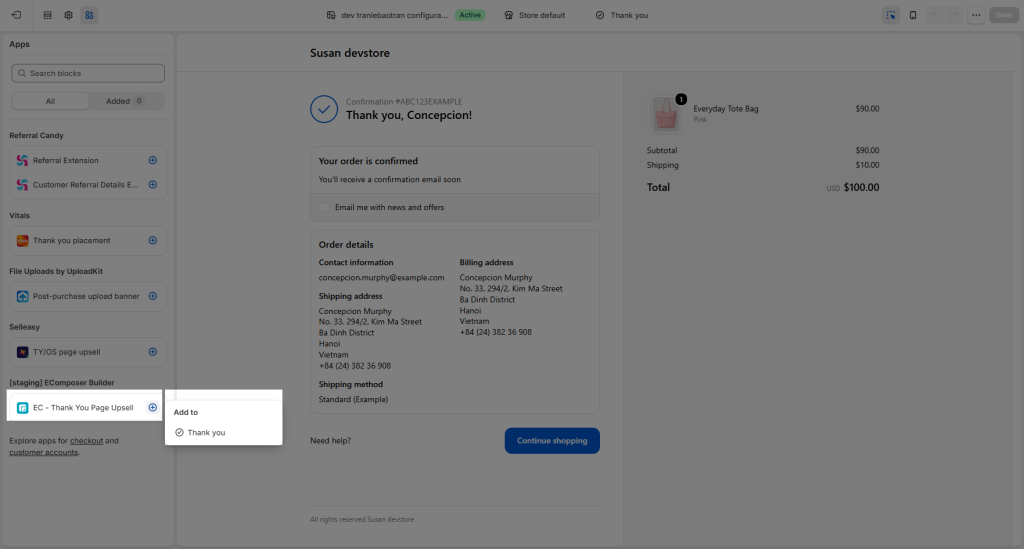
- Step 2: Click the “+” icon > then select Thank You to allow EComposer to complete the setup for the Thank You page.
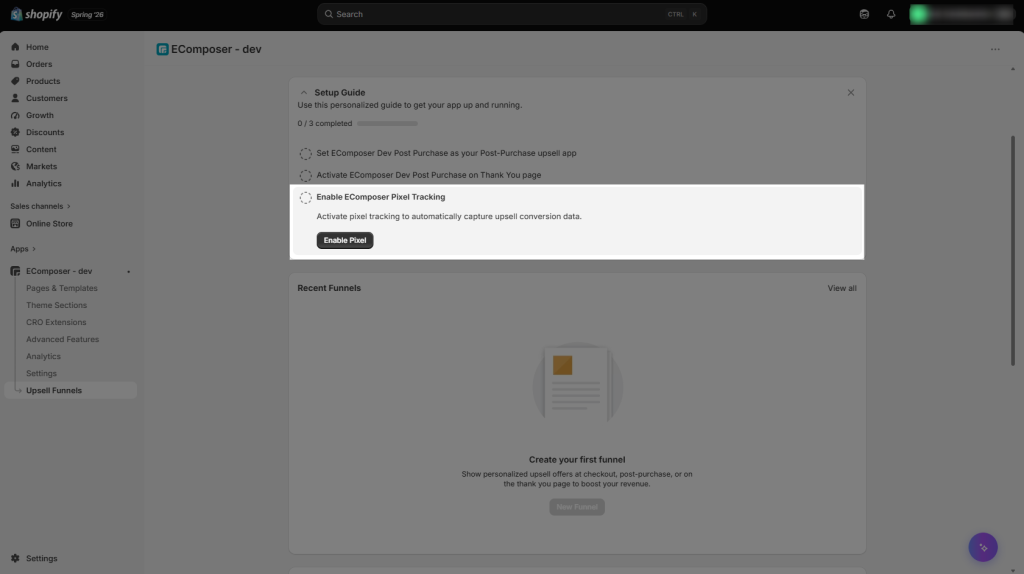
1.3. Enable EComposer Pixel Tracking
Enable EComposer Pixel Tracking to collect data on customer interactions with your post-purchase offers. This helps track offer views, acceptances, and other events for reporting and analytics. This will work with the EComposer Analytics feature.
2. Create Upsell Funnels
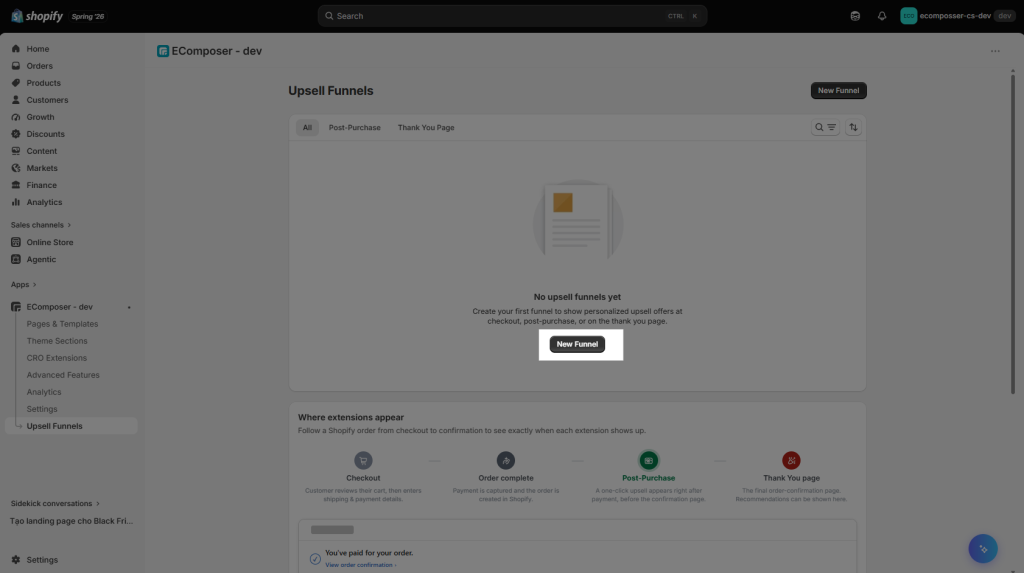
Once you’ve completed the setup, you can click the Upsell Funnels button to start creating your first funnel. From there, you’ll be able to choose whether you’d like to Build a post-purchase offer or Build a thank you offer. Simply click the option you need to start building.
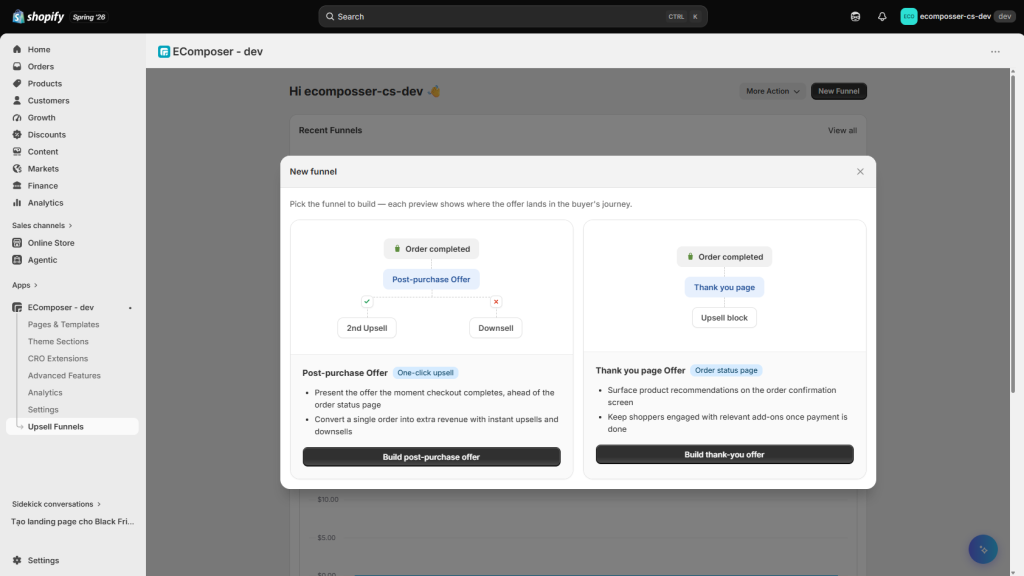
There are two types: Post-purchase and Thank you page offers.
| Post-Purchase Offer | Present a one-click upsell to customers immediately after they complete checkout, helping increase your average order value (AOV). | Displayed immediately after checkout, before the Thank You page. |
| Thank You Offer | Engage customers with product recommendations, coupon codes, or promotional content to encourage additional or future purchases. | Displayed on the Thank You page after the customer’s order has been completed. |
2.1. Build Post-purchase offer
This guide will help you set up and customize your Post-Purchase offer. Follow each step in order to ensure your offer is configured correctly and ready to display to your customers.
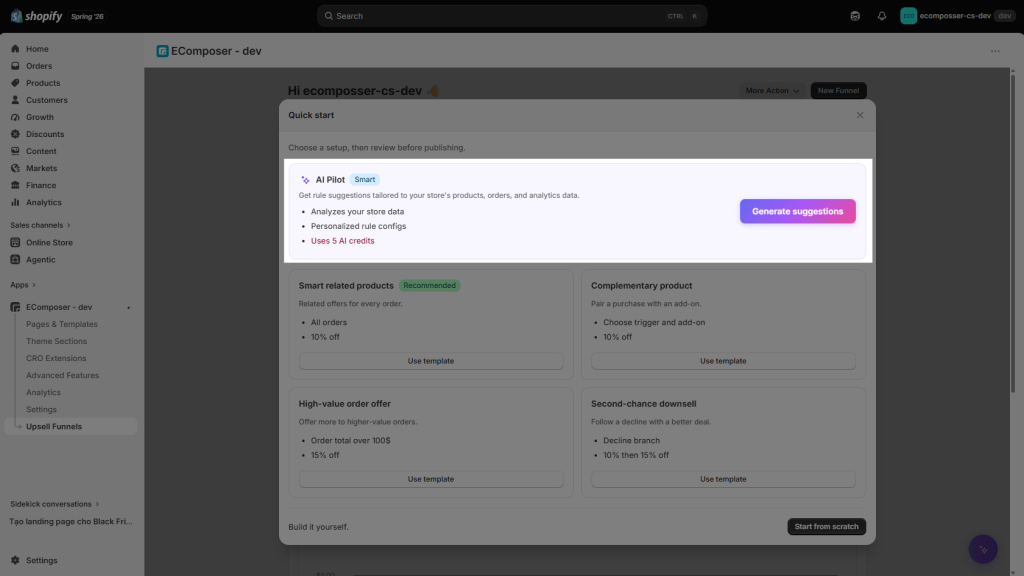
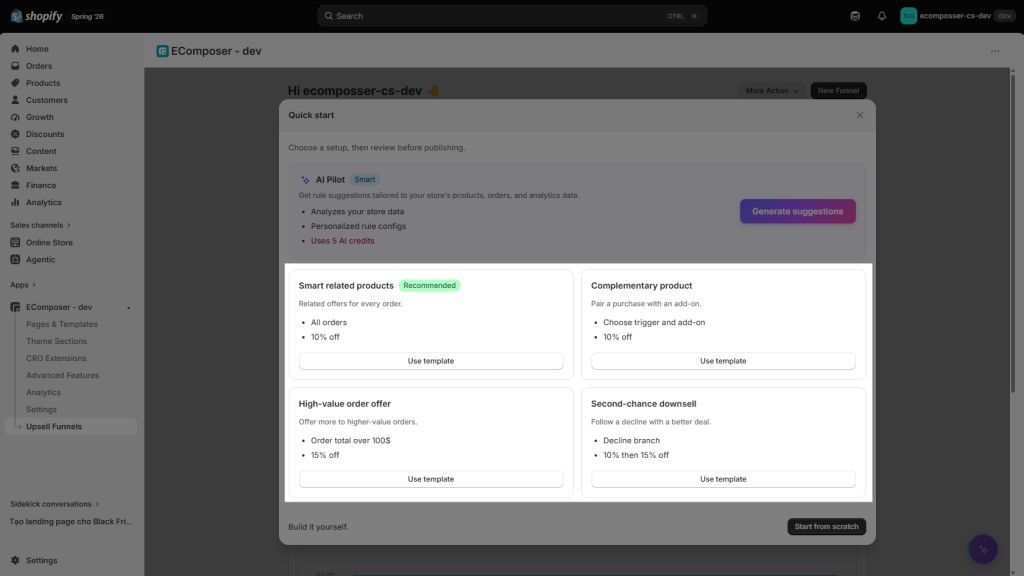
Step 1: Choose a setup before starting, then review before publishing. It means you will be able to choose between using the AI pilot to start making the offer, using the pre-built offer templates already provided, or creating a new offer from scratch.
- AI Pilot: It helps you create smarter post-purchase offers by suggesting targeting rules based on your store’s products and analytics data. It recommends which products to offer and when to show them, making it easier to build effective upsell funnels.
Note: Using AI Pilot consumes credits from your current subscription plan. Each time AI Pilot generates offer suggestions, the required credits will be deducted from your available plan credits. Learn more in All About EComposer AI Credits
- Pre-built offer templates – each with its own predefined conditions.
- Smart Related Products: Recommends products related to the customer’s purchase.
- High-Value Order Offer: Targets customers with high-value orders using premium or exclusive offers.
- Complementary Products: Suggests products that naturally pair with the items the customer purchased.
- Second Chance Downsell: Displays a lower-priced or alternative offer if the customer declines the first upsell.
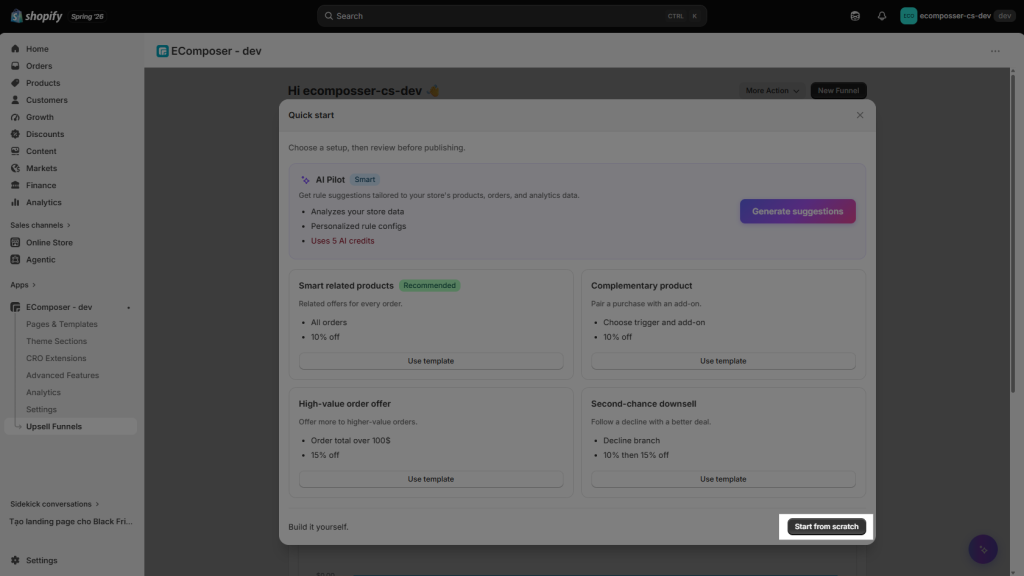
- Start from Scratch: Lets you create a post-purchase offer from an empty template. You have full control to choose the products, set the display conditions, and customize the offer to fit your needs.
Step 2: Set up the Post Purchase rule (If you choose one of the 4 recommended templates provided by our app, you won’t need to configure these settings manually again. Just give them a quick review to make sure everything looks good before proceeding.)
Then here you can see 3 key configurations that you must set up: Choose Condition – Edit Product – Edit Design
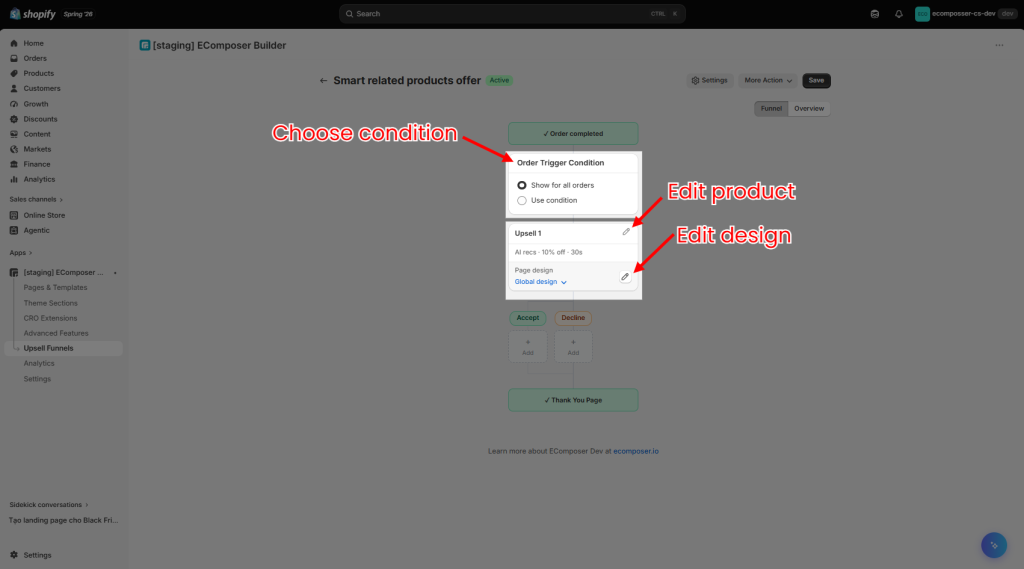
Choose Condition: This decides when your upsell shows.
- Show for All orders: Every customer sees your upsell whenever they place an order.
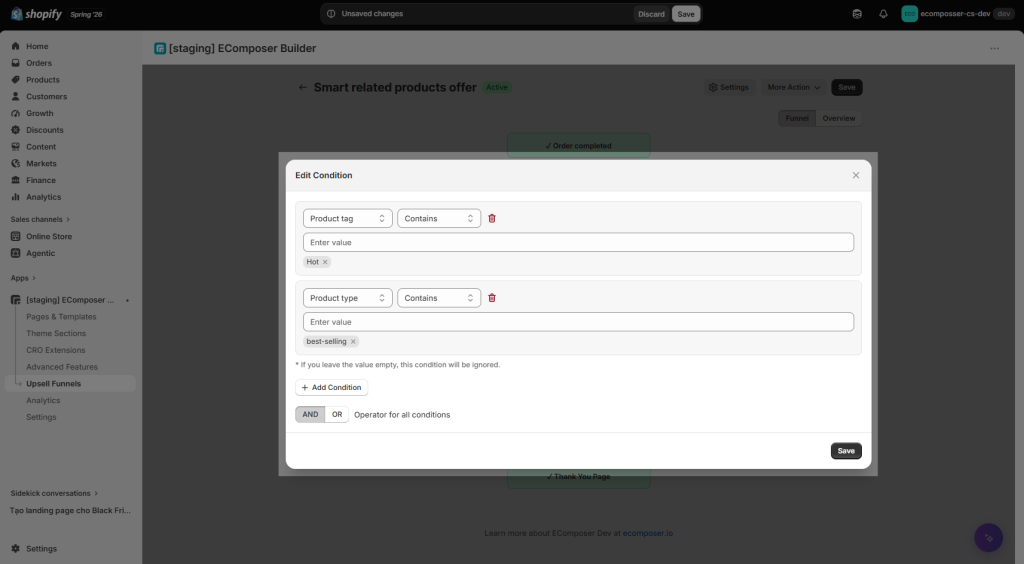
- Use Condition: Customer can see the upsell pop-up when they order specific products/ collection/ customer/ order total amount. You can also define one or 2…or more conditions to match products based on many details, including product title, tag, type, and vendor.
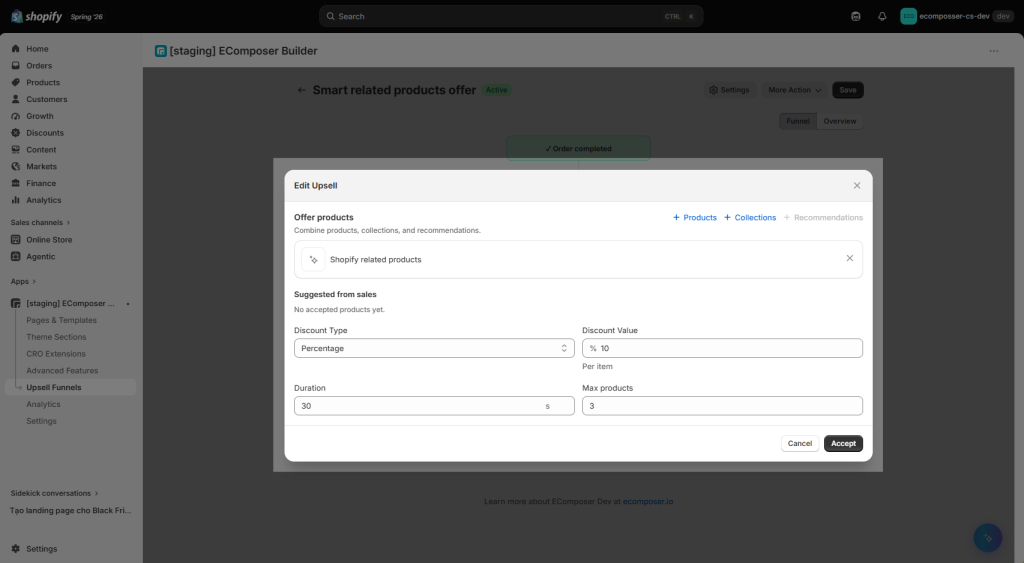
Edit products with:
- Select offer products: You can pick products manually, use collections, or the AI recommendations.
- Discount Type: Select whether the discount is a Percentage or a Fixed Amount.
- Discount Value: Specify the value of the discount that customers will receive.
- Display Duration: Set up a specific time for the countdown timer (“Offer ends in:” ) to display on the pop-up.
- Limit products: Limit the number of products that customers can see in the pop-up.
Edit Design with:
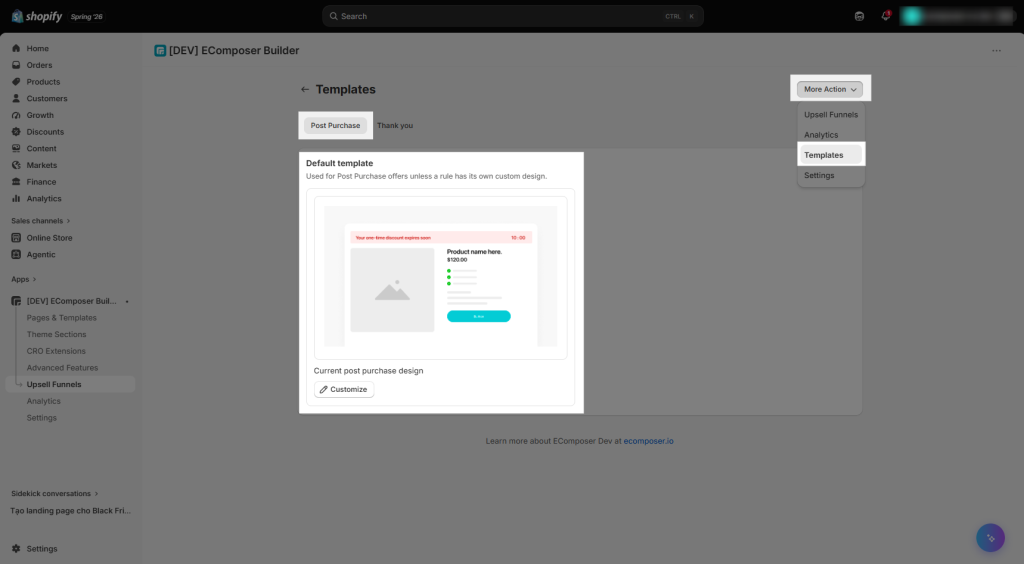
- Global Design: It will use the Default template, which has already been designed and can be used as the layout for your offer.
- Custom Design: Lets you customise your post-purchase layout by hitting the “Customize” button.
2.2. Build Thank You Offer
Create a Thank You Offer to engage customers with product recommendations, coupon codes, or promotional content after their purchase. Simply follow the step-by-step instructions below to create and customize.
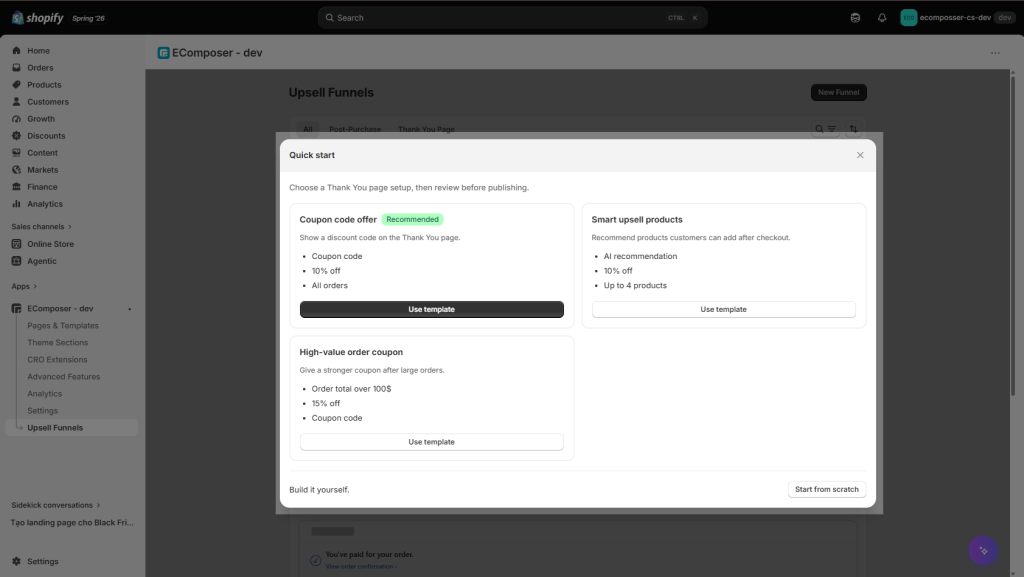
Step 1: Choose from ready-made offer templates for your Thank You page. Each template is designed for a specific marketing goal and can be customized to match your condition.
- Coupon Code Offer: Display a coupon code on the Thank You page to encourage customers to make another purchase.
- Smart Upsell Products: Recommend products related to the customer’s recent purchase to increase additional sales.
- High-Value Order Coupon: Reward customers with high-value orders by displaying a special coupon code on the Thank You page, encouraging future purchases.
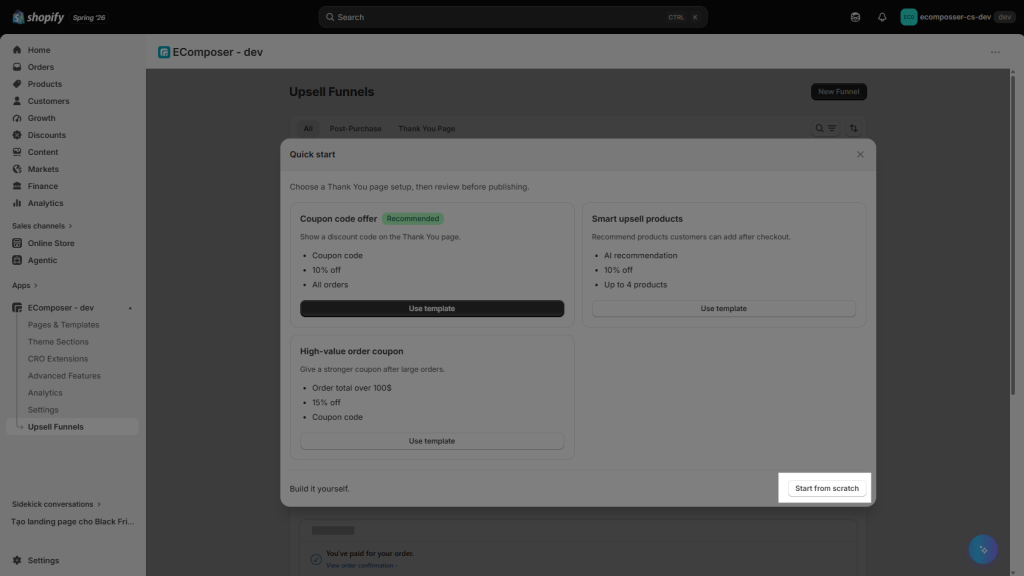
- Start from Scratch: Lets you create a Thank You offer from an empty template. You have full control to choose the products, set the display conditions, and customize the offer to fit your needs.
Step 2: Set up the Thank You page. (If you selected one of the 3 recommended templates provided by our app, these settings will already be configured for you. Kindly review them to ensure everything looks correct before proceeding.)
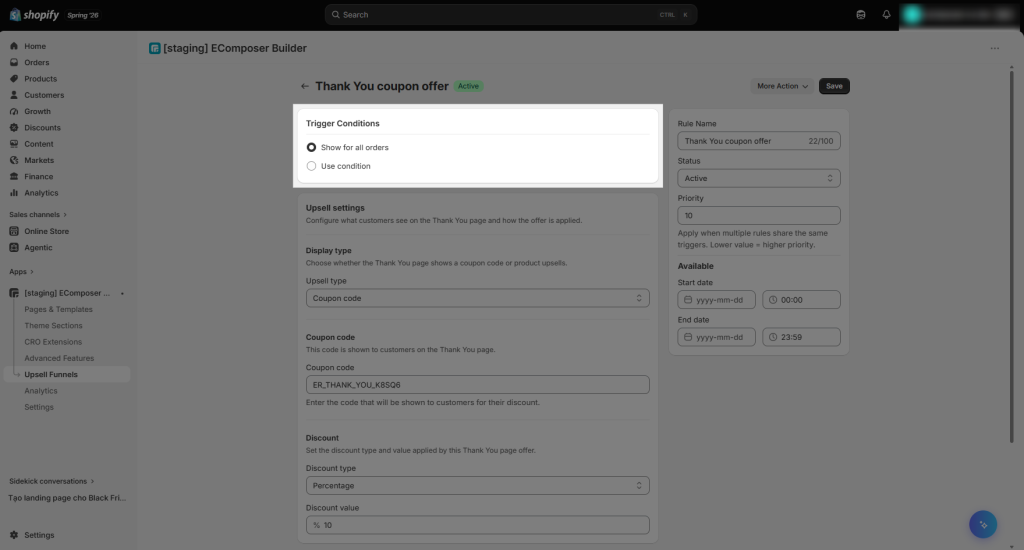
- Trigger Conditions: Determine when your Thank You page offer is displayed to customers.
- Show for all orders: Displays the Thank You page offer to every customer after checkout.
- Use condition: Displays the Thank You page offer only when the specified conditions are met.
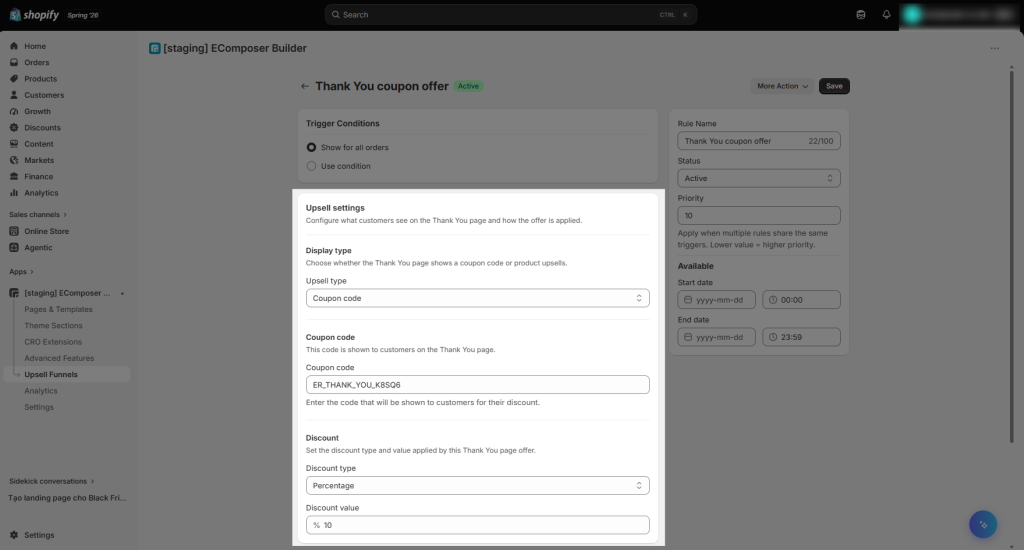
- Upsell Settings: Configure what customers see on the Thank You page and how the offer is applied.
- Upsell Type: Choose what to display on the Thank You page, such as a Coupon Code or Upsell Products
- Coupon Code: Display a discount code on the Thank You page.
- Upsell Products: Display one or more recommended products on the Thank You page.
- Coupon Code: This code is shown to customers on the Thank You page.
- Coupon Code field: Enter the discount code that will be displayed to customers on the Thank You page.
- Discount: Set the discount type and value applied by this Thank You page offer.
- Discount Type: Select whether the discount is a Percentage or a Fixed Amount.
- Discount Value: Specify the value of the discount that customers will receive.
- Template setting: Choose which template to use for this Thank You page offer.
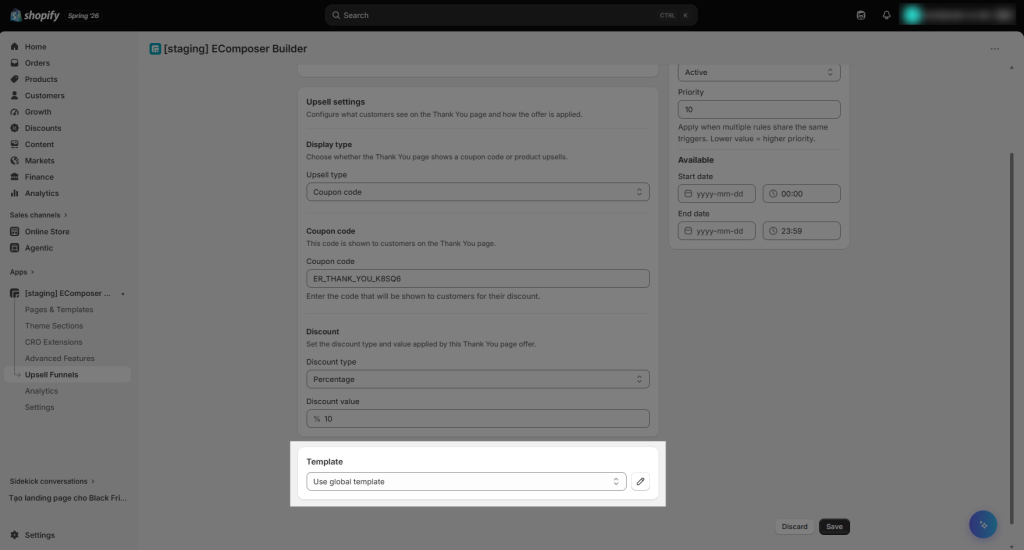
You can choose between Use Global Template and Use Custom Template.
- Use global template: It will use the Default template, it already been designed and can be used as the layout for your offer.
- Use Custom Template: Lets you customise your thank you offer layout by hitting the “Edit” button.
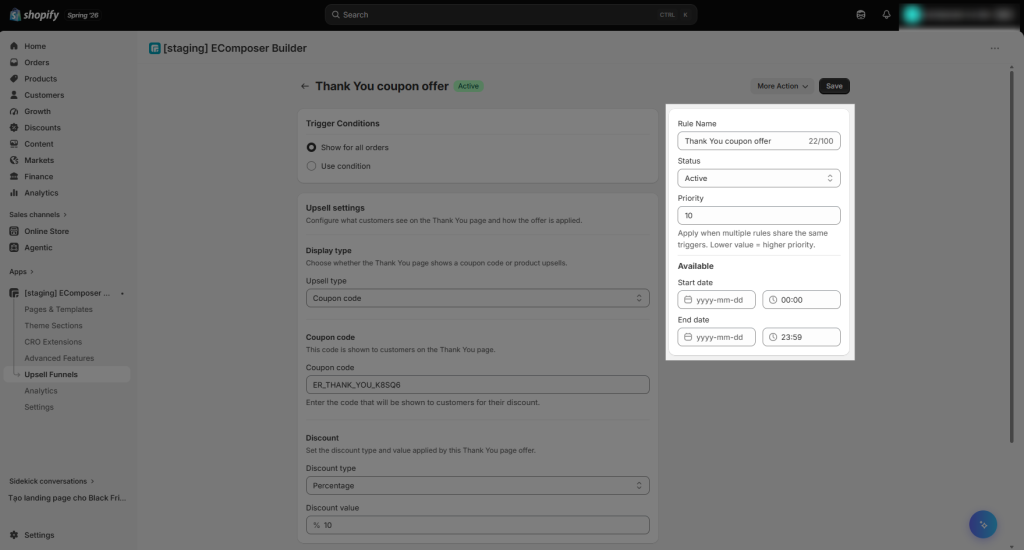
- Rule Name: Enter a name for the Thank You page offer to help you identify it.
- Status: Set the rule as Active or Inactive.
- Priority: Determine the order in which this rule is evaluated when multiple rules match. Lower numbers have higher priority.
- Start Date: Set the date and time when the rule becomes active.
- End Date: Set the date and time when the rule expires and is no longer displayed.
3. Templates
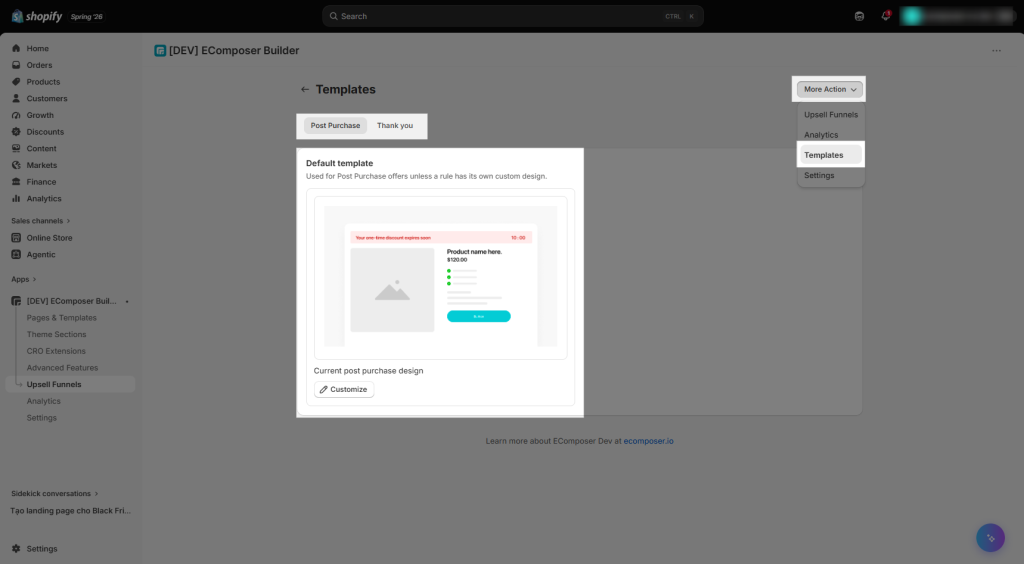
The Templates section lets you customize how your Post-purchase Offers and Thank You Page Offers appear to customers. EComposer provides separate templates for each offer type, allowing you to create different shopping experiences for different stages of the customer journey.
You can add, remove, reorder, and customize supported components to match your brand. Since these offers are rendered inside Shopify Checkout, customization is limited to the options supported by Shopify Checkout Extensions. Custom CSS, HTML, JavaScript, and modifications to the Shopify checkout layout are not supported.
3.1. Post-purchase layout customisation
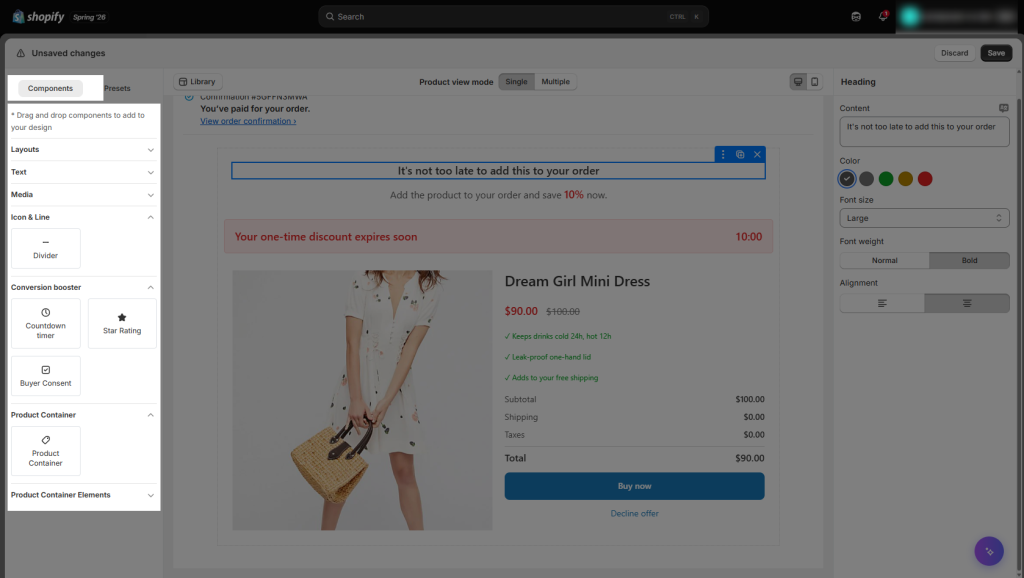
Components: Here you can see the available components to build your Post-Purchase offer. Drag/drop the components you need, then customize their content and design to create an offer that matches your store.
The Post-Purchase Editor provides different components that you can add to your offer to build and customize its layout. Here are a few main elements that you may need to use:
- Columns: Create multiple columns to arrange content side by side.
- Text: Add paragraphs, descriptions, or other text content.
- Heading: Add titles or headings to highlight important information.
- Image: Add an image to make your offer more visually engaging.
- Divider: Add a separator between different sections of your offer.
- Buy Consent: Allow customers to agree to the required terms before accepting the offer.
- Product Image: Display the image of the product being offered.
- Pricing: Display the product’s price and discount information.
- Button: Add a call-to-action button that customers can use to accept or decline the offer.
- Product Title: Display the name of the product being offered.
- Product Description: Display information or details about the offered product.
| Setting | Available Options | Description |
|---|---|---|
| Rating | Judge.me, Loox, Yotpo, Stamped, Okendo, Junip, Reviews.io, Opinew | Select the review app that your store uses to display product ratings and reviews in the Post-Purchase offer. |
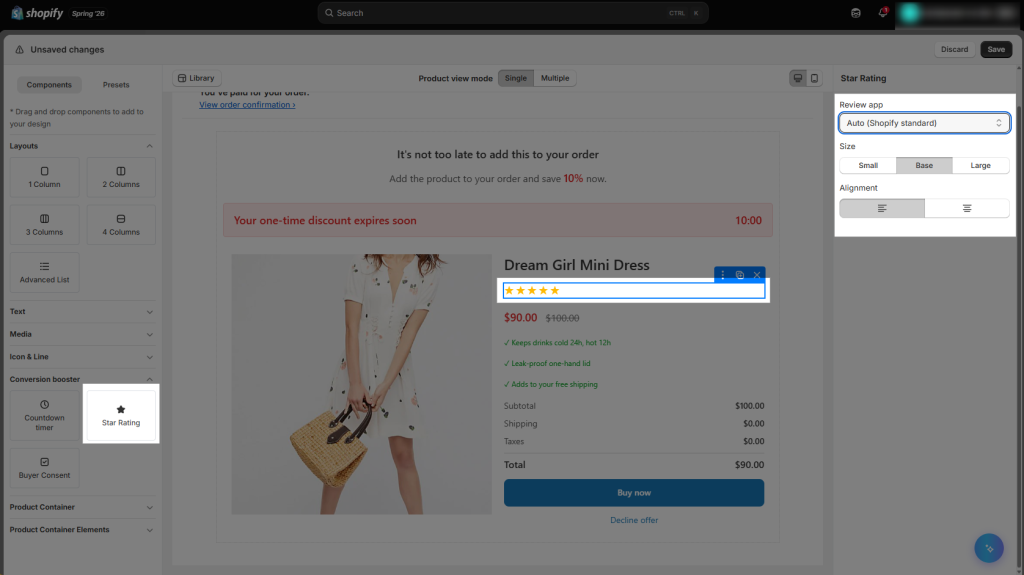
You can also customize the appearance of your Post-Purchase offer by adjusting the alignment, colors, and font size via the options provided on the right-hand side (right tab)
| Design Setting | Available Options | Description |
|---|---|---|
| Color | Grey, Green, Brown, Red, etc. | Choose from the available preset colors. Custom HEX colors cannot be entered. |
| Font Size | Small, Medium, Large, X-Large | Choose the font size that best fits your content. |
| Font Weight | Normal, Bold | Choose whether the text appears in normal or bold weight. |
| Alignment | Left, Center | Choose how the text is aligned within the offer. |
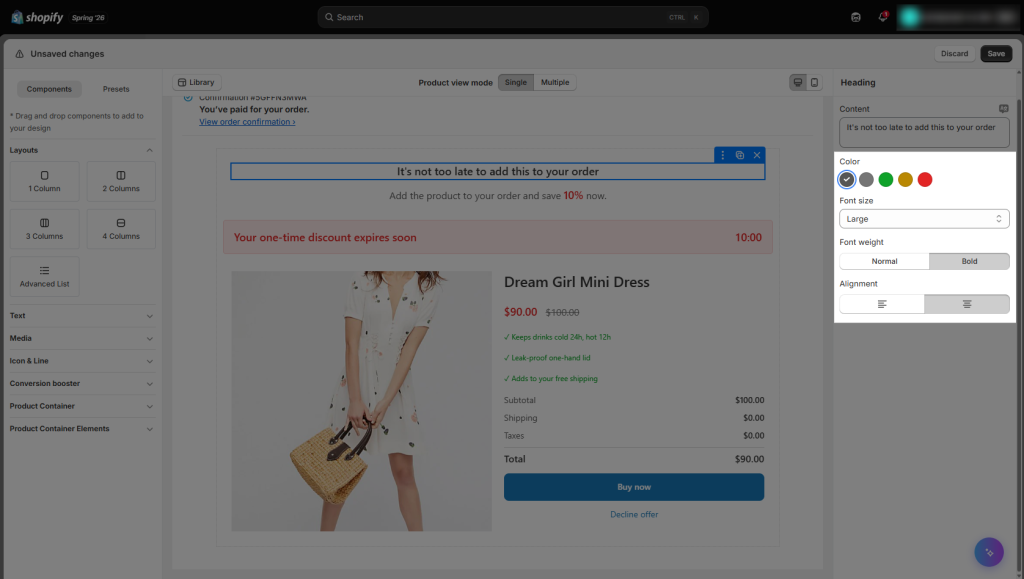
Presets: Use pre-built combinations of components to quickly create professional-looking sections for your Post-Purchase offer. Simply choose a preset and add it to your canvas. Here are the available presets:
- Product Containers: Pre-built product sections for displaying your upsell product.
- Headings: Ready-made heading designs to highlight your offer or key message.
- Countdown & Urgency: Pre-built sections designed to create urgency and encourage customers to take action.
- Benefits & Features: Ready-made sections for highlighting the benefits and key features of your product.
- Image & Media: Pre-built layouts for showcasing images and other visual content.
- Callout: Ready-made sections for highlighting important messages, offers, or promotions.
Library: Choose from complete, ready-made Post-Purchase offer designs to save time. Select a design and simply use it.
3.2. Thank you layout customisation
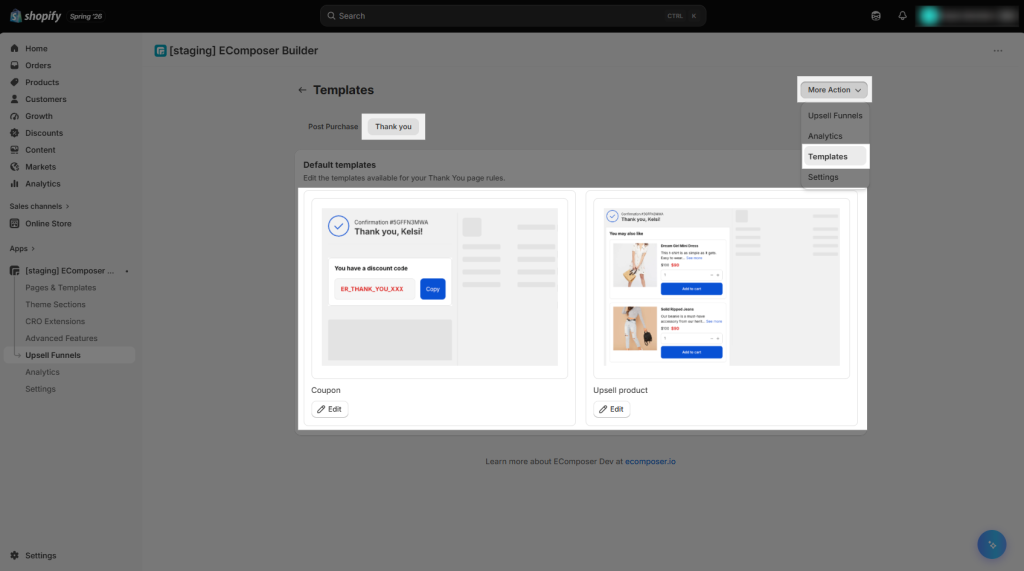
Components – From the left-hand side (left tab): Use the available components to customize your Thank You page and create an engaging experience for your customers. Drag/Drop the components based on your needs.
- Countdown: Add a countdown timer to create urgency for an offer or promotion.
- Coupon: Display a coupon code that customers can use for a discount.
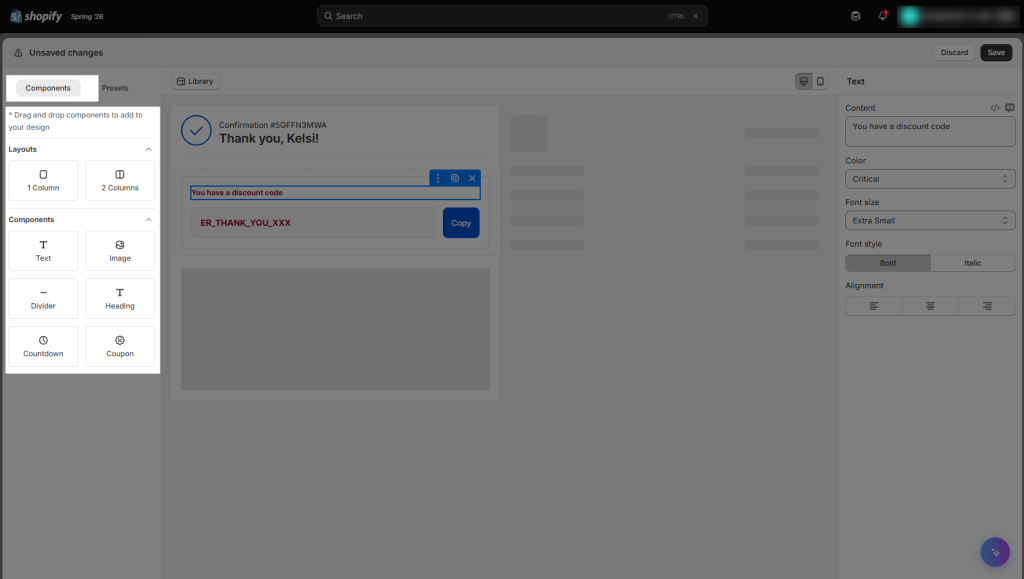
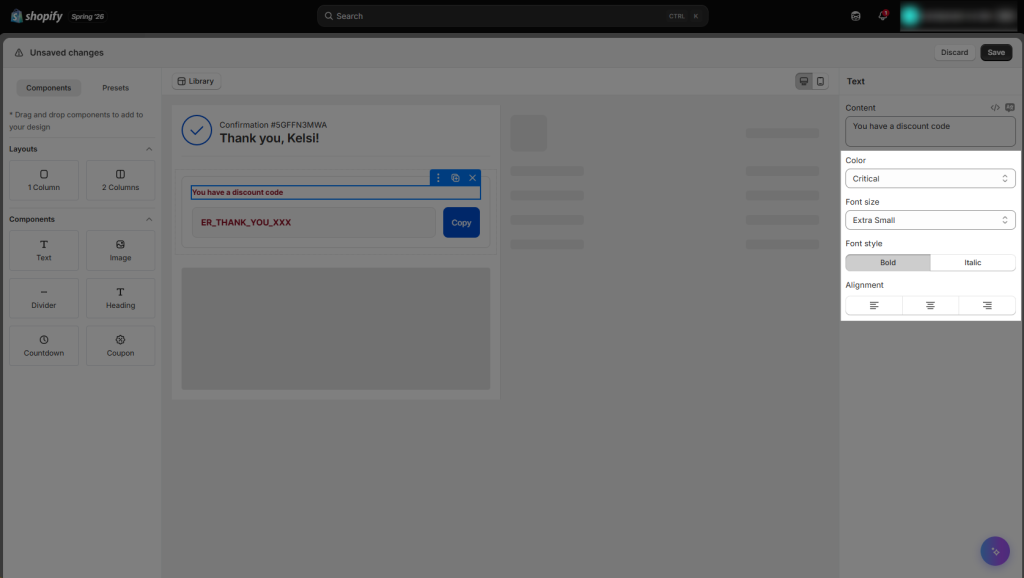
You can also customize the appearance of your Thank you offer by adjusting the alignment, colors, font size via the options are provided on the right-hand side (right tab)
| Setting | Available Options | Description |
|---|---|---|
| Color | Default, Accent, Subdued, Info, Success, Warning, Critical | Choose from the predefined colors provided by the editor. Custom HEX colors are not supported. |
| Font Size | Extra Small, Small, Base, Medium, Large, Extra Large | Choose the font size that best fits your content. |
| Font Style | Bold, Italic | Apply bold or italic styling to your text. |
| Alignment | Left, Center, Right | Choose how the text is positioned within the offer. |
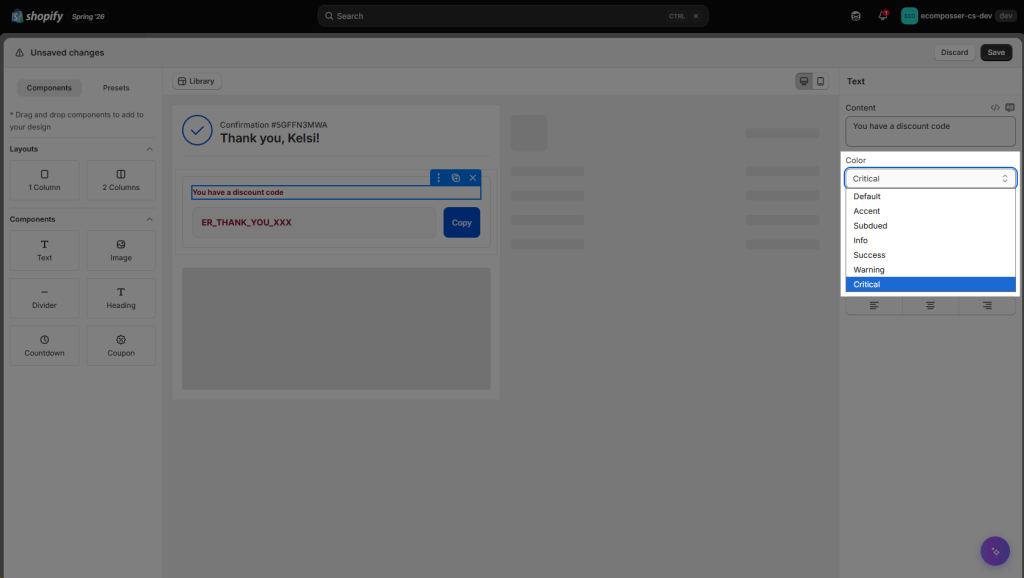
Color options explanation:
| Color | Appearance | Recommended Use |
|---|---|---|
| Default | Black | Standard text and content |
| Accent | Light Blue | Highlighting important content or actions |
| Subdued | Light Grey | Secondary or less important information |
| Info | Dark Blue | Informational messages |
| Success | Dark Green | Success or positive messages |
| Warning | Warm Brown | Warning or attention messages |
| Critical | Dark Red | Critical messages |
Presets: Use pre-built combinations of components to quickly add professional-looking sections to your Thank You page. Choose a preset, add it to your page, and customize it to fit your needs.
- Heading Block: A pre-designed heading section for highlighting an important message or title.
- Countdown Timer: A ready-made countdown section to create urgency for a promotion or offer.
- Benefit Row: A pre-built section for highlighting the benefits or key features of your products or offer.
- Footer Note: A ready-made section for adding additional information, notes, or messages at the bottom of the page.
Library: Choose from complete, ready-made Thank You page designs to save time. Select a design and customize its content and appearance to match your store.
4. Analytics
The Analytics page provides insights into the performance of your post-purchase offers. It helps you track key metrics, monitor customer engagement, and measure the revenue generated from your upsell funnels.
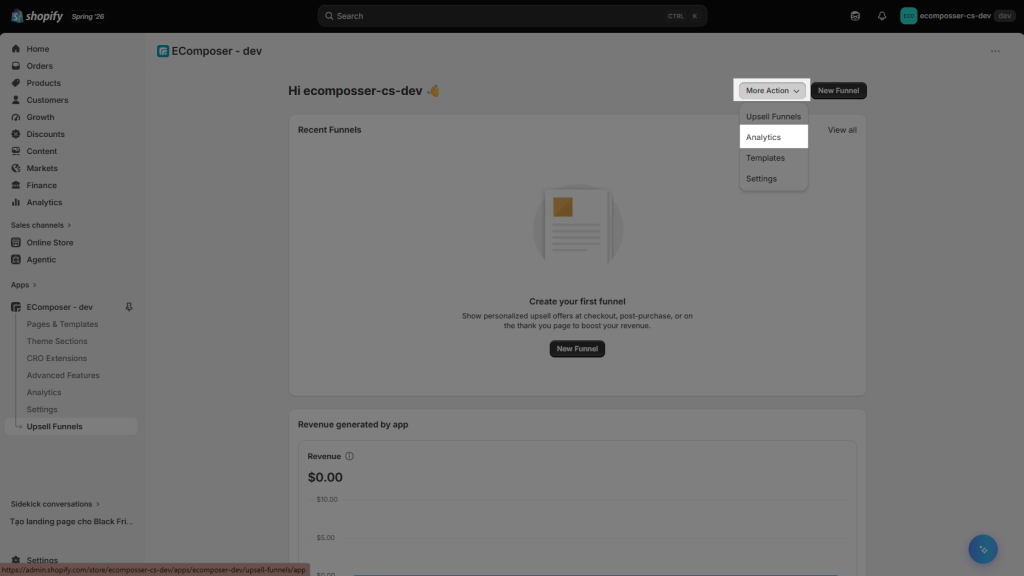
4.1. Extra Revenue Earned After Checkout
It shows the total additional revenue generated from customers who accepted post-purchase offers after completing their checkout. In there, it will be shown via:
- Revenue: The total sales generated from customers who accepted your post-purchase offers.
- Upsell Conversion Rate: The percentage of customers who accepted a post-purchase offer after seeing it.
- AOV Uplift: The increase in your Average Order Value (AOV) due to successful post-purchase upsell offers.
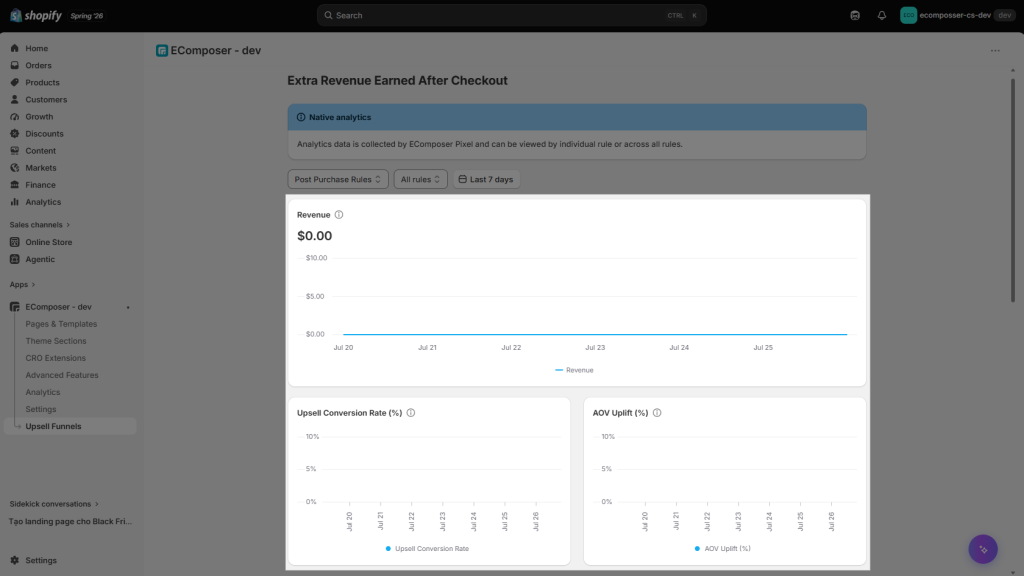
- Upsell Items Added: Shows the total number of products customers added to their orders by accepting post-purchase upsell offers.
- Rule Activations: Shows how many times your upsell rules were triggered based on the conditions you configured.
- Rule Impressions: Shows the number of times customers viewed your post-purchase offers after the rules were activated.
- Median Accept Time (s): Shows the median time, in seconds, it takes customers to accept a post-purchase offer after it is displayed. This helps you understand how quickly customers respond to your offers.
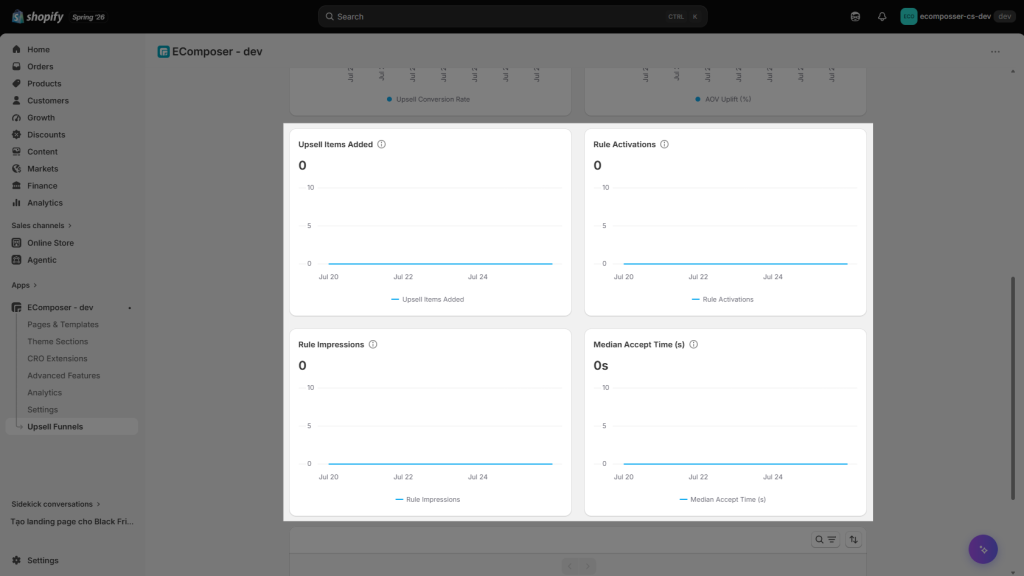
5. Settings
The Settings section lets you configure additional options for your upsell funnel, including Subscriptions, Translations, and Debug mode. You can go to this setting to start modifying the options you need.
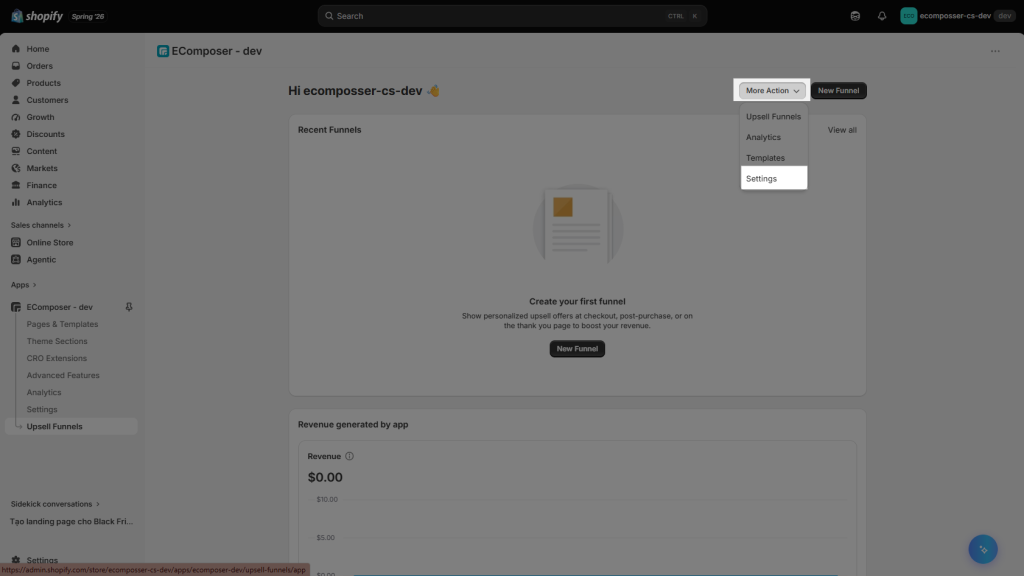
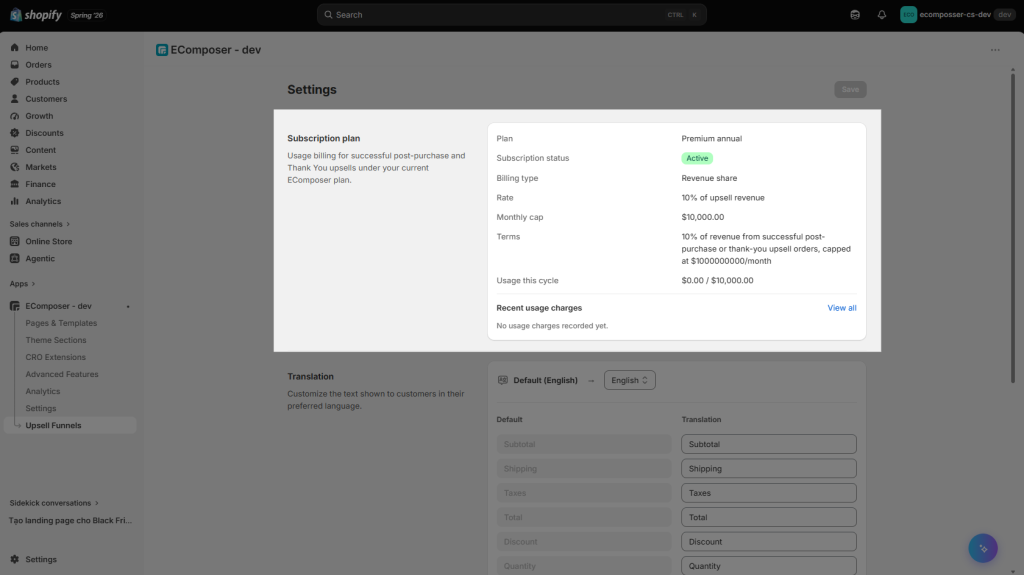
- Subscription: Displays your current EComposer Post Purchase plan and billing details. You can review your subscription status, pricing, usage, and any charges related to your post-purchase upsell funnels.
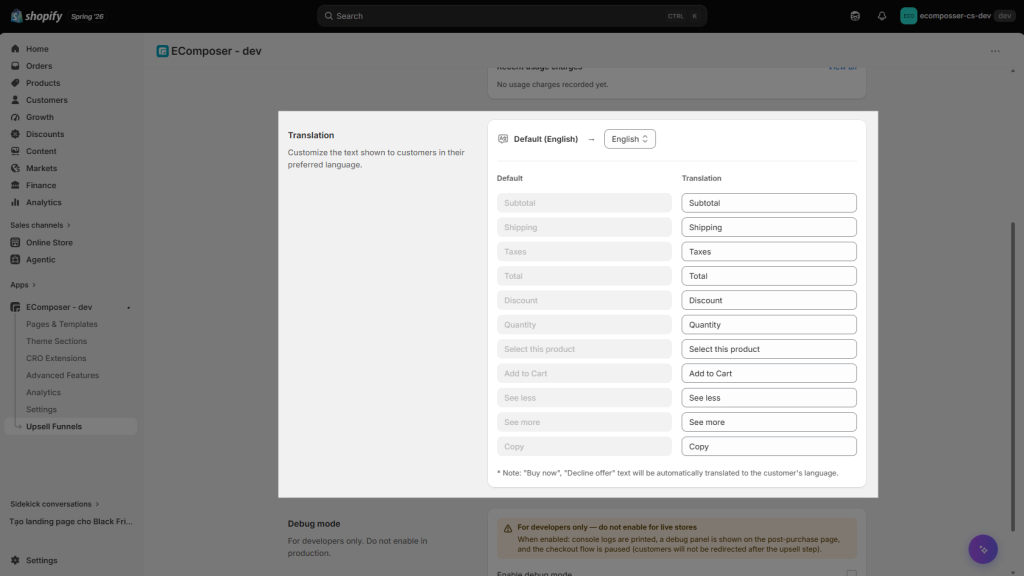
- Translation: Customize the text shown in your post-purchase offers for different languages, providing a localized experience for your customers.
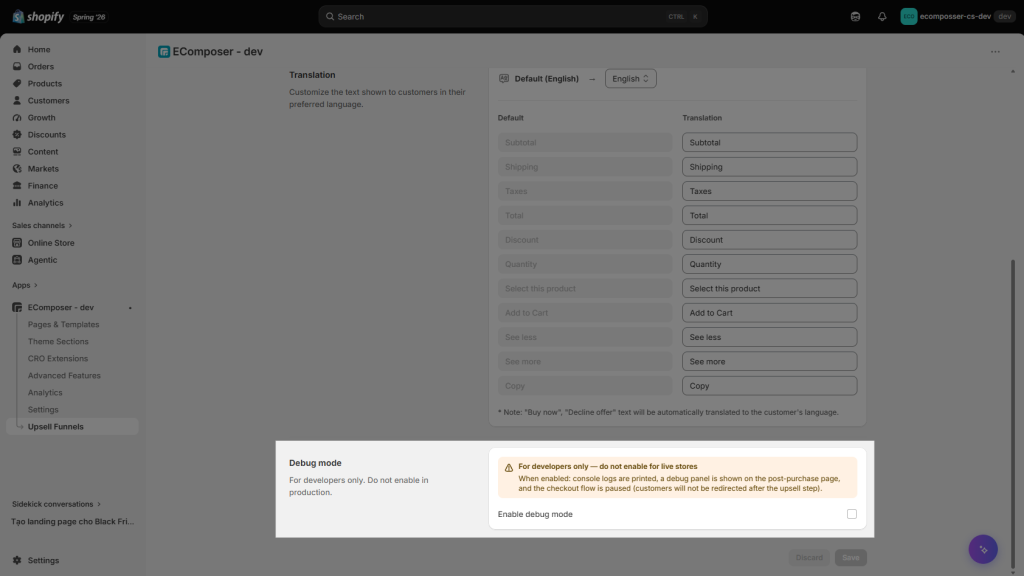
- Debug Mode: Enable Debug Mode to test and troubleshoot your upsell funnel. This helps verify that your funnel, rules, and offers are working correctly before making them available to customers.
6. How to Test a Rule
To make the upsell pop-up appear, please choose a Card payment method at the Checkout step. Please note that the rule will not be triggered if the customer selects Cash on Delivery or Discount trick as the payment method.
Note: Offers are only displayed for qualifying orders placed through your live store checkout. Ensure your offer is active and the order meets the configured trigger conditions before testing.
Post-Purchase offers are only displayed for qualifying orders placed through your live store checkout. Ensure your offer is active and the order meets the configured trigger conditions before testing.
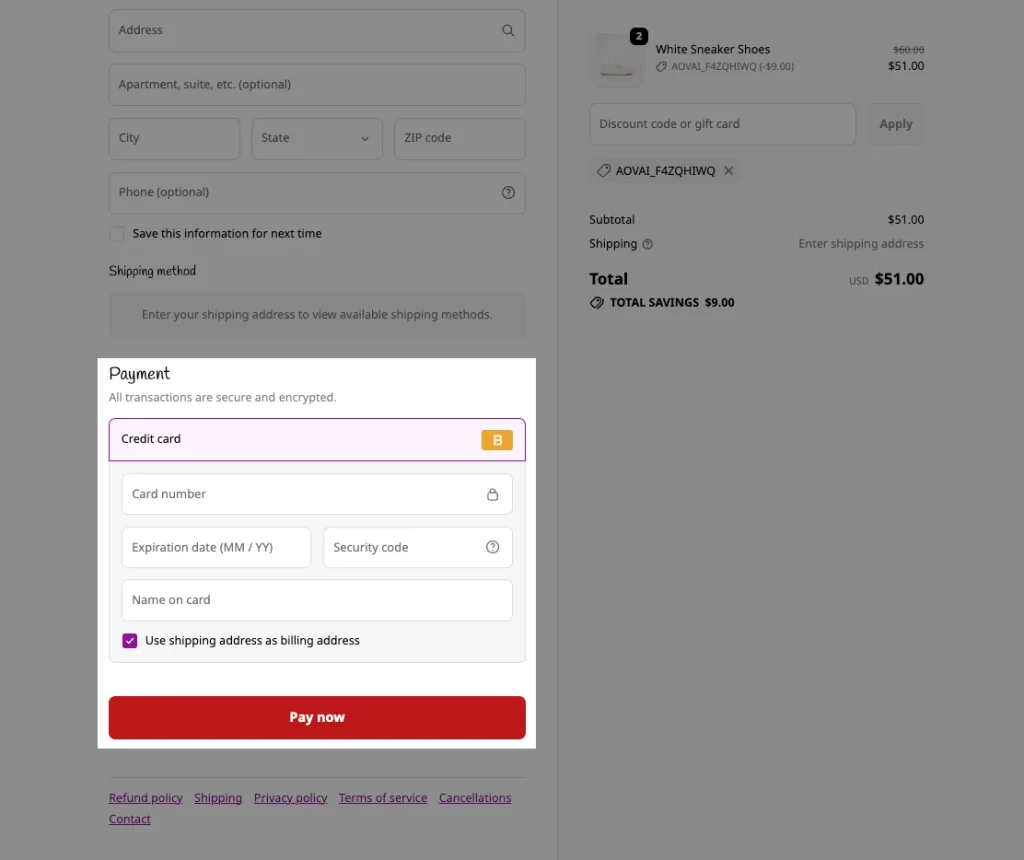
Customers can respond to the #1 Upsell rule by clicking on the buttons on the live pop-up. But it doesn’t stop there; we can create multiple additional pop-ups to further boost sales based on the flow you’ve already set up.
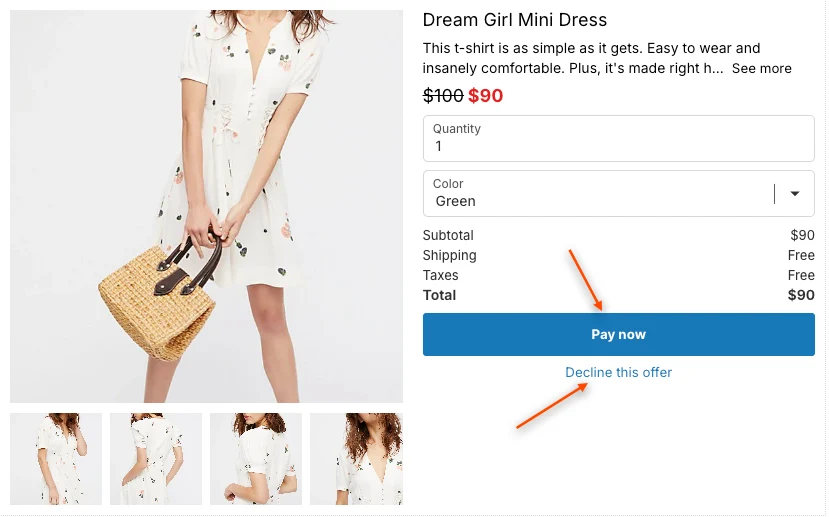
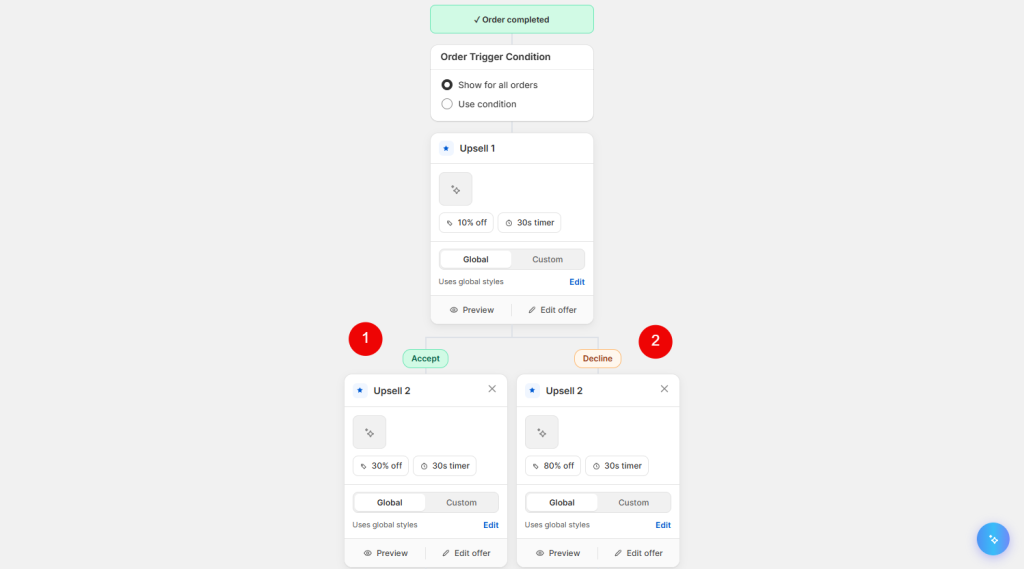
- Accept Flow: When customers click the Pay now button → they will head to the Checkout page to pay for these upsell products.
- Reject Flow: When customers click the Decline this offer button → they can see another Upsell pop-up (#2 Rule) that they may be interested in.
7. Frequently Asked Questions
How many Post-purchase offers can a customer accept?
Due to Shopify’s limitations, a customer can accept up to three Post-purchase offers during one purchase journey. After accepting three offers, the customer is directed to the checkout flow even if additional offers are available.
Why can’t I use custom colors in my Post-purchase offer?
Post-purchase offers run inside Shopify’s Checkout Extensions environment, which limits custom styling. You cannot enter custom HEX/RGB colors or add custom CSS. Instead, EComposer provides the styling options supported by Shopify for each component.
Can I customize the color of every component?
No. Each component has its own styling limitations. Some components provide predefined color options, while others use fixed styles or inherit their appearance from Shopify Checkout. Therefore, the available color options may differ between components.
Can I add custom CSS, HTML, or JavaScript?
No. Custom CSS, HTML, and JavaScript are not supported for Post-purchase or Thank You Page offers. These offers use Shopify Checkout Extensions, which restrict access to the underlying checkout structure and styling.