Page Revision History – Restore Previous Versions
EComposer Revision History allows you to view and restore previous versions of your page. Every time you make changes to your page, EComposer saves revision records so you can easily go back to an older version when needed.
The Revision History includes two types of saved versions: Manual Save and Auto Save.
You can access the Revision History to find the version you want, preview previous changes, and restore your page back to an earlier version.
1. Manual Save
Every time you click Save or Publish your page, EComposer creates a new version of your page and stores it as a draft. This allows you to go back and restore older versions of your work anytime you need.
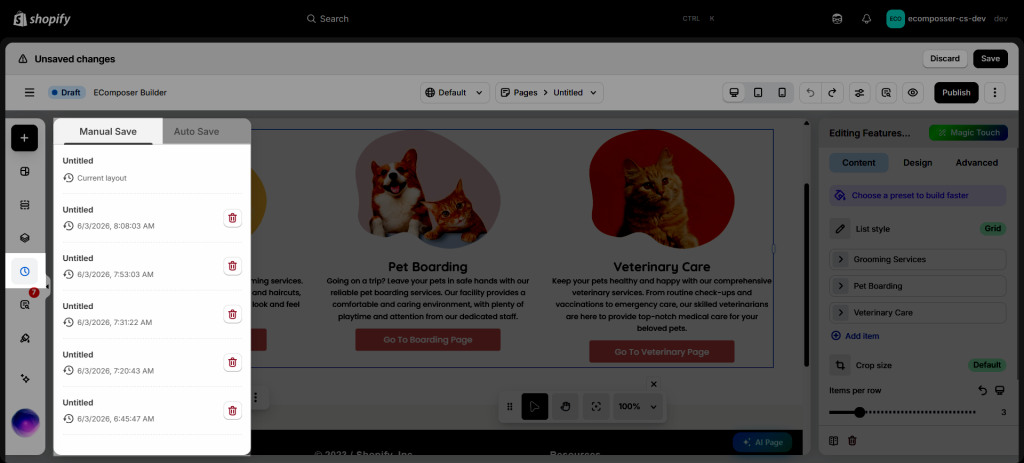
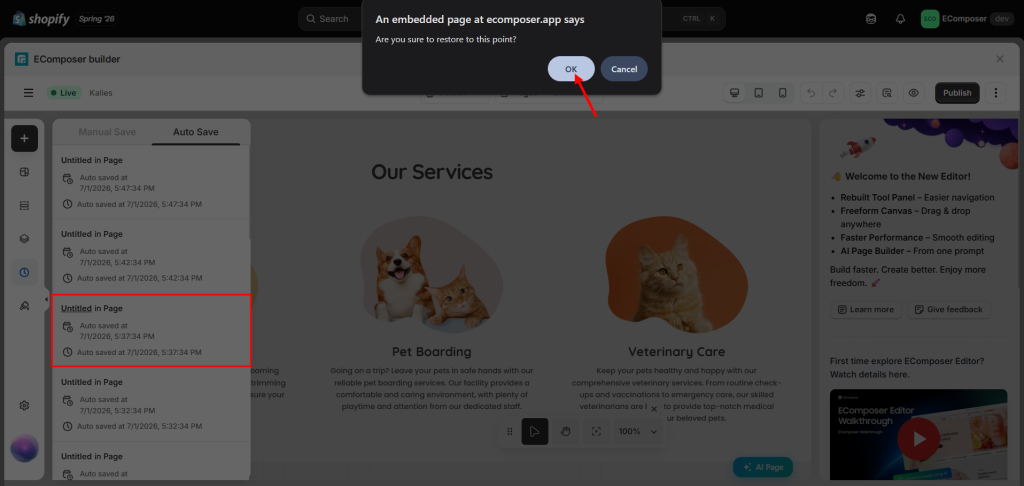
This is especially helpful when you want to review or revert to a previous layout or content version after making changes. To restore to an old version, you can open History -> Manual save -> Click directly on a version.
2. Auto Save
EComposer automatically saves a local backup of your page every 5 minutes while you edit. This autosaved version is stored only in your browser and helps minimize data loss if an unexpected issue occurs during the editing process.
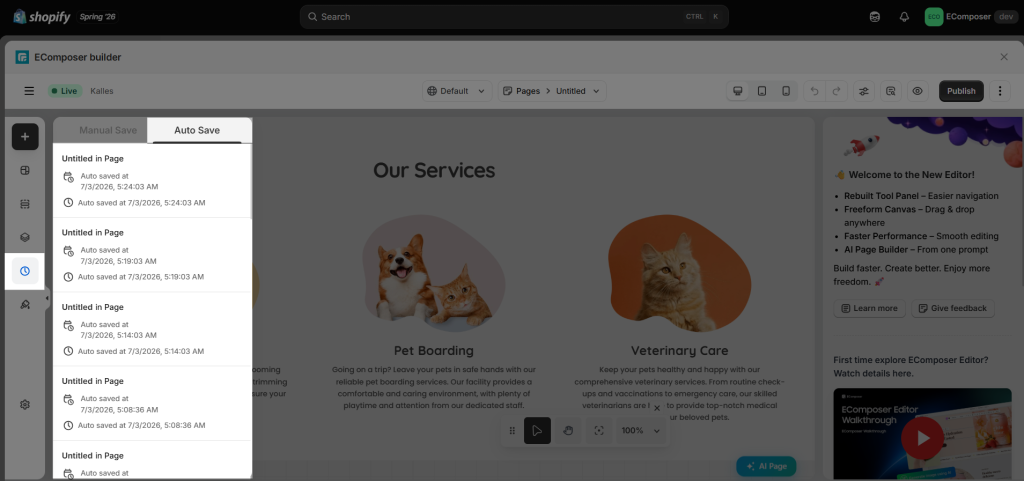
Note: All revisions are saved locally in the browser and device used to edit the page/template. They may be lost if you clear browser data or switch to a different device/browser.
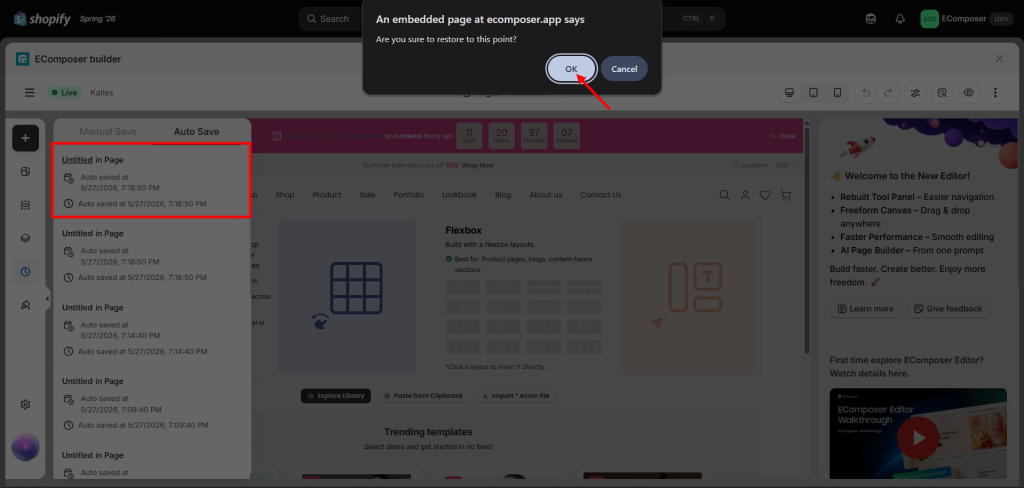
Once you choose one version to switch back to, you press the ‘Ok’ button and your current page will revert to the saved revision.
3. Frequently Asked Questions
3.1. How can I identify the version I want to restore?
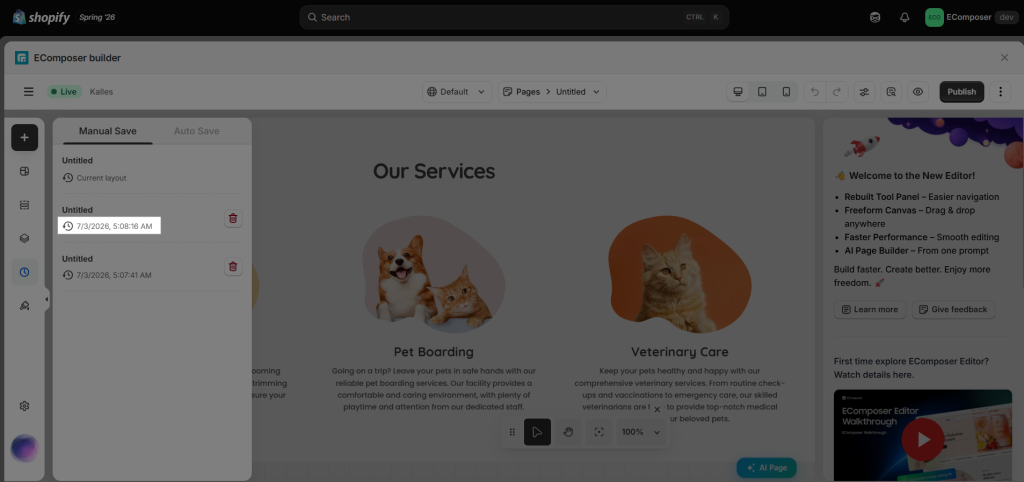
Each saved version includes the date and time it was created. You can use this timestamp to identify the version you want to restore by matching it with the time you made the changes to your page.
If you’re unsure which version you need, think about approximately when your page was last in the desired state, then look for the version saved closest to that time.
3.2. I made some new changes to my existing page, but accidentally reloaded/unsaved it. How can I get my changes back?
With the saved page, when you save the changes, the revisions will not be deleted. And every 5 minutes will automatically save 1 time.
3.3. I created a page, accidentally closed the editor, and didn’t save it. How can I recover it?, and didn’t save it. How do I get it back?
If you accidentally close or reload the editor before clicking Save or Publish, don’t worry.
As long as:
- You spent at least 5 minutes editing the page (so Auto Save had time to run), and
- You haven’t manually saved or published the page
You can recover your work by creating a new page with the same page type/template. For example, if you were editing a Landing Page, simply create a new Landing Page. The saved revisions for that page type will be available there.
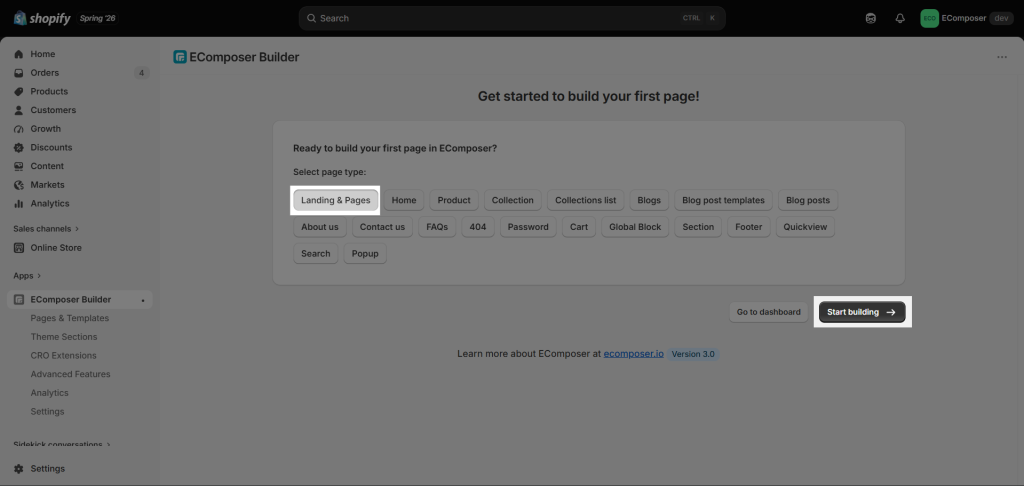
Then, you can restore the page version from the Auto Save: