
Import and Export Pages & Templates
EComposer provides two ways to move your pages and templates between stores, depending on your subscription plan and the number of pages you want to transfer.
- Import & Export a Single Page: Available on all plans. Best for transferring a single page, template, or section at a time.
- Bulk Import & Export (Template Transfer): Available on Pro and Premium plans. Best for transferring multiple pages and templates in one operation.
Both methods help you back up your work, migrate designs to another Shopify store, or reuse existing layouts without rebuilding them from scratch.
1. Import & Export Pages One at a Time
Use this when you need to transfer individual EComposer pages or templates. With this method, each import or export operation handles one page or template at a time. If you need to transfer multiple pages, simply repeat the process for each page.
This feature is available on all plans, including the Free plan.
1.1. Export a page
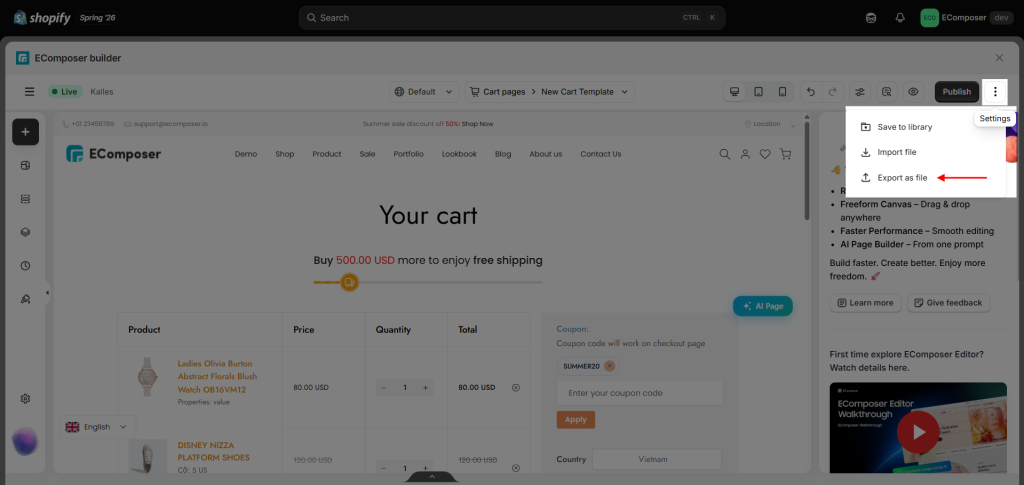
To export a page or template, open it in the EComposer editor, click the Settings icon, and select Export as file.
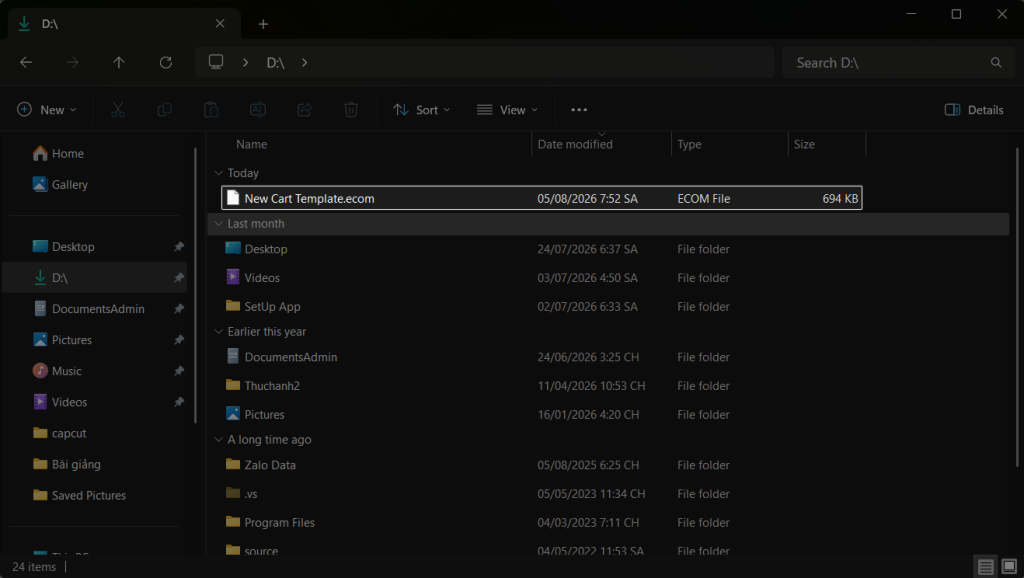
An ECOM file will be saved to your device. The file name will match the name of the exported template or page.
1.2. Import a page
To import the page to another store, you need to create a blank template/page first, then click the Import *.ecom file button, add the file, and tick the options.
Important Notes:
- Importing a file into an existing page will replace its current content.
- Only EComposer export files (.ecom) can be imported.
- Shopify theme pages cannot be imported into EComposer.
- Images, layouts, and supported EComposer elements are preserved during the transfer.
2. Bulk Import & Export (Template Transfer)
Template Transfer is designed for merchants who need to migrate multiple EComposer pages and templates between Shopify stores. Instead of exporting each page individually, you can export everything into a single backup file and import it into another store.
This feature is ideal for:
- Migrating multiple EComposer pages and templates from one Shopify store to another.
- Copying EComposer pages between development and live stores.
- Agencies deploying the same EComposer designs across multiple Shopify stores.
Template Transfer is available on Pro and Premium plans only.
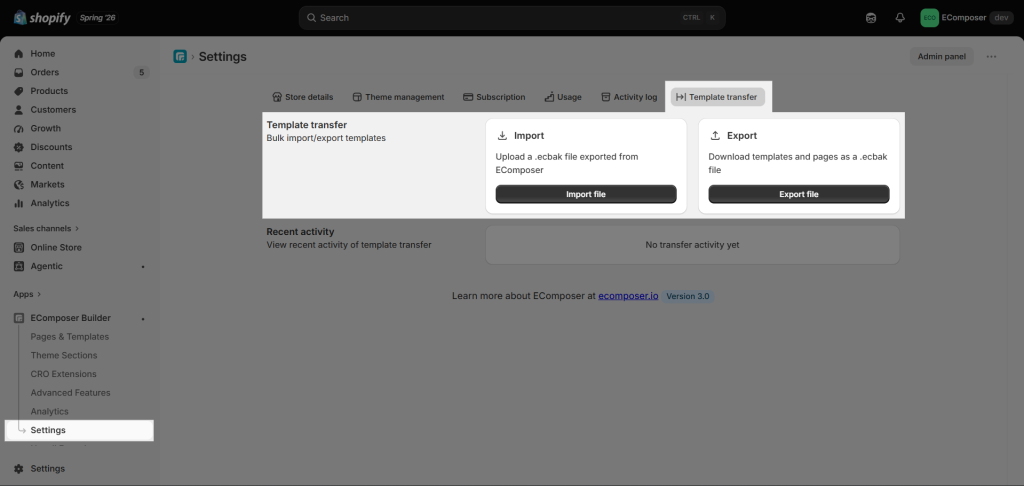
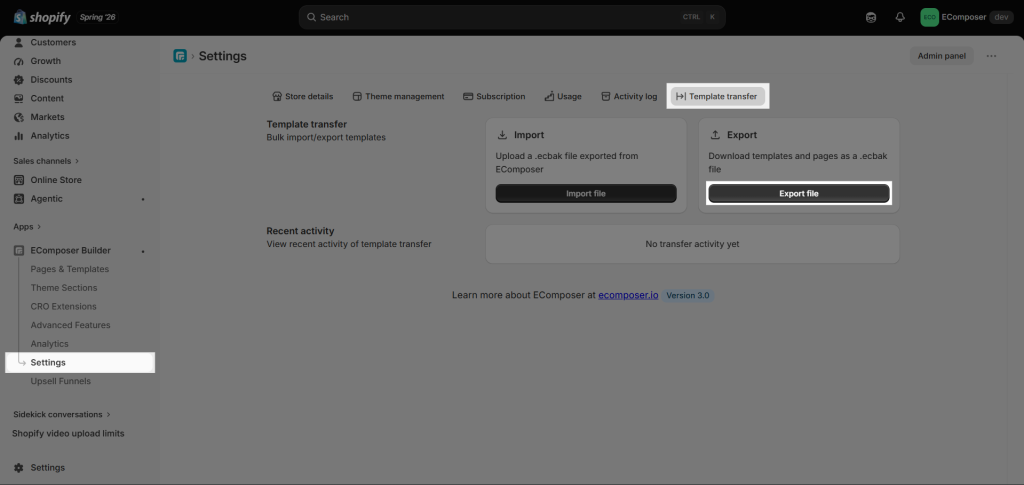
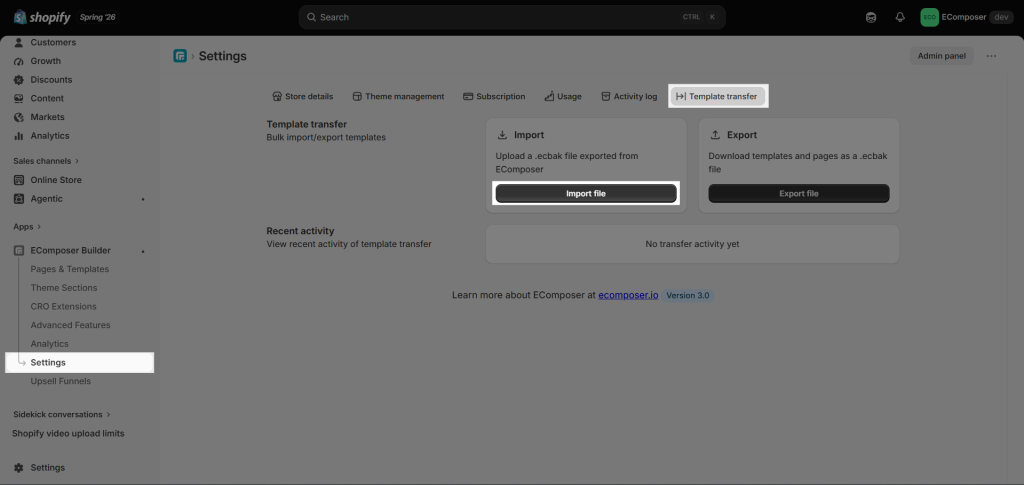
You can access the feature from the EComposer App dashboard => Settings => Template Transfer.
2.1. Export Pages & Templates
To export the pages and templates you have, please click the Export button to initiate the process.
Then choose the Export Type according to your needs. There are 3 types, including All templates/pages, Specific types, and Specific templates.
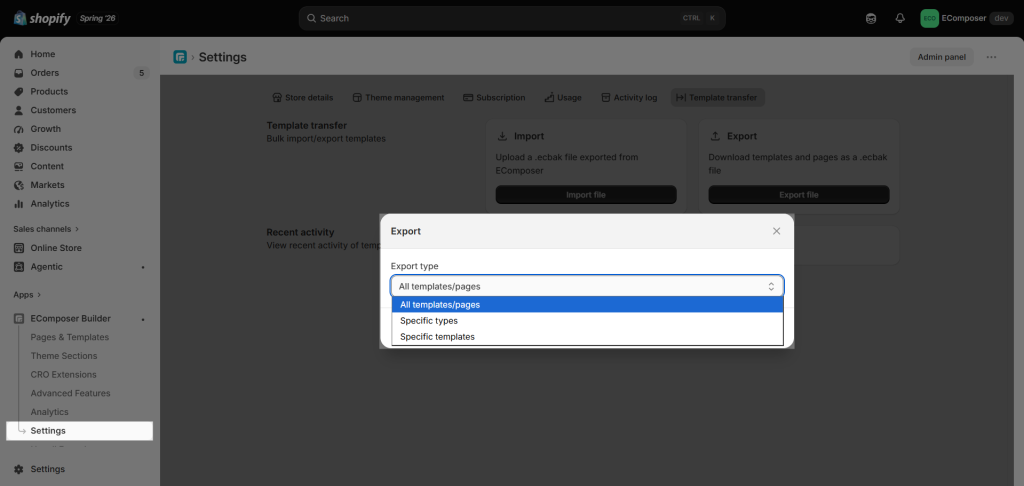
- All templates/pages: Export all pages and templates created in the current store.
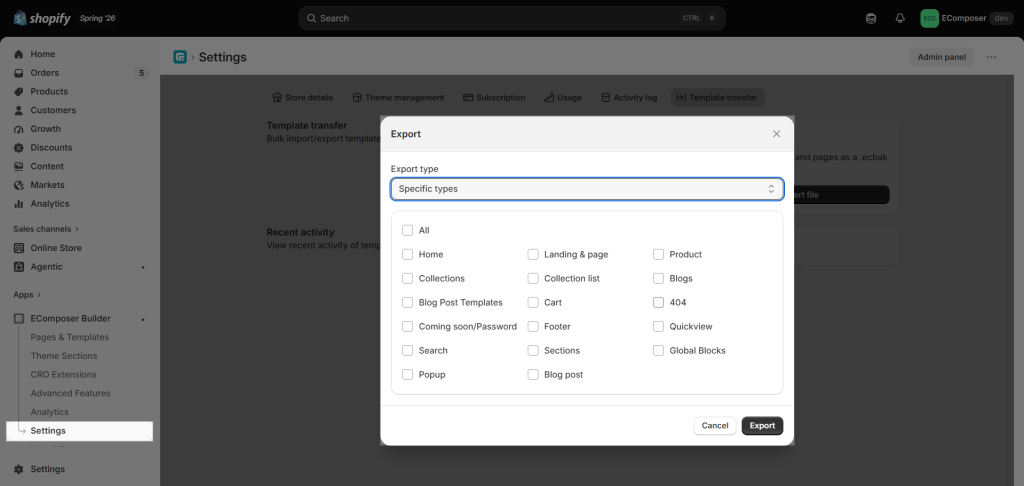
- Specific types: Export all pages and templates that belong to the selected types.
- Specific templates: Export only the pages and templates you select from the list.
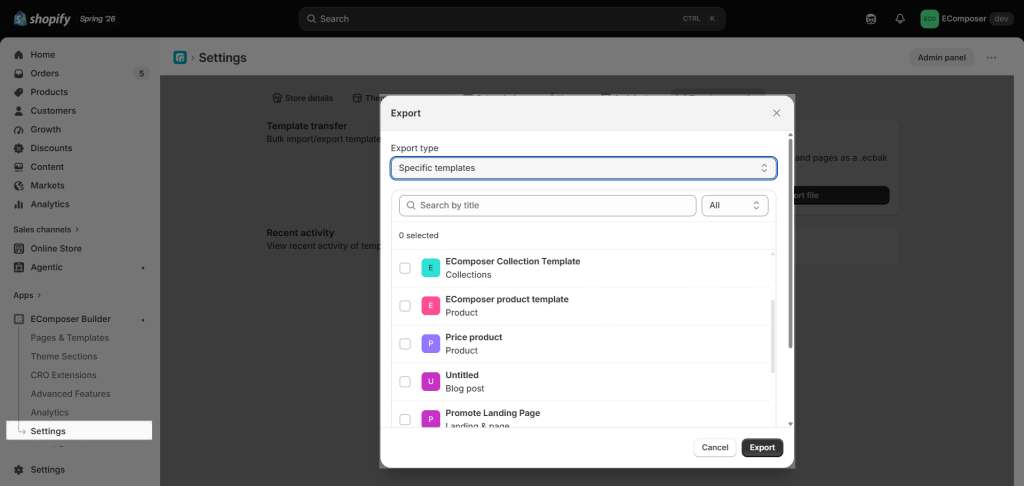
After choosing the type, please click on the Export button at the bottom right corner of the popup; then an ECBAk file will be downloaded to your device.
2.2. Import Pages & Templates
To import templates or pages into another store, click the Import button to begin the process.
In the dialog that appears, select the exported file from your computer, then click Import to upload the templates or pages to your store.
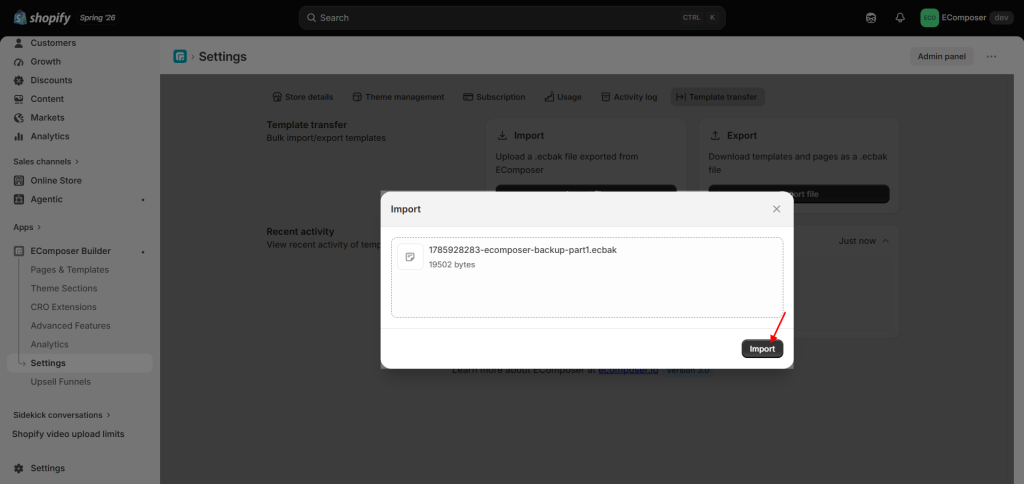
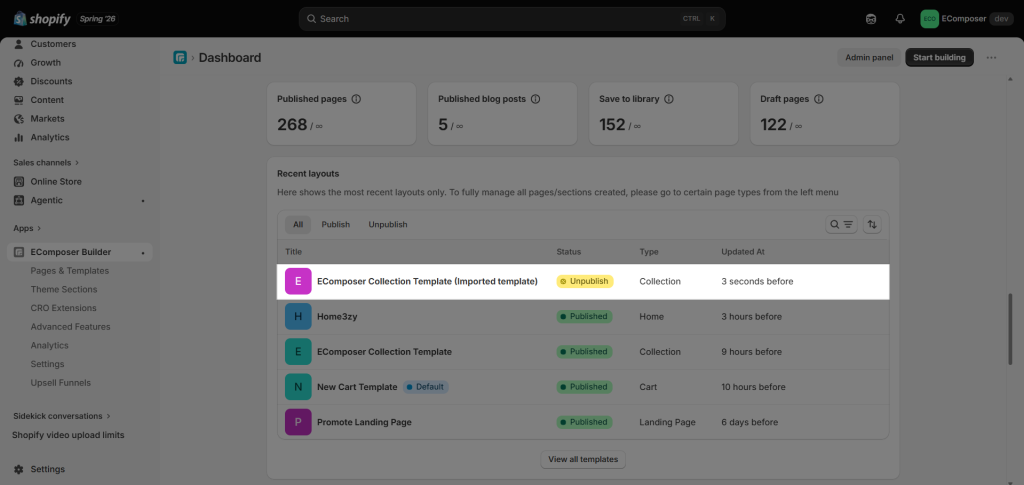
Result: After importing, go to the EComposer app dashboard to check your page or template list. All imported templates and pages will retain their original names from the source store, with an additional label Imported template displayed next to the name and their status set to Unpublish. You can open them in the editor to update the page name if needed, adjust the design, and then publish them as normal.