
EComposer Editor Settings
The app setting options allow you to select third-party apps to be used as the default in EComposer, Hotkey, and AI settings that optimize AI support. Let’s find out what Settings can assist you in customizing your store.
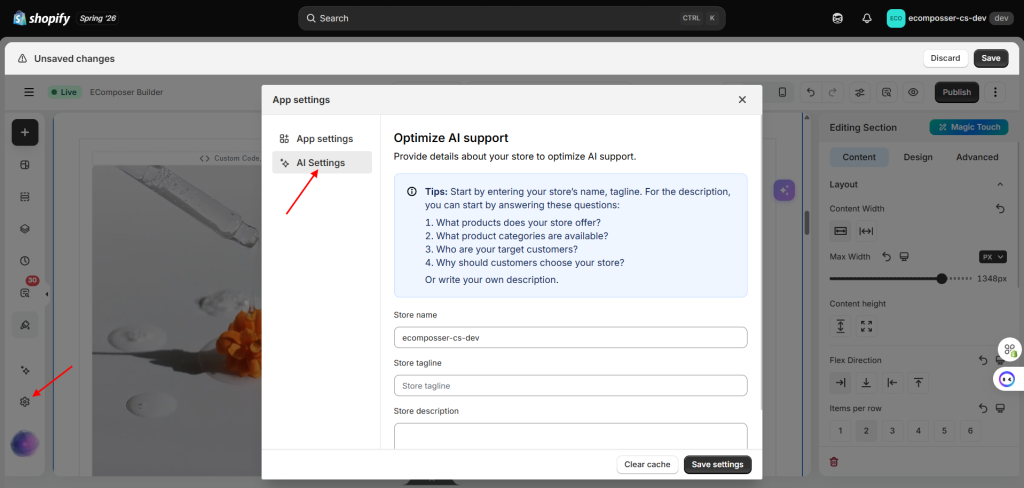
To open the App settings, please click the settings icon in the bottom left corner of the App editor.
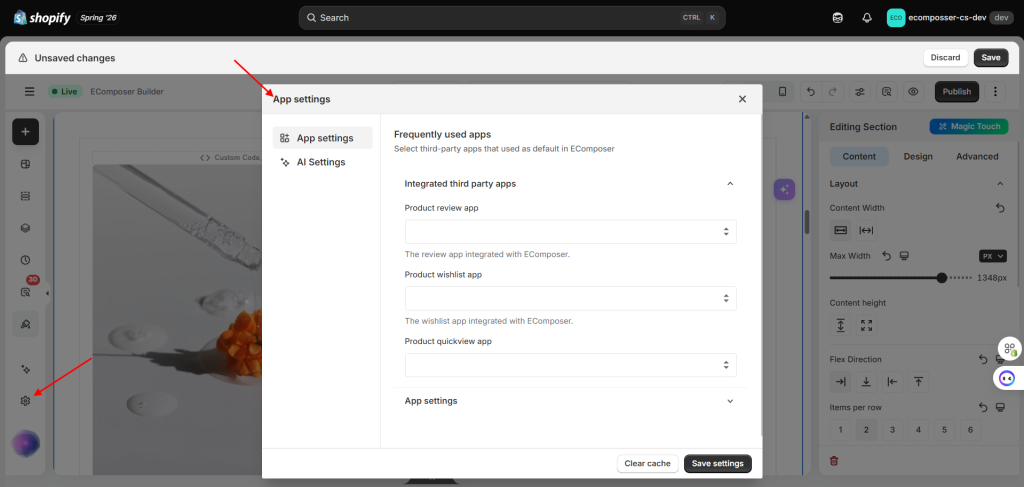
1. App settings
Show third-party integration with EComposer and other EComposer settings.
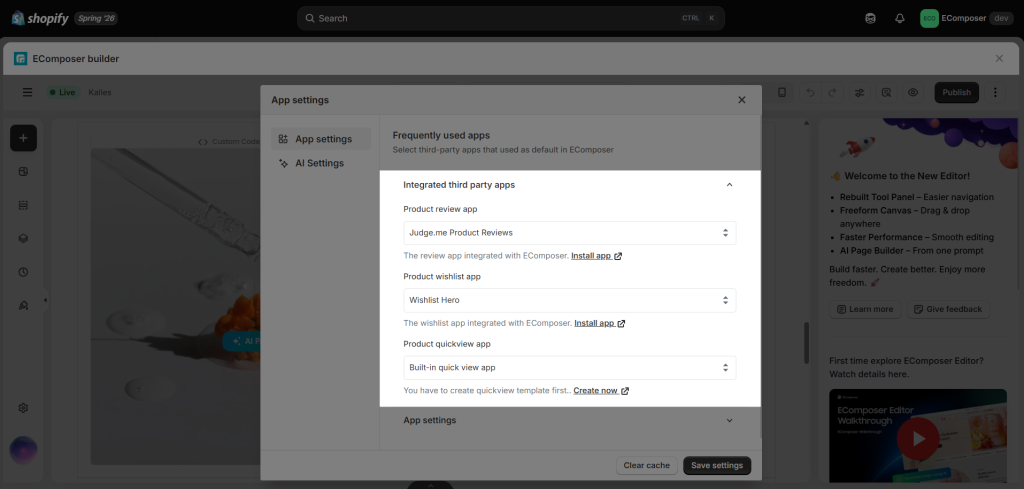
1.1. Integrated third-party apps
You can find various integrated apps, such as Product Reviews, Product Quickview, or Product Wishlist, in this setting.
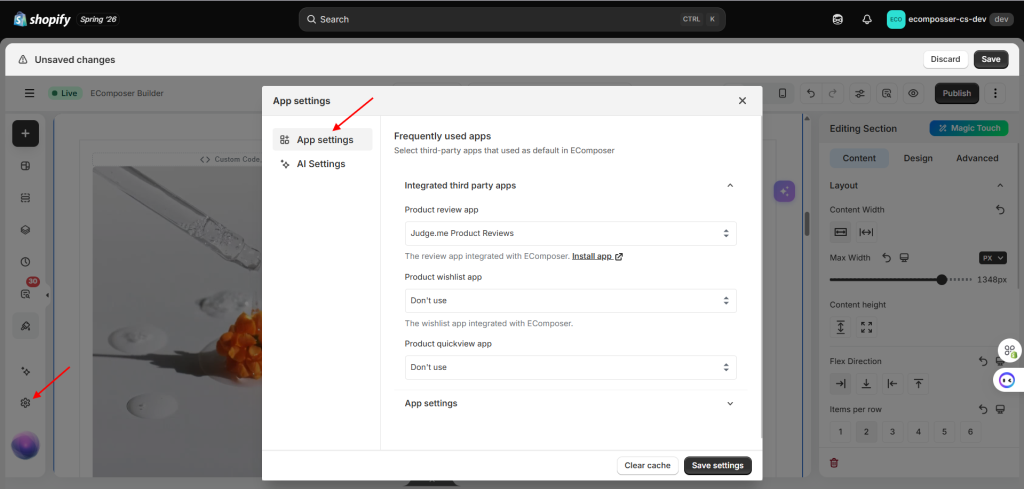
- Product Review apps: All Product Review apps that are integrated with Ecomposer are shown here. There are options to choose a specific app or “Don’t use”. Learn more about how to display reviews on your page here.
- Product wishlist app: The list of product wishlist apps that can be integrated with Ecomposer is displayed here. The number of apps supported will be updated, so don’t forget to check regularly.
- Product quickview app: You can set it as Built-in Quick view in App Settings or set it to Don’t use. For more in-depth guide on how to set up the Built-in Quick view, please follow this document.
Note: For the Reviews and Wishlist apps, you need to install a third-party app for the settings to work.
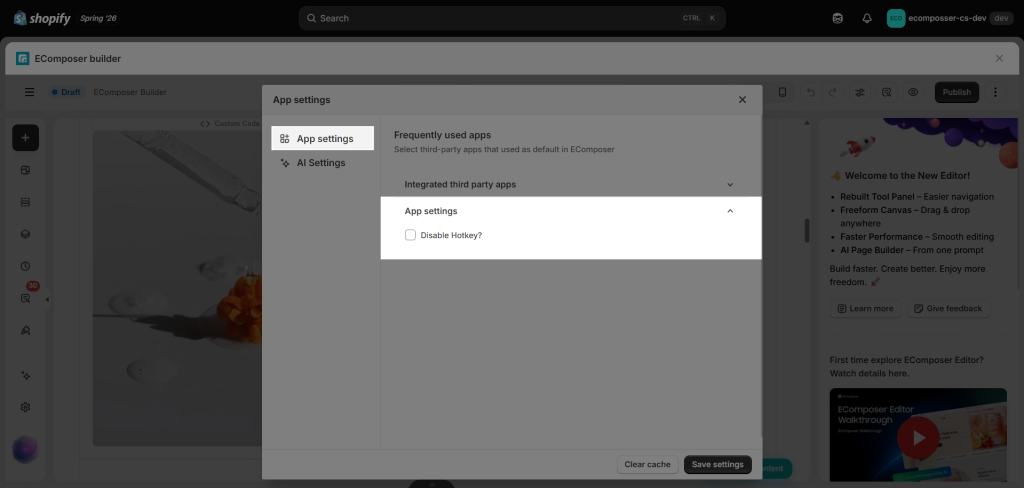
1.2 App Settings
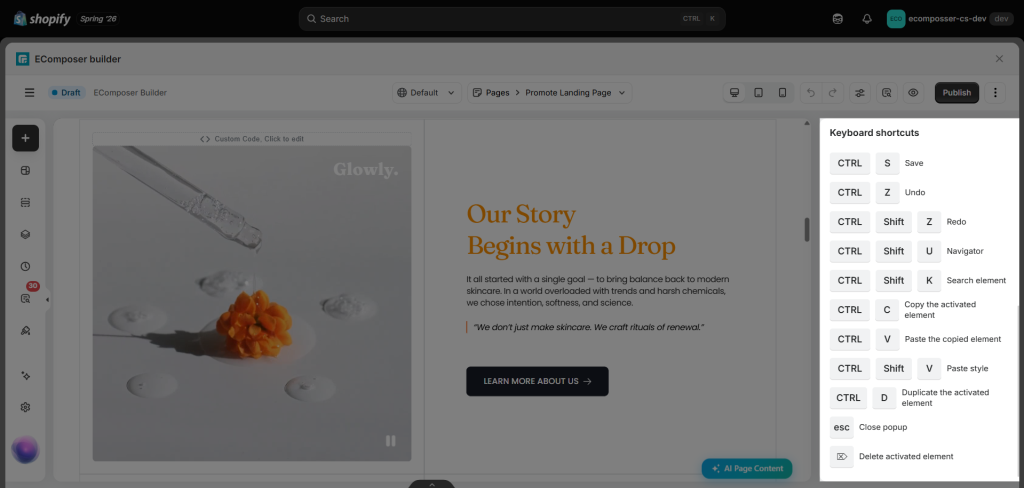
Here, you can enable/disable the Keyboard shortcuts part in the right sidebar.
2. AI Settings
In this tab, you can enter your Store name, Store tagline, and Store description. This information helps AI better understand your store and generate more relevant results when you use AI-powered features.
3. Button action
3.1 Clear cache
Pressing this button will clear the cache and fetch the new settings from the store. Your data and configs will not be lost.
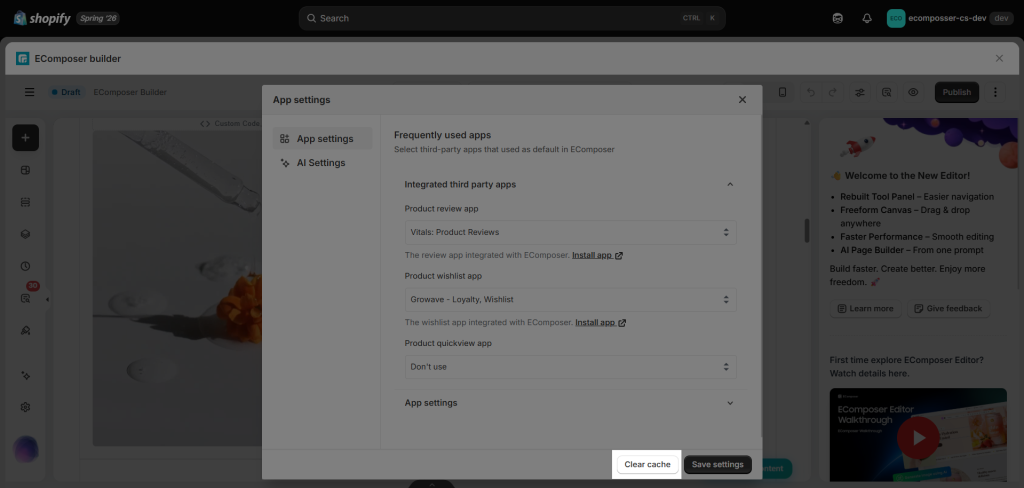
3.2 Save settings
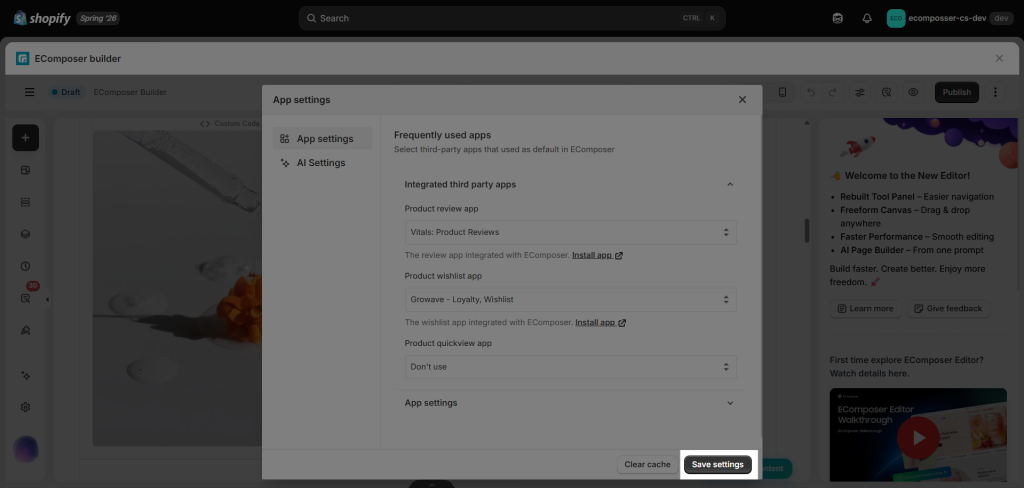
Pressing this button will apply all the settings that you set in the App Settings box to the store.