
AI Builder Assistant
AI Builder Assistant is an AI-powered assistant built directly into the EComposer Builder. It lets you create, edit, optimize, and manage your page using natural-language instructions instead of manually opening settings, dragging elements, or switching between AI tools.
Simply describe what you want to achieve, and the Assistant can understand the current page context, determine the appropriate action, and make the requested changes directly in the Builder.
1. Open AI Builder Assistant
From the EComposer Builder, click the AI Builder Assistant icon to open the Assistant in the sidebar. Enter your request in the chatbox and send it. The Assistant will analyze your request and the current page context before performing the appropriate actions.
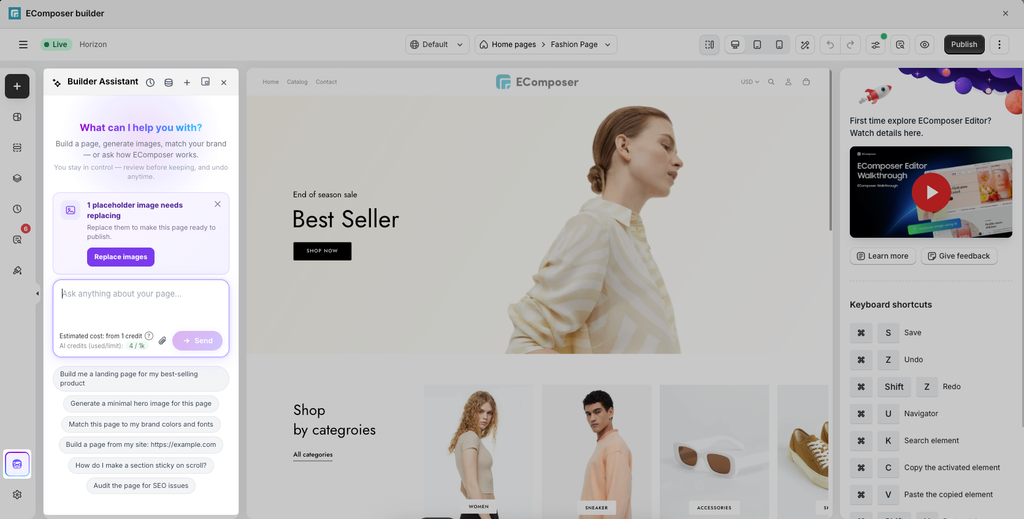
For better results, describe your goal, product or business, target customers, preferred style, and specific requirements whenever they are relevant.
For example, you can ask: “Create a landing page for our women’s summer clothing collection. Our target customers are women aged 25–40 who prefer modern, minimalist fashion. Use a clean and premium visual style with neutral colors and plenty of whitespace. Include a hero section for the new summer collection, a best-selling dresses section, a collection showcase, customer testimonials, a 20% off promotional banner, an FAQ section, and a newsletter signup. Keep the copy concise and friendly, and use clear CTAs such as “Shop the Collection” and “Explore Best Sellers”.
2. Use the AI Builder Assistant chatbox
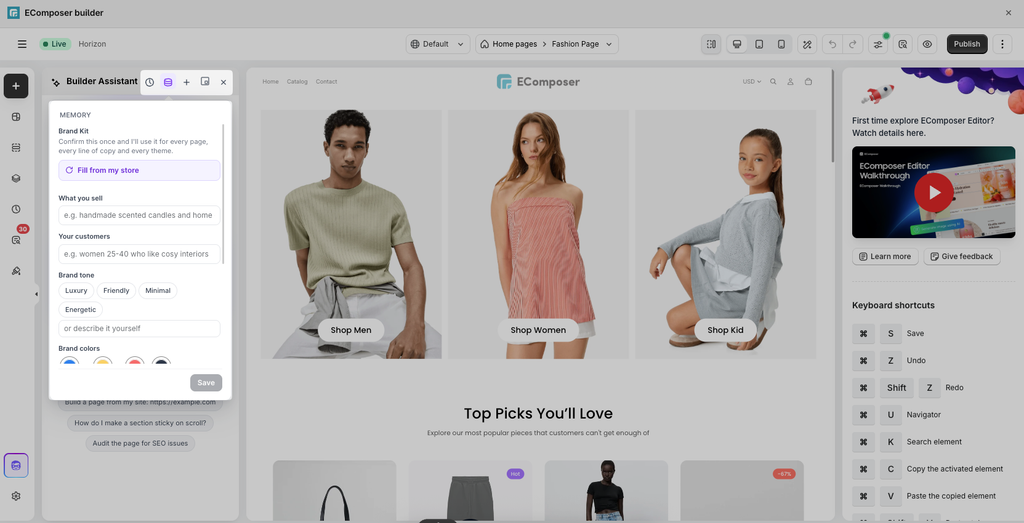
The Builder Assistant chatbox also provides several options to help you manage your AI conversations and preferences:
- Chat history: View and reopen previous conversations with the Assistant.
- Memory: Save important brand information, such as products, target customers, brand tone, and brand colors, so the Assistant can use it when working on your pages.
- New chat: Start a new conversation when you want to work on a different task.
- Open in popup: Open the Assistant in a larger popup window for a more focused workspace.
- Close chat: Close the Assistant panel and return to the Builder.
3. What AI Builder Assistant can do
AI Builder Assistant supports a range of tasks to help you build and improve your pages more efficiently.
3.1. Make quick changes to your page
Use AI Builder Assistant when you know what you want to change but do not want to manually find and edit each setting.
You can ask the Assistant to:
- Change the content of an element.
- Modify an element’s settings.
- Change the style of an element.
- Edit the CSS of an element.
- Update page-level settings.
- Make multiple related changes based on one request.
For example, you can ask AI to “Change the size for all headings to 40px”
3.2. Rewrite and generate content
Use AI Builder Assistant when you want to create new content or replace existing content without manually editing every text element.
You can:
- Generate text for a specific element.
- Rewrite the content of a section.
- Rewrite the content of the entire page.
- Change the tone or writing style.
- Adapt content for a specific audience or purpose.
You can also specify the language, tone, target audience, content length, or marketing objective.
3.3. Generate and edit images
Use AI Builder Assistant when you need to create a new image or modify an existing image.
You can:
- Generate a new image for an element.
- Edit an existing image.
- Change the background or other visual details.
- Create an image that matches the existing page design.
The Assistant can analyze the current section before generating an image so the result can better match the existing visual style.
3.4. Add and manage sections
Use AI Builder Assistant when you want to change the structure of your page without manually working through the Builder controls.
- Add a section: Search the EComposer section library and insert a suitable section based on your description.
- Move a section: Move a section to another position on the page.
- Duplicate a section: Create a copy of an existing section.
- Delete a section: Remove an existing section.
- Insert a page template: Search the Page Library and insert a suitable page template.
For example: “Add a Featured product section below the Banner section.”
When inserting a page template into a page that already contains content, the Assistant can ask whether you want to replace or add the template to help prevent accidental content loss.
3.5. Build a complete page with AI
Use AI Layout Flow when you want to create an entire page instead of building it section by section. For example: “Create a landing page for our summer women’s clothing collection.”
The process includes:
Step 1: Create the page structure. The Assistant suggests a structure based on your requirements. You can review the suggested sections and:
- Add sections.
- Remove sections.
- Change the order.
- Ask the Assistant to modify the structure.
Step 2: Choose section designs. The Assistant suggests suitable designs from the EComposer section library. You can browse the available variants and choose the design you prefer for each section.
Step 3: Build the page. Click Build to create the page using the selected structure and designs.
The Assistant then generates content based on your original requirements and applies it to the newly created page.
3.6. Audit and improve your page
Use AI Builder Assistant when you want to check whether your page can be improved.
For example: “Audit this product page for SEO and CRO. Focus on the product title, description, product images, pricing, variant selection, Add to Cart button, reviews, trust signals, and missing information that could prevent customers from purchasing. Prioritize the most important issues and provide a specific recommendation for each one”
The Assistant can return:
- Audit score.
- Errors and warnings.
- Specific issues found on the page.
- Suggestions for improvement.
You can then ask it to fix an identified issue. For example: “Fix the SEO and CRO issues you identified. Keep the existing page structure and product information, and only make changes that are necessary”
3.7. Get help with EComposer
Use AI Builder Assistant when you know what you want to achieve but do not know which EComposer feature or setting to use.
For example: “I want to create a product section showing four best-selling dresses in a two-column layout on mobile and four columns on desktop. Which EComposer feature should I use and how should I configure it?“
Or “My product images are not displaying correctly on the product page. Help me identify the likely cause and tell me what I should check in EComposer.”
The Assistant can use EComposer’s available documentation and product knowledge to provide instructions and troubleshooting guidance.
3.8. Get design and CRO recommendations
AI Builder Assistant can also act as a design and CRO advisor. Instead of simply following every instruction, it can consider the context of the page and point out potential problems.
For example: “Review this product page as a CRO specialist. The store sells premium women’s clothing. Check the page hierarchy, product information, CTA visibility, trust signals, reviews, and FAQ. Tell me the three biggest issues that could reduce conversions and explain how I should improve them.“
The Assistant may identify issues such as:
- Unclear CTA.
- Missing social proof.
- Important product information placed too far below the fold.
- Inconsistent visual hierarchy.
- Missing information that customers need before purchasing.
If your request is missing important information, the Assistant may also ask follow-up questions before making changes.
4. Write effective prompts
You do not need to know technical terms or the exact name of an EComposer setting. Describe the result you want in natural language.
For better results, include as much relevant context as possible:
- Goal: What do you want to achieve?
- Business or product: What are you selling?
- Target audience: Who are you targeting?
- Tone: What should the content sound like?
- Design style: What should the page look like?
- Content requirements: What information should be included or preserved?
- Layout: Where should sections or elements be placed?
- Constraints: What should AI avoid changing?
Instead of: “Make this section better.”
Try: “Make this section look more premium for a luxury skincare brand. Keep the existing product images and CTA.”Improve this section for our women’s summer clothing collection. The target customers are women aged 25–40 who prefer minimalist and premium fashion. Keep the existing product images, but rewrite the heading and description to highlight lightweight fabrics and comfortable designs. Use a modern and elegant tone, keep the description under 30 words, and make the CTA more action-oriented.“
For a complete page, provide enough information for the Assistant to understand the business, audience, goal, content, and visual direction before asking it to build.
Important: Always review AI-generated content and changes before publishing. AI Builder Assistant helps speed up the page-building and optimization process, while you remain in control of the final result.
5. AI credit usage
Using AI Builder Assistant consumes AI Credits from your EComposer plan. The number of credits used depends on the prompt and the work required to complete the request. There is no fixed credit cost for every prompt.
A simple content edit may use fewer credits, while a complex request involving page analysis, multiple changes, content generation, image generation, or page building may require more credits.
For example:
Simple request: “Change the hero heading to “New Season Collection” and make the CTA text “Shop Now”.”
More complex request: “Build a complete landing page for our women’s summer collection. Use a premium minimalist style, create a page structure with hero, product collection, benefits, testimonials, promotion, FAQ, and newsletter sections, choose suitable designs from the section library, and rewrite all content for women aged 25–40.“
The estimated credit usage is displayed in the Assistant interface so you can review the expected usage before sending the request.
Note: More detailed prompts do not automatically mean more credits. Credit usage depends on the processing required for the requested task.