How to duplicate a page/template?
This guide will help you duplicate a page or template created in EComposer when you want to reuse an existing design. By duplicating a page/template, you can quickly create a copy and customize it without affecting the original one.
1. Duplicate the page from the EComposer dashboard
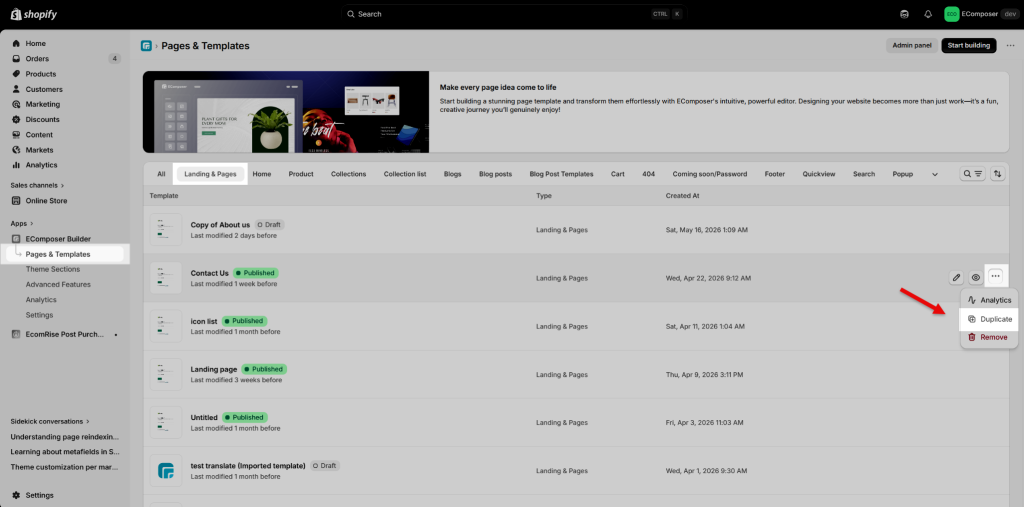
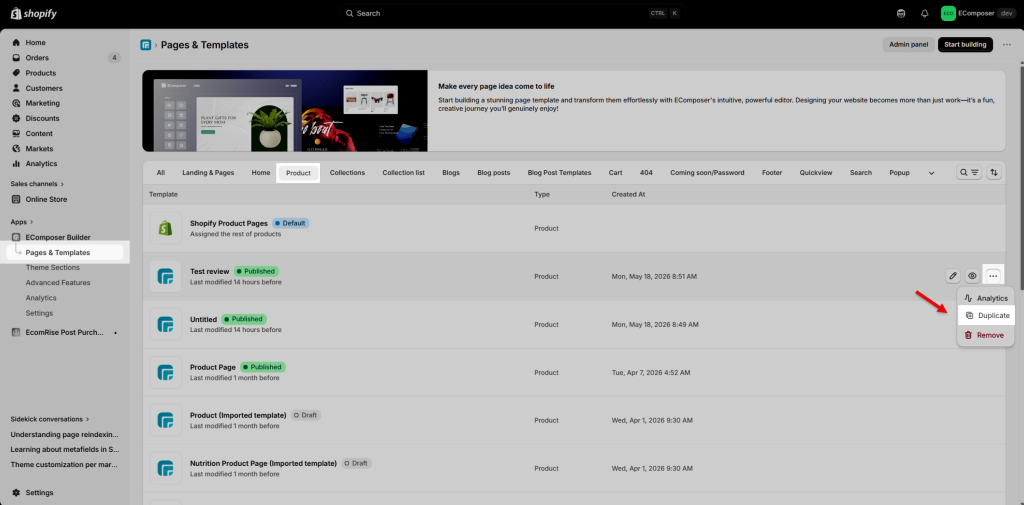
Step 1: From the App Dashboard -> Pages & Templates.
Step 2: Find the page you want to duplicate.
Step 3: Click the More button ... next to that page.
Step 4: Choose Duplicate.
For example:
- For a Standard or Landing page, open the Landing & Pages tab.
- For a Product template, open the Product tab.
- For a Collection template, open the Collections tab.
2. Duplicate the page from the Page Navigator
Step 1: Open the page/template in the EComposer editor.
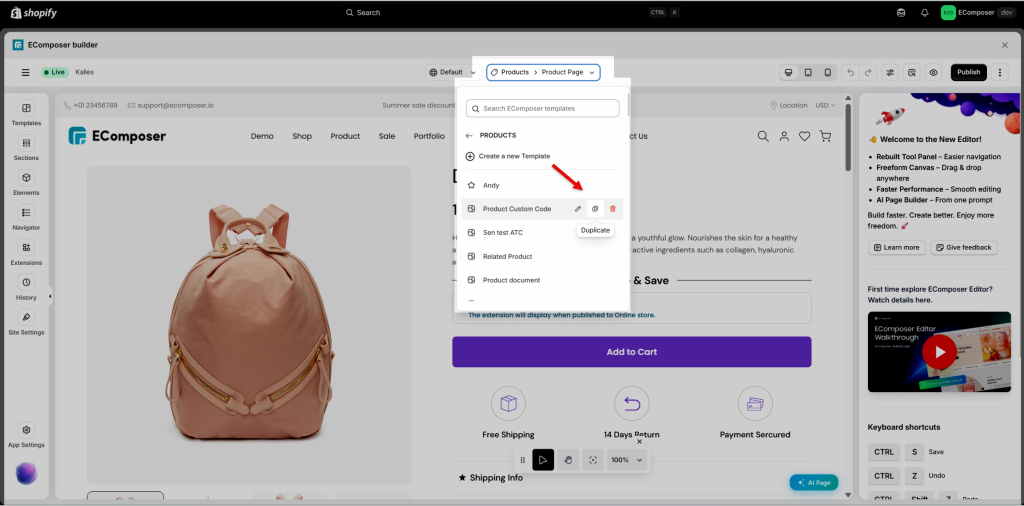
Step 2: Open the Page Navigator.
Step 3: Select the page/template type you want to manage. For example, select Pages for Landing pages, or select the relevant template type, such as Product Page, Collection Page, Blog, etc.
Step 4: Find the page/template you want to duplicate.
Step 5: Click the Duplicate icon.
3. Important Notes When Duplicating Pages/Templates
- The duplicated page/template is created as a separate copy, so changes made to the duplicated version will not affect the original one.
- After duplicating a template, you may need to assign it to the correct products, collections, blogs, or other Shopify resources.
- If the template is currently set as the default template, it cannot be duplicated directly. In this case, you can save that template to your library first, then create a new template and import the saved template from the library.
Alternative method: Save as a template and reuse it
You can also save your current page/template to the EComposer library and reuse it later. This method is useful when the page/template cannot be duplicated directly, such as when it is currently set as the default template.
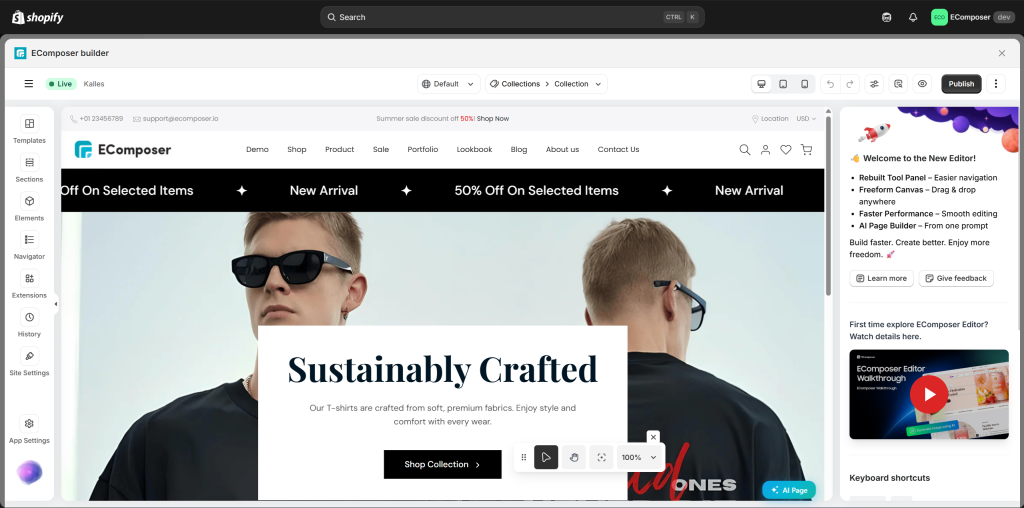
Step 1: Open the page/template in the EComposer editor.
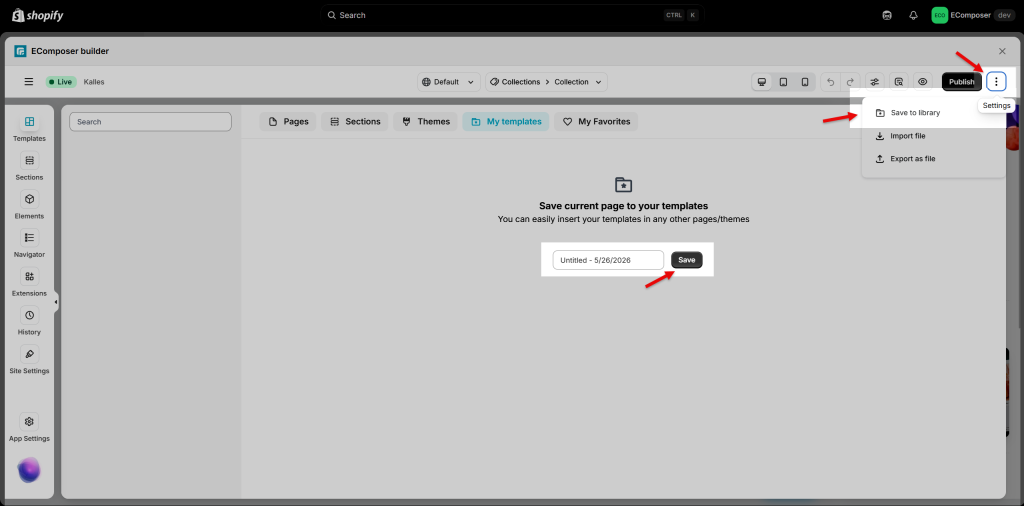
Step 2: Click the More button ••• in the top-right corner, then select Save to library.
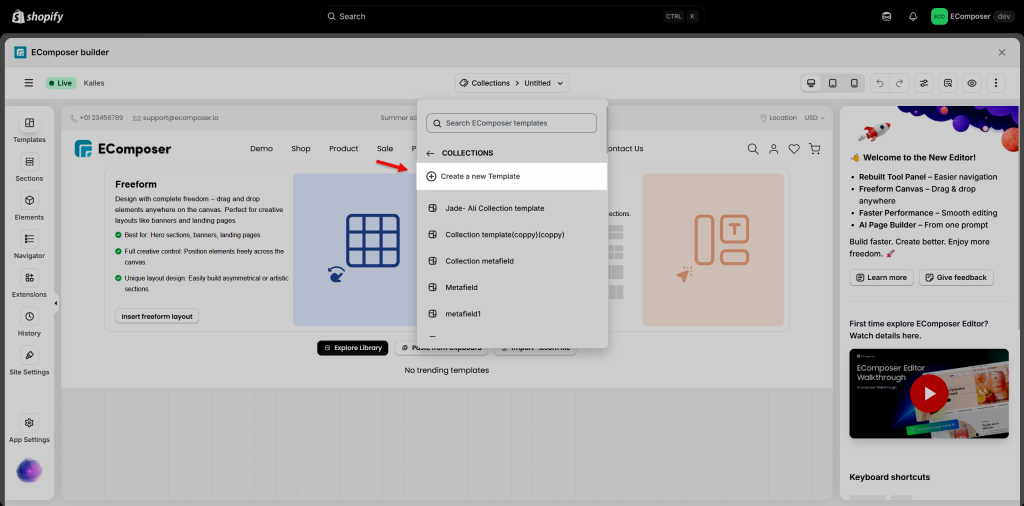
Step 3: Create a new page/template where you want to reuse the saved design.
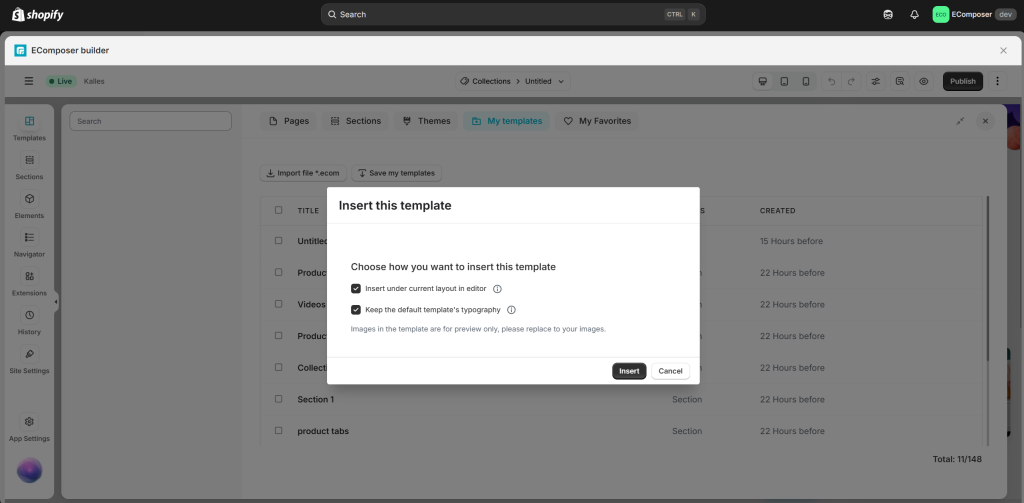
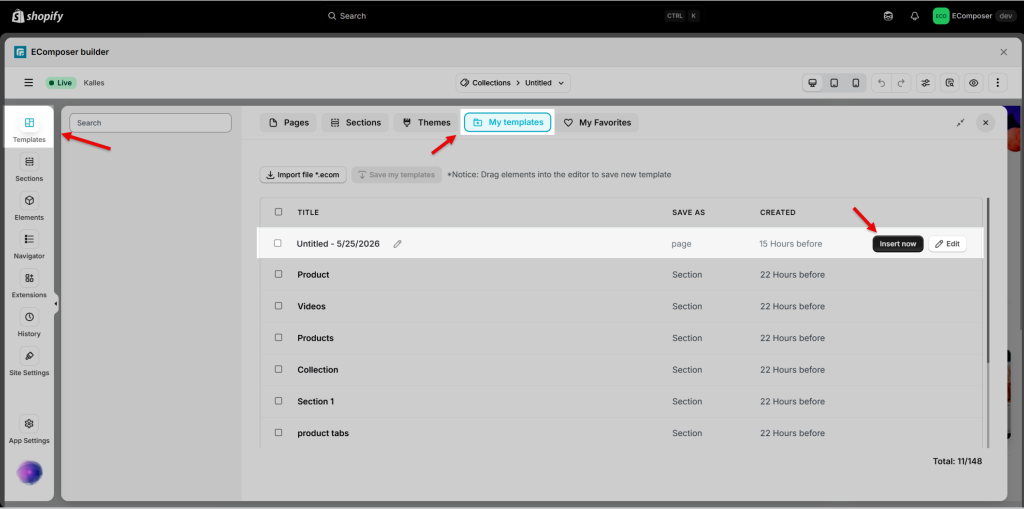
Step 4: In the editor, open Templates from the left sidebar, go to the My templates tab, then find the saved template and click Insert now.
Step 5: In the popup, select the insert options based on your needs, then click Insert to apply the saved template to your current layout. After that, customize and publish the new page/template as needed.