
Search Template
The search page refers to where customers can enter keywords or phrases to search for specific products, collections, or content within a store. This page typically displays search results relevant to the entered query, helping customers find what they’re looking for more efficiently. While Shopify’s Search template is minimal and simple, EComposer is more customizable. You can create your own template and add any elements you want to it.
1. How to create a new Search template in EComposer
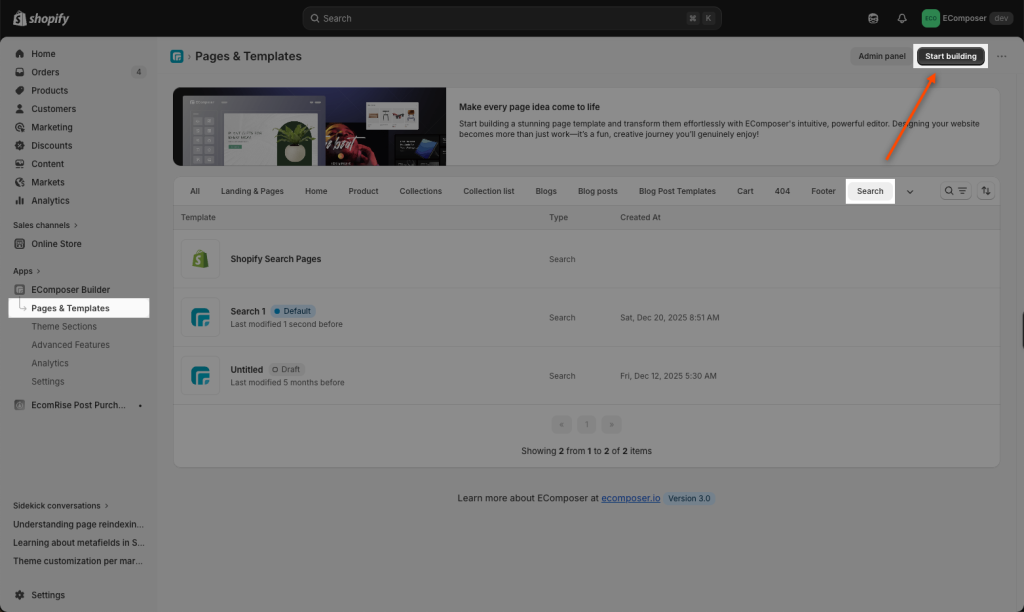
From the App Dashboard, please click on Pages & Templates -> Search -> Start building.
When you create a Search page, you will see the Search result and Text result elements to add to your template. However, you can add the other elements to your page as well, such as Heading, Image, or a Recommended products element…
Please watch the video below to learn more in detail.
2. How to apply a search template from EComposer to your website?
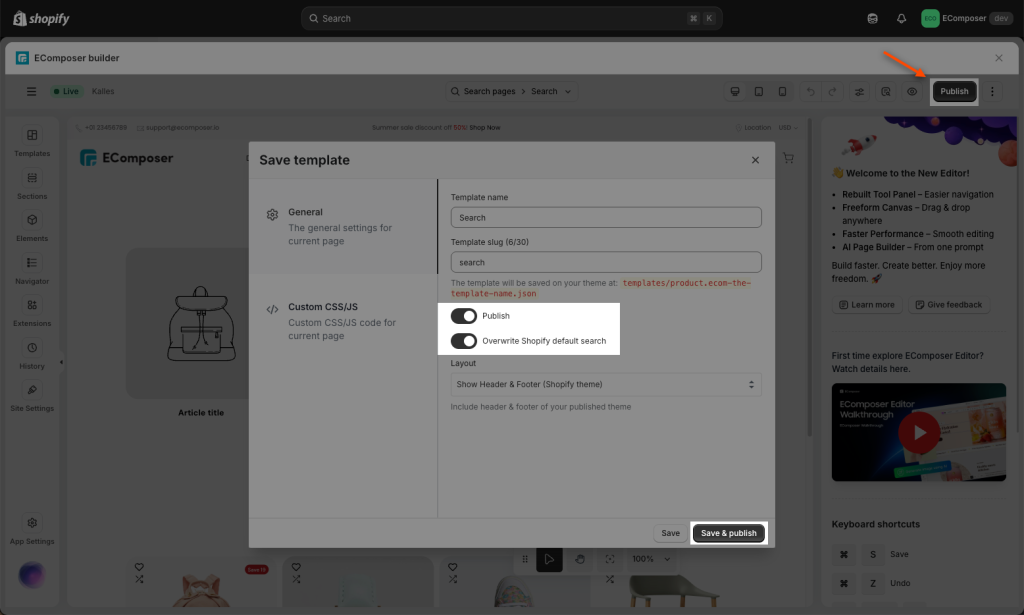
After creating a new Search template in EComposer, please click the Publish button, and then turn on the Publish option, and tick Overwrite Shopify default search. As a result, your created search template in EComposer will be applied to your store.
3. How to restore the Shopify default search template?
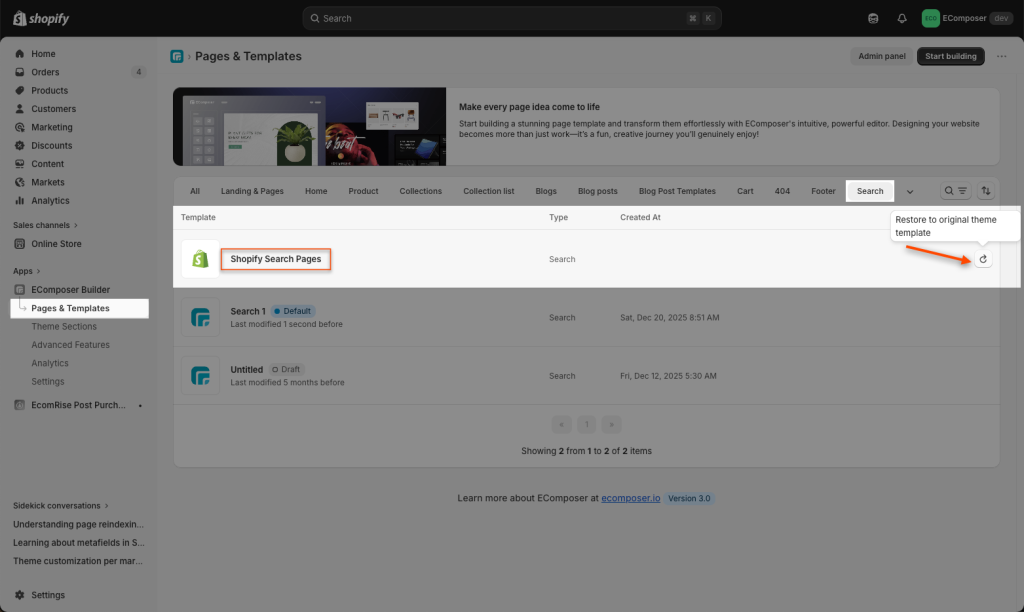
In case you want to restore to the Shopify default search, please go to Search as you created it, and click the Restore button on the Shopify Search page
4. How to delete the Search template in EComposer?
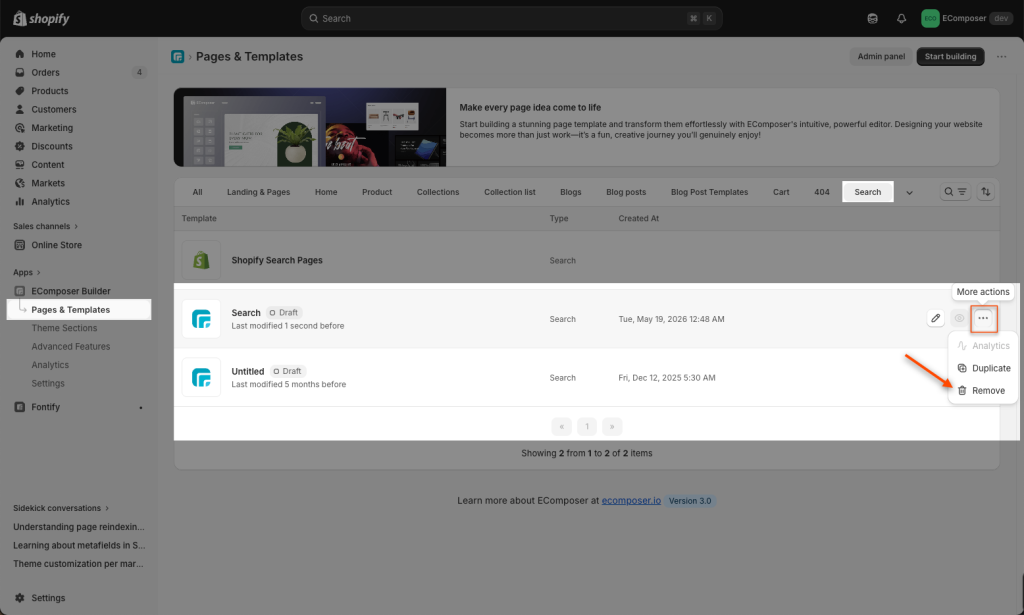
To delete a Search template in EComposer, please go to App dashboard -> Templates -> Search -> Click on the three dots -> Remove button.