AI Features in Ecomposer
Here’s the good news: in 2026, you don’t need to be a tech wizard to build powerful digital tools for your company. A new wave of AI platforms acts as a website generator, letting you create websites and business apps just by describing what you want in plain English. You provide the business idea, the “vibe,” and the AI handles all the complicated technical work, delivering an AI-generated website by creating layouts, building features, and writing content. It’s the fastest and most affordable way to get the custom tools your business needs.
The Real Business Benefits of Using AI to Build Your Site
Here are the biggest advantages:
- Total Independence: You own the process. You can test new business ideas quickly without relying on anyone else’s schedule.
- Massive Cost Savings: Hiring a web agency can cost thousands of dollars. Using a website builder AI costs a fraction of that, often just a small monthly subscription.
- Incredible Speed: What used to take months of back-and-forth emails with a developer can now be done in a single afternoon. You can literally launch a new product page or internal tool today.
- Easy Updates: You don’t have to call your IT support to change a sentence on your homepage. You just ask the AI to update it for you.
In EComposer, we have specifically developed AI-powered features with different levels of impact, allowing users to apply AI within specific scopes depending on their needs.
- AI Page Builder: Use AI to generate a completely new page containing multiple sections.
- AI Page Content: Use AI to modify content across the entire page.
- AI Section Content: Use AI to update content within a specific section.
- AI Magic Touch: Use AI to adjust content, styles, and settings at the element level.
- AI Content Generator: Use AI to rephrase or transform existing text creatively, or change tone and style
- AI Image Edit: Use AI to edit existing images or generate new ones.
- AI Product Import:
Here’s how the process typically works for all these AI functions:
- Step 1. Describe what you want to change by writing AI prompts.
- Step 2. AI consumes a certain amount of credits to process requests and generate desired results.
- Step 3. You continuously customize using Ecomposer’s visual editor
1. AI Page Builder
AI Page Builder is a feature in EComposer that helps you build high-quality page layouts faster and more efficiently. It can generate content structure, text, and layout ideas directly inside the editor, helping streamline the page-building process and improve SEO readiness.
Each time you generate content, AI Page Builder creates a single layout only. After generation, you still need to customize the layout manually, such as selecting product lists, uploading brand images, adjusting content, and fine-tuning design details to match your store’s needs.
You can explore this feature by clicking the AI icon at the bottom left of the Editor page here, or open Templates to start generating a layout with AI.
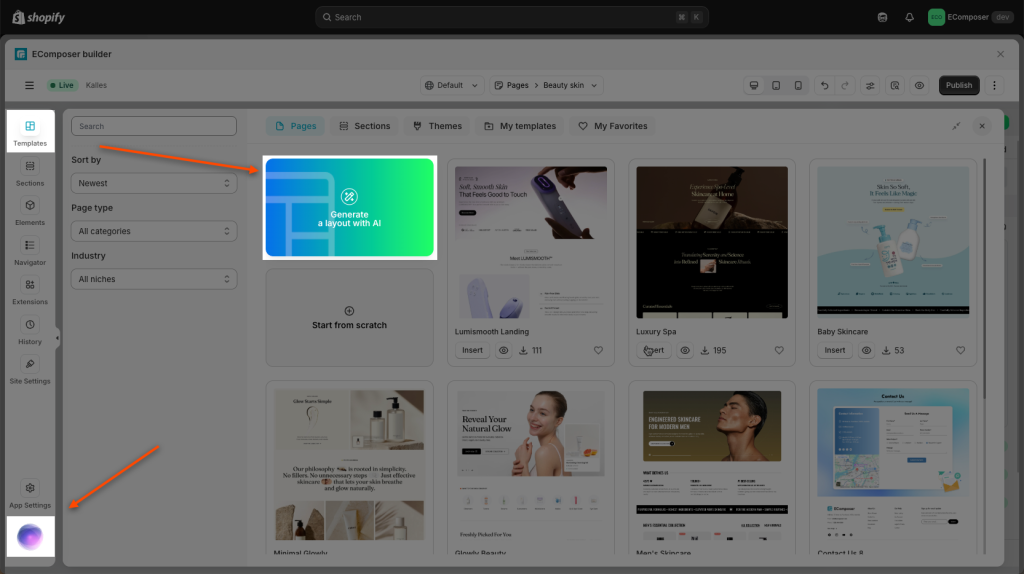
Then, please follow the steps below to create your page/section by using this AI feature:
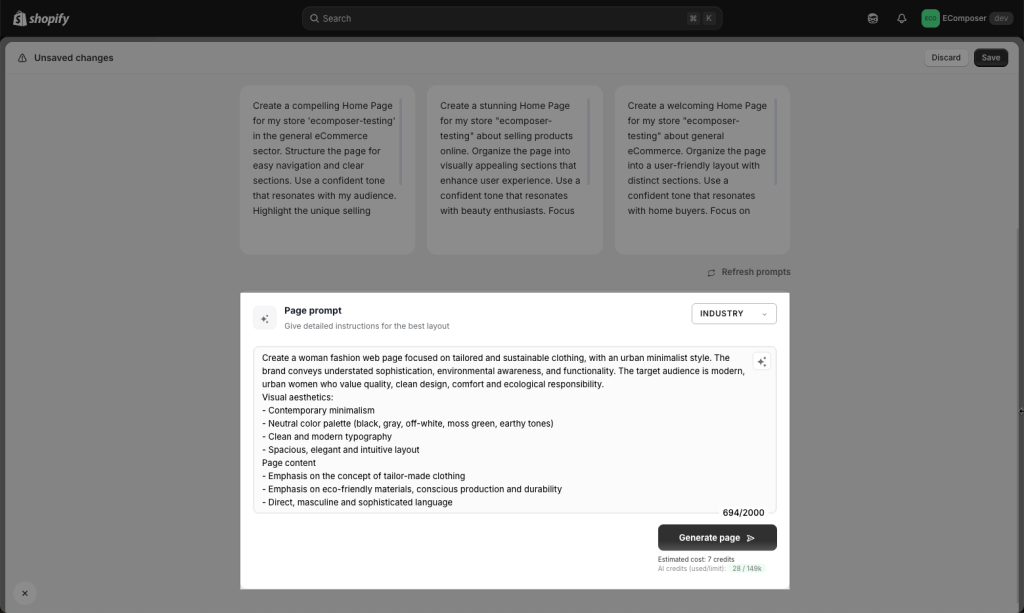
Step 1: Tell Us What You Need
You’ll see a prompt box where you can describe the page or section you want to generate (up to 1000 characters).
Prompt example: “Create a women’s fashion web page focused on tailored and sustainable clothing, with an urban minimalist style. The brand conveys understated sophistication, environmental awareness, and functionality. The target audience is modern, urban women who value quality, clean design, comfort and ecological responsibility.
Visual aesthetics:
– Contemporary minimalism
– Neutral color palette (black, gray, off-white, moss green, earthy tones)
– Clean and modern typography
– Spacious, elegant, and intuitive layout
Page content
– Emphasis on the concept of tailor-made clothing
– Emphasis on eco-friendly materials, conscious production, and durability
– Direct, masculine, and sophisticated language.“
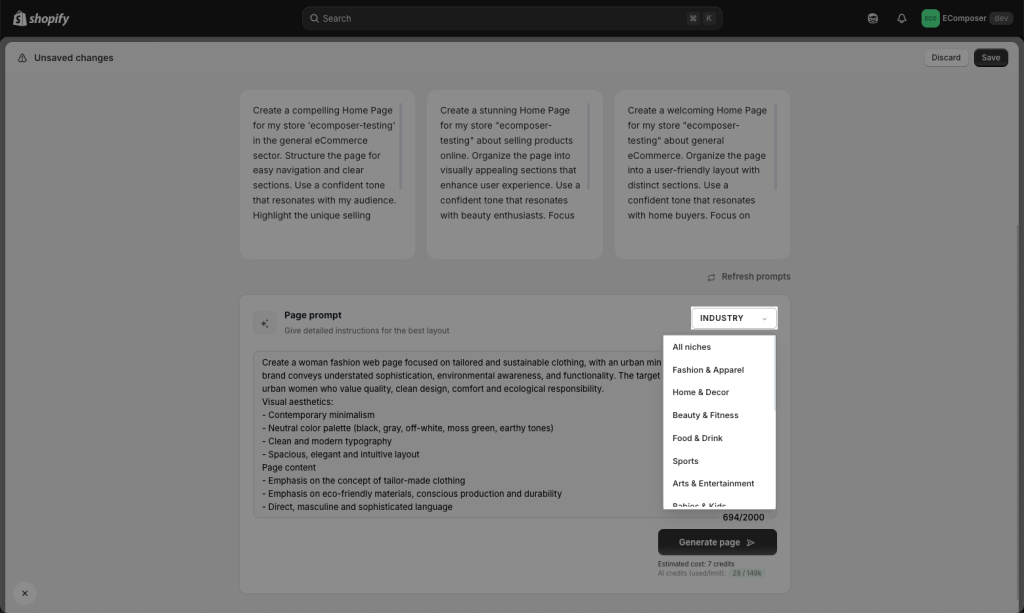
You can also select a niche/ industry to add more information for this AI process.
Step 2: Tweak the Layout
AI will generate a fully structured page in seconds – no coding or design skills needed. The page includes multiple sections that you can also tweak individually.
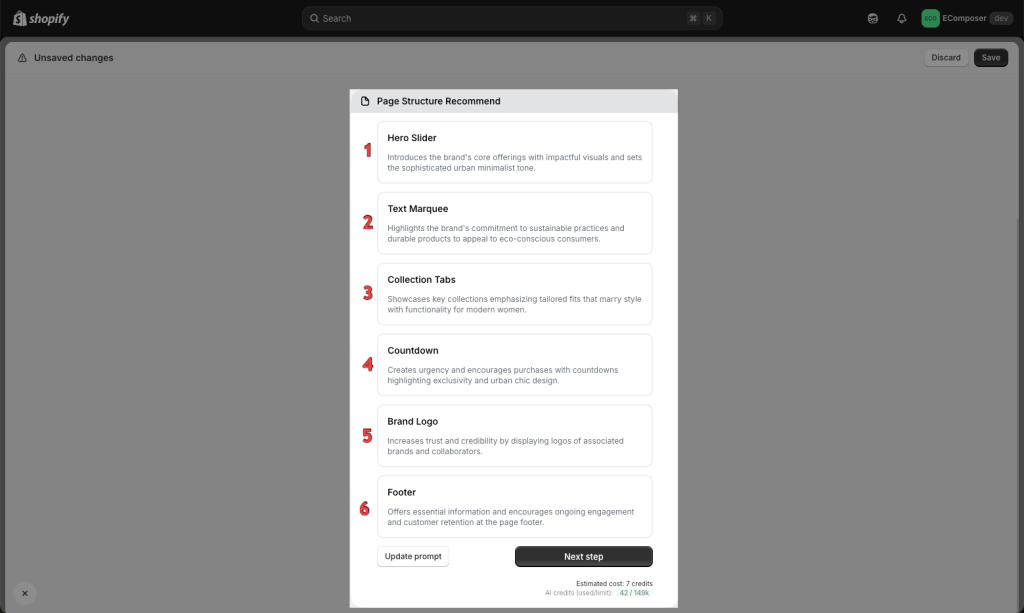
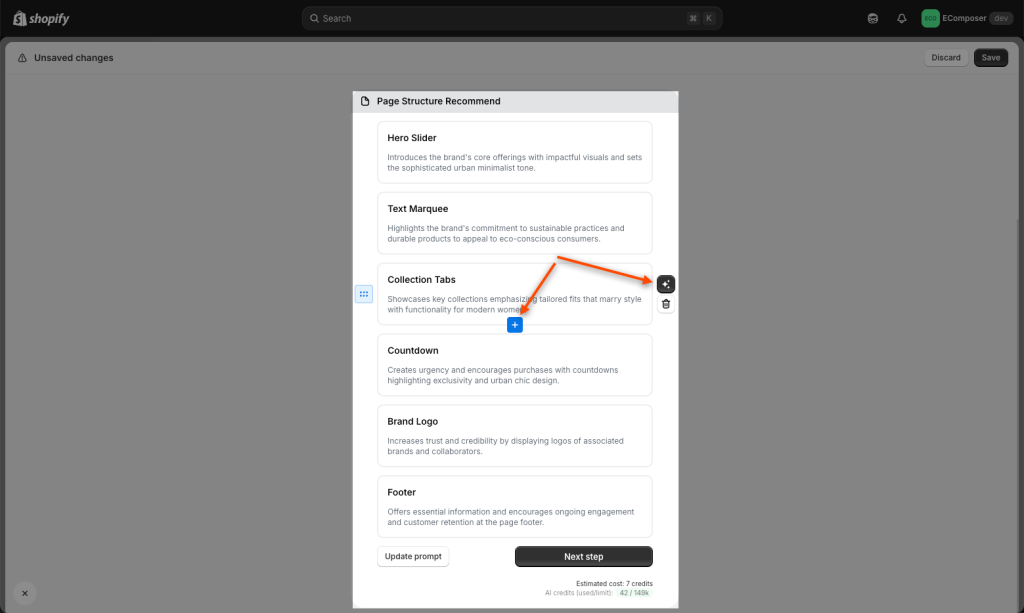
- You can click the (+) icon if you want to generate more AI sections and then add them to the page. The Magic Wand icon is for editing a specific section with the AI command, and the Trash Can icon represents the “Delete” section function.
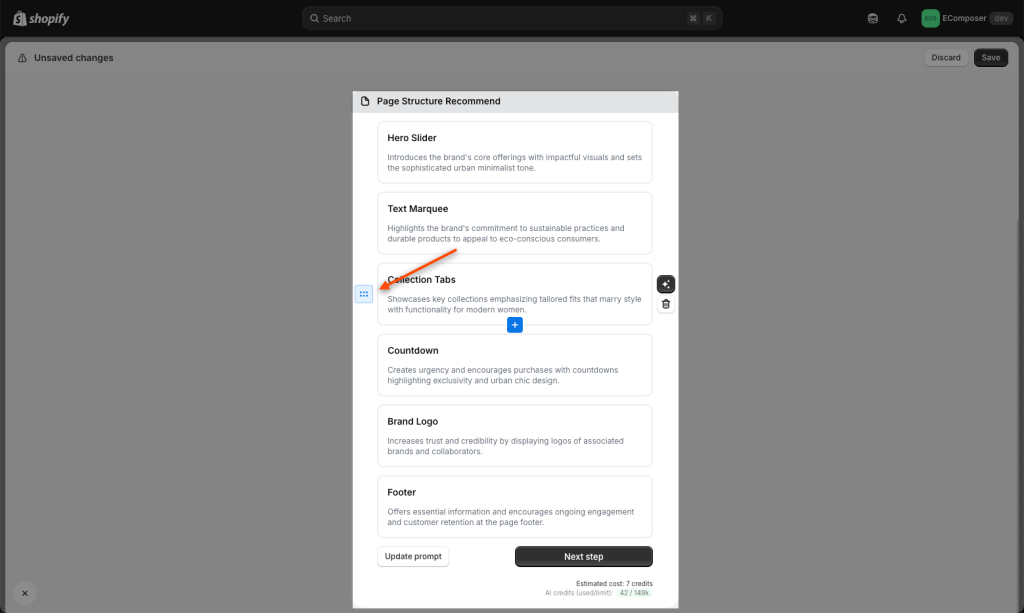
- Move the position of sections by dragging and dropping blue dots up and down.
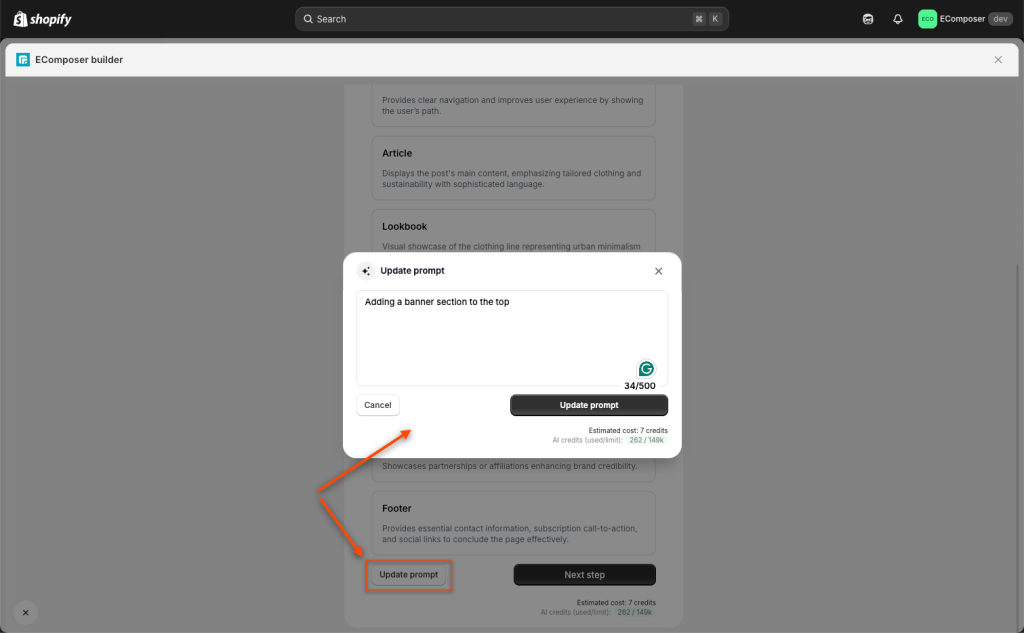
- Update prompt: Describe what you want to change on this page or change to a specific section.
Step 3: Customize page
Each section allows you to switch between different designs. Feel free to browse and apply different design styles until you find one that best fits your brand.
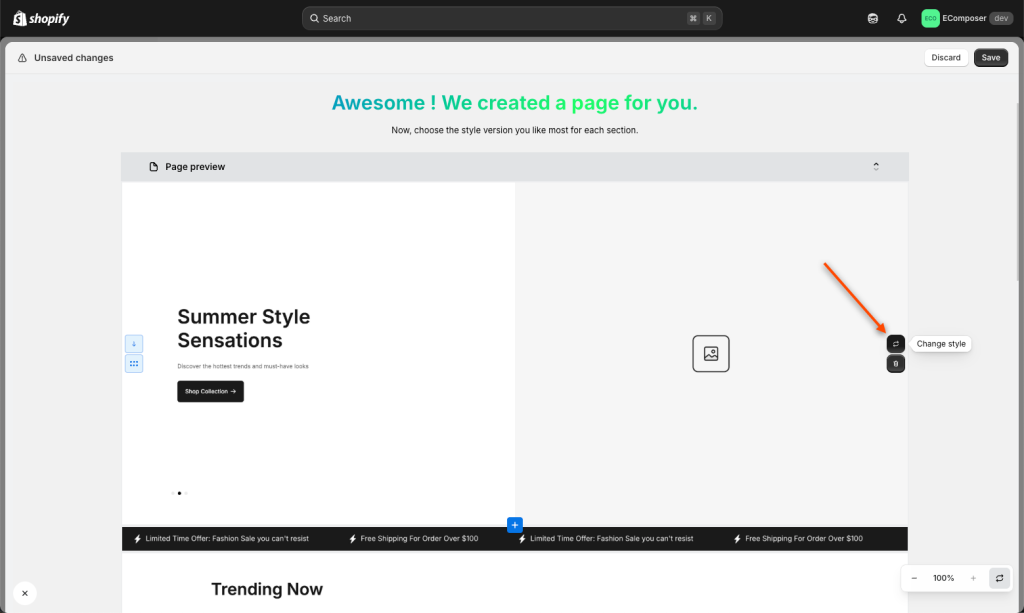
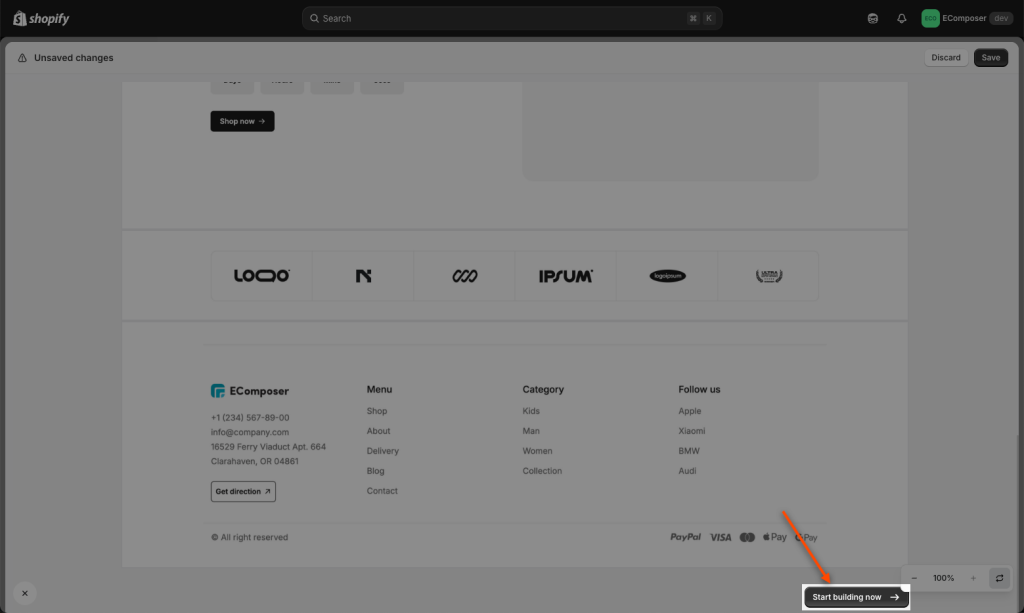
After reviewing all sections of your AI page completely, you click Start building now to go ahead and customize the page content and design.
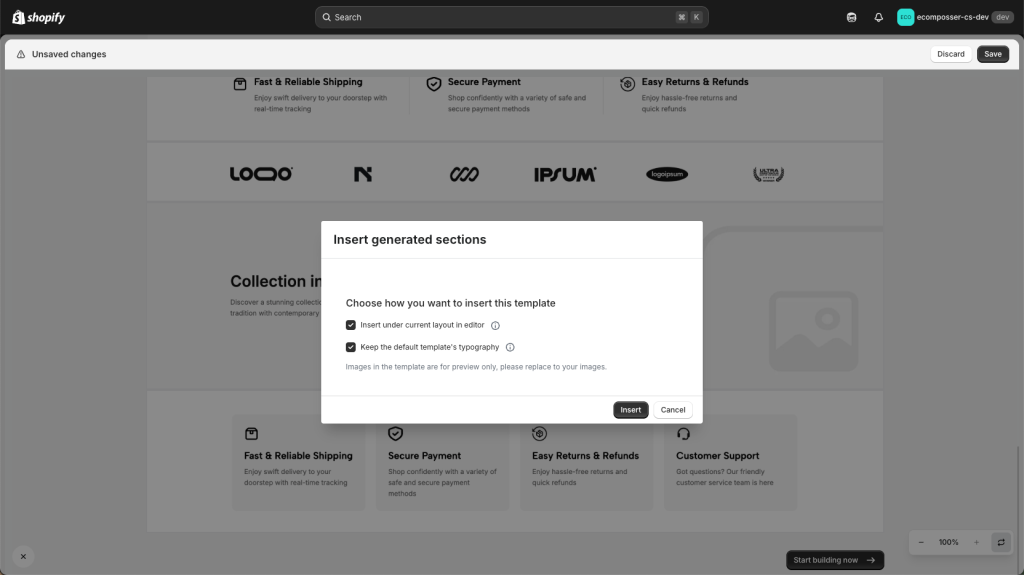
- Insert under the current layout in the editor: Adding AI sections at the bottom of the page.
- Keep the default template’s typography: Continue using the typography of these AI sections.
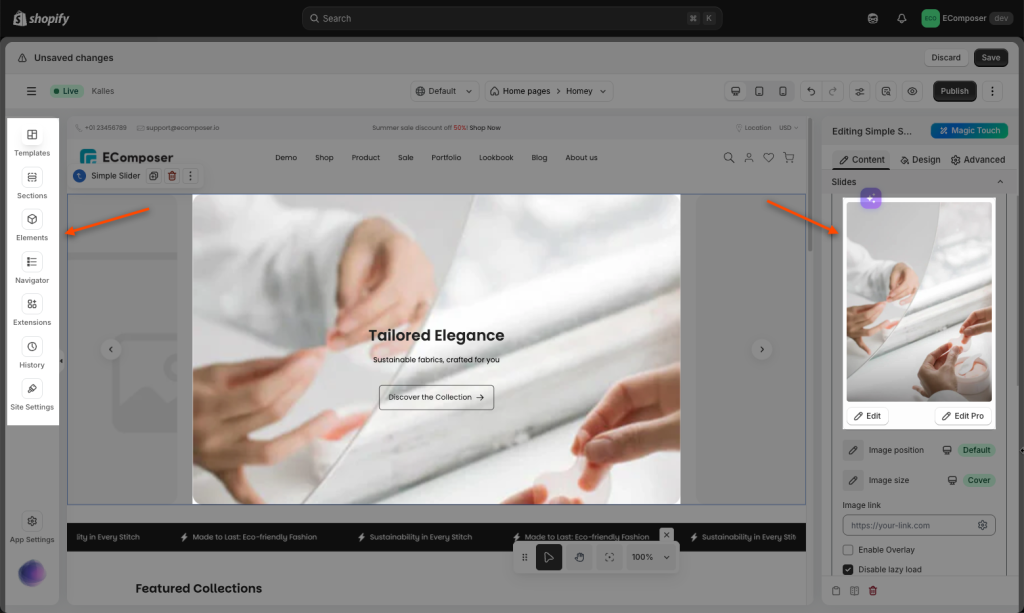
As a result, New AI sections are showcased on your current page and immediately connected to your store data.
You can continue using our drag-and-drop editor to adjust the design, personalize content, and fine-tune the layout in real-time.
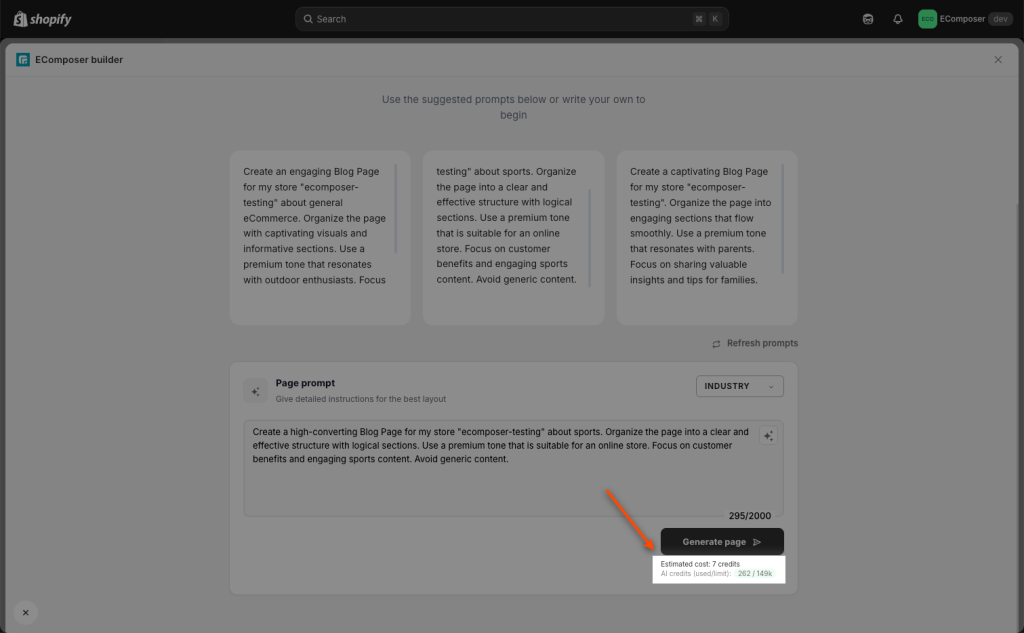
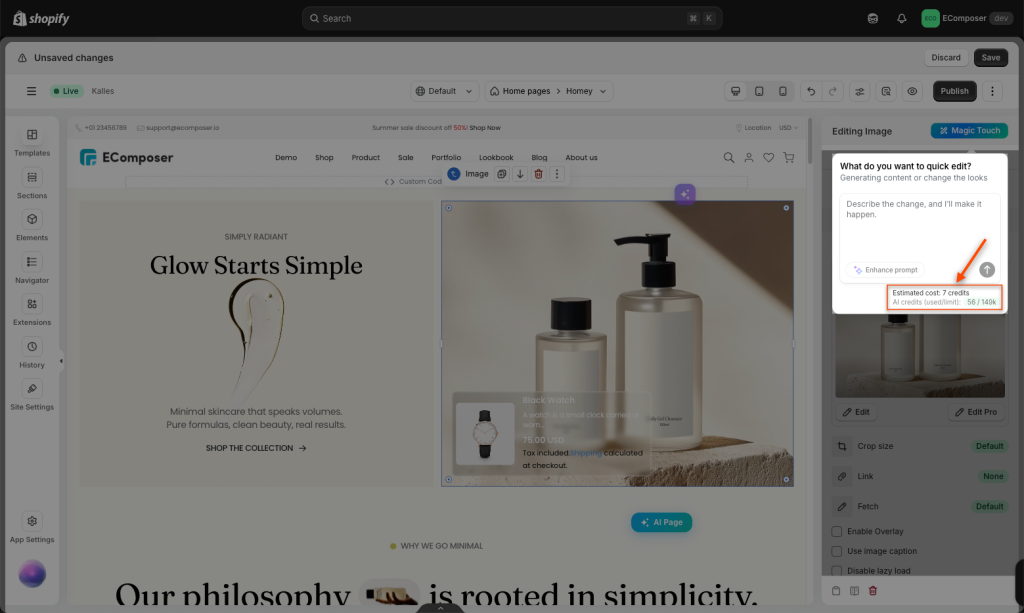
AI credits (used/ limit): Every time you write an input, it deducts a certain number of credits. You should pay attention to your credit limit to write prompts properly.
You can check this video if you still can not follow all the steps above:
2. AI Page Content
AI page editing functions allow users to modify page content using natural language prompts. Users can describe changes in plain language (e.g., “Translate all texts to Japanese”), and the AI executes these changes across the entire page area.
Note: This feature only supports editing text content. HTML, styles, and layout cannot be modified.
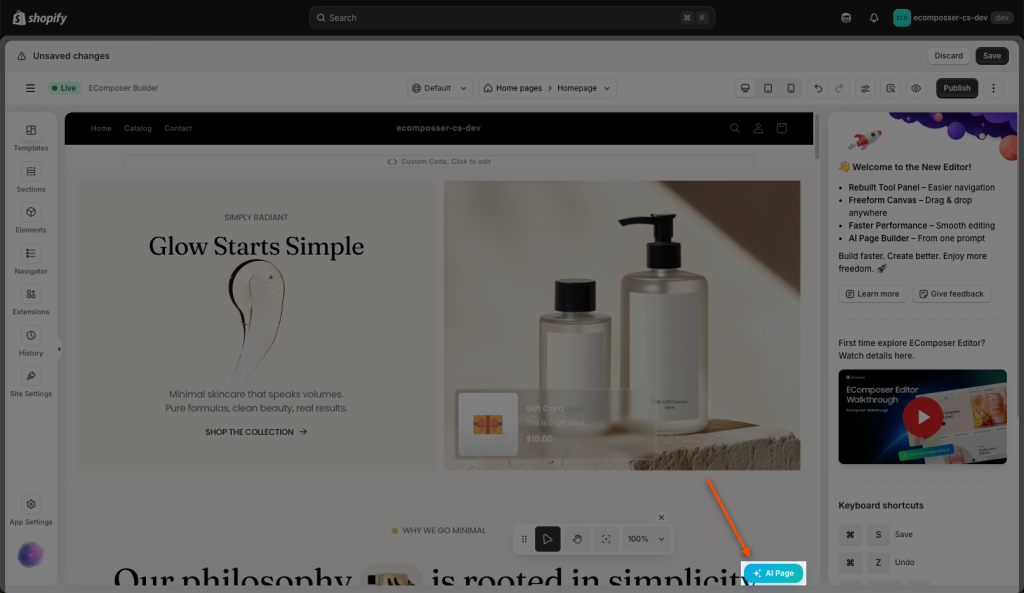
You can follow the video guide below to see how the AI Page Editor feature works:
3. AI Section Content
AI can focus on specific sections of a page. With this feature, you can make changes to all things at the section level with one AI prompt.
For example: “change all texts to Japanese“.
Note: This feature only supports editing text content. HTML, styles, and layout cannot be modified.
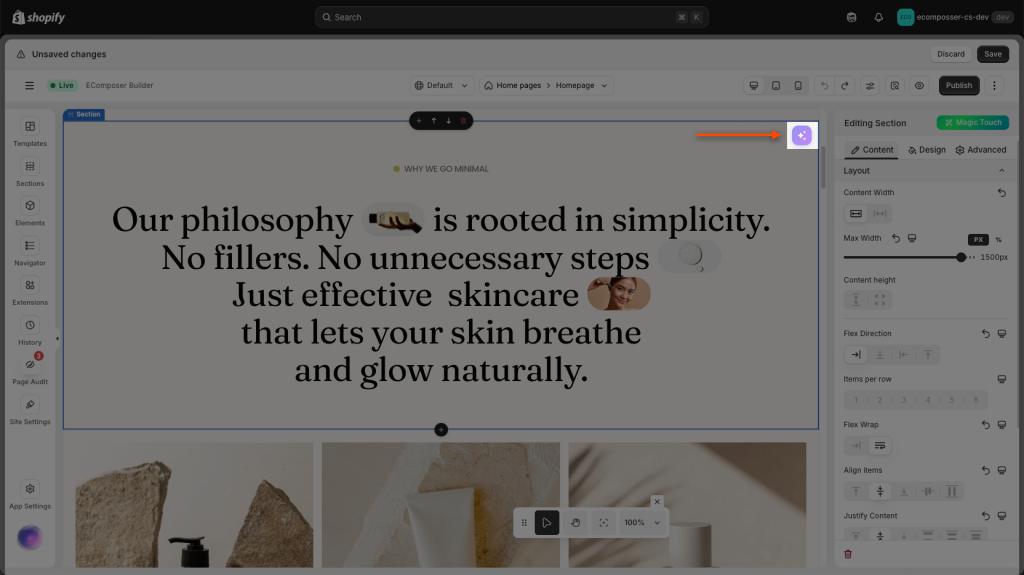
Video Result:
4. AI Magic Touch
Instead of wasting time searching for options among many options, this function helps you change the style or the look of an element quickly using prompts. You can see this button showing on every element inside the editor, including sections, columns, rows, and elements.
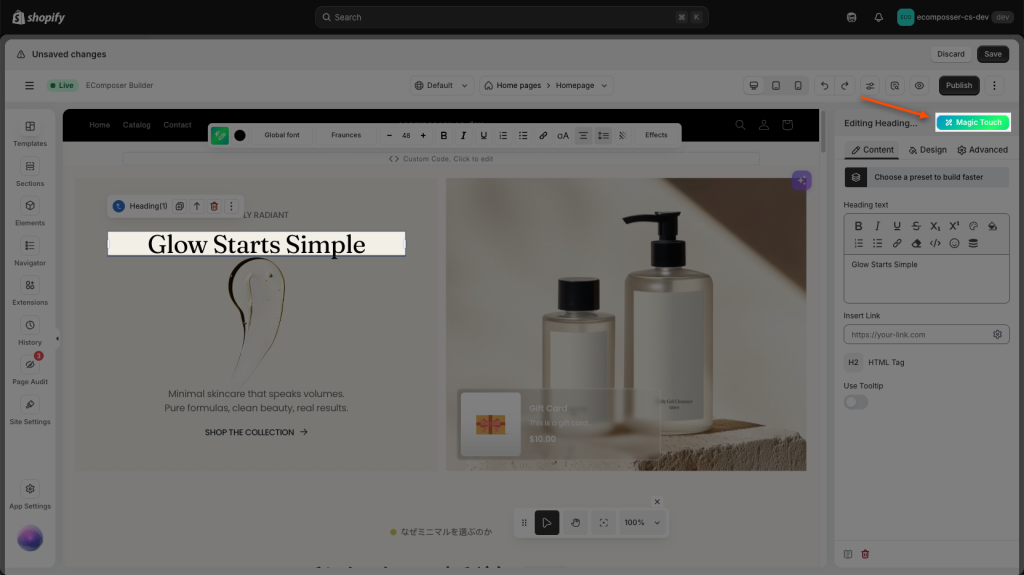
Let’s start with a short prompt, for example: “Change background color to blue #0991b1 and change all texts to white #fff “
Result: the changes will apply immediately to the element in the editor.
You can view the credit cost for this editing action as shown below:
5. AI Content Generator
Here you can describe what this text is about, then it will generate catchy headlines, titles, and taglines fit for your blog, article, essay, story, or more with the keywords you specify.
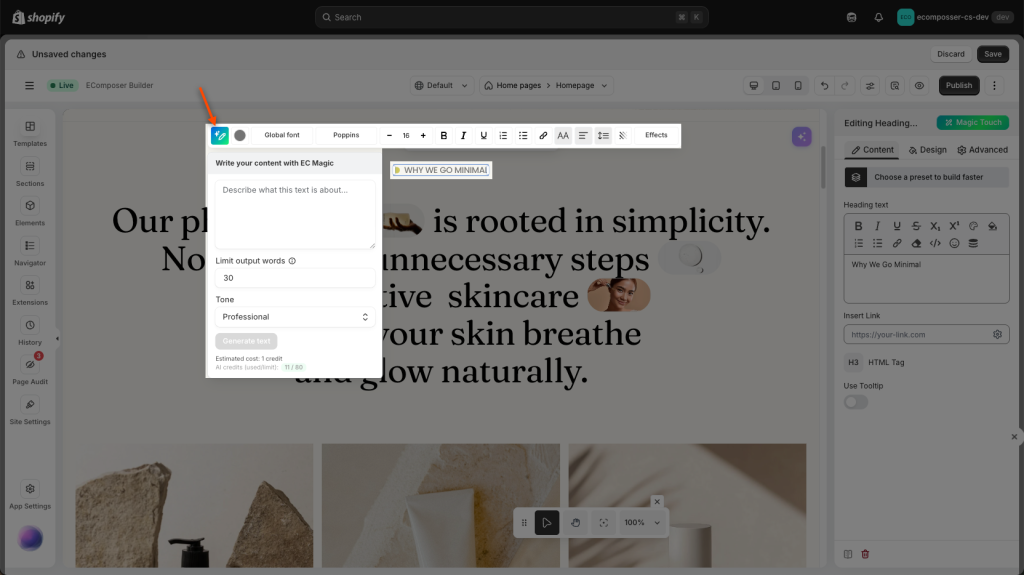
Please give the AI content generator a few keywords and let it transform your ideas into promotional messaging that makes an impact on readers and drives up your conversion rates. You can keep iterating and expanding creatively on the ideas AI provides, evaluate, and decide on the final version that works best for you.
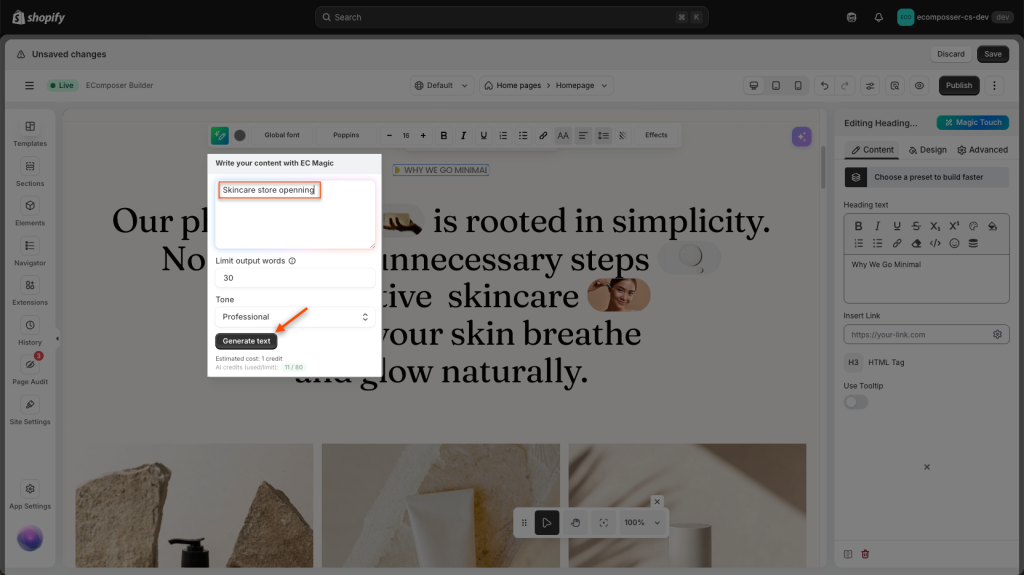
Video guide: The text is tweaked from “Why We Go Minimal“ to “Discover our new skincare store, where minimalism meets quality for radiant, healthy skin.“
6. AI Image Edit
This feature uses advanced AI technology to turn your text prompts into stunning images. Just describe what you want to see, and the AI will create it for you quickly.
6.1 Generate
This helps create pictures or artwork from a description or prompts.
- When you click the Image element, you will see the AI button on the right-hand side to start this AI Image Generate feature instantly.
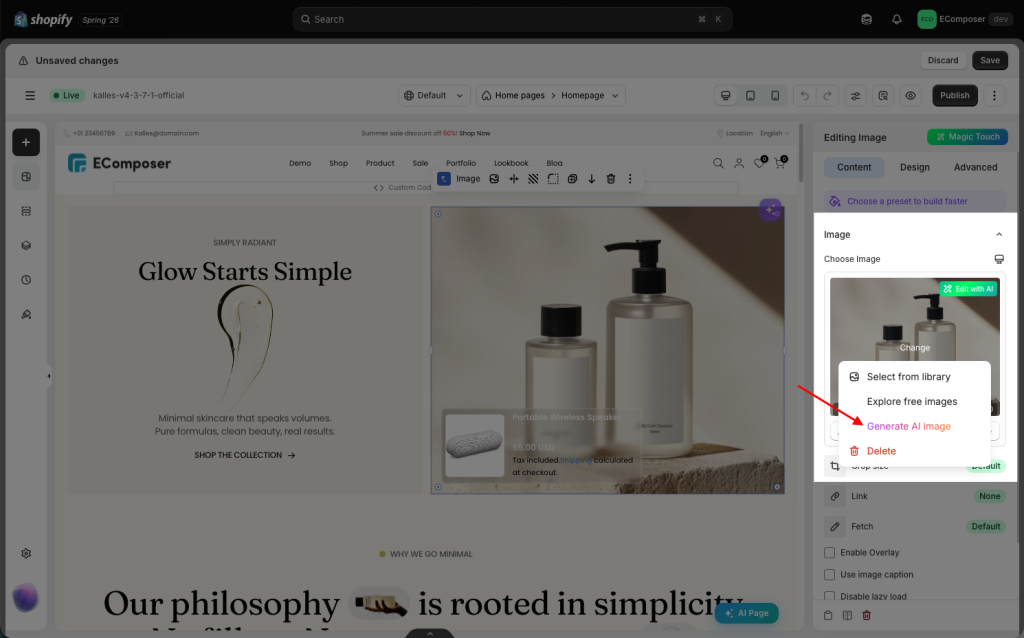
- When you upload an image to the app, the AI Image Generate button is also displayed on the topbar in the library, allowing users to quickly create a new image.
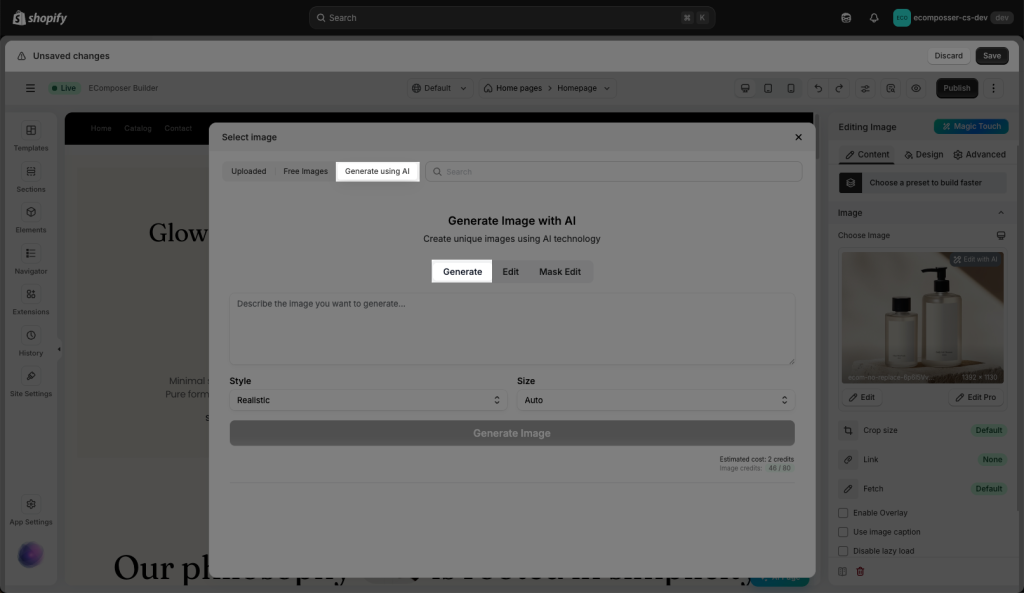
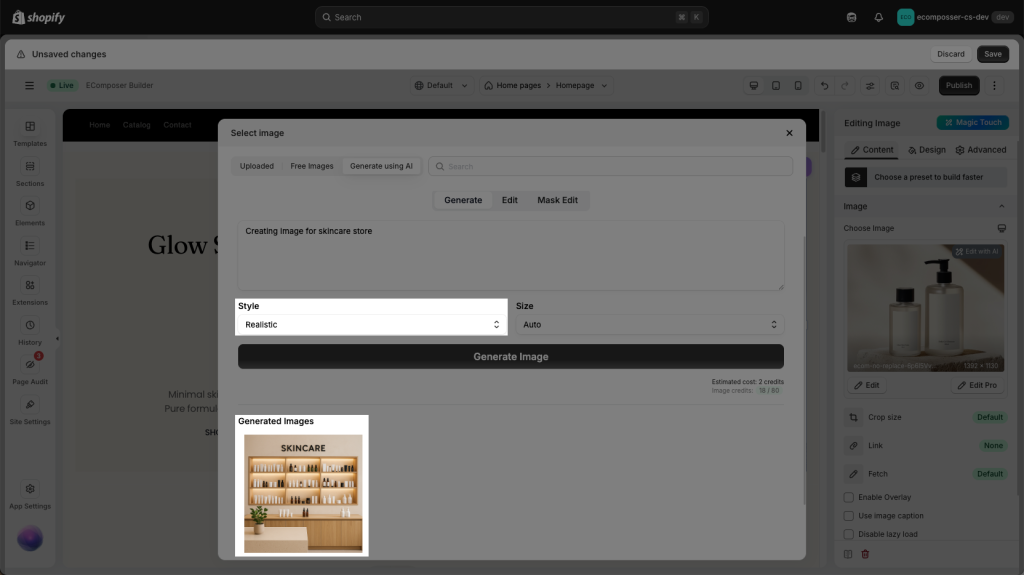
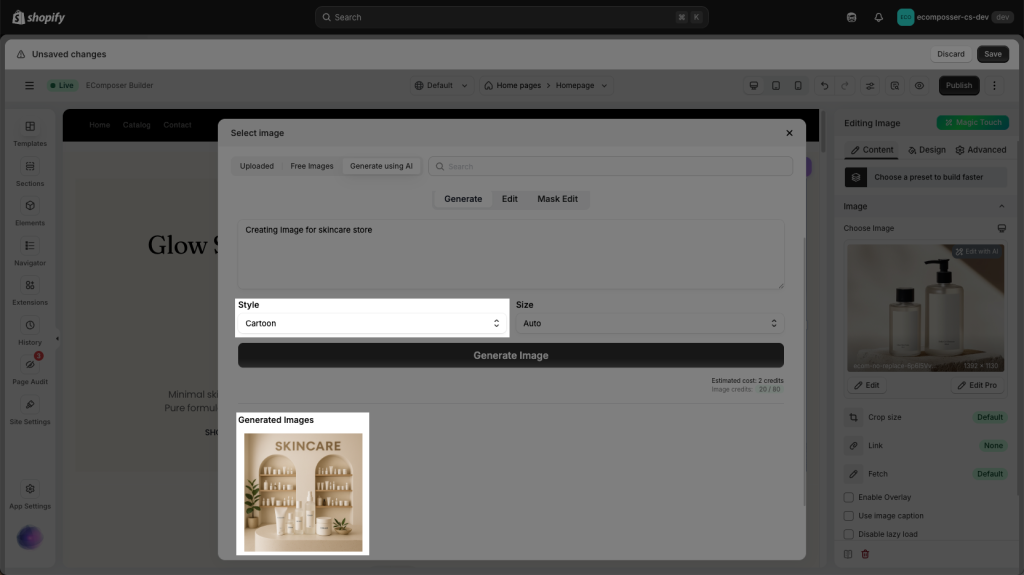
You can simply write some texts to input box -> choose a Style -> click the “Generate image” button. For example, if the prompt is “Creating an image for a skincare store.“, let’s check the video guide below to see the result of this prompt.
Result: The AI creates an image that matches your description, often in minutes.
- Realistic style:
- Cartoon style:
6.2 Edit
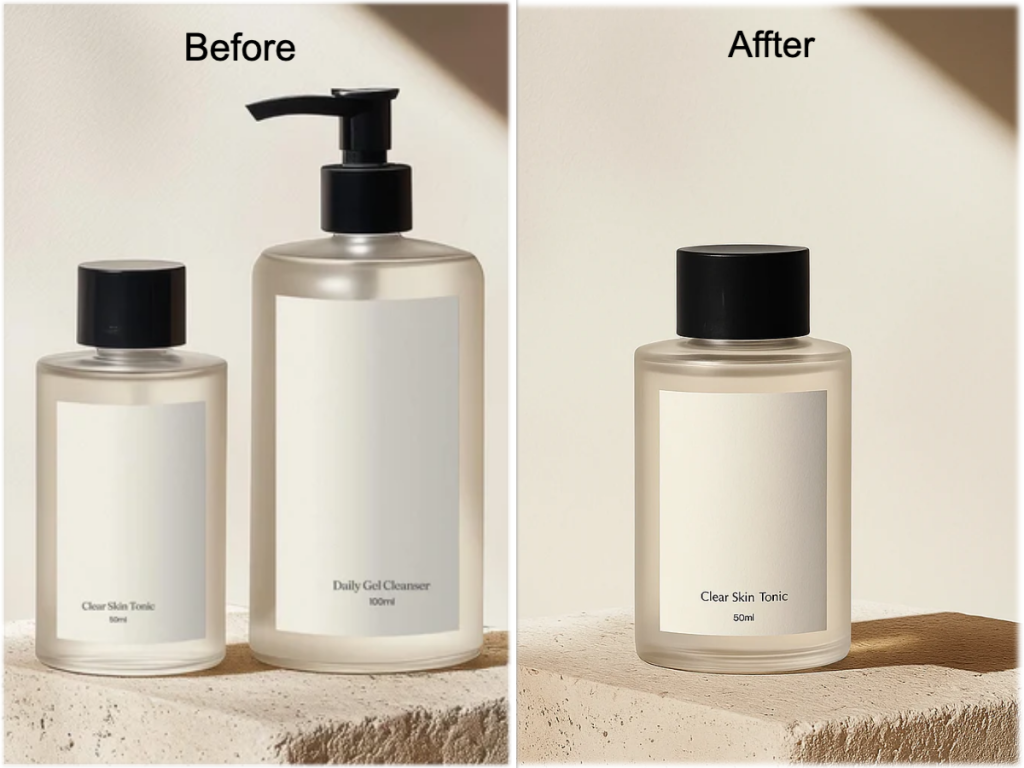
AI-powered tools can remove unwanted objects, change backgrounds, or upscale image resolutions with simple text prompts. Upload an image from your computer -> Write a prompt in the box -> Click Edit image
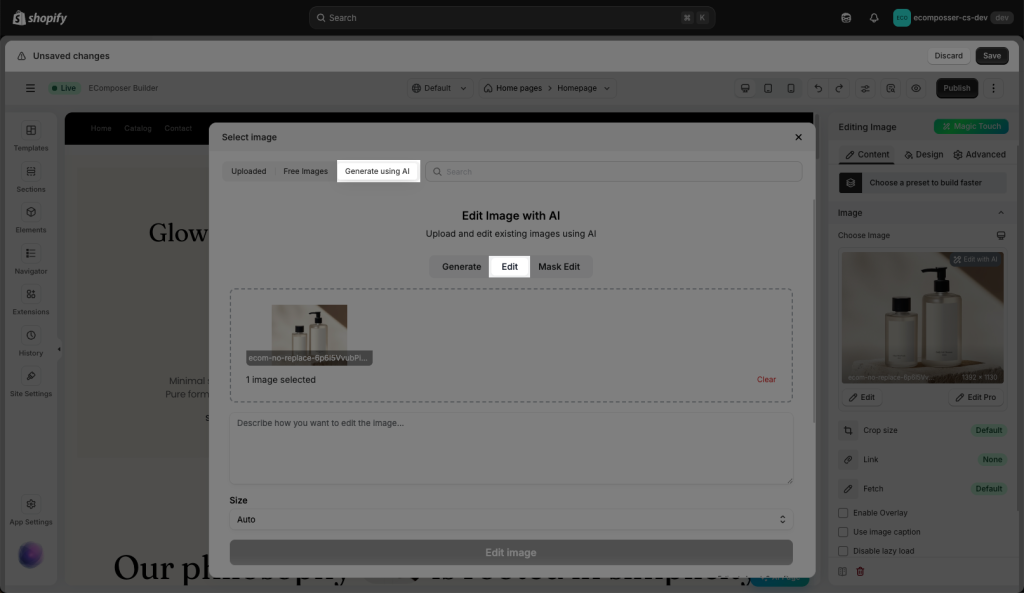
- When you click the Image element, you will see the button on the right-hand side to start this AI Image Edit feature instantly.
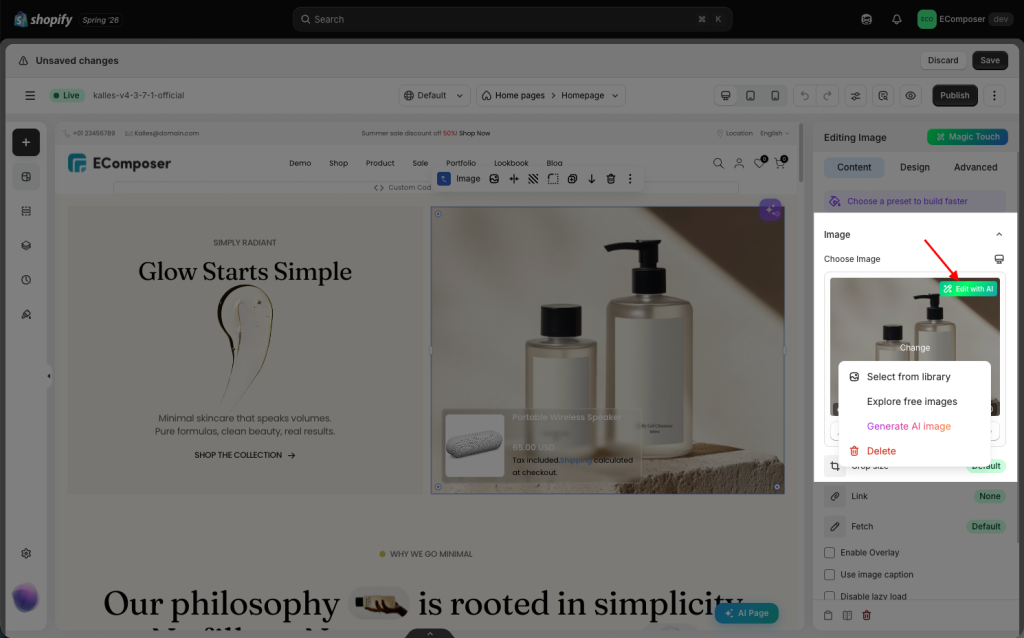
- When you upload an image to the app, the AI Image Edit button is also displayed on the uploaded image in the library, allowing users to quickly edit it.
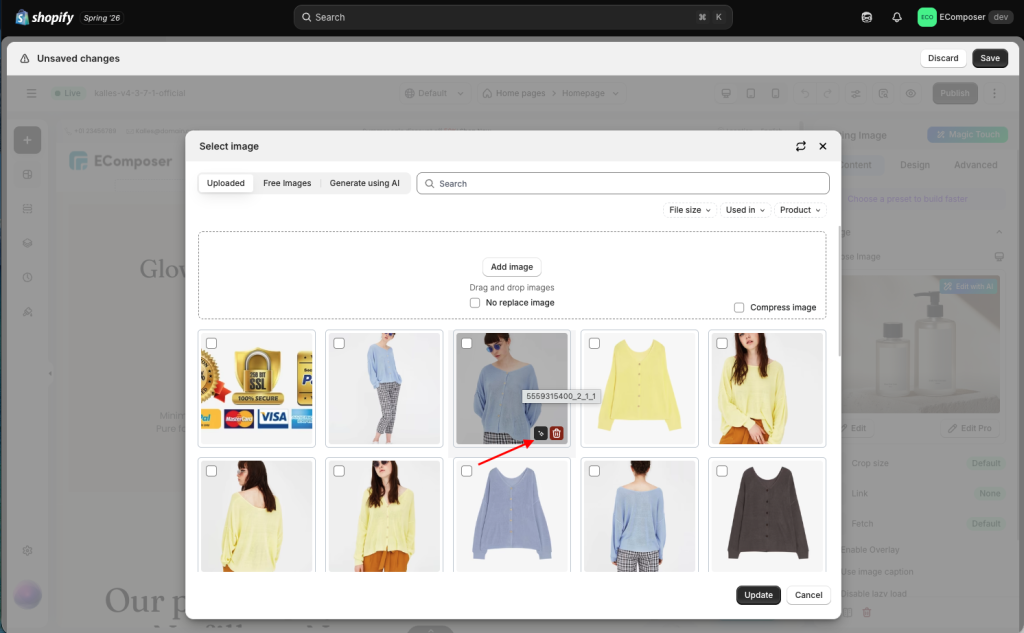
Please check the video below for detailed steps:
Result: One bottle is removed from the original image by AI.
6.3 Mask Edit
This feature allows users to edit a specific area of an image using AI.
Users can use a brush to select or highlight a particular region (marked area) of the image, then provide a text prompt describing the desired changes. The AI will process and apply the modifications only within the selected area, leaving the rest of the image unchanged.
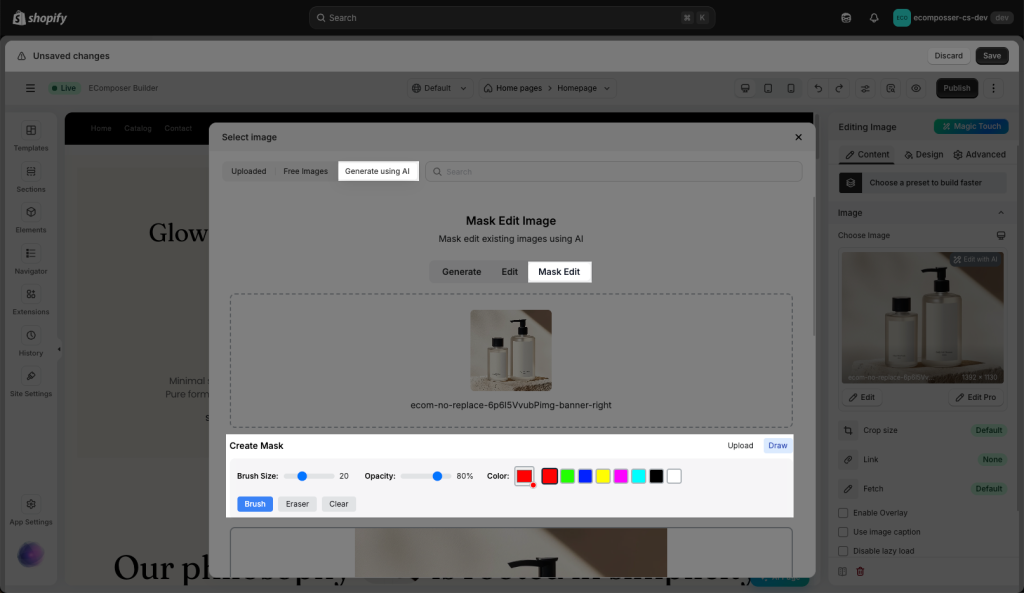
The video guide is as follows:
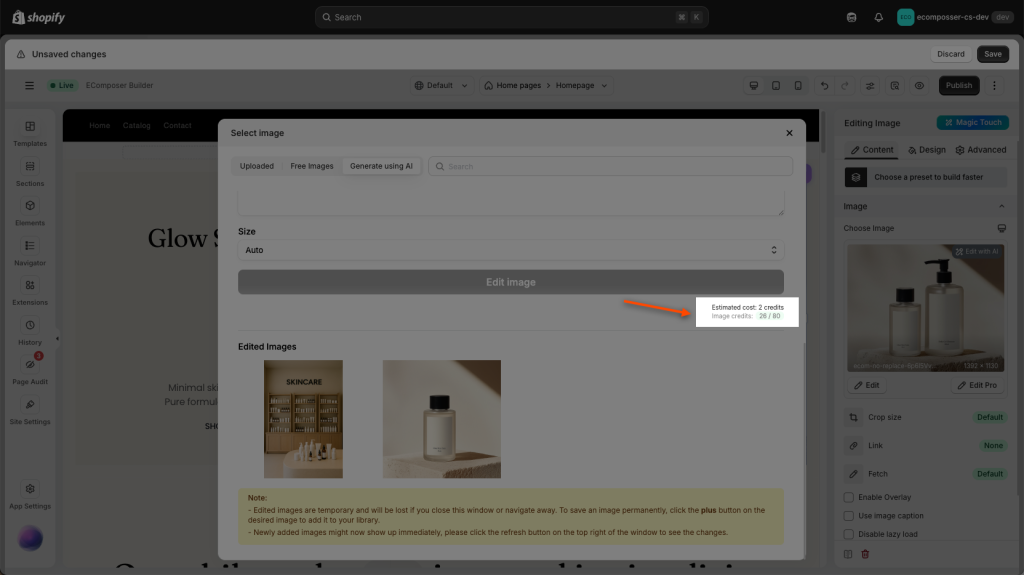
AI credits (used/ limit): Every time you write an input, it will deduct a certain amount of credits. Please pay attention frequently to your credit limit to write prompts properly.
7. AI Credits
AI Credits are the usage units required to run AI features in EComposer. The number of credits used depends on the length, complexity, and processing requirements of the prompt submitted by the customer. Please note that the displayed credit estimate is only an approximation. Actual credit usage may vary and is not fixed per request.
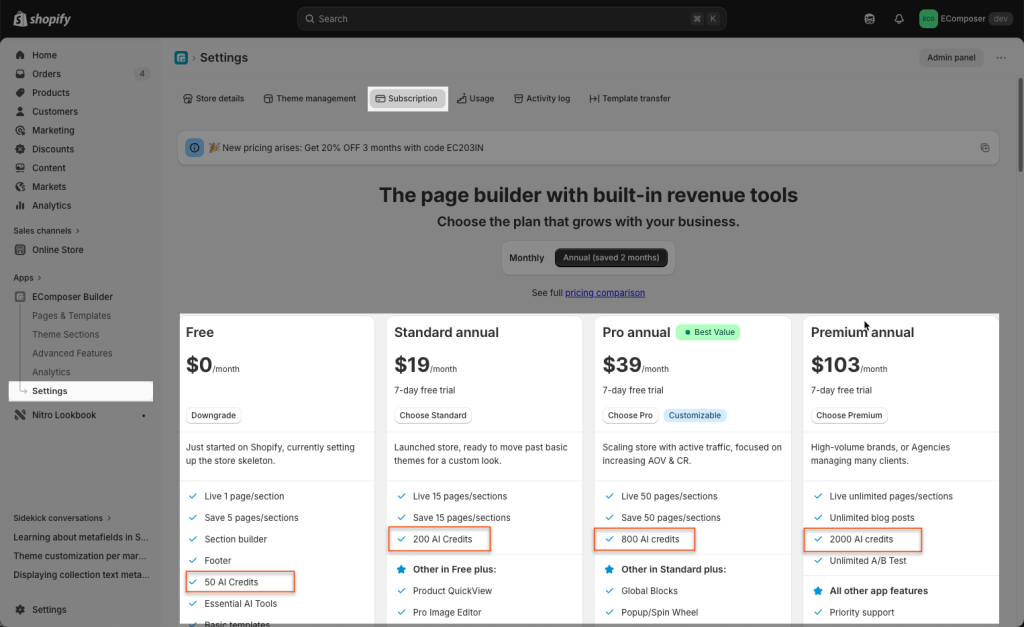
Each subscription plan includes a specific limit of AI credits. Go to App dashboard -> Settings -> Subscription to choose the one that best suits your needs.
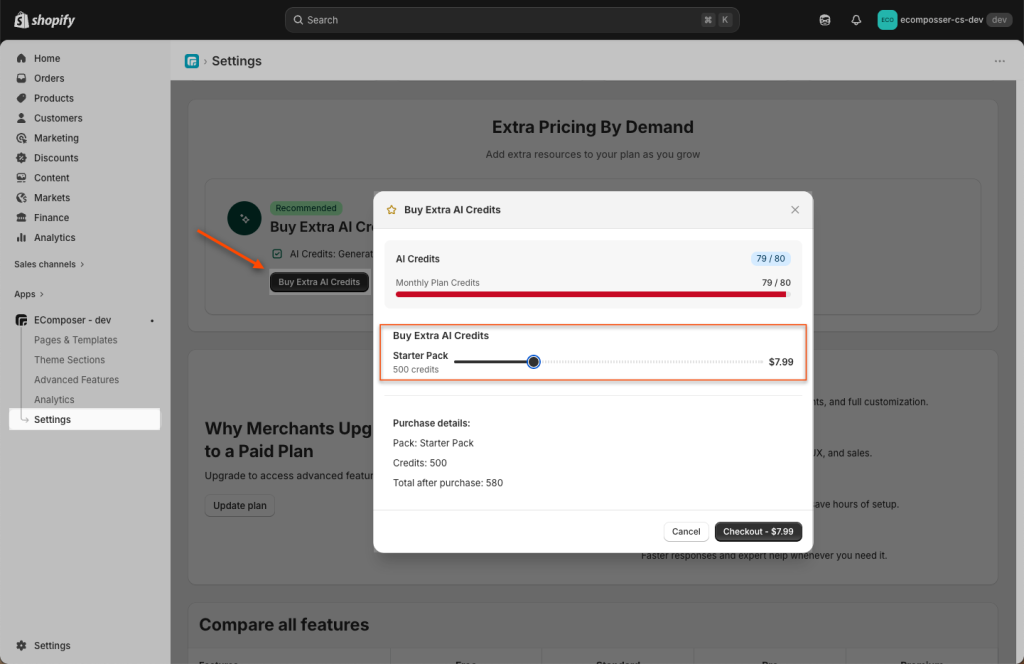
You can also manually buy more AI credits when you run out of credits to keep creating. For more details on the credit calculation, please refer to this guide.
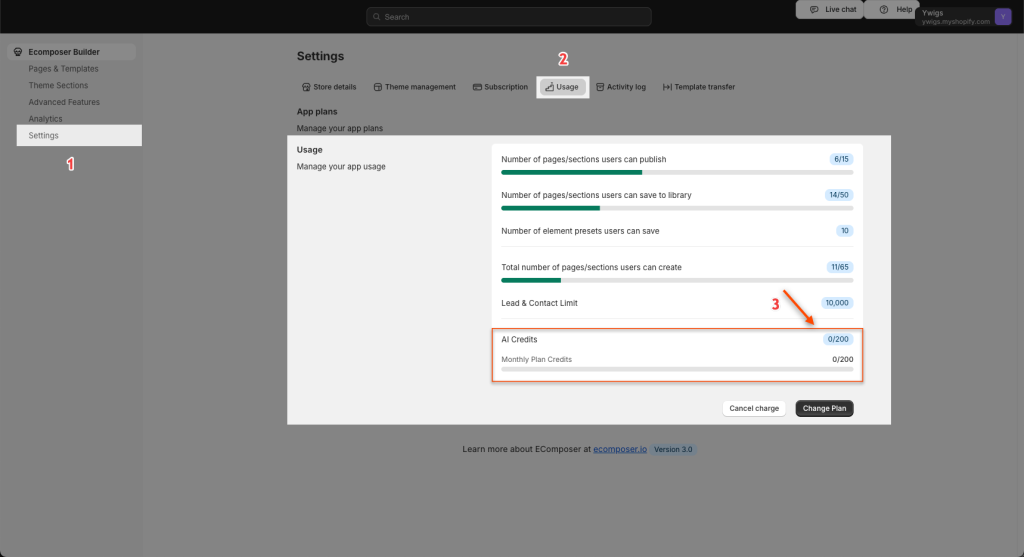
To check the remaining credits you have, you can go to Settings -> Usage -> AI Credits
8. AI Product Import (coming soon)