

Collection Banner
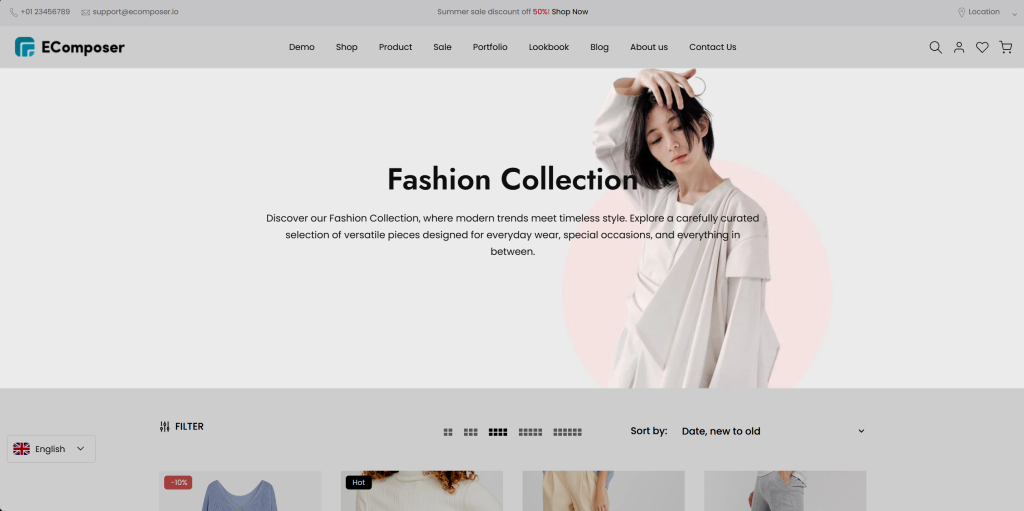
The Collection Banner element allows you to display a banner at the top of your collection page, helping showcase collection images, promotions, or branding to create a more engaging shopping experience. This element is designed to work only on a Collection template.
1. Adding Banner Element
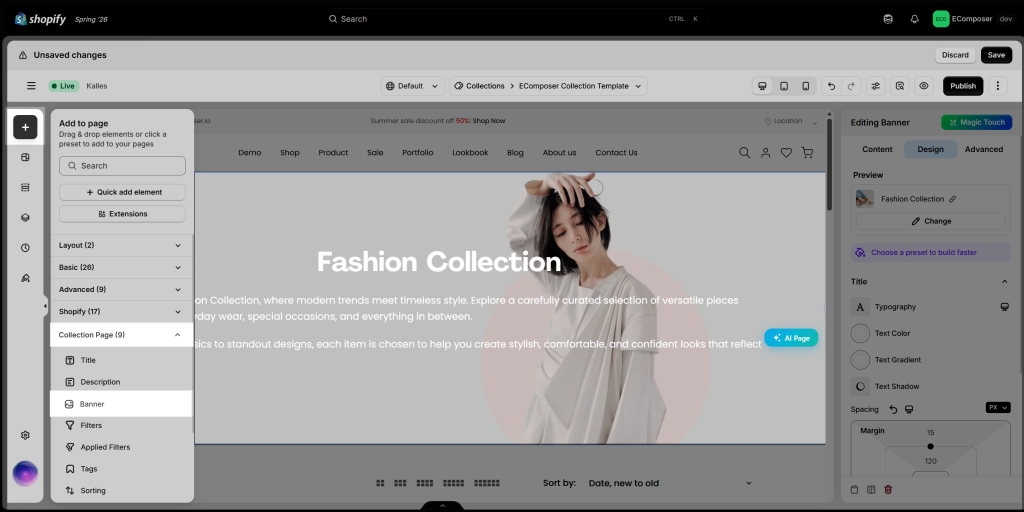
Navigate to Elements → Collection Page, then drag and drop the Collection Banner element into your desired location on the page.
2. Configure Banner
Note: You cannot directly edit any Content or Image in the EComposer App. It is entirely dependent on what you add to Shopify. If you have any requests, you can go to the Shopify admin and edit your collection.
Content
- Preview: This feature allows you to Select the Collection at this function and lets you view what it will look like.
- Image source: You may choose the source to get the image banner from your:
- Collection: Your collection will use the image that you set in the Collection image at Shopify. Any change you can go there to edit it.
- File upload: You can get a free image from here or if you have any images that you want to use to customize the banner, click Select Image to get them and Delete if you feel they no longer represent you.
- Show title/ Show description: This function may help your description and the title will be shown, whenever you click to turn it on.
- Enable Parallax background: You will observe from two different positions, and defines the Image change in the position of a point on the background of the banner. Click here to learn more.
- Enable overlay: Apply a color overlay to the banner image to improve text readability.
- Hide element if no featured image: Automatically hides the Collection Banner if the selected collection does not have a featured image.
- Content position: If you have any requests for changing the position of the banner content so just come to this function to do that, and lots of options for you to consider like Center center, Center right, Center left, Top left, Top center, Top right.
- Custom Height: However, sometimes you will want to change the height of the banner to make it more impressive, let’s do it by this function.
Design
- Title / Description: Customize the banner text, including Typography, Text color, Text shadow, Spacing, and other text styling options.
- Background: Customize the banner background, including Color, Image position, Attachment, Repeat, and Size, from the Style tab.
- Overlay: Adjust the overlay appearance by configuring the Opacity, Background color, and CSS filters. To add Hover effects, use the Hover settings to customize options such as Transition duration and other hover animations.