Notify Me, Back in Stock: SW
Notify Me, Back in Stock: SW allows customers to subscribe to back-in-stock alerts when a product or variant is out of stock. The app helps merchants recover missed sales by sending restock notifications via Email/SMS once the item becomes available again.
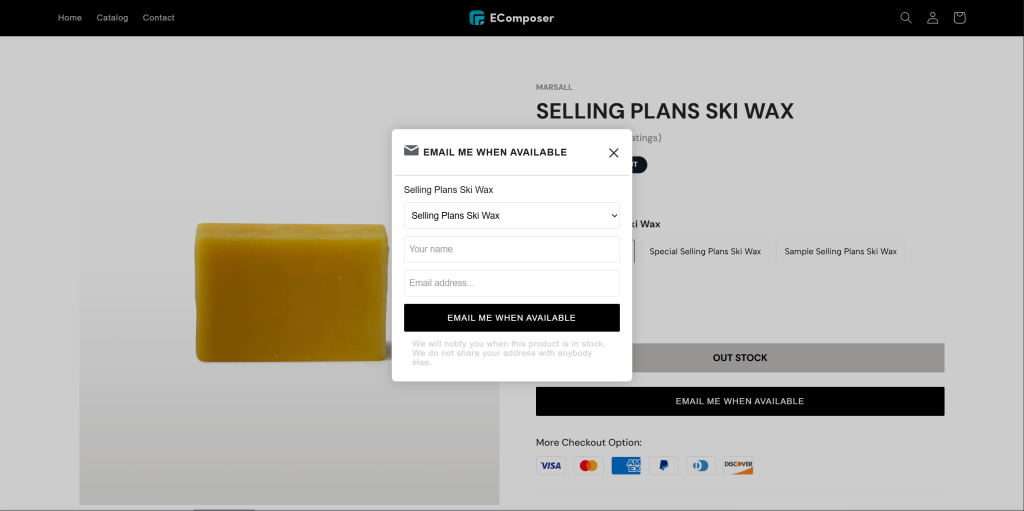
By using this extension with EComposer, you can display the Notify me button or popup on your EComposer product page and place it near the Product information, Variant picker, or Add to cart area for better visibility.
Let’s move forward to see how to use Notify Me, Back in Stock: SW with EComposer.
1. How to install Notify Me, Back in Stock: SW
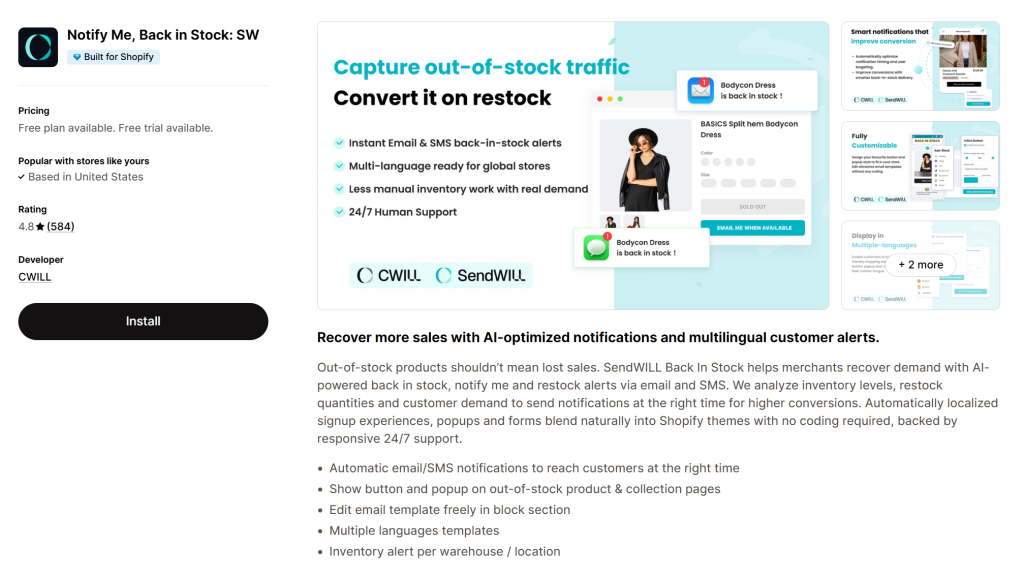
Step 1 : To use this extension, please install the Notify Me, Back in Stock: SW from your Shopify store first.
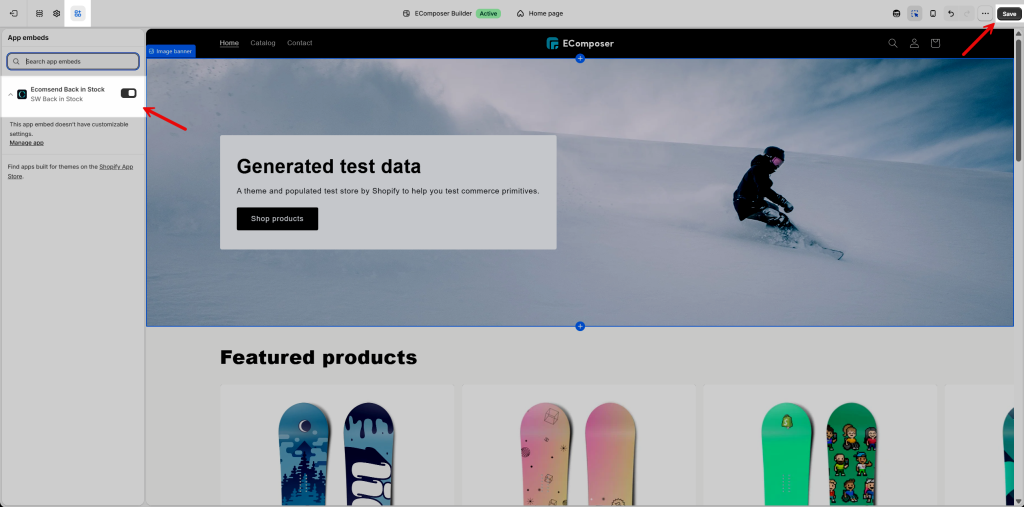
After installing the app successfully, make sure to enable the App Embed for Notify Me, Back in Stock: SW.
Go to Online Store → Themes → Edit Theme→ App embeds, then toggle on Notify Me, Back in Stock: SW and click Save.
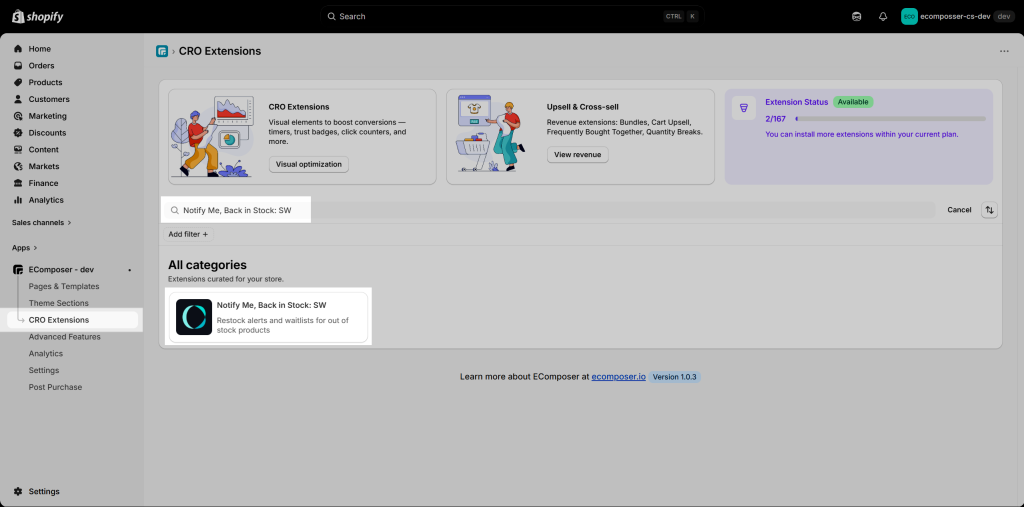
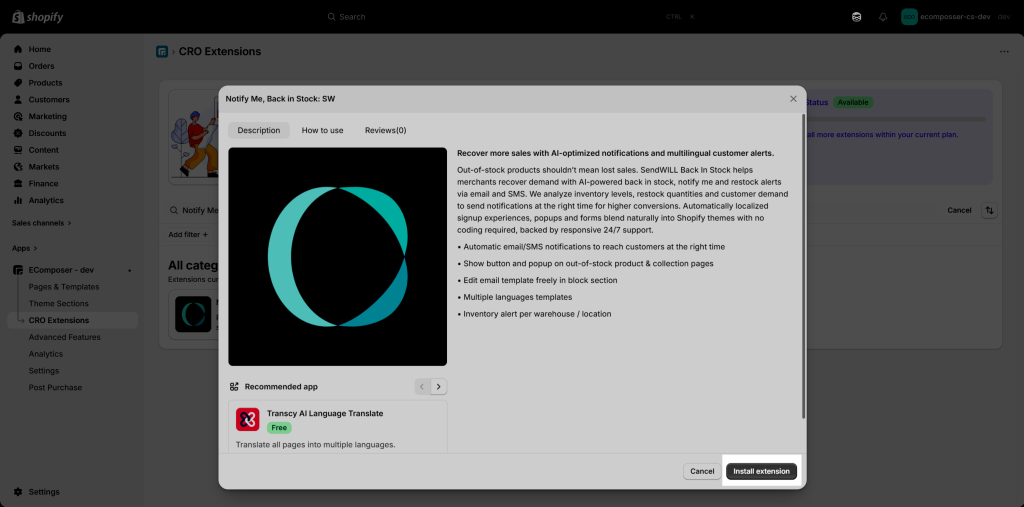
Step 2: Next, Open EComposer and go to CRO Extensions from the left sidebar. Search for Notify Me, Back in Stock: SW, then select the extension from the results.
Step 3: In the extension popup, click Install extension to install it. Once the extension is installed, you can open your page in EComposer and add the extension to the desired position.
2. How to add Notify Me, Back in Stock: SW into EComposer?
After installing Notify Me, Back in Stock: SW, open your product page or product template in EComposer Editor.
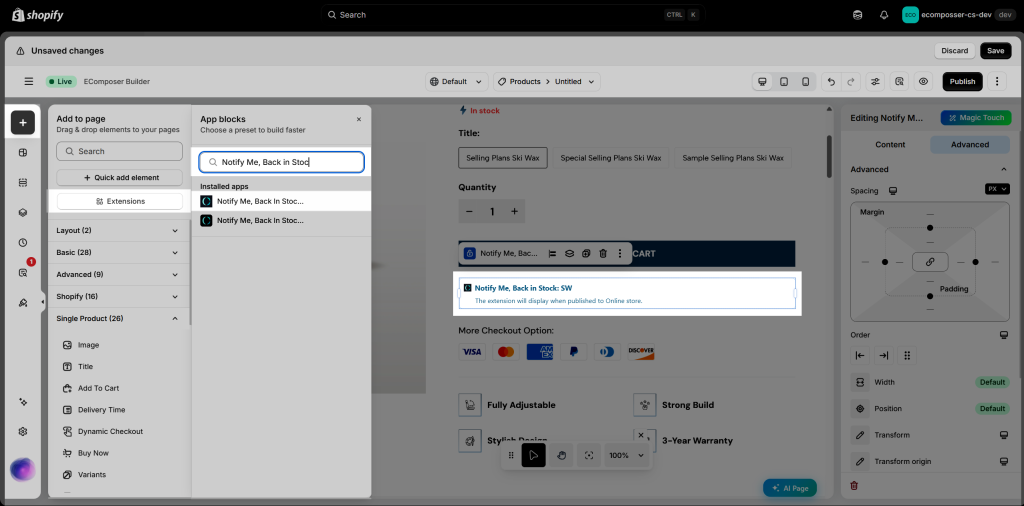
From the left sidebar, click the Add element icon, then open Extensions. In the App blocks panel, search for Notify Me, Back in Stock: SW under Installed apps.
Drag and drop the Notify Me, Back in Stock: SW extension to the position where you want it to appear on the product page. We recommend placing it near the Add to Cart button or below the variant list, so customers can easily see it when the selected product or variant is unavailable.
After placing the extension, click Save or Publish to apply the changes, then check the result on the live page.
When the selected product or variant is out of stock, the Email me when available button will appear on the product page. Customers can click this button to open the popup form, then enter their name and email address to subscribe for back-in-stock notifications.
You can watch the video below to see how the button and popup form display on the live page.
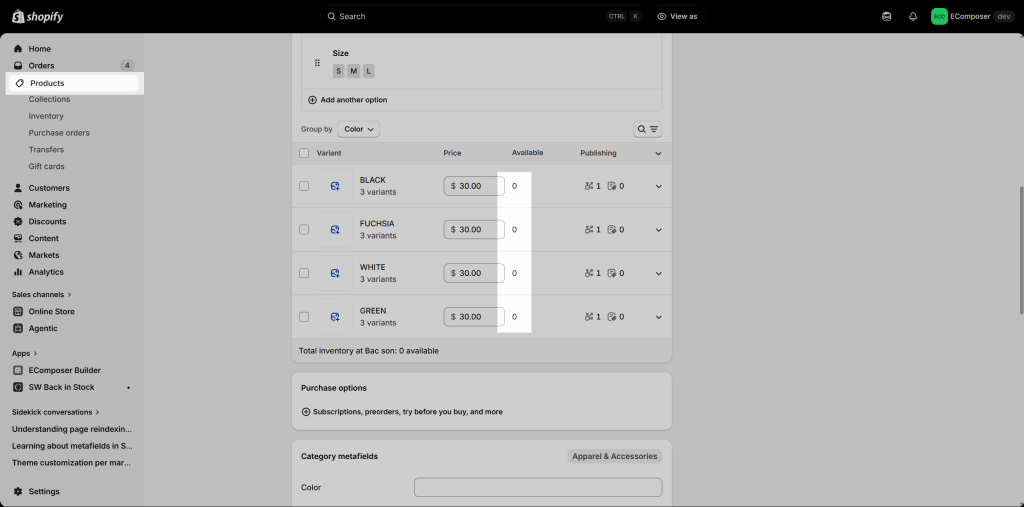
Please note that the Notify Me button only appears when the selected variant is actually out of stock. To check this, go to Shopify Admin > Products, open the product, then select the variant you want to test. In the Inventory section, make sure the variant quantity is set to 0.
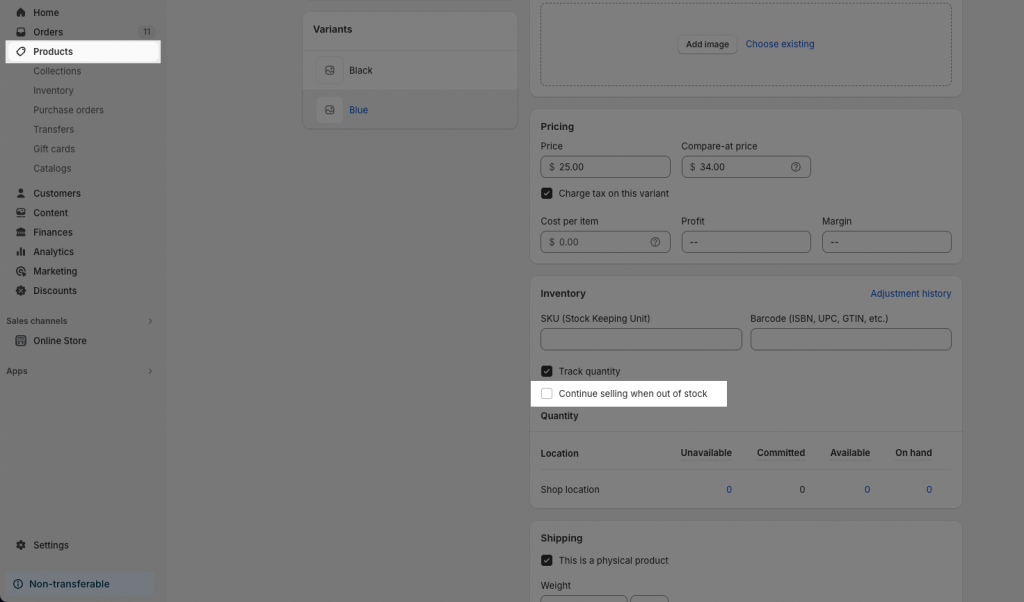
Also, make sure the option Continue selling when out of stock is disabled. If this option is enabled, Shopify still allows customers to purchase the product even when the inventory is 0, so the Notify Me button may not appear as expected.
3. Customizing the Notify button/form
To customize the Notify Me button or the Back in Stock form, you need to make the changes directly inside the Notify Me, Back in Stock: SW app in Shopify.
From your Shopify admin, go to Apps > SW Back in Stock > Widgets. Here, you can find the available widgets, such as the Notify me button and the Back in Stock Form. Click Customize on the widget you want to edit.
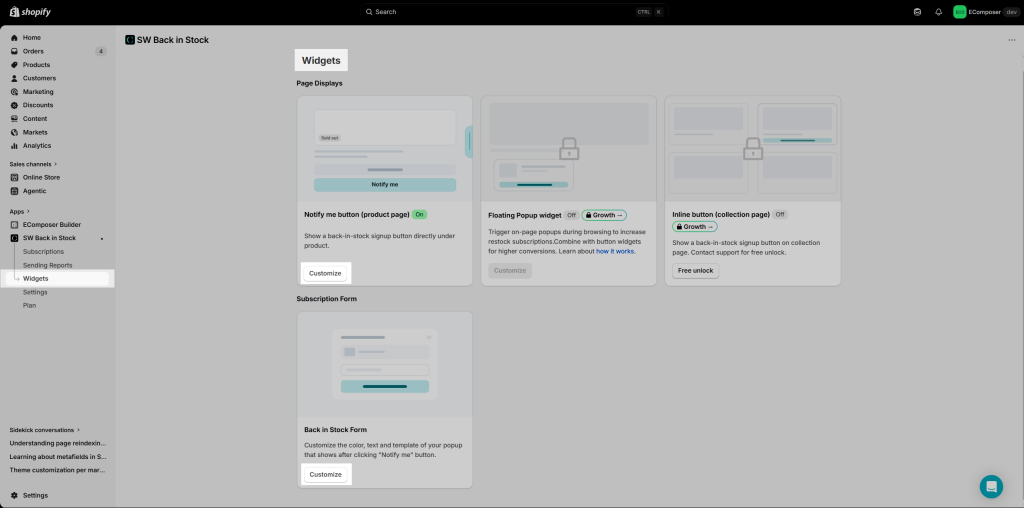
Inside the customization panel, you can adjust the button/form content and appearance, then preview the result before applying it to your store.
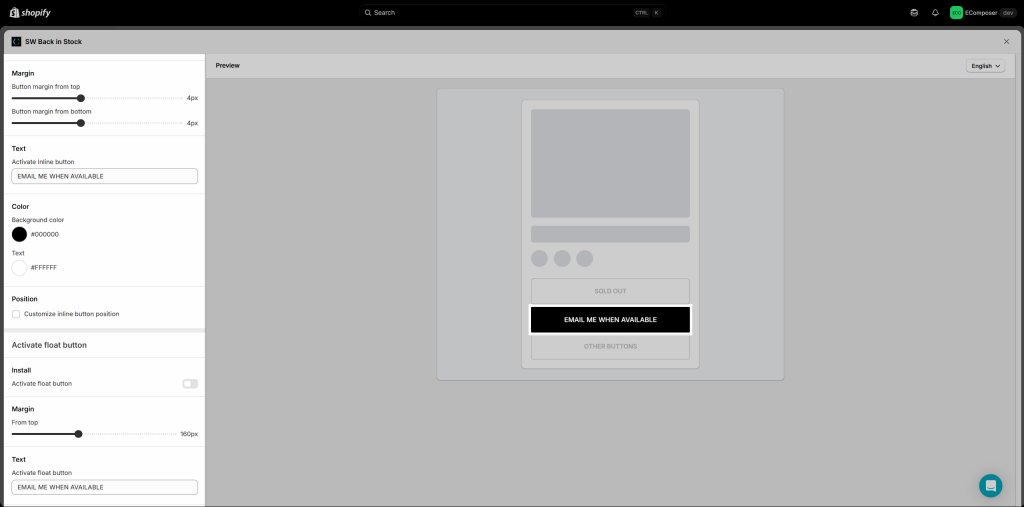
The video below shows the steps that help you customize the Notify Me button/form in the app.