
Scroll Reveal
Scroll Reveal lets you animate multiple sections or items at once as visitors scroll through your page. Normally, if you want to animate multiple elements, you need to select each element individually and configure its Animation settings under the Advanced tab.
With Scroll Reveal, you can apply the animation from the parent level instead. EComposer will automatically reveal the supported child items one by one, with a delay between each item.
You can use Scroll Reveal for:
- Page: Reveal all sections on the page one by one.
- Section: Reveal the first-level columns or elements inside a section one by one.
- Product Grid element: Reveal product cards one by one.
- Articles element: Reveal article cards one by one.
This makes it much faster to create consistent staggered animations without configuring every item individually.
You can apply Scroll Reveal to the whole page, an individual section, Product Grid, or Blog Articles depending on which content you want to animate.
1. Apply Scroll Reveal to the whole page
Use this option when you want all sections on the page to reveal one by one as visitors scroll down. Instead of configuring an animation for each section individually, you can enable Scroll Reveal once for the entire page.
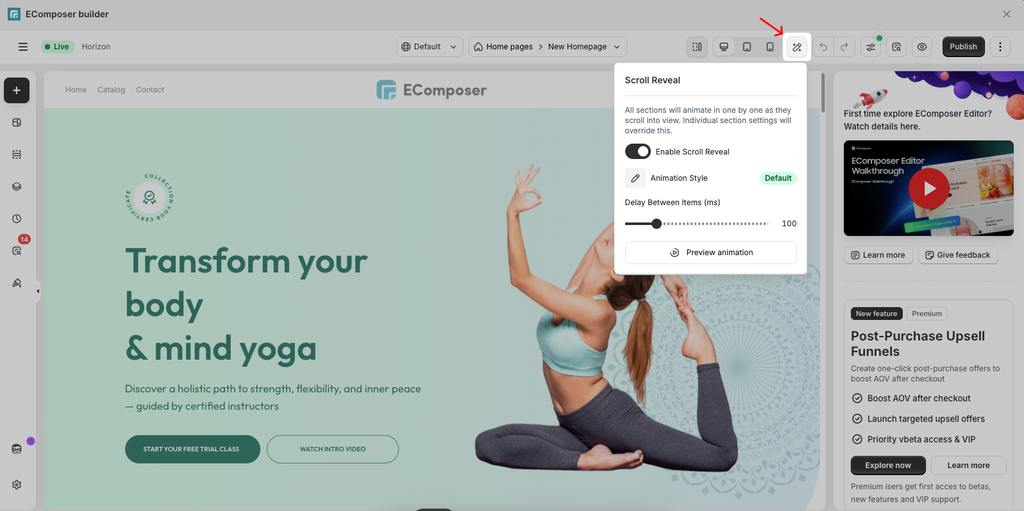
Step 1: From the top toolbar in the EComposer editor, click the Scroll Reveal icon to open the Scroll Reveal settings.
Step 2: Turn on the Enable Scroll Reveal option. Once enabled, EComposer applies the reveal effect to the sections on the page.
Step 3: Click Animation Style and select how you want the sections to appear. Available styles include Fade Up, Fade In, Slide Left, and Zoom In.
Step 4: Use Delay Between Items to control the delay between each section’s appearance. You can set the delay from 50ms to 300ms.
Step 5: Click Preview animation to check the effect before publishing your page.
Please watch the video below:
Note: If a section/element has its own Scroll Reveal settings, those settings will be used instead of the page-level settings for that section.
2. Apply Scroll Reveal to a Section
Use this option when you want the first-level columns or elements inside a specific section to reveal one by one. For example, if a section contains three columns, Scroll Reveal can display them sequentially: Column 1 → Column 2 → Column 3.
Instead of selecting each column or element and configuring Advanced → Animation individually, you can set Scroll Reveal once for the entire section.
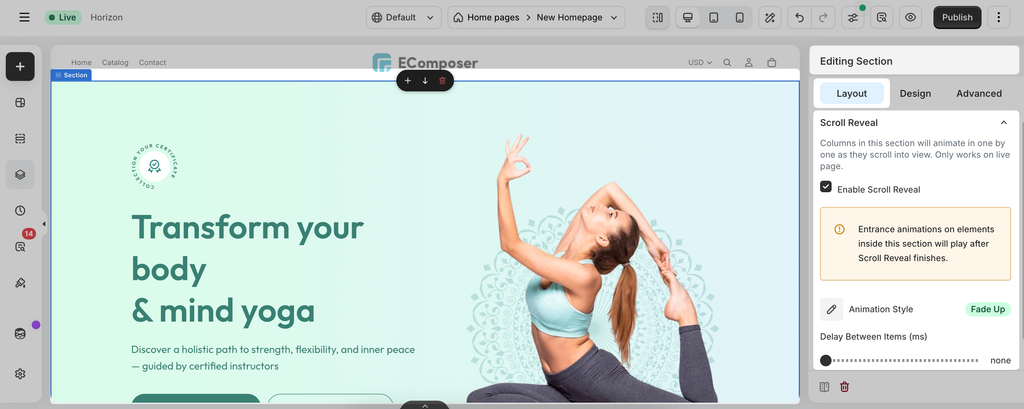
Step 1: Select the section you want to animate in the EComposer editor and find Scroll Reveal under the Layout tab -> Scroll Reveal.
Step 2: Turn on Enable Scroll Reveal. EComposer will apply the effect to the supported first-level items directly inside the section.
Step 3: Select Fade Up, Fade In, Slide Left, or Zoom In.
Step 4: Adjust Delay Between Items from 50ms to 300ms to control how quickly the items reveal one after another.
Step 5: Preview the animation. Preview your page to check how the items appear before publishing.
Please watch this video:
Note: Section Scroll Reveal only applies to the first-level items inside the section. Nested elements aren’t individually revealed by the section’s Scroll Reveal settings.
Animation priority: If an item already has its own Animation configured under Advanced → Animation, its individual animation takes priority. Scroll Reveal is applied when the item doesn’t have its own animation setting.
3. Apply Scroll Reveal to Product Grid and Blog Articles
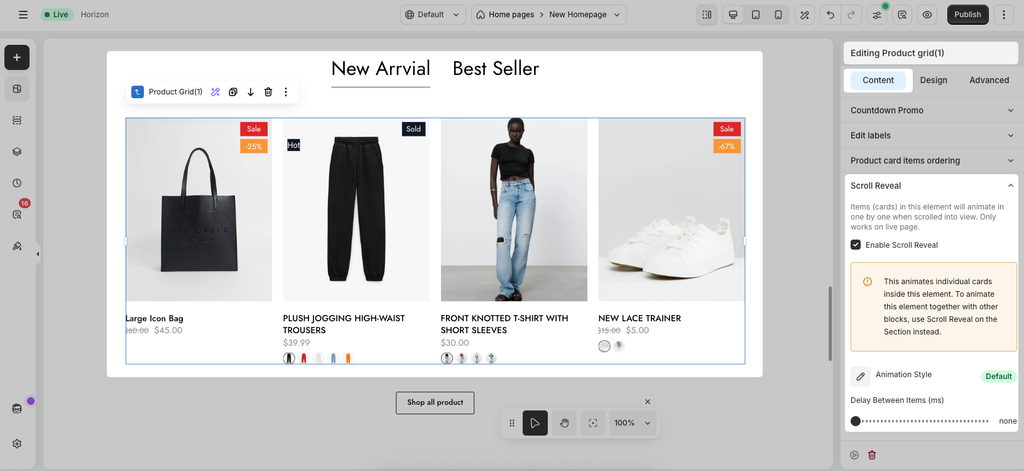
Scroll Reveal is also available for Product Grid and Blog Articles elements. It applies the staggered effect to the individual cards inside these elements. To use it, select the Product Grid or Blog Articles element, find the Scroll Reveal tab, then choose your preferred Animation Style and Delay Between Items.