Growave: Loyalty Info Widget
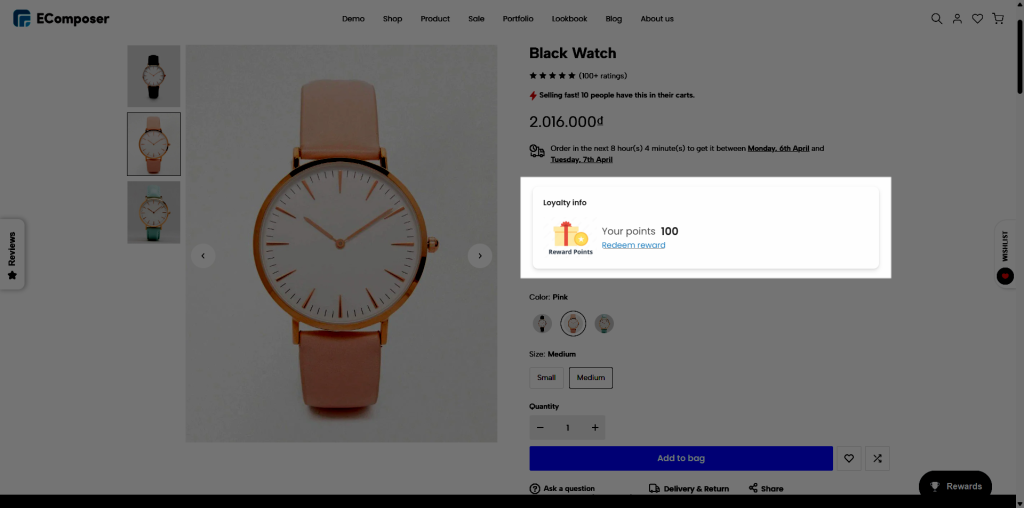
Growave: Loyalty Info Widget is designed to display customer loyalty information such as points, rewards, and membership status directly on your storefront, helping you enhance customer engagement and encourage repeat purchases. The integration in EComposer allows you to easily add this widget to any page built with EComposer, making it more convenient to use Growave features across your custom-designed pages without additional coding.
1. How to install the extension?
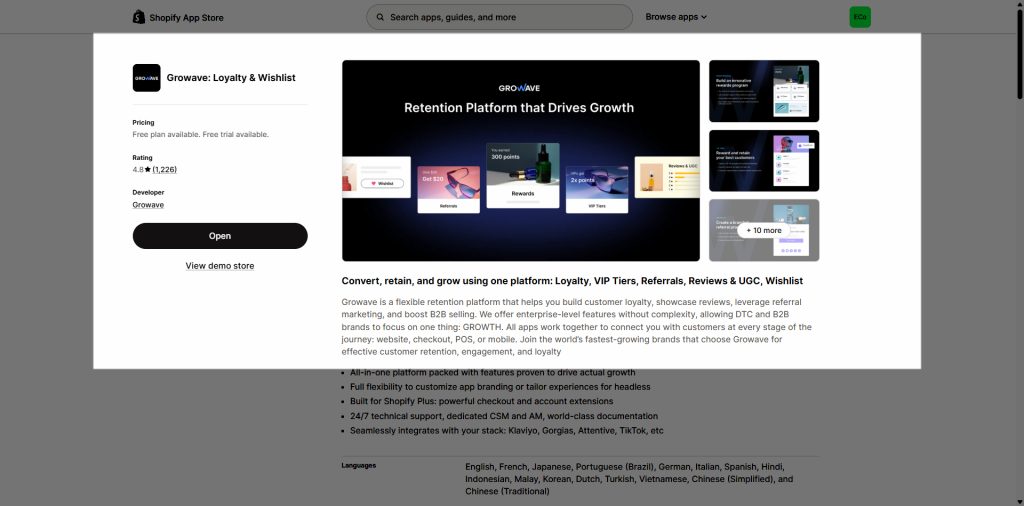
Step 1: To use this extension, please install the Growave app from your Shopify store first.
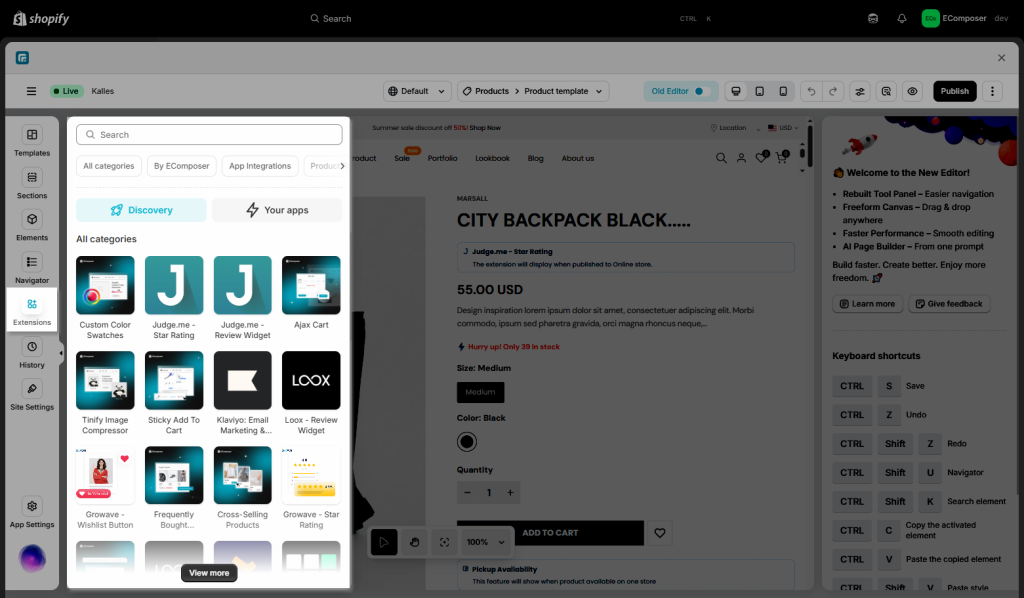
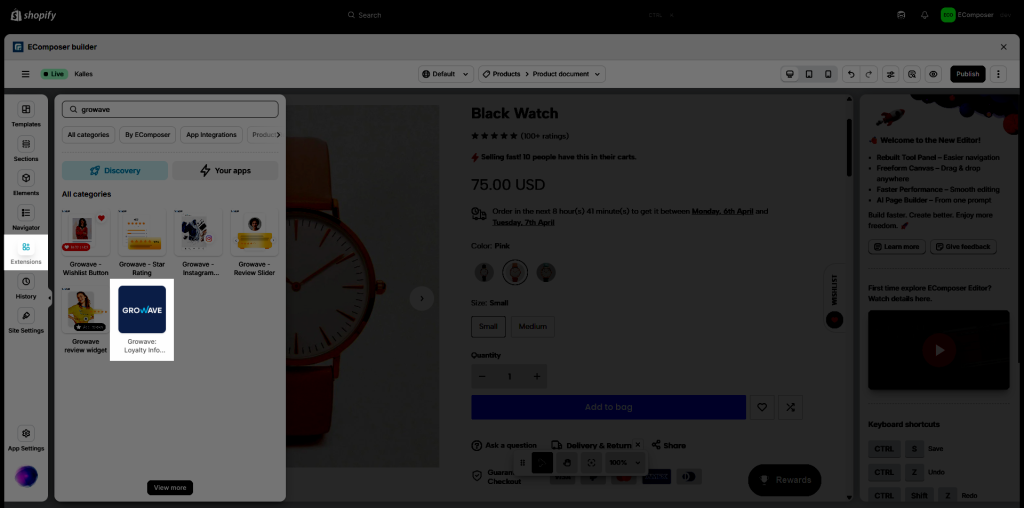
Step 2: To open the Extension popup: From the left sidebar, go to Extensions → search for the extension name and click to install, or click View more to browse all available extensions in the app.
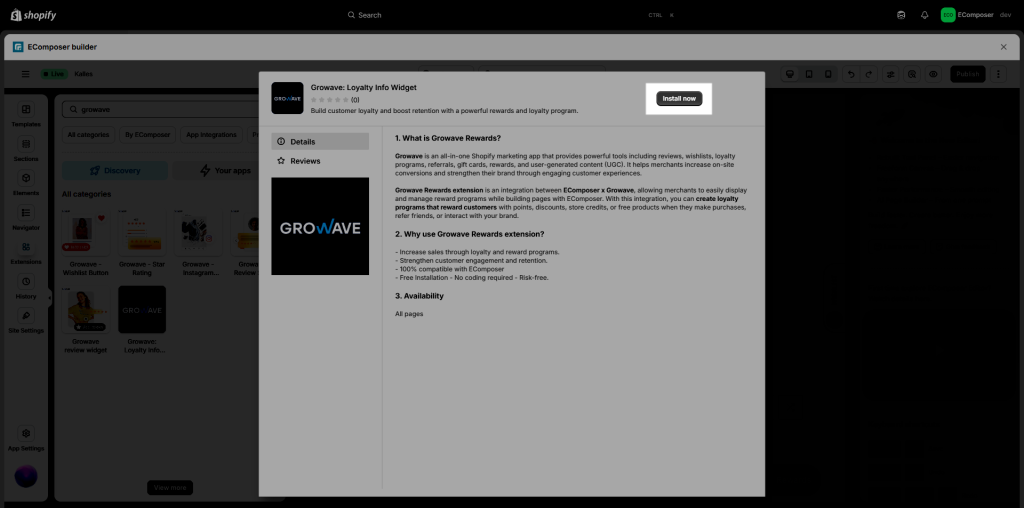
Step 3: In the last stage that we have to do to complete all the adding steps, now you can search the Growave extension –> click on the “Install now” button to install it
2. How to add Growave extensions to the EComposer page?
Notice: The extensions only work on the live page
To show this extension on your page, please follow the steps below:
Step 1: Go to the Shopify admin, open the Growave app, and configure the Rewards first.
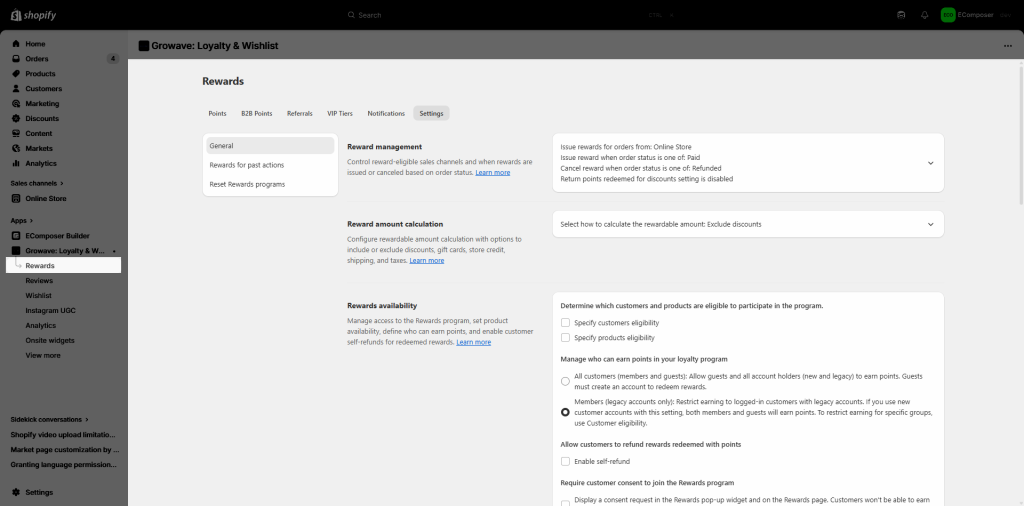
You need to set up how to earn and redeem points in the Growave app.
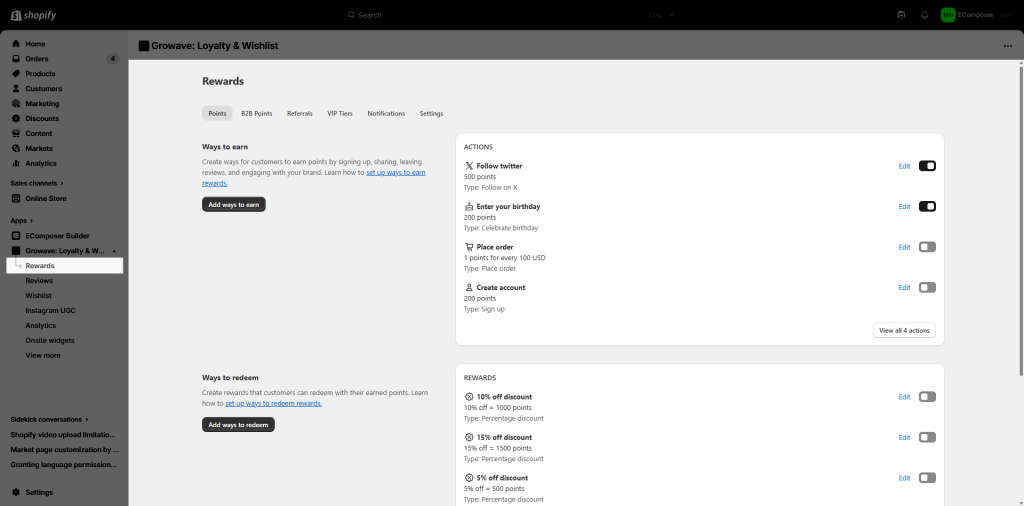
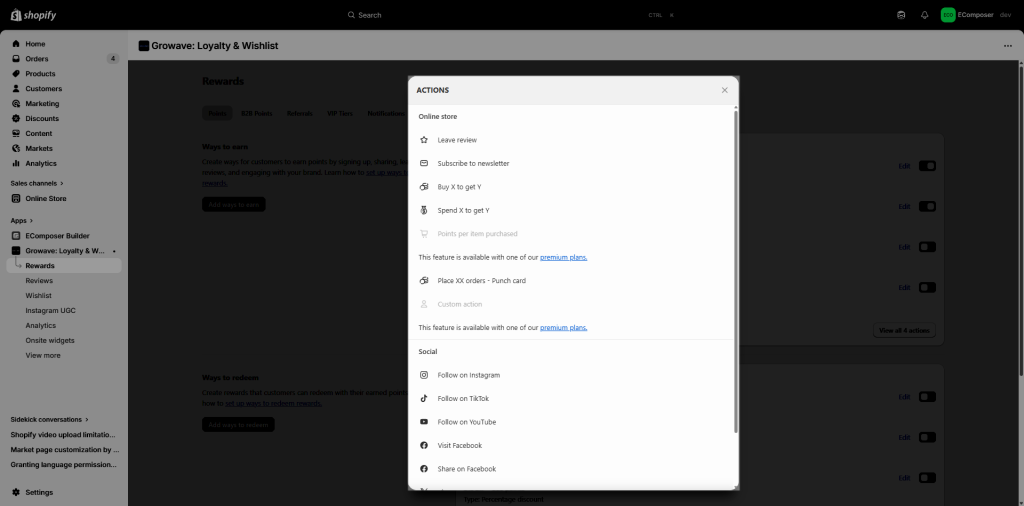
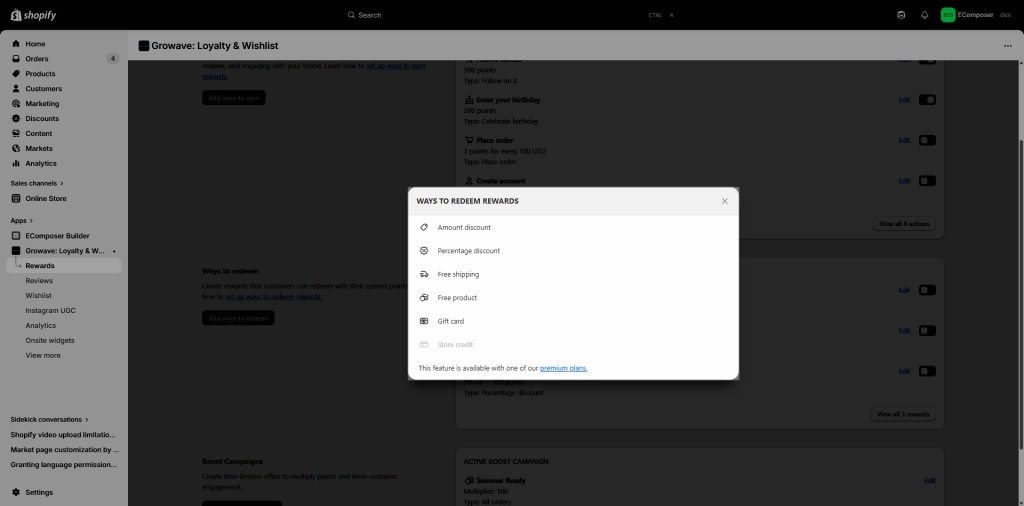
You can also check this document from Growave to learn how to redeem the rewards.
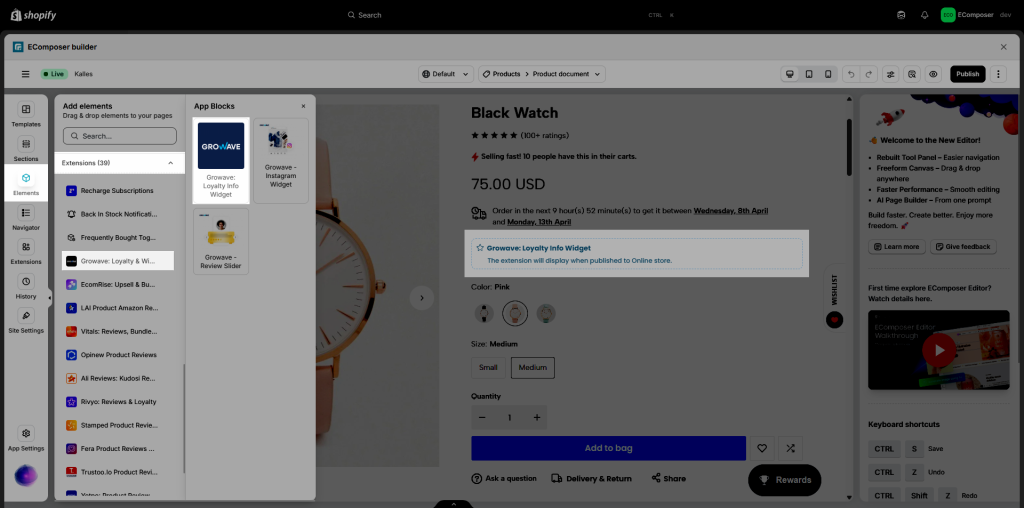
Step 2: Back to the EComposer editor and drag and drop the extension into the desired spot. Open Elements -> Extensions -> Find Growave: Loyalty Info Widget extension, drag & drop it to your page.
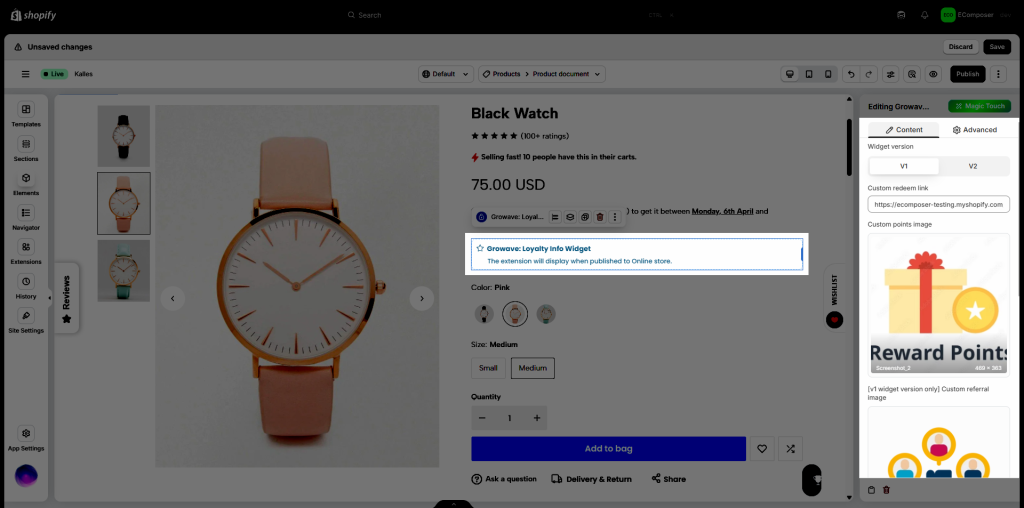
Step 3: Configure a setting of the extension, like redeem link, custom points image… For full app setting options, you need to set them from Growave: Loyalty & Wishlist App.
Step 4: For more settings, you can access the EComposer’s template from the Theme’s editor and edit the Growave – Loyal Widget block.
To access the EComposer’s template from the Theme’s editor, you need to go to Products -> ecom-template-slug
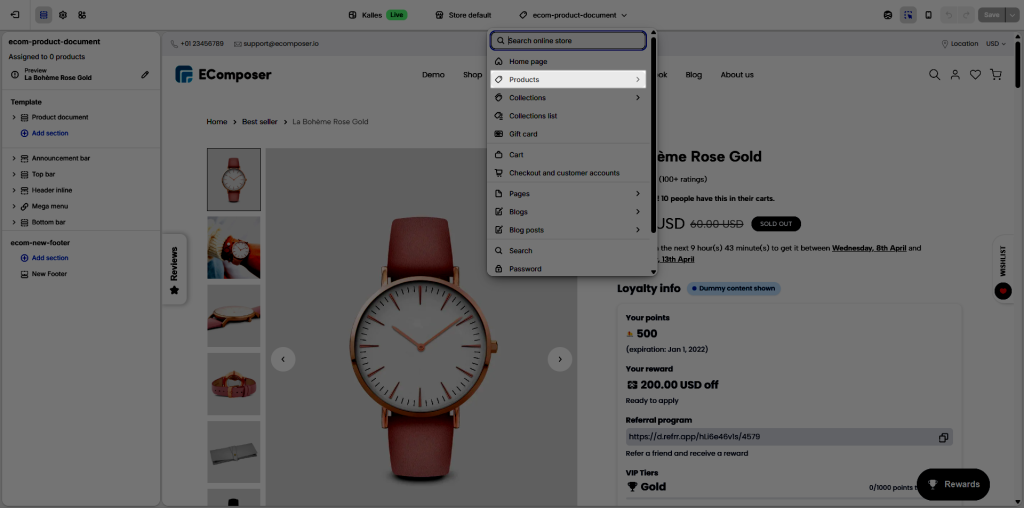
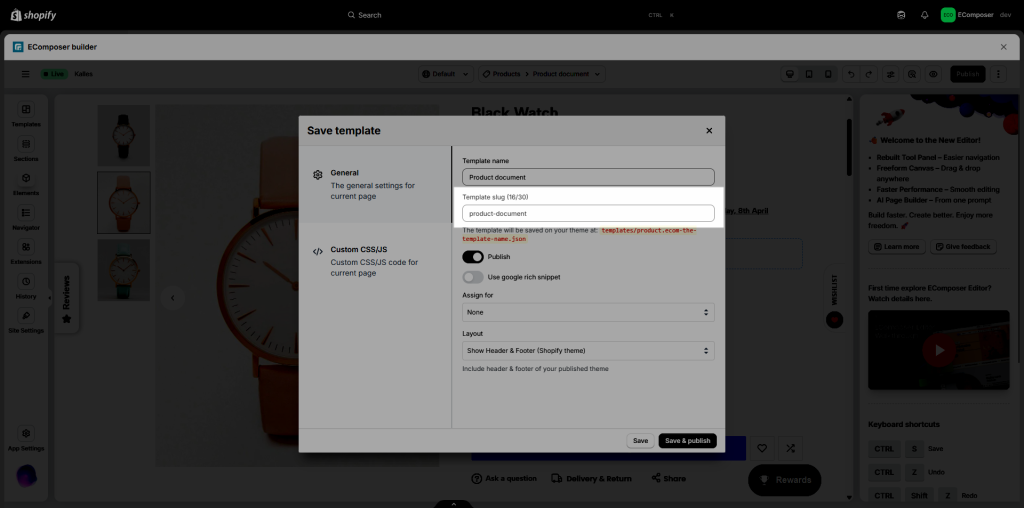
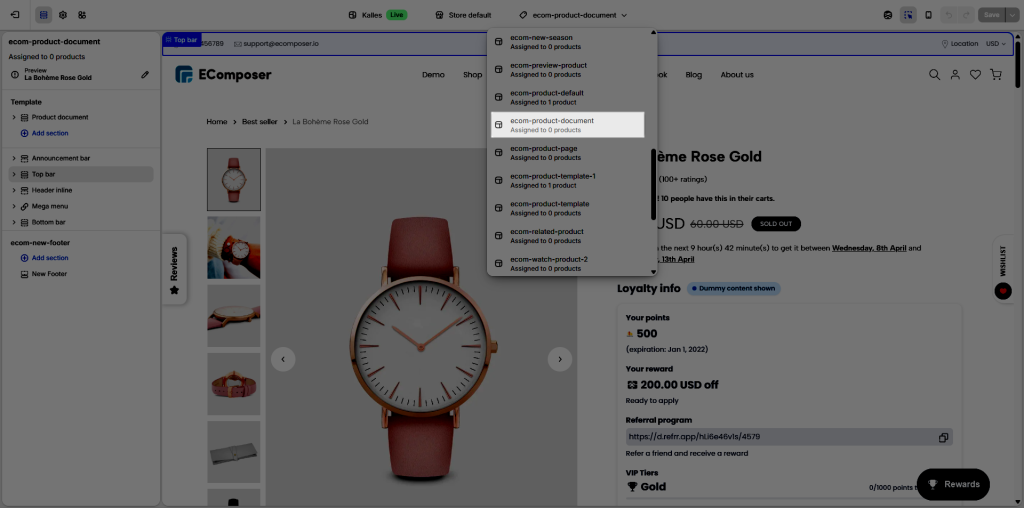
The template slug in this page is product-document, so in the theme, you need to find the template that has the name: ecom-product-document
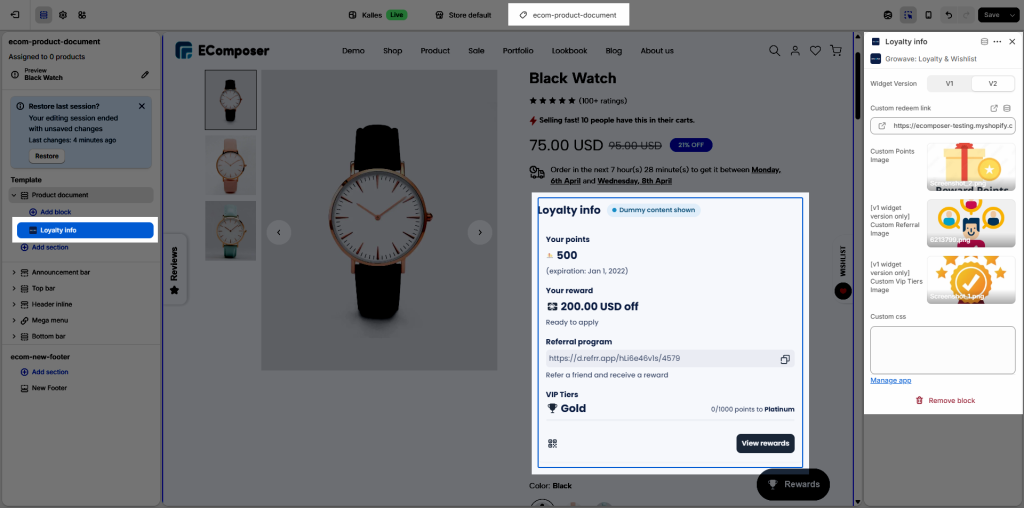
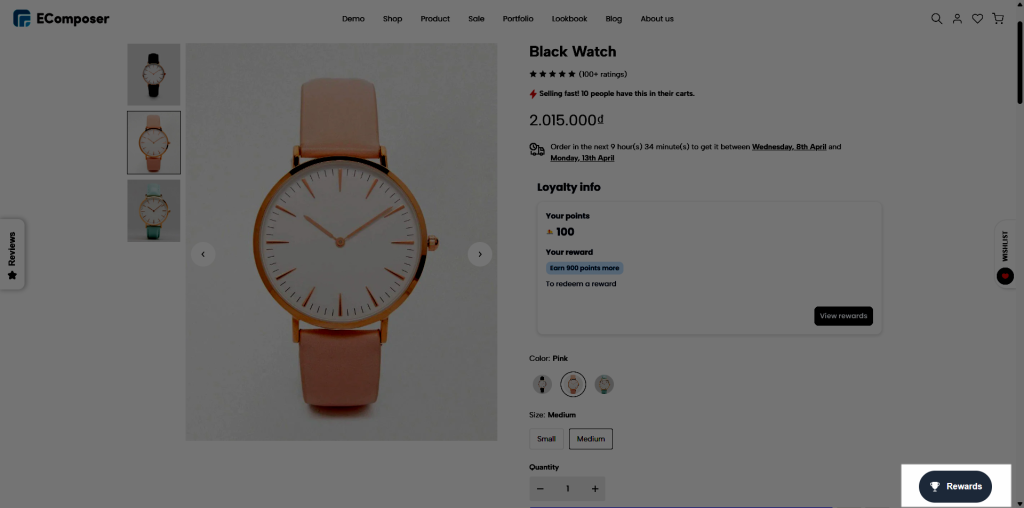
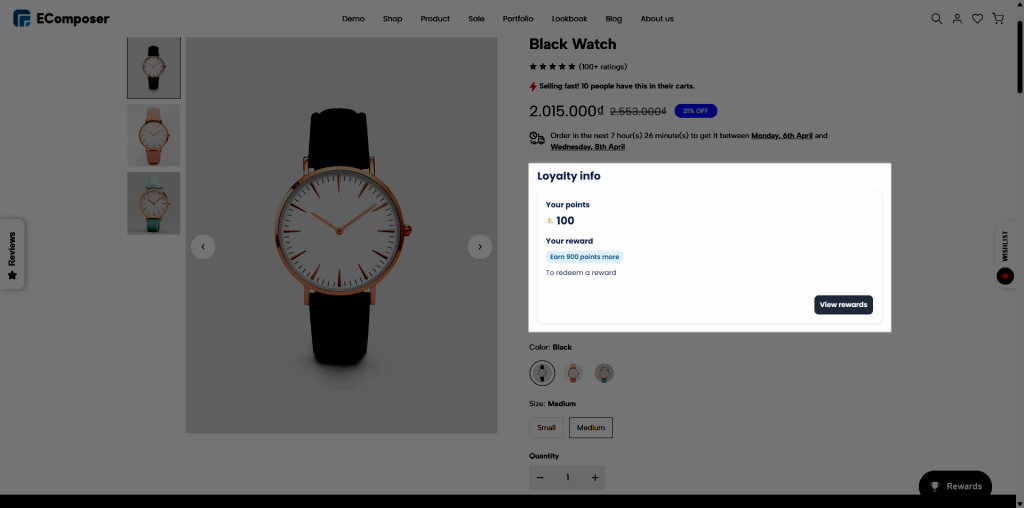
This is a result on the live page:
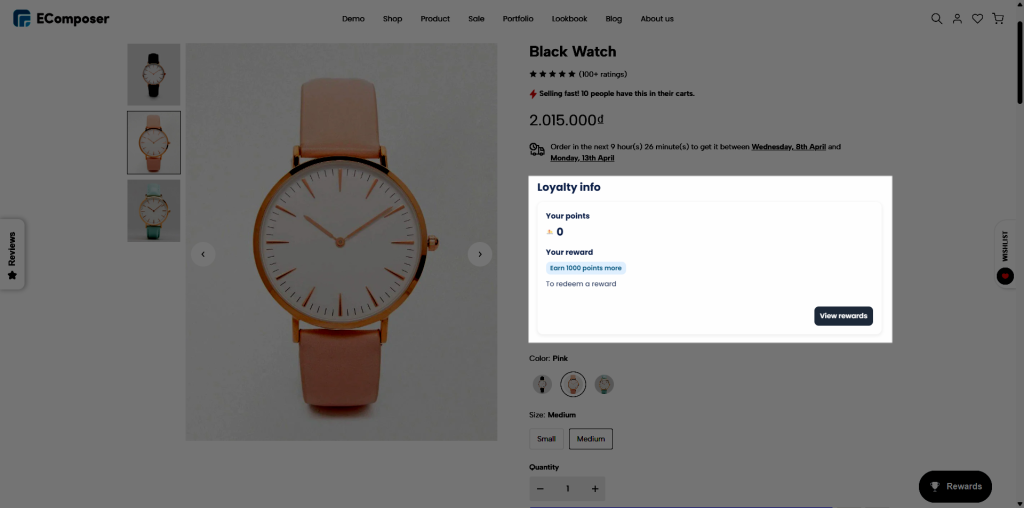
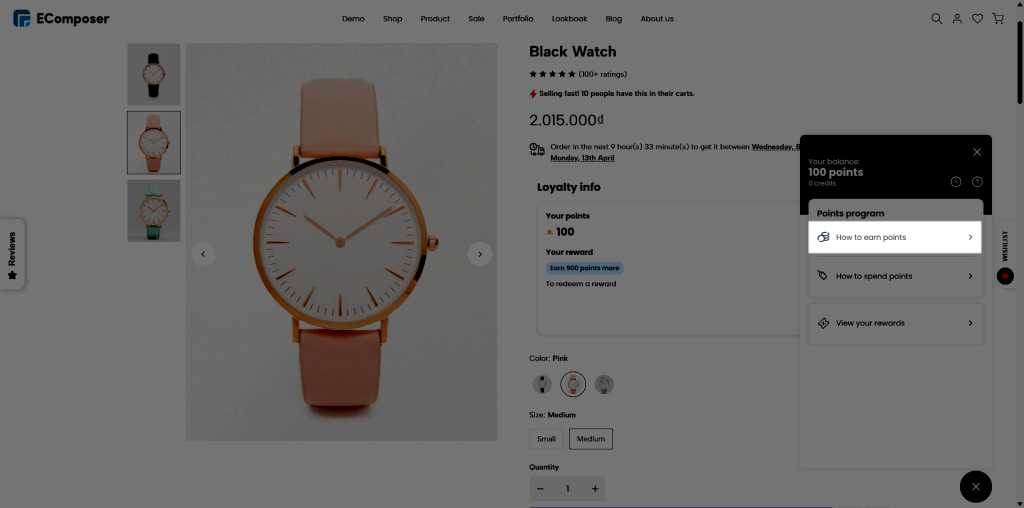
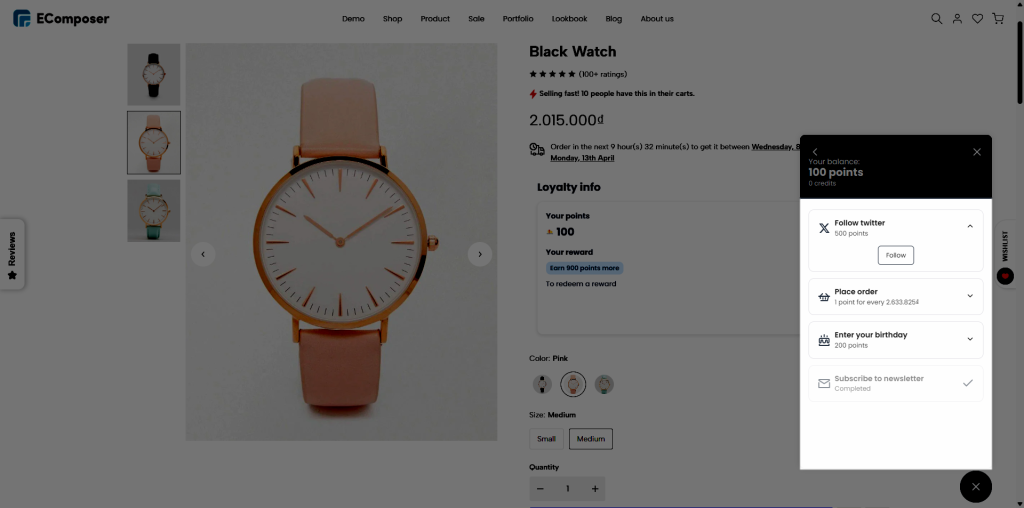
To earn points, your customer first needs to sign up/sign in to your store, then follow the rewards instructions from the Growave app here: