

Create Ecomposer landing page
A landing page (also called a “leading page”, “single property page”, “static page”, “squeeze page”, or “destination page”) is a single web page that appears in response to a search engine result, marketing promotion, marketing email, or online advertisement.
Unlike the Homepage, which is the first page visitors see when entering your store domain, a landing page is accessed via a custom URL link.
1. How is the Landing Page in EComposer created?
From the Dashboard Admin, go to Pages & Templates under EComposer Builder, then click Start building. You will be taken to a page to choose the template you want to build. Here, select Landing & Pages to create a Blank-design page.
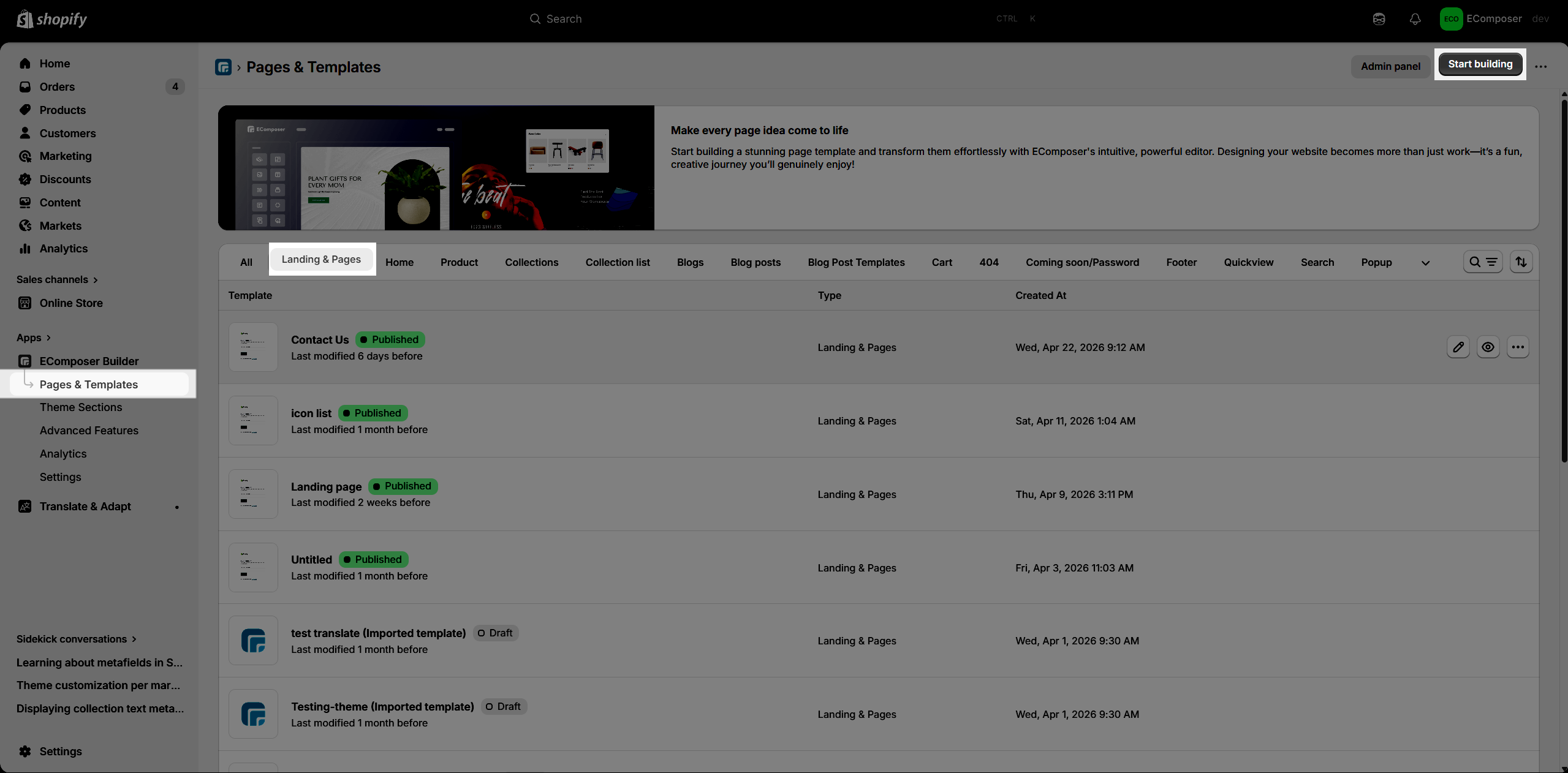
You’re directed to Ecomposer Editor when you can freely design your Landing page you want. Last step, you click Publish to push your page to the live website.
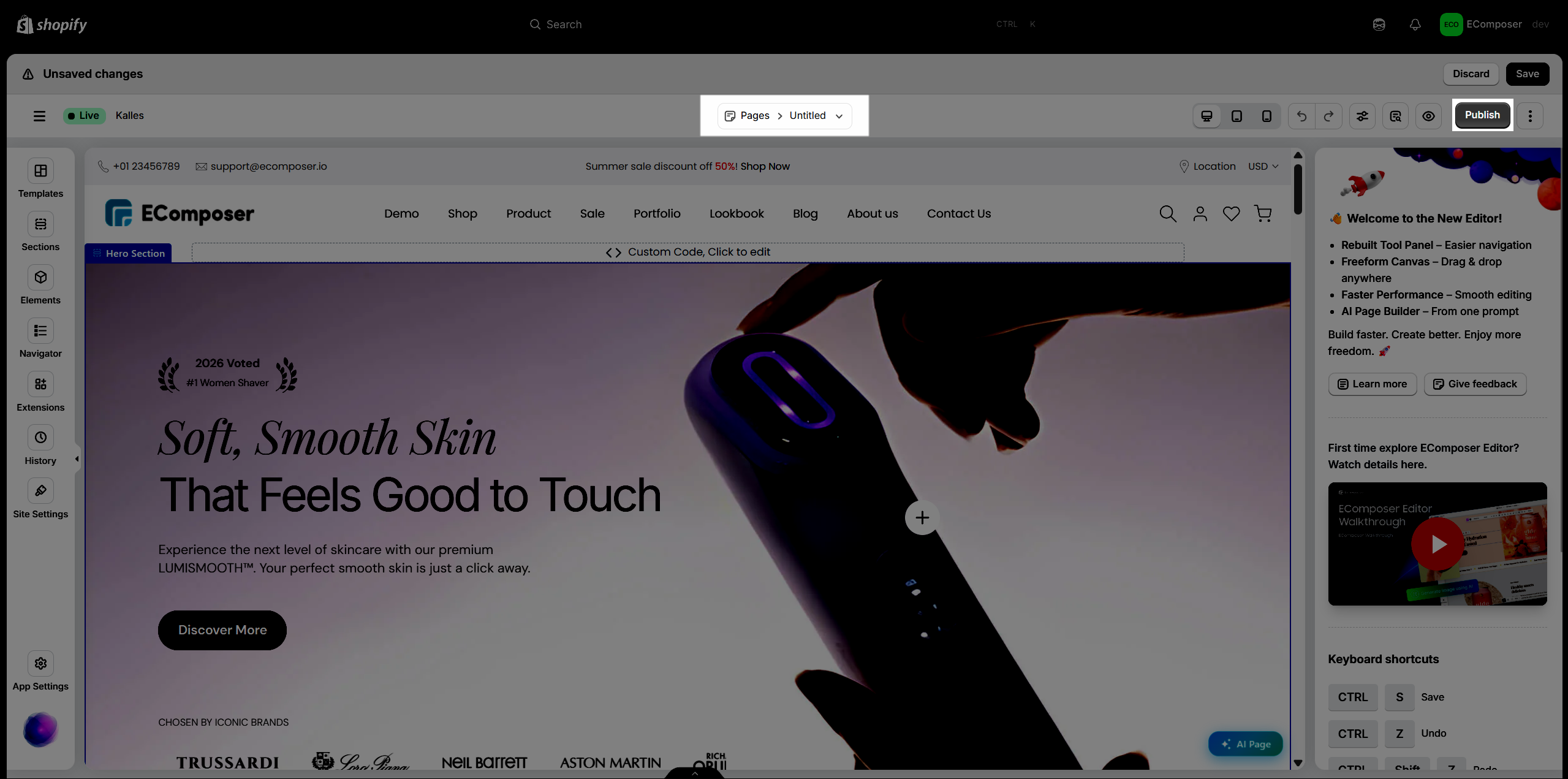
Note: Click publish button does not Publish your page immediately
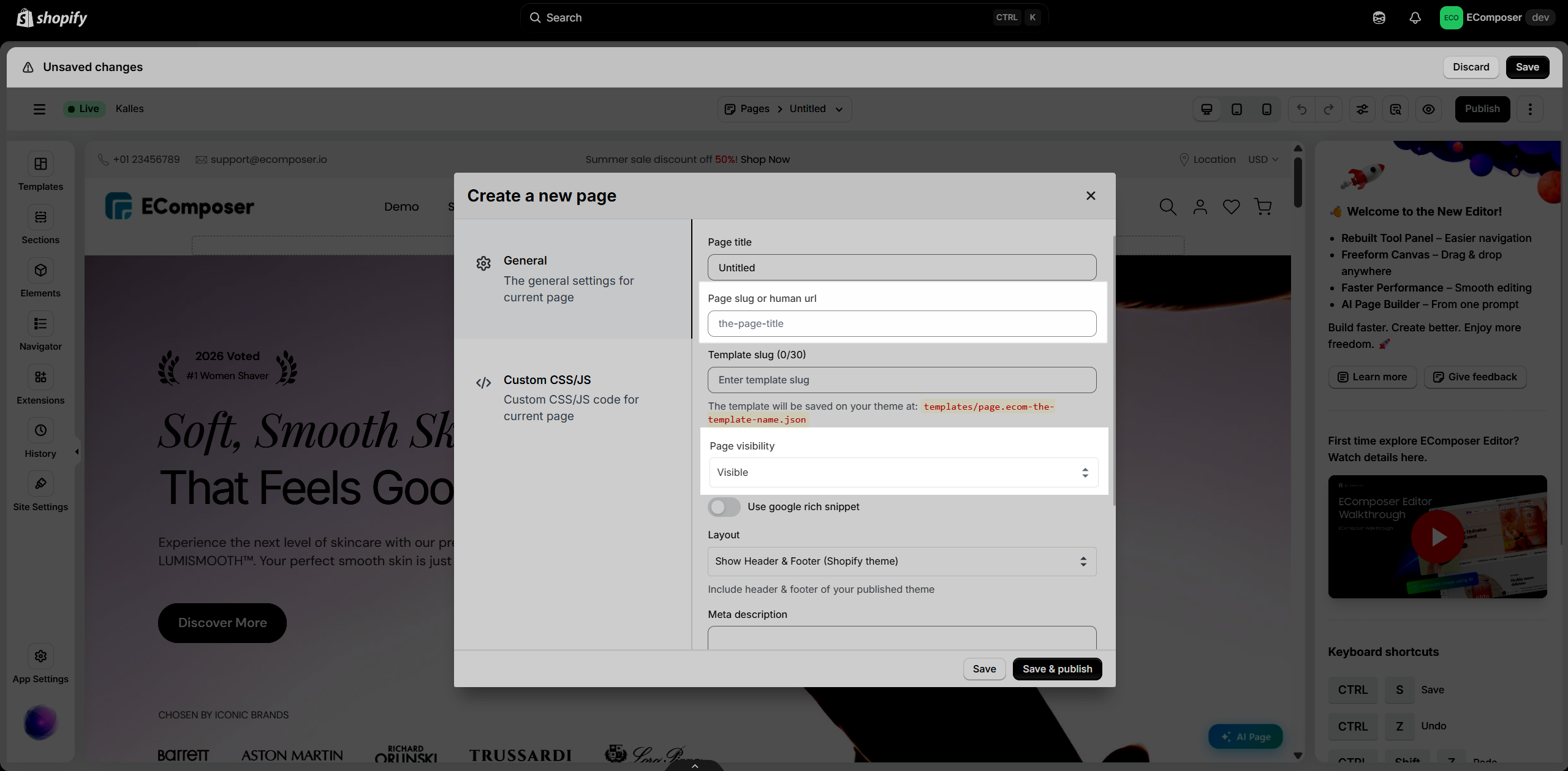
- You need to choose Page visibility to decide whether to make your page live or not. Choose Visible to publish your page, and Hidden to unpublish your page.
– If you choose the “Hidden” option, you can enable “Set visibility date” to schedule when the page will be published automatically. - URL slugs are typically located at the end of a URL, separated by a slash (/) from the domain name.
For example: https://ecomposer.io/pages/the-page-slug
EComposer allows you to create custom landing pages or import sample landing pages from the Template Library and change the content and images to suit your product.
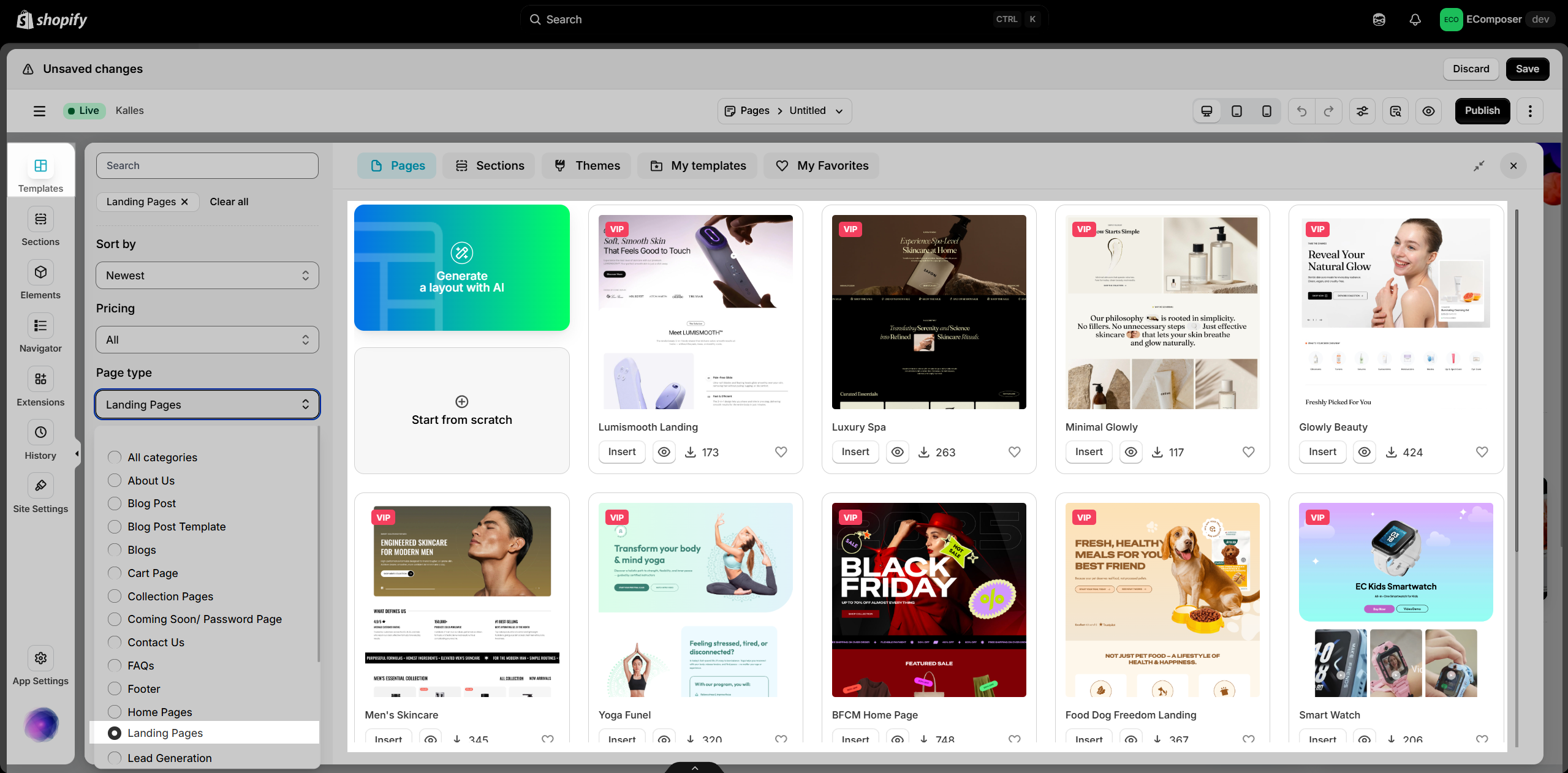
In addition, you can also create your own landing page layouts through the elements provided by EComposer. We’re constantly filling our library with new landing page themes so you can choose the layout that best suits the product you’re selling.
2. How to Delete a Landing Page
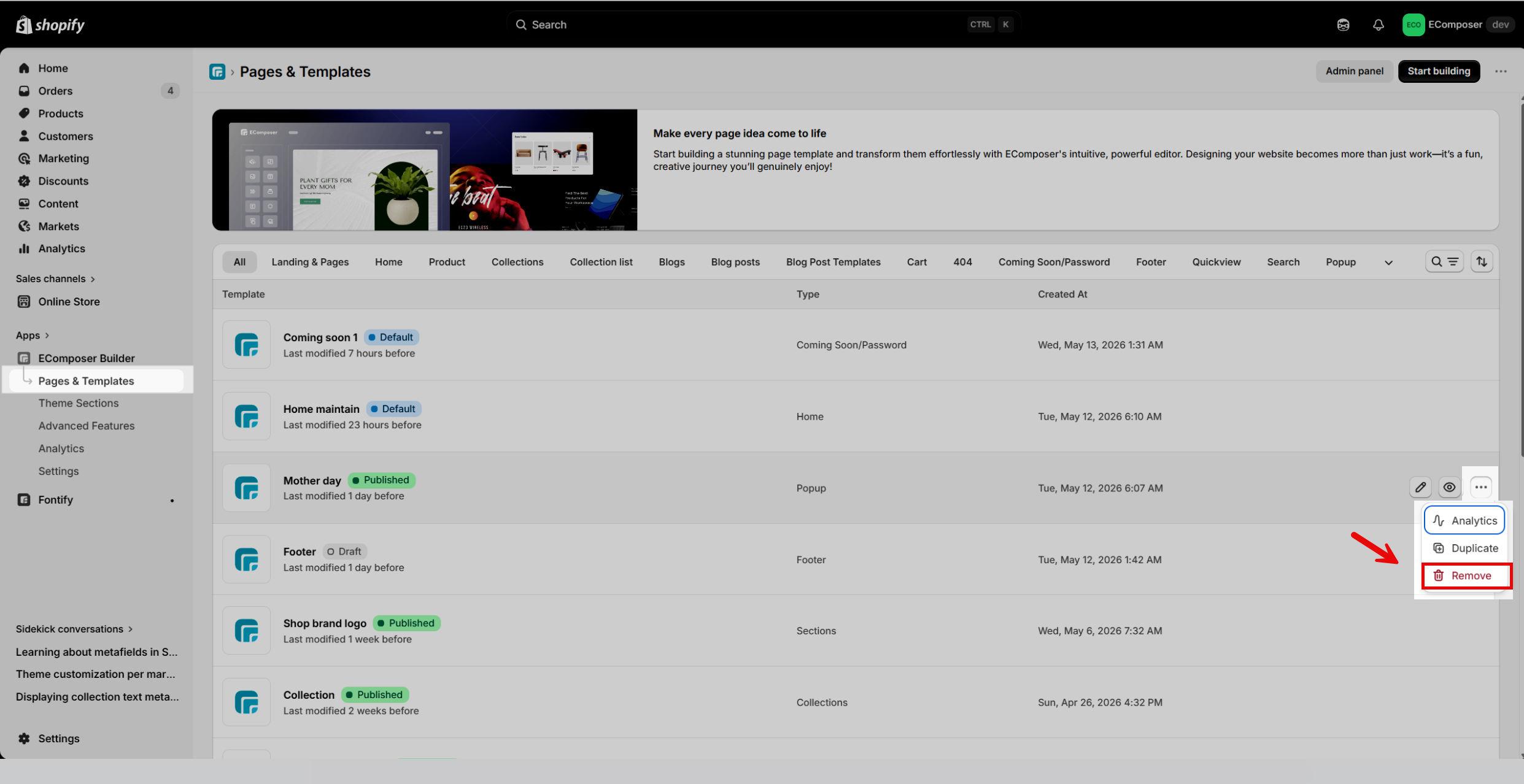
To delete a Landing Page, go to EComposer Builder > Pages & Templates in your Shopify admin, locate the page you want to remove, click the three-dot menu on the right, select Remove, and confirm if prompted.
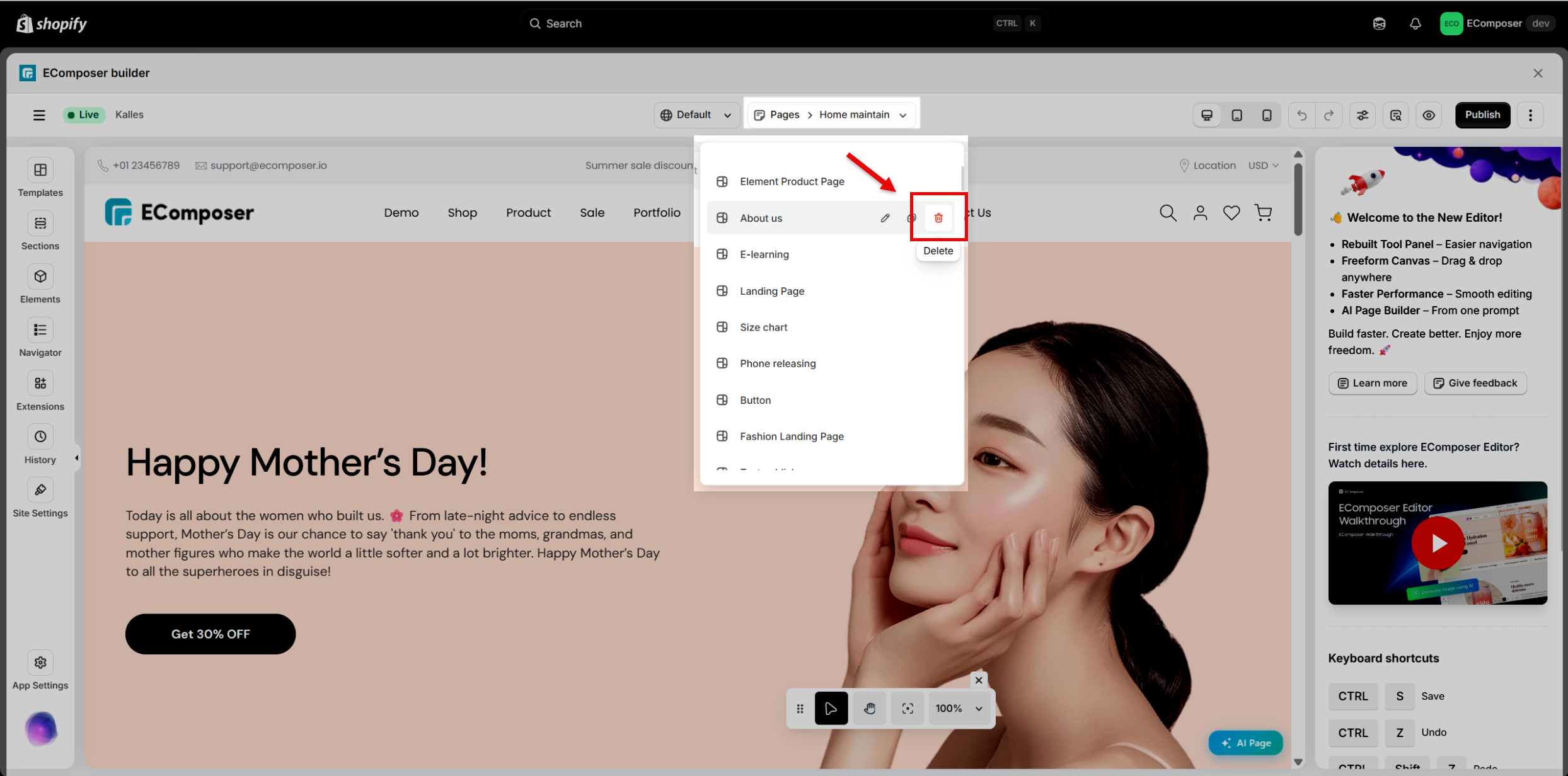
Alternatively, you can delete a page directly from the Editor.
3. How to duplicate a Landing page
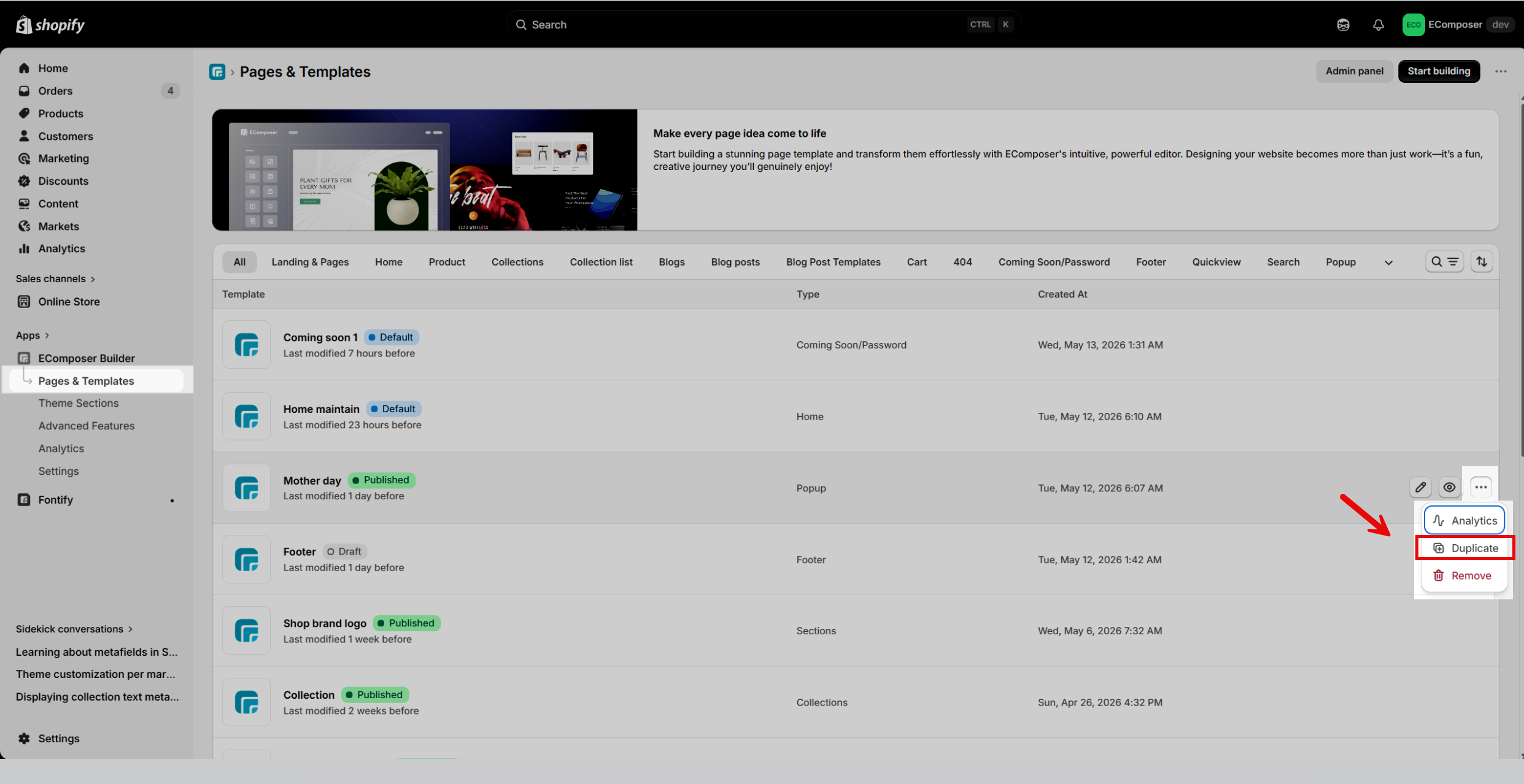
From the App Dashboard, go to EComposer Builder > Pages & Templates, locate the page you want to duplicate, click the three-dot menu on the right, and select Duplicate.
4. You can also create Standard pages
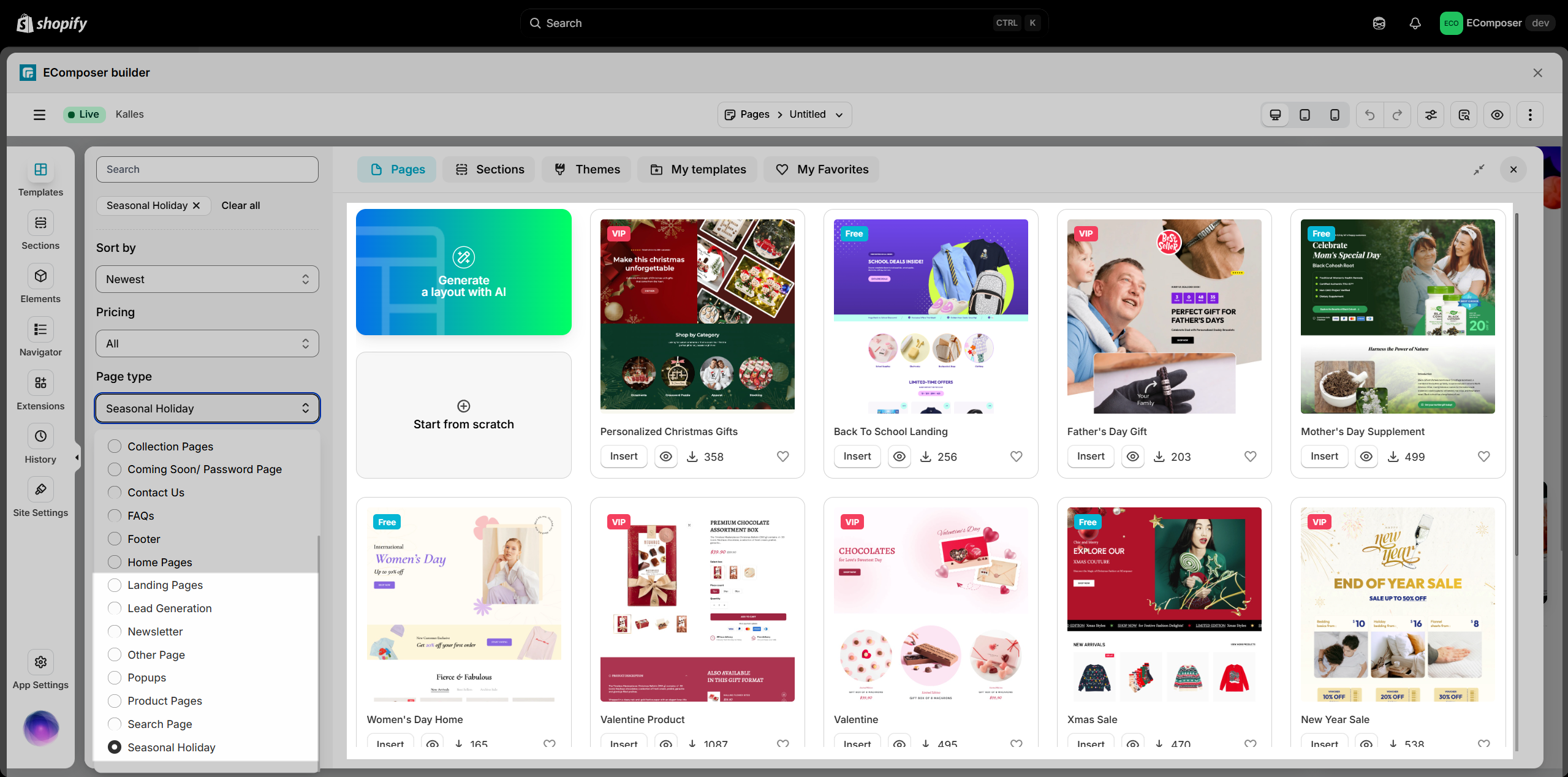
As mentioned above, Landing Page can also create standard pages, so with EComposer, you can easily create pages like Holiday Campaign, Contact Us, About Us, and FAQs. The layout library also provides themes for About Us and Contact Us, and we continually update new layouts monthly.
- Create your home page: https://help.ecomposer.io/docs/ecomposer-features/page-templates/how-to-create-the-home-page-with-ecomposer/
- Create a new standard page: https://help.ecomposer.io/docs/pages-templates/create-new-page/create-standard-page/
- Create your product page: https://help.ecomposer.io/docs/ecomposer-features/page-templates/how-to-create-product-template/
- Create your article page: https://help.ecomposer.io/docs/ecomposer-features/page-templates/how-to-create-an-article-template/





2 Comments
Justina
I am wondering how do you share the landing page so you can advertise it , I have created 2 but I’m not sure how to export. Please help.
Anna Nguyen
Hi Justina,
Could you please contact our support team via live chat to share with us the link to your page? We will check it and assist you with this.
Best Regards,
Anna