
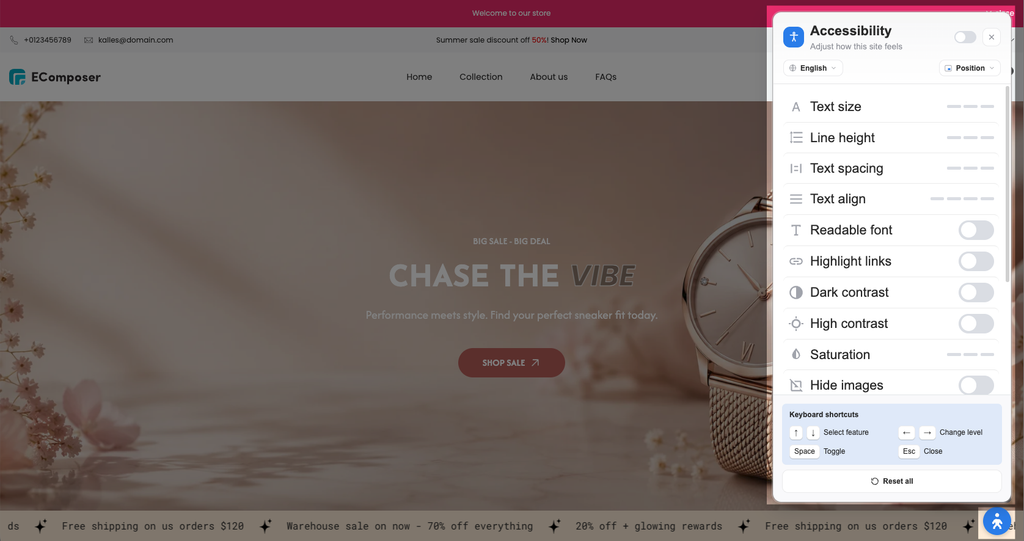
Accessibility Widget
EComposer’s Accessibility Widget helps make your online store more comfortable and accessible for a wider range of visitors. It allows visitors to customize how they view and interact with your store based on their individual needs.
With this widget, visitors can adjust text display, colors, contrast, cursor size, animations, navigation, and other accessibility settings. You can also customize the widget’s appearance, position, language, and available features directly in EComposer.
Note: The Accessibility Widget helps improve your store’s accessibility but does not guarantee full ADA or WCAG compliance.
1. How to install the Accessibility Widget extension?
Step 1: From your EComposer dashboard, go to CRO Extensions from the left sidebar menu.
Step 2: Search for the Accessibility Widget extension.
Step 3: Click Details and install the extension on your store.
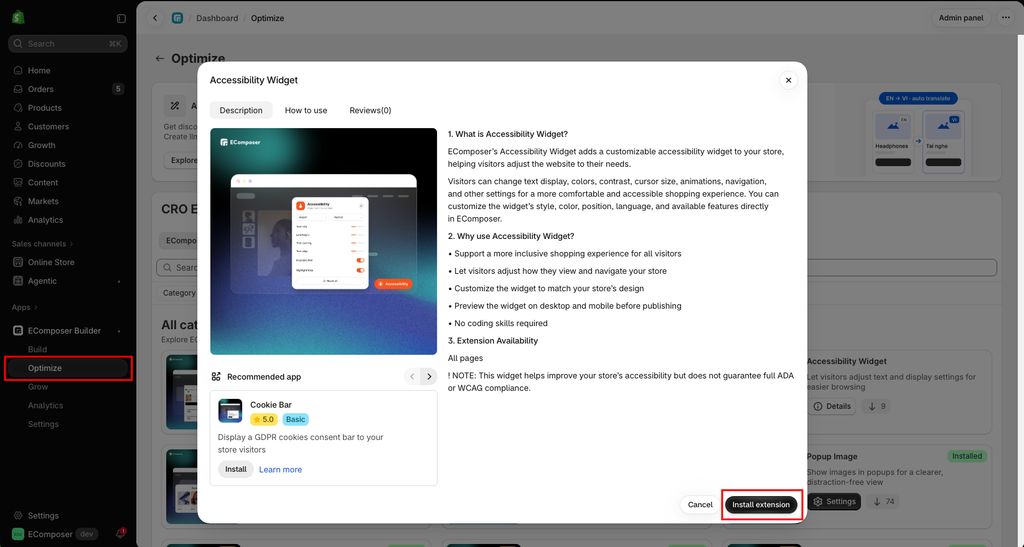
Note: When the Accessibility Widget is enabled, it will be available on all pages of your store.
2. Accessibility Widget settings
2.1 General
The General section allows you to enable the Accessibility Widget and customize its basic appearance and language options.
- Enable extension: Turn on this to display the Accessibility Widget on your store.
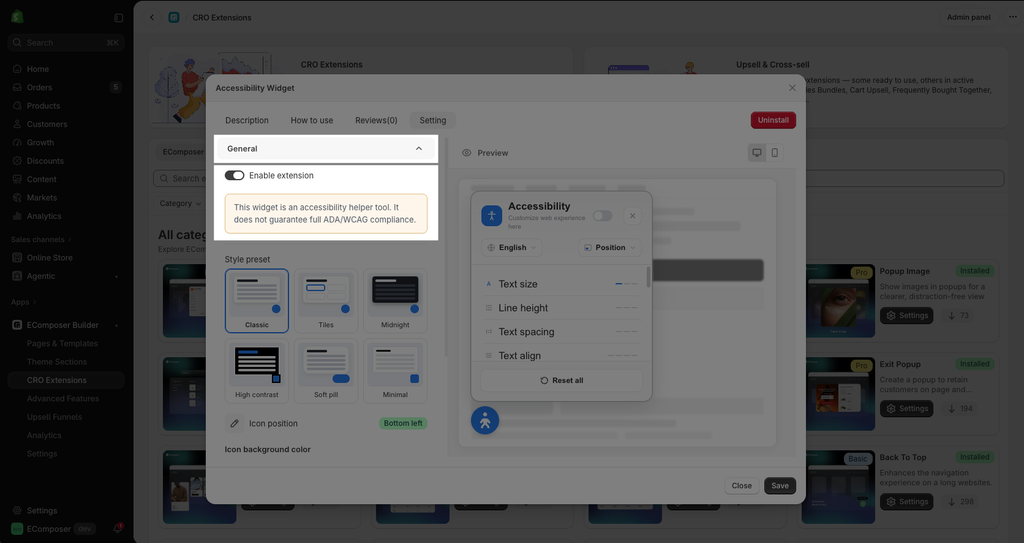
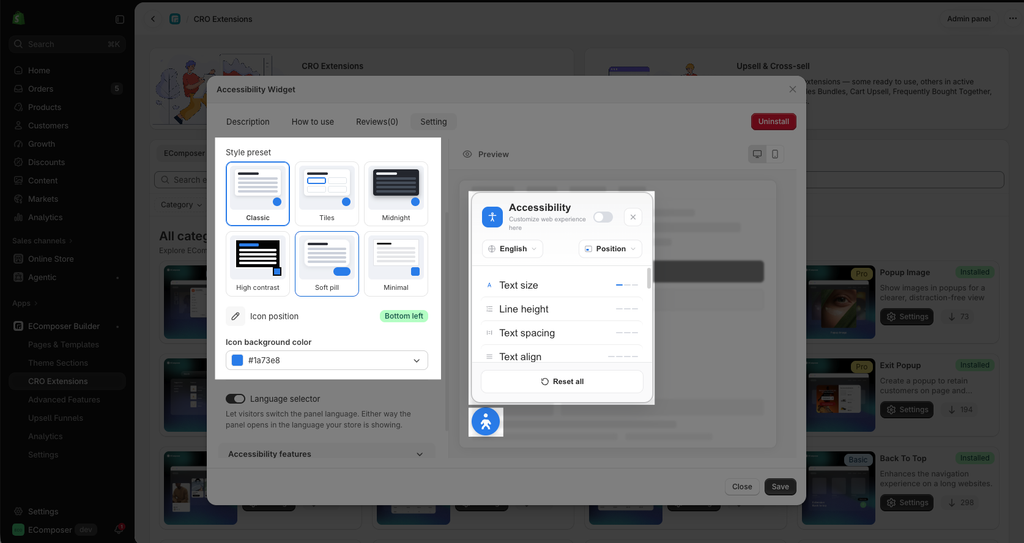
- Style preset: Choose a preset to change the overall appearance of the Accessibility Widget. Available presets include:
- Classic
- Tiles
- Midnight
- High contrast
- Soft pill
- Minimal
- Icon position: Choose where the Accessibility Widget icon appears on your storefront, such as Bottom right, Bottom left, Top right, or Top left.
- Icon background color: Set the background color of the Accessibility Widget icon (Enter a color value, such as
#1a73e8, or use the color picker to choose a color that matches your store’s design)
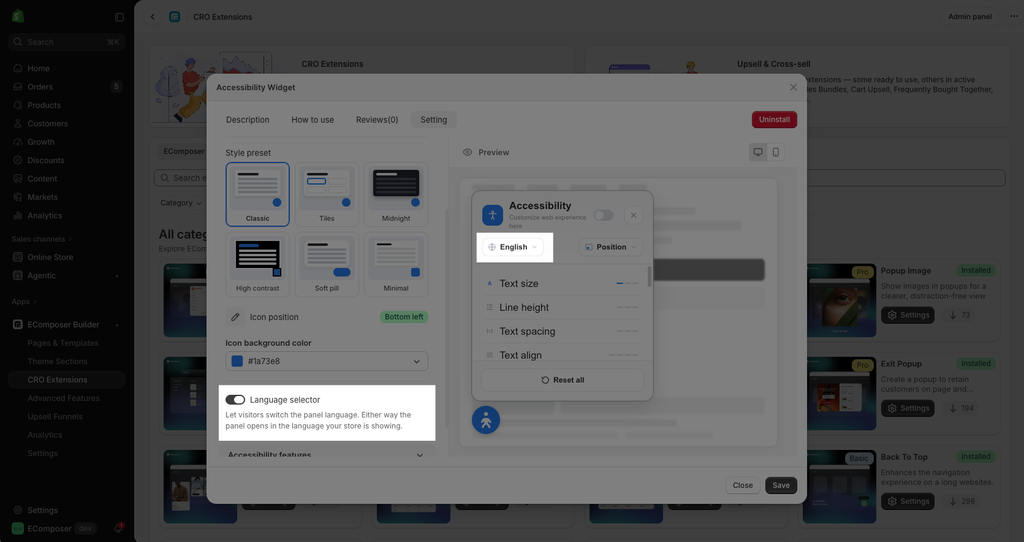
- Language selector: Let visitors switch the language used in the Accessibility Widget panel.
2.2 Accessibility features
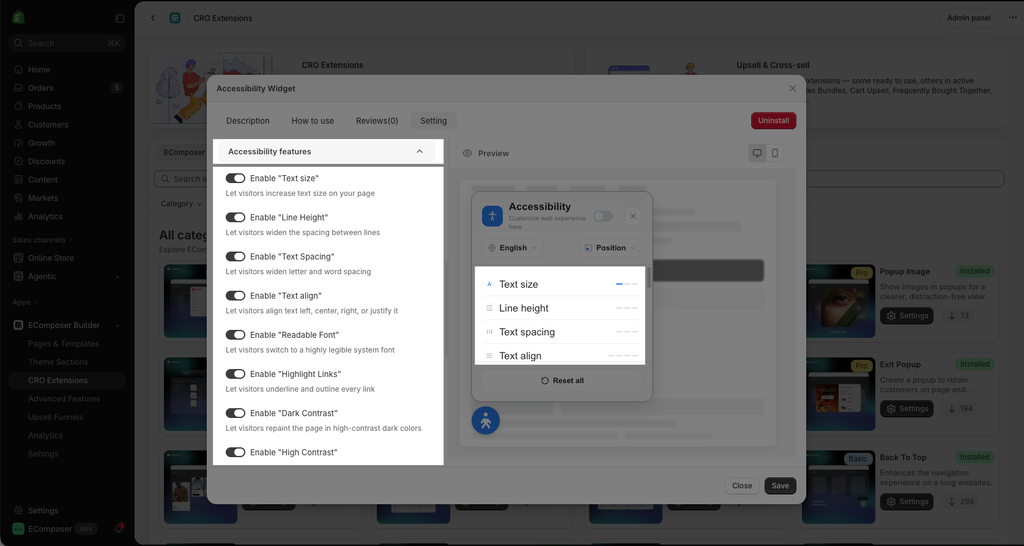
The Accessibility features settiing lets you choose which accessibility tools are available to visitors. Enable the features you want to provide on your storefront.
- Text size: Adjust the text size across your page for improved readability.
- Line Height: Increase the space between lines of text.
- Text Spacing: Add more space between letters and words.
- Text align: Change text alignment to left, center, right, or justify.
- Readable Font: Replace the default font with a highly legible system font.
- Highlight Links: Underline and outline links so they are easier to identify.
- Dark Contrast: Apply a high-contrast dark color scheme to the page.
- High Contrast: Boost the overall contrast of page content.
- Saturation: Adjust color intensity by lowering, increasing, or removing saturation.
- Hide Images: Hide images throughout the page when needed.
- Big Cursor: Enlarge the mouse cursor for better visibility.
- Pause Animations: Stop animations and motion effects on the page.
- Read On Click: Have text read aloud when it is clicked.
- Tooltips: Display larger, easy-to-read tooltips for labelled elements.
- Page Structure: Navigate quickly between headings on the page.
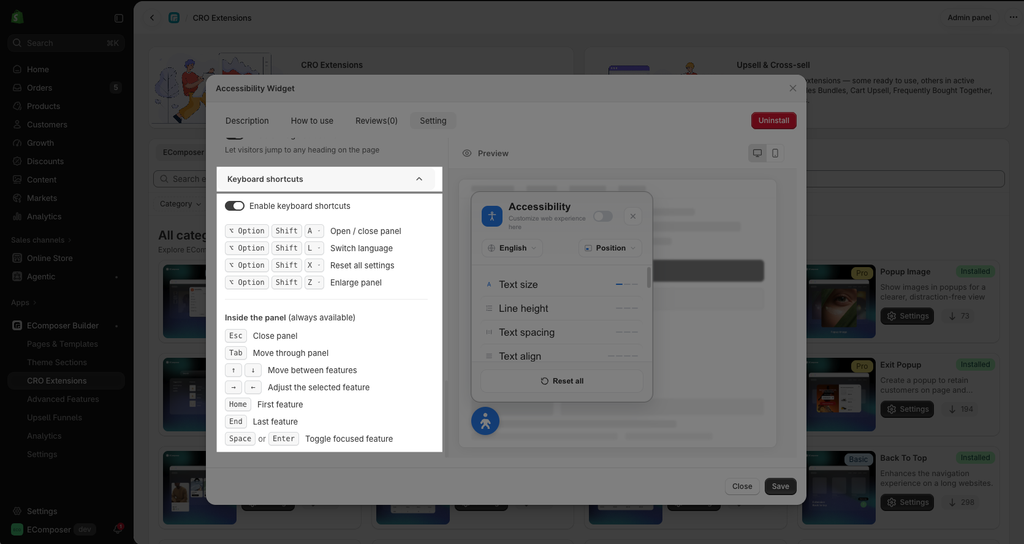
2.3 Keyboard shortcuts
Enable Keyboard shortcuts to provide quick access to the Accessibility Widget and its features using the keyboard.