
How to Create a Collection List in Shopify?
A collection list template is a page with the Collections on it. There is a limit to what you can change with the default Collection list pages of your theme. If you want to make more significant changes, or you want to be able to fully customize your collection templates, but you don’t know how to code, EComposer page builder is a great idea. The question is, how do you do this in the Ecomposer page builder app? We’ll show you how much customization EComposer gives you for your Collection list pages.
1. Create a new Collection list template with EComposer
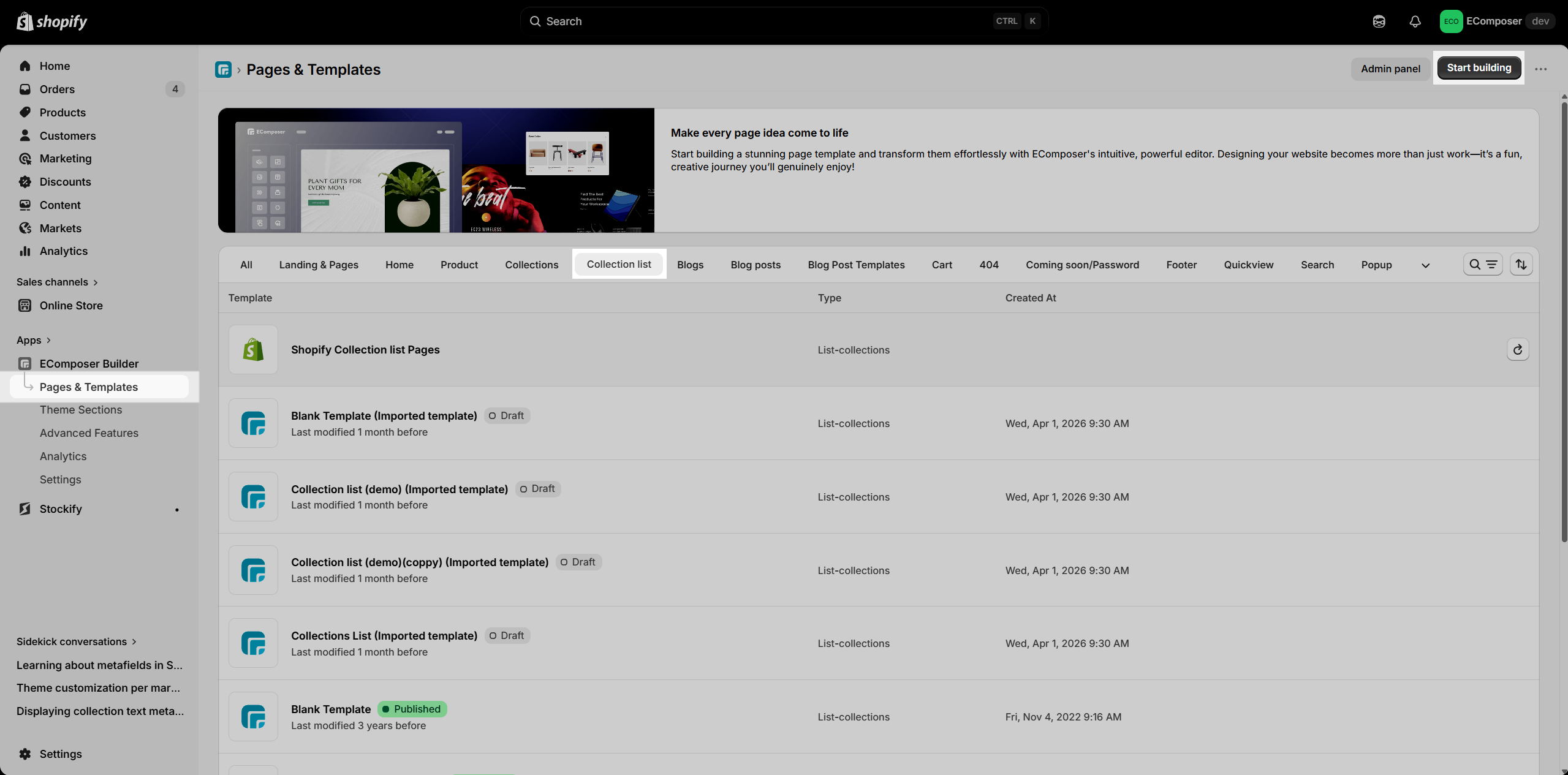
In EComposer, you can create a Collection List template by going to the Collection list section under Pages & Templates and clicking the Start building button to begin customizing your template.
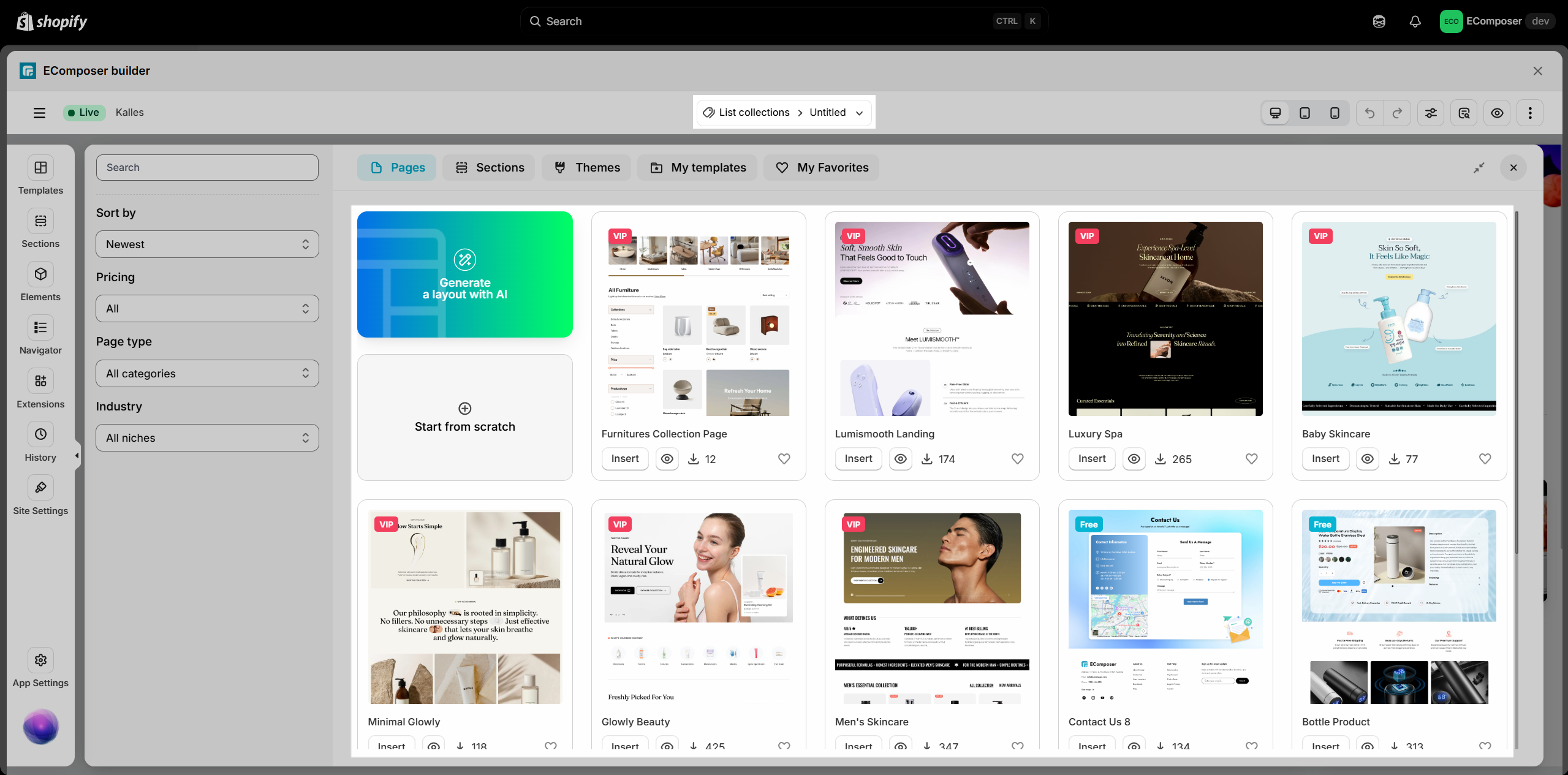
After clicking Start building, you will be redirected to a new page where you can select a template for your Collection List. You can either choose an existing template to use immediately or start from scratch and build your page using the drag-and-drop elements in the editor.
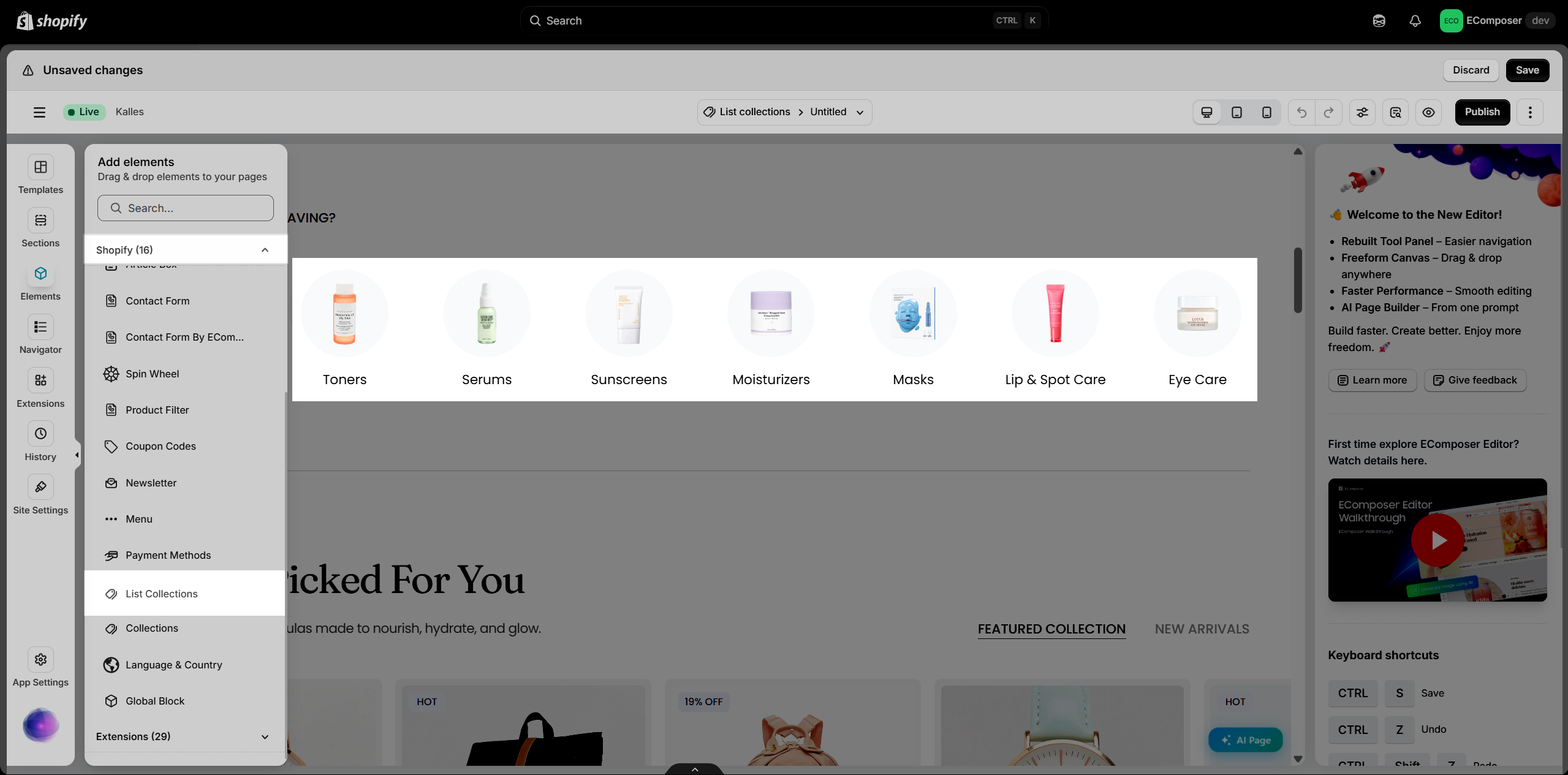
Normally, a collection list template will show all collections in your store. So you can use a Collection List element to show your collections. Also, you can add a banner image or a heading, and so on.
2. How to apply the collection list template in EComposer to Shopify theme?
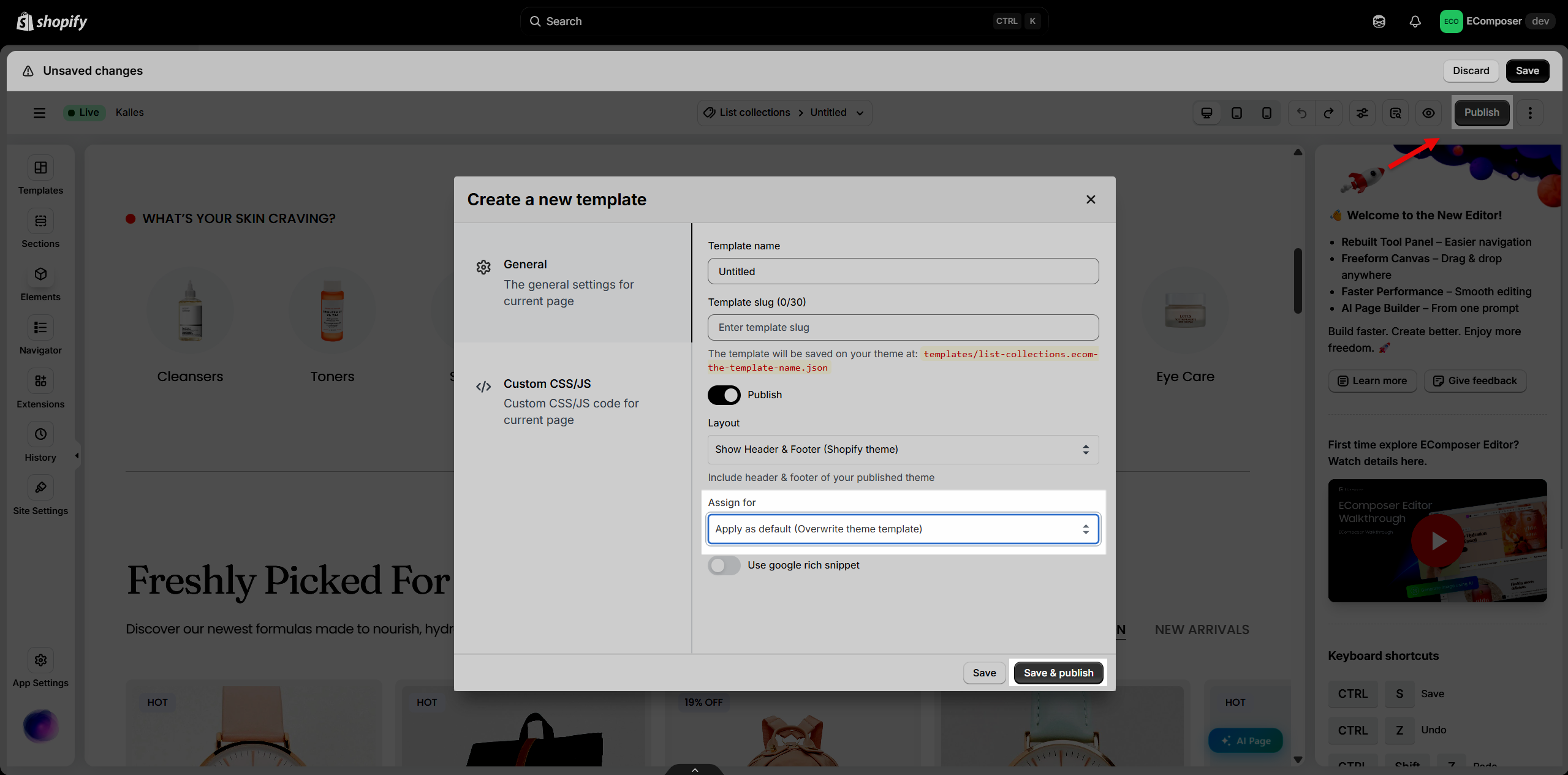
After creating a new template for your Collection list, to replace it with the old template in Shopify, please click on the Publish button at the top right and select assign for to Apply as the default option.
3. How to restore to the Shopify default template?
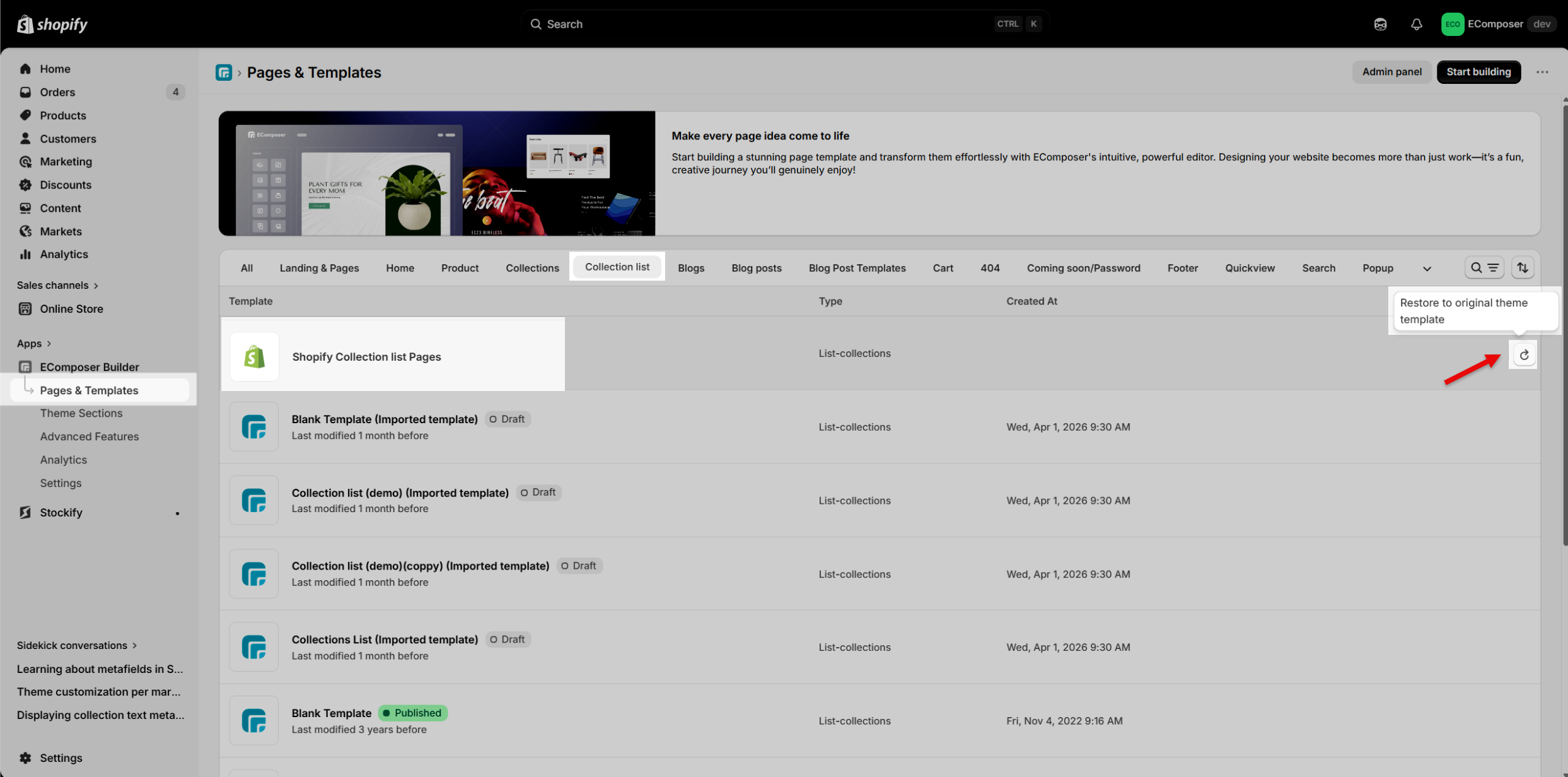
To restore the default Shopify Collection List template, just go to Pages & Templates → Collection list and click the Restore button on the template you want. This will reset it back to the original Shopify layout.
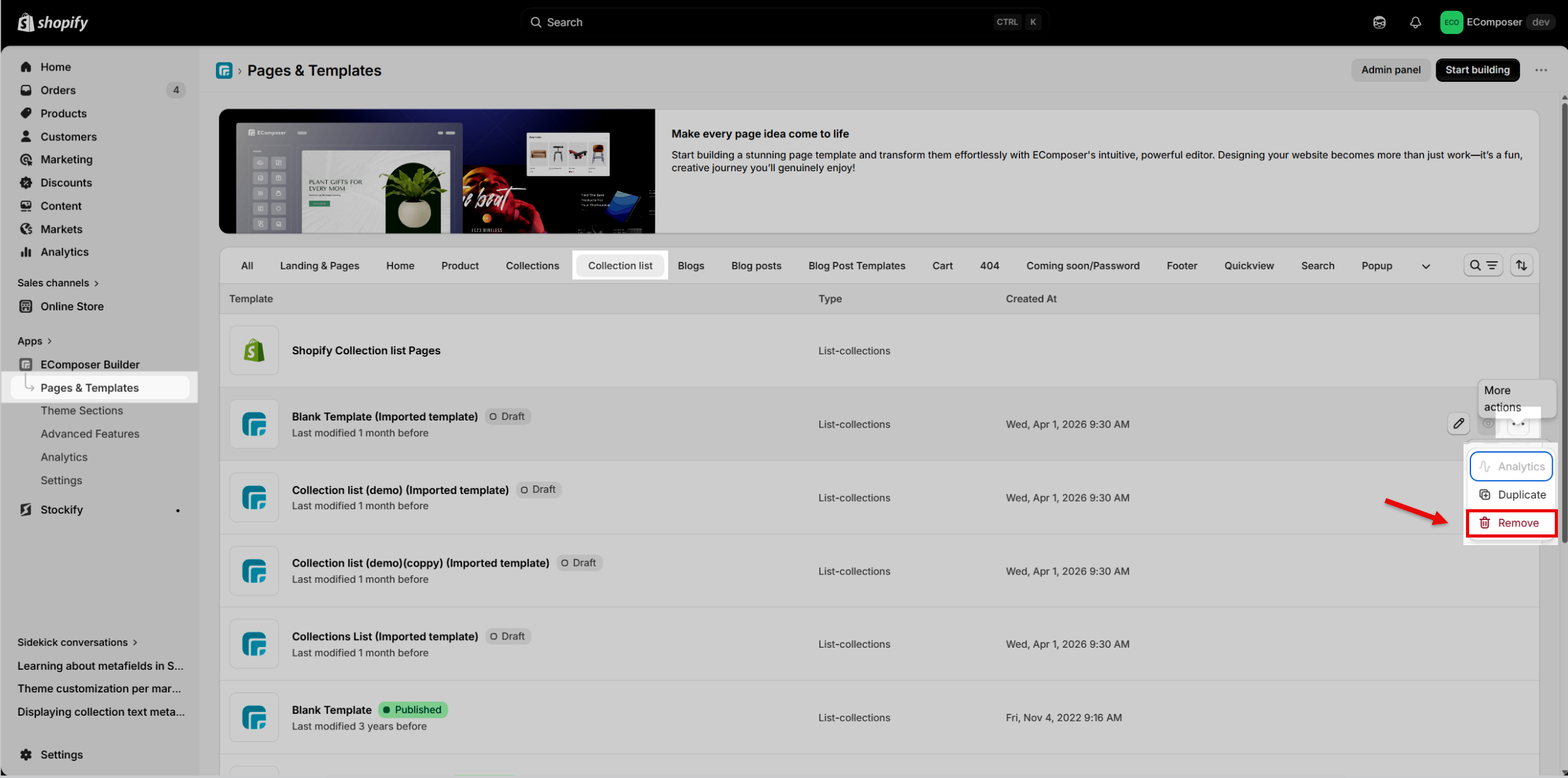
4. How to Remove a Collection Template?
To remove a Collection List template in EComposer, first make sure to restore the default Shopify collection list page. Then, go to App dashboard → Pages & Templates → Collection list, select the template you want to delete, and click Remove under the More actions menu. This will permanently remove the selected template from your collection list templates.