
Resource Type
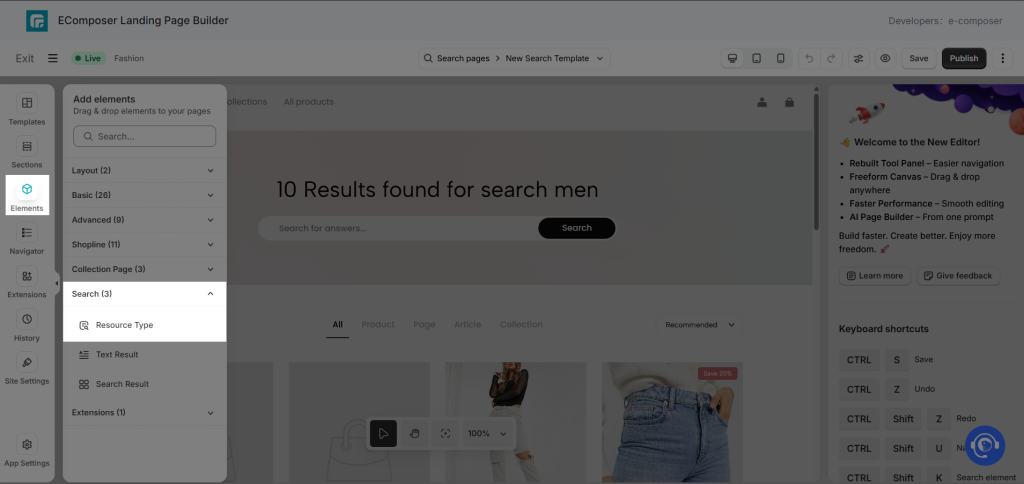
The Resource Type element displays resource type filters on the Search template, allowing customers to refine search results by content type, such as Products, Collections, Articles, or Pages.
By narrowing results to a specific resource type, customers can find the content they’re looking for more quickly and easily.
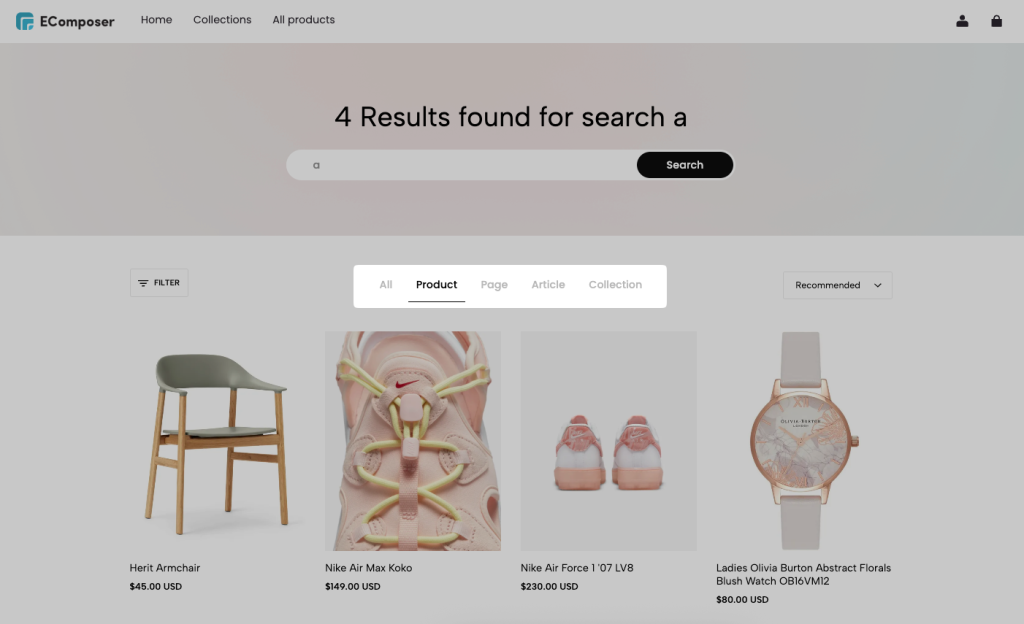
You can easily find the Search Type element and add it to your page in the Elements panel => Search => Search Type:
1. Content Settings
1.1. How to add the resource type to display on the element
This setting controls which resource types are displayed in the element. Include: Product, Collection, Article, Page.
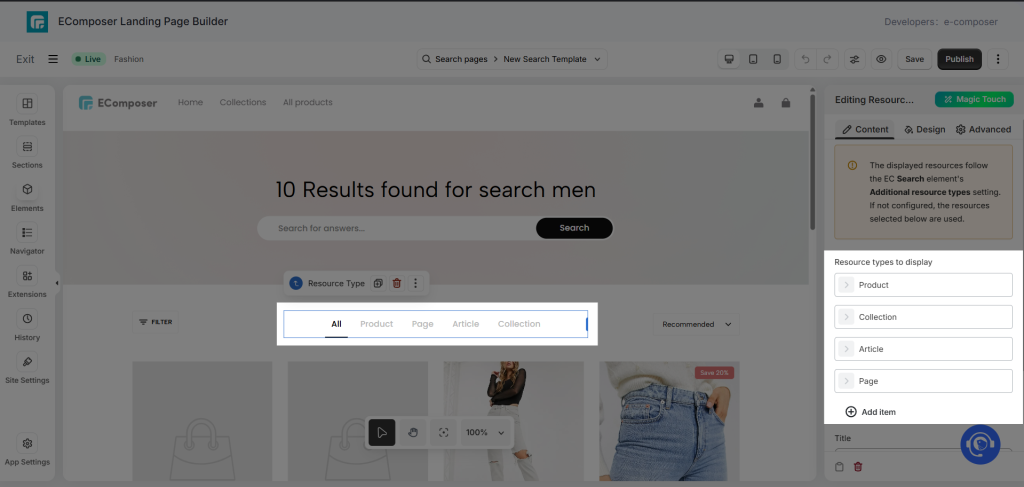
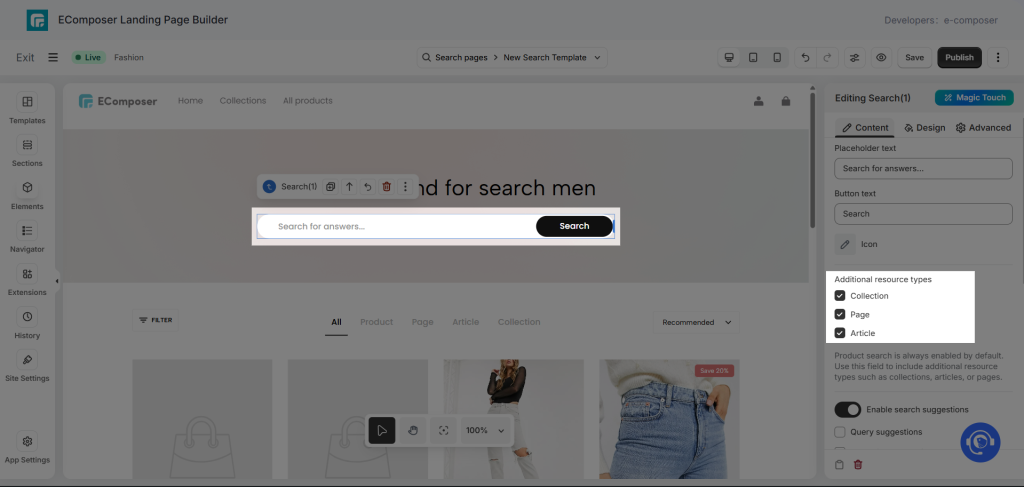
The Resource Type element will display the resource types selected in the Search element of EComposer. If no resource types are selected in the Search element, it will display the resource type configured in the Resource Type element.
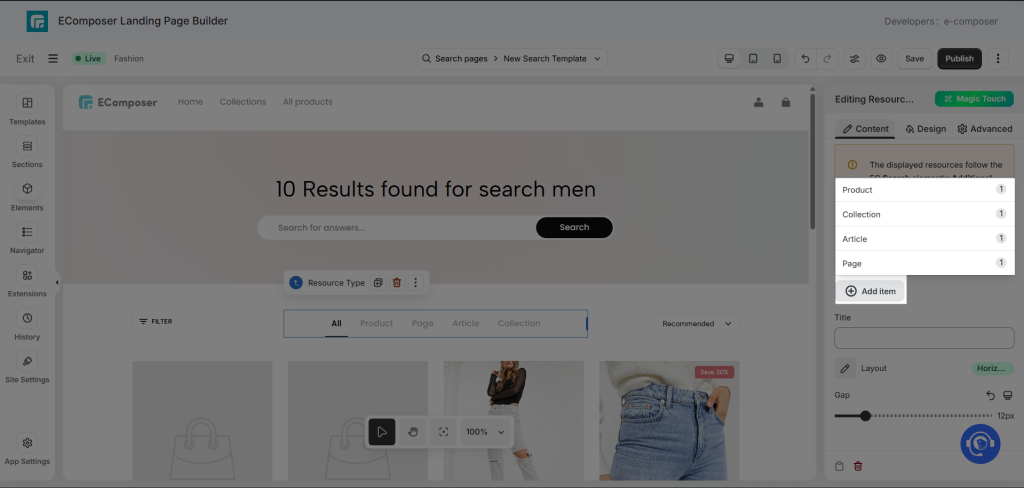
You can click Add item to include another resource type in the list.
Best practice: Only include resource types that contain relevant content in your store. If a resource type has no matching content, customers may see no results when they select that filter.
1.2. How to add a title above the resources
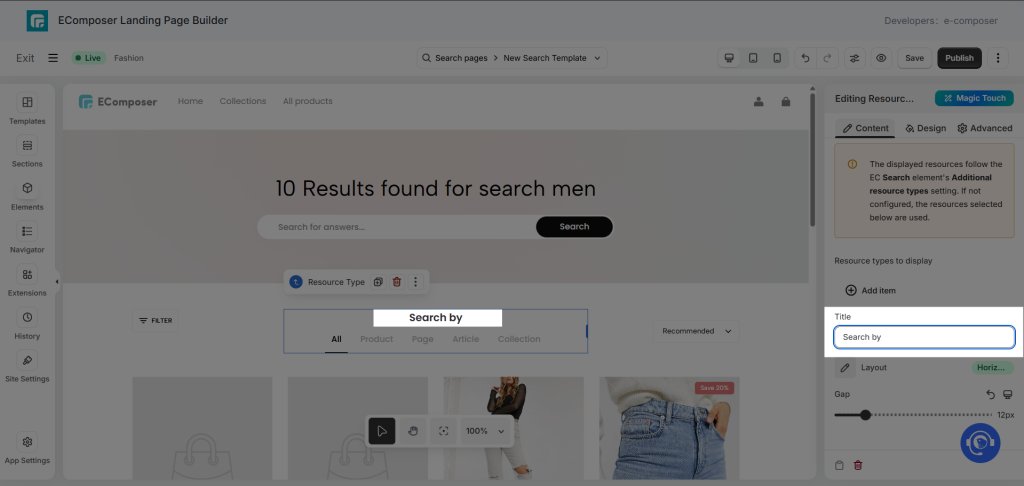
The Title field allows you to add a heading or label above the resource type list. Simply enter what you want to show as a heading title for the element here.
1.3. How to adjust the layout of the resources
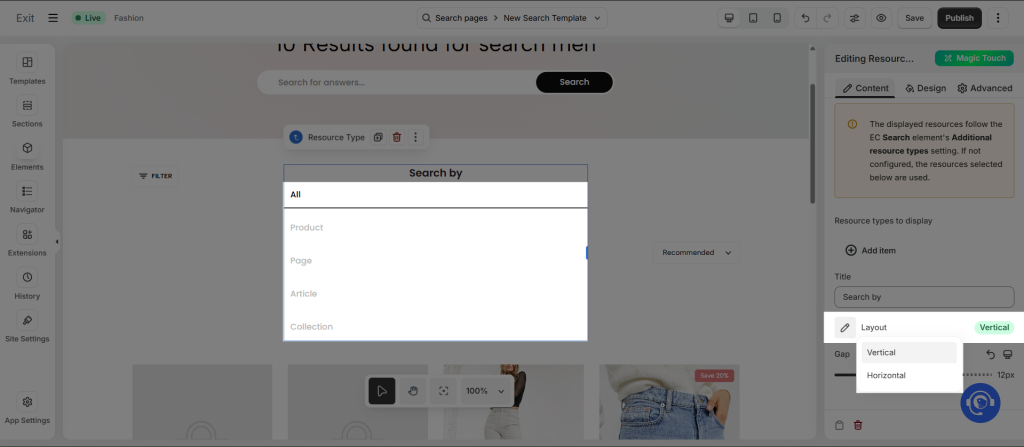
The Layout setting controls how the resource types are displayed. You can choose between Vertical and Horizontal options.
1.4. How to adjust the gap between items
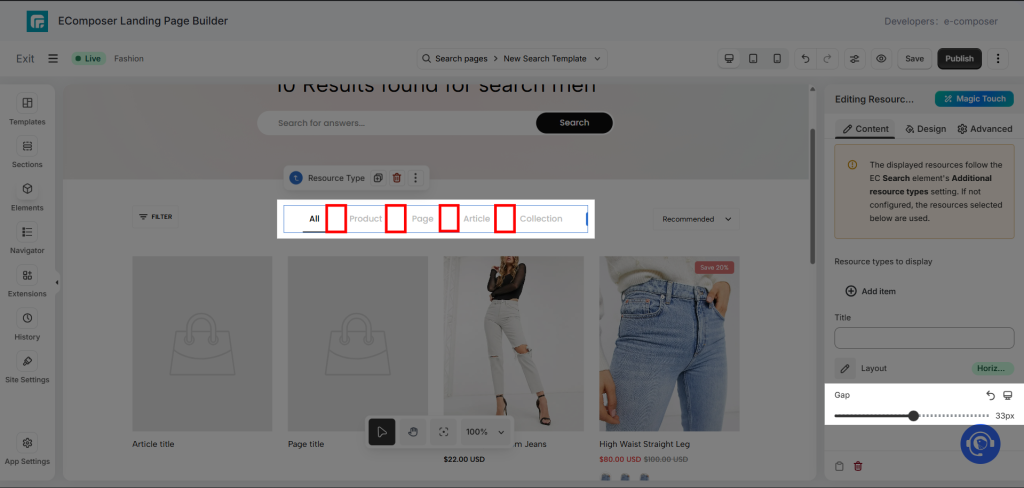
The Gap setting controls the spacing between the resource type items. Increase or decrease the value to adjust the distance between each item.
2. Design settings
You can style the items inside the Resource Type element in 3 categories: General, Title, and Resources.
2.1. General
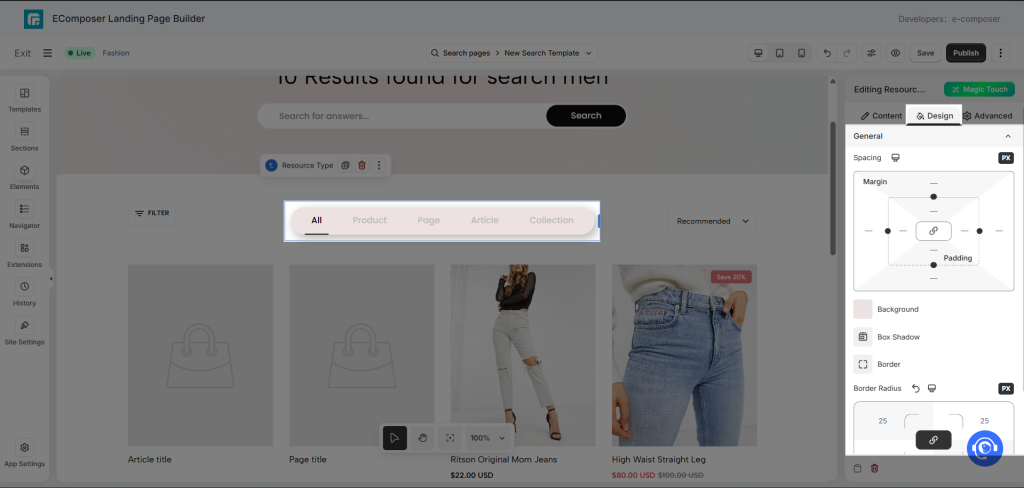
You can change the Background color, Box Shadow, Border, Border Radius, and Spacing of the entire Resource Type element area.
2.2. Title
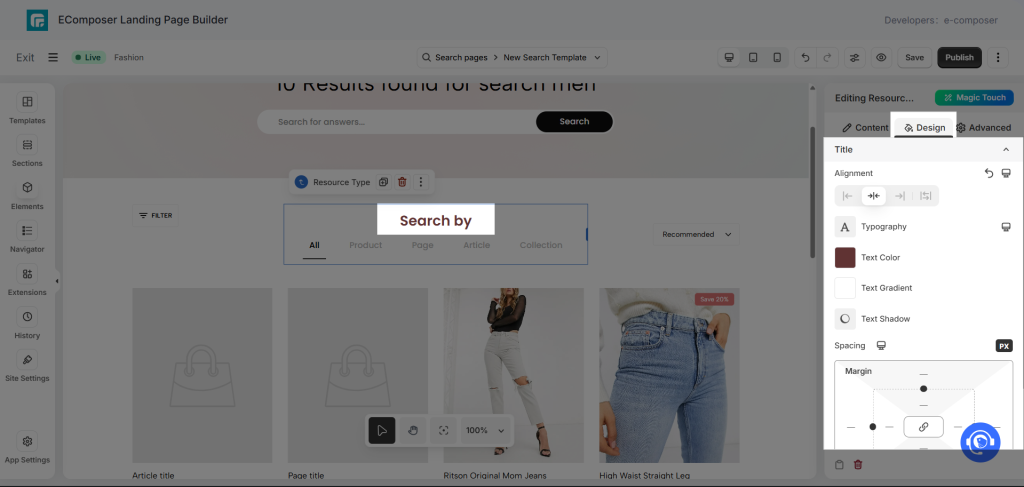
You can style the Title through the Alignment, Typography, Text Color, and Spacing settings.
2.3. Resources
You can modify the Alignment, Width, Height, Label horizontal alignment, Label vertical alignment, and Spacing of the resources in the element. Moreover, you can style the resources with Background, Typography, Text Color, Box Shadow, Border, and Border Radius in 3 states: Normal, Hover, and Active. You can refer to the video below for clarity: