
Extension Overview
The CRO Extensions dashboard is a centralized place where you can manage both powerful EComposer Extensions and integrated Third-Party App Extensions in one seamless experience.
The EComposer Extensions are built by the EComposer team to help merchants improve conversion rates, enhance storefront experience, and add advanced ecommerce features quickly and easily.
Alongside that, the dashboard also supports Third-Party App Extensions, allowing you to connect and use popular Shopify apps directly inside the editor without complicated integration steps.
Everything is organized in a clean and intuitive interface, making it easy to browse, search, install, and manage extensions based on your store’s needs.
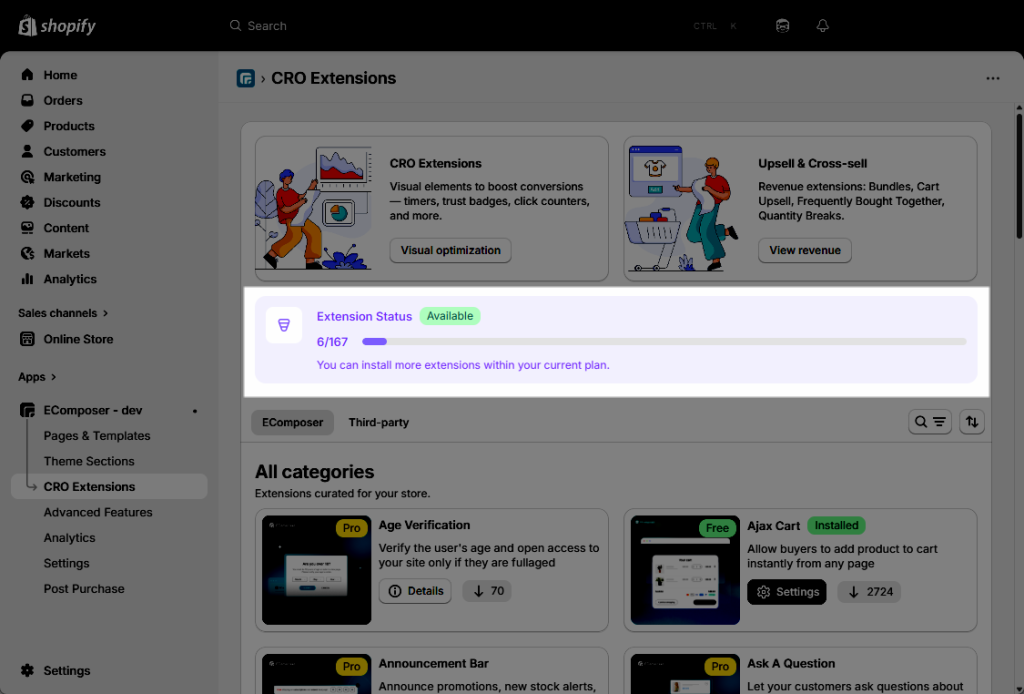
From the left sidebar, navigate to CRO Extensions to explore and manage all available extensions for your store.
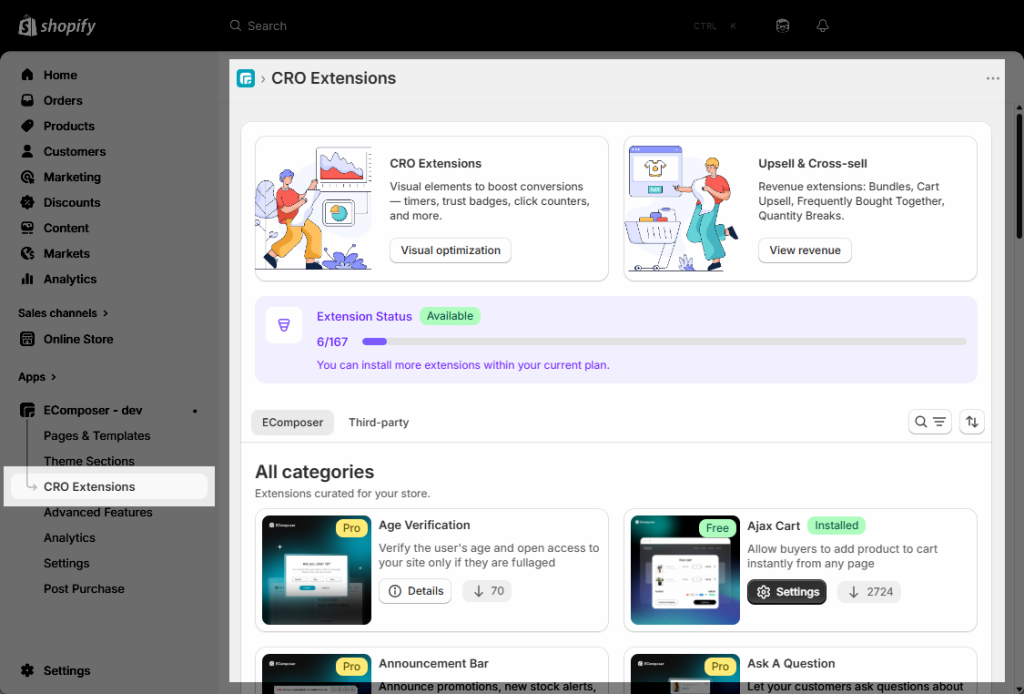
This specific dashboard view tracks your Extension Status, showing your currently installed extensions against your plan’s total limit.
1. Search, Filter & Sort Extensions
The CRO Extensions dashboard provides a flexible tools that helps you quickly find the extensions that best fit your store’s needs.
Using the Search bar, you can instantly search extensions by title or related keywords, making it easier to discover specific tools without manually browsing the entire library.
The dashboard also includes a powerful Filter system that allows you to organize extensions by different conditions such as:
- Category: Browse extensions based on functionality like Email Marketing, Product Reviews, Upsell, Subscriptions, Product Options, and more.
- Plan: Filter extensions by available plans including Free, Basic, and Pro.
- Status: Quickly view extensions based on Popular, Newest, Installed, or Not Installed status.
In addition, the Sort feature helps organize the extension list in a more convenient way. Merchants can sort extensions by: Name; Plan; Status. The extension list can also be arranged in A–Z or Z–A order for faster browsing and management.
Together, the search, filter, and sorting tools create a clean and intuitive management experience, especially useful when working with a large extension library.
1. EComposer Extensions
The EComposer Extensions library includes over 32 built-in extensions developed by the EComposer team to help merchants improve conversion rates, enhance user experience, and extend store functionality without complex coding.
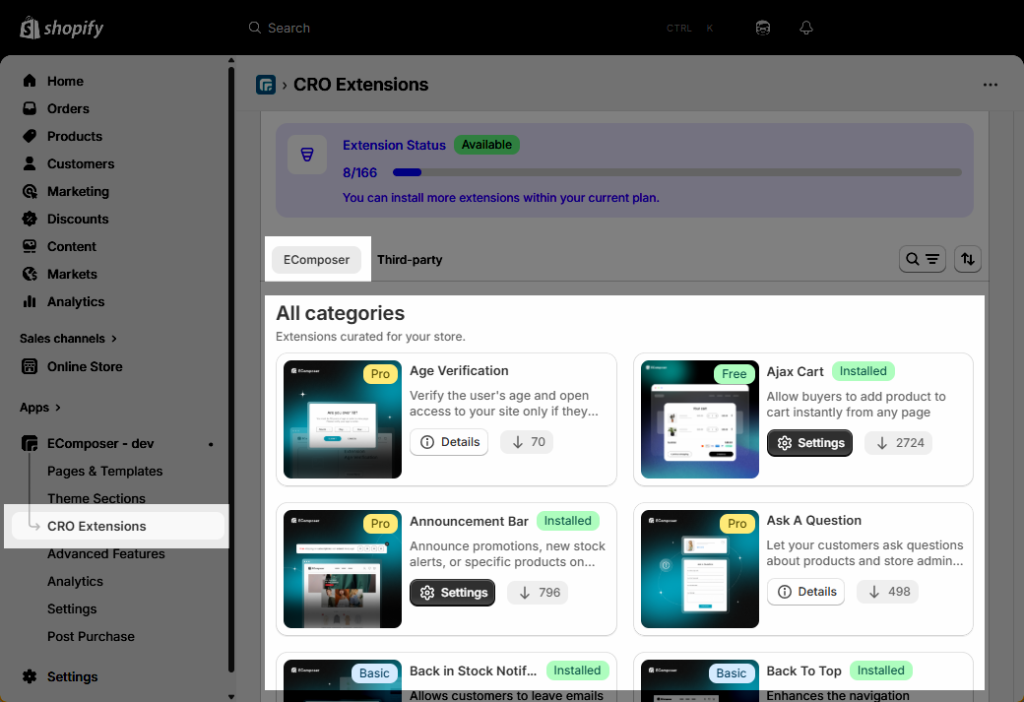
These extensions are designed specifically for Shopify merchants and cover a wide range of ecommerce needs such as upselling, product recommendations, popup marketing, product options, search optimization, customer engagement, navigation enhancement, and storefront performance improvements.
All extensions are organized in a clean and intuitive interface, making it easy to browse, search, install, and manage the tools your store needs. Each extension card also includes a clear plan label such as Free, Basic, or Pro, allowing you to quickly identify which extensions are available within your current EComposer plan before installation. In addition, every extension comes with its own overview, settings, installation status, and usage guidance for a more streamlined and user-friendly management experience.
The EComposer extension ecosystem continues to grow with new tools and optimization features to support modern Shopify stores and evolving ecommerce demands.
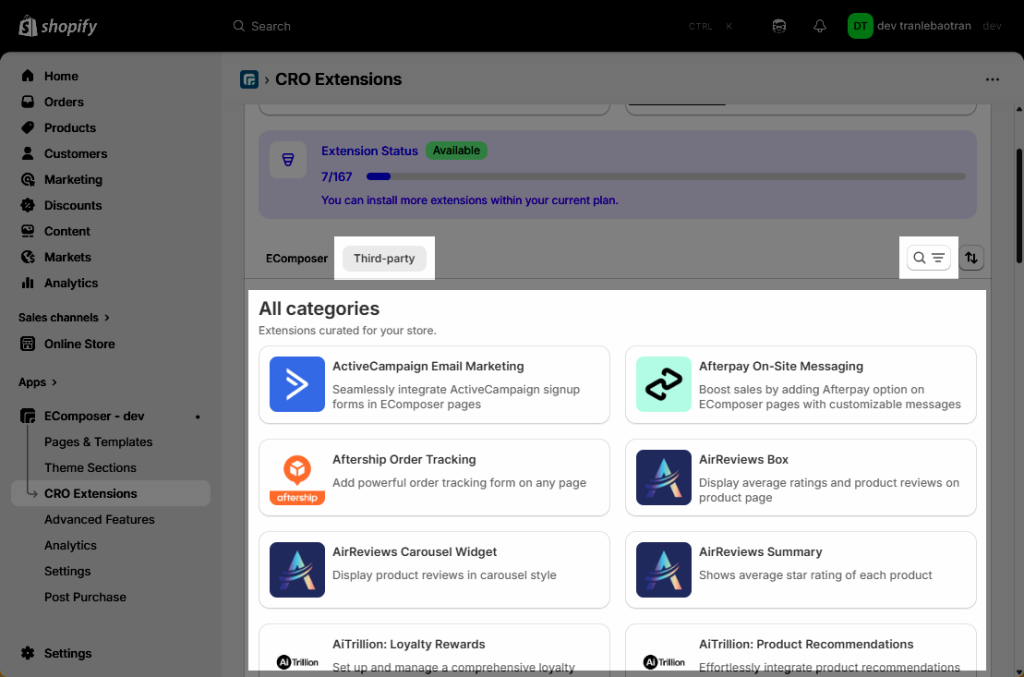
2. Third-Party App Extensions
The Third-Party App Extensions tab allows merchants to connect and use popular Shopify apps directly inside the EComposer editor.
This integration library includes a wide range of external Shopify apps covering different ecommerce needs such as product reviews, upselling, subscriptions, loyalty programs, product options, email marketing, bundles, order tracking, and customer engagement tools.
By integrating these apps into the EComposer ecosystem, merchants can easily add advanced app functionality to their pages without complicated setup processes or manual coding.
4. Install & Settings Extensions
How to Install an Extension
- From your Shopify dashboard, go to CRO Extensions in the left sidebar menu.
- Browse the available extensions and select the extension you would like to install.
- Click Details to view more information about the extension.
- Install and enable the extension based on your store’s needs.
Extension Tabs & Settings
Most extensions inside the CRO Extensions library share a consistent and user-friendly structure to make setup easier for merchants. Common tabs include:
- Description: Overview of the extension, key features, and supported use cases.
- How to use: Quick guidance and documentation for setup and usage.
- Reviews: User feedback and extension ratings.
In addition, many extensions also include a dedicated Settings tab where merchants can configure extension-specific options and behaviors. Depending on the extension, the Settings section may allow you to customize content, layouts, colors, functionality, display conditions, integrations, and other advanced configurations tailored to that extension.