How to publish a page/template?
This article will show you how to publish a page or template created in EComposer. Since different page types may have different publishing options, please first check whether you are working with a Landing page, Homepage, or another template type.
Before publishing, you should identify the type of page or template you are working on.
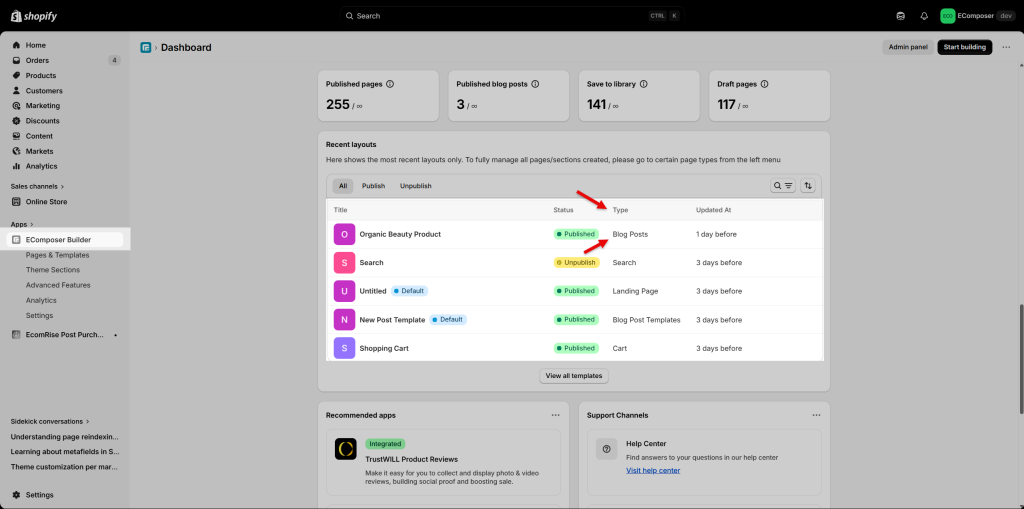
Option 1: Check from the EComposer dashboard
From the EComposer dashboard, check the Recent layouts table. You can use the Type column to identify the page or template type, such as Landing Page, Homepage, Product template, Collection template, Blog Posts, Blog Post Template, or another template type. The Status column also shows whether the item is currently Published or Unpublished.
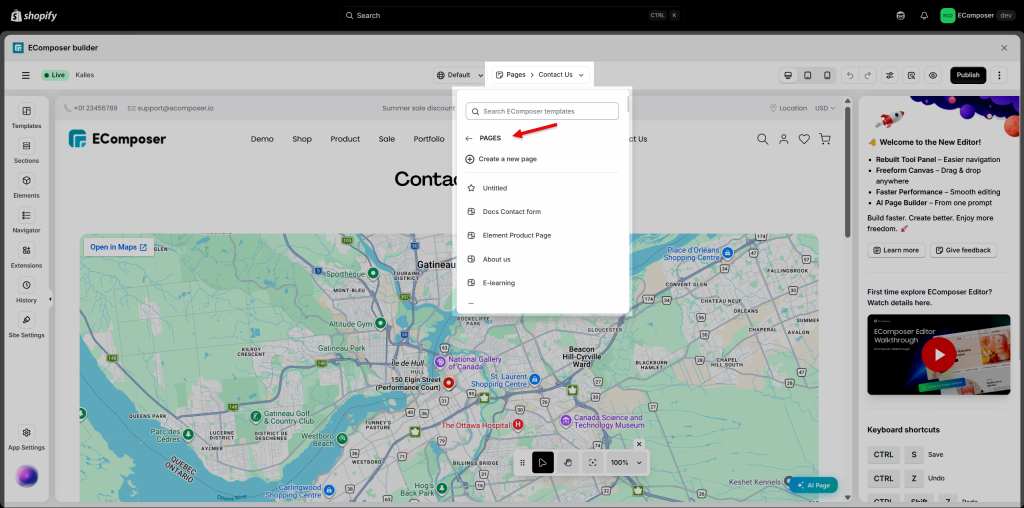
Option 2: Check from the Page Navigator
If you are already in the EComposer editor, open the Page Navigator from the top bar. The label shown in the navigator helps you identify the current page or template type. For example, Pages means you are working with a Landing page, while Home Pages, Products, Collections, or Blogs indicate the corresponding template type.
1. Publish a Landing Page
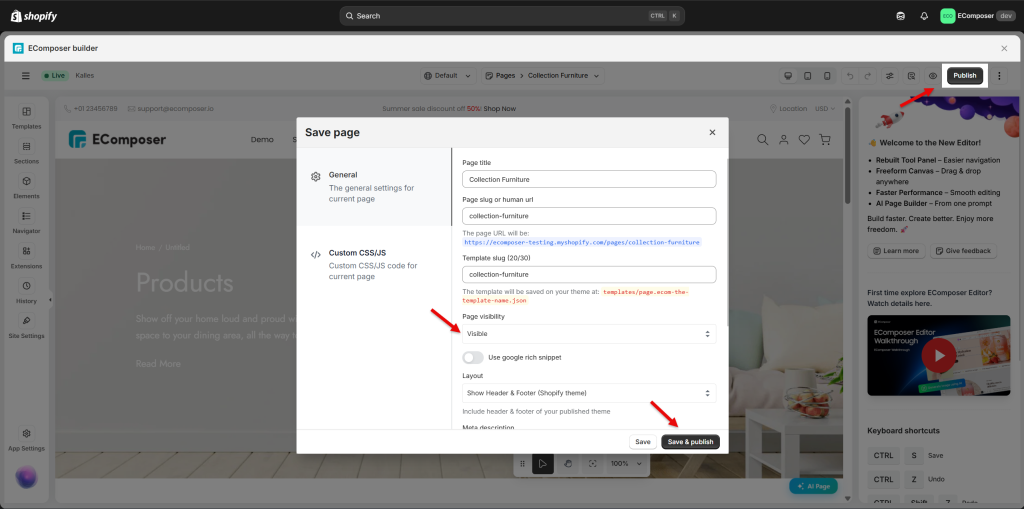
If you are working with a Landing page, you can publish it from the editor.
Step 1: Open the Landing page in the EComposer editor.
Step 2: Click the Publish button.
Step 3: Set Page visibility to Visible.
Step 4: Click Save & Publish to publish the page.
2. Publish a Template
Templates include Homepage, Product template, Collection template, Blog template, Blog list template, and other template types.
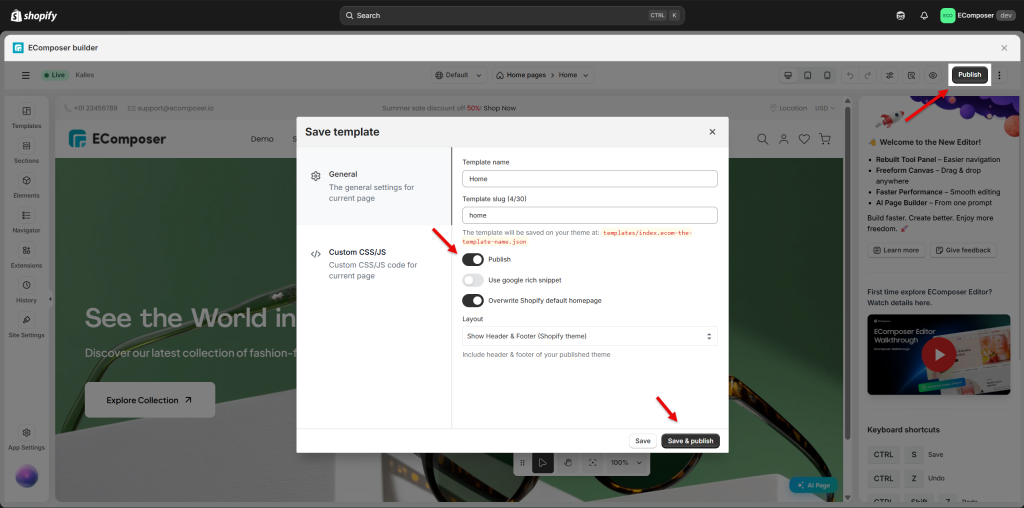
For example, in this guide, we will publish a Homepage template.
Step 1: Open the template in the EComposer editor.
Step 2: Click the Publish button in the top-right corner.
Step 3: In the Save template popup, turn on the Publish option.
Step 4: Configure the related publishing settings if needed. For example, if you are publishing a Homepage template, you can enable Overwrite Shopify default homepage to replace the current Shopify homepage with this EComposer template.
Step 5: Click Save & Publish to publish the template.
3. Important Notes After Publishing
- After publishing, the page/template will be available on your storefront based on its type and assignment.
- For templates such as Product or Collection templates, you can choose to assign the template to specific products or collections, or apply it to all product pages or all collection pages, depending on your needs.
- If the page/template does not appear on the storefront, please clear cache, refresh the page, or check whether the correct template has been assigned.