How to Set up Sizechart Metafield in Sizechart element
By default, the Sizechart image will display the same for all products. But you can create a dynamic size chart for your products using Shopify metafields. This allows you to use one product template for multiple products while displaying different size charts for each product.
Notes:
- Using metafields allows flexibility – you don’t need a separate template for each product.
- Customers can see the relevant size chart automatically.
You can follow the following steps to do that.
Step 1: Adding a Sizechart element from the left sidebar
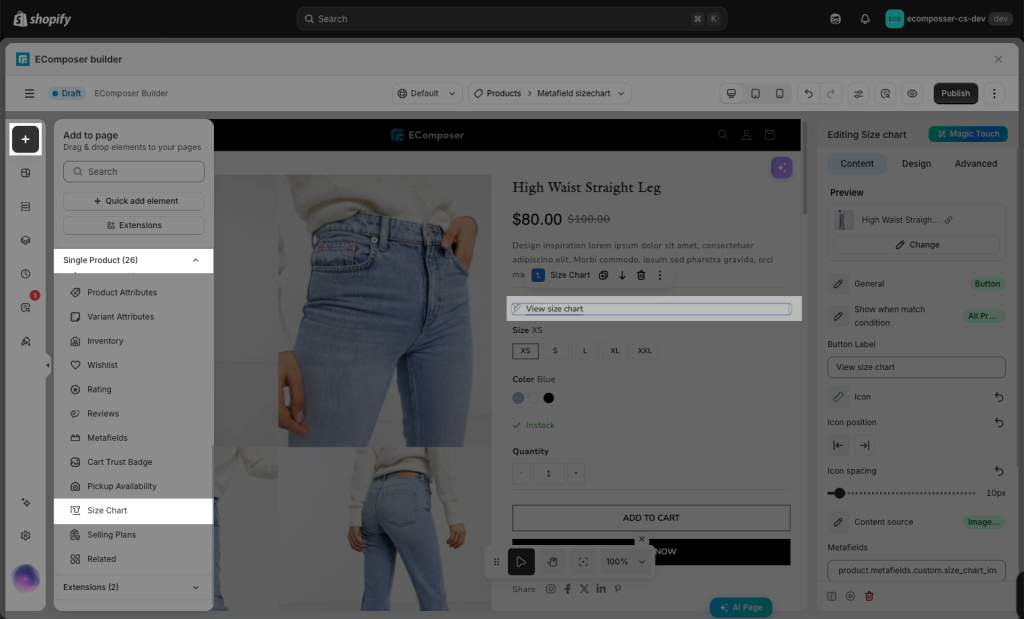
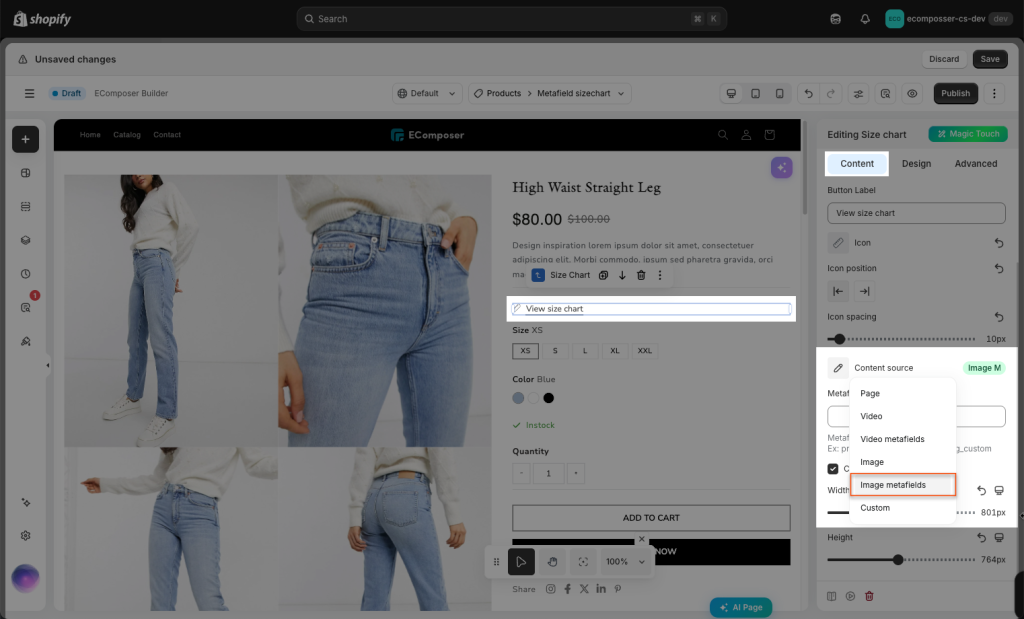
Step 2: Click Sizechart -> Content Source -> choose Image metafield in the dropdown.
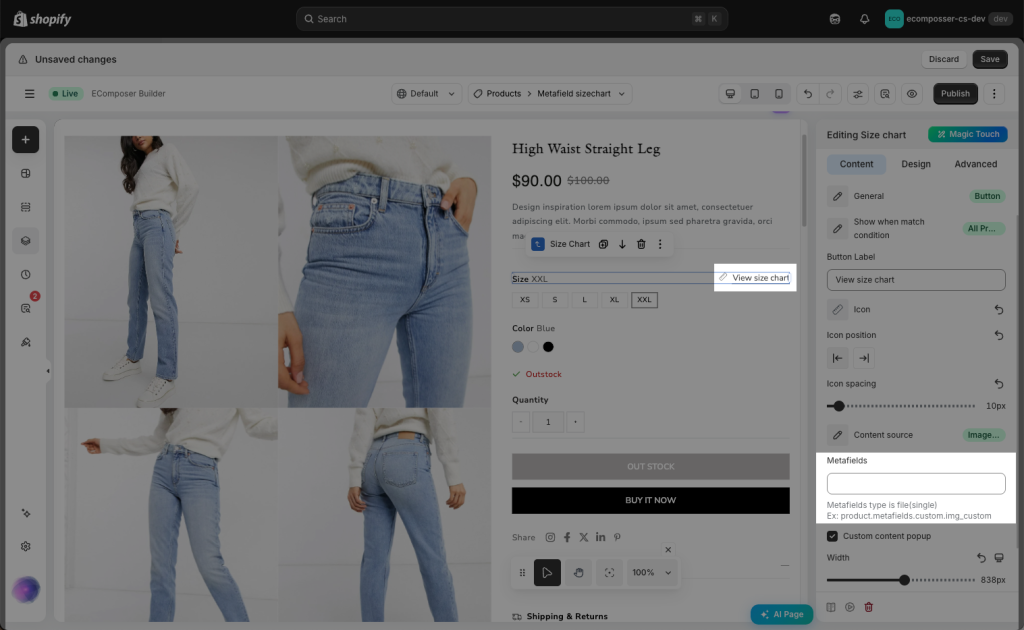
Step 3: Now, you need to fill in the Metafield value to the box.
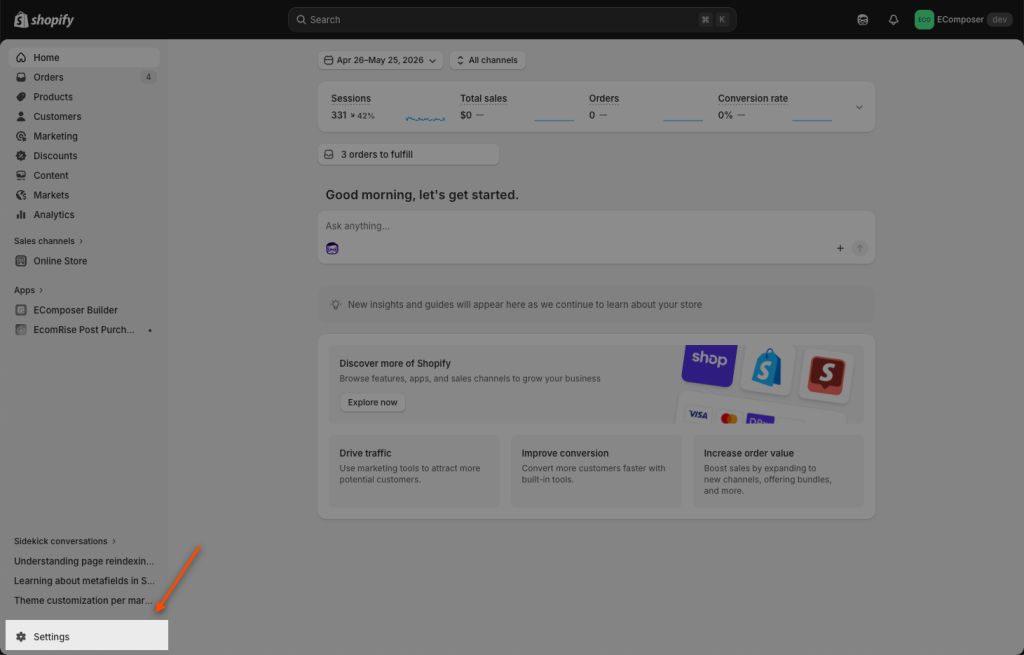
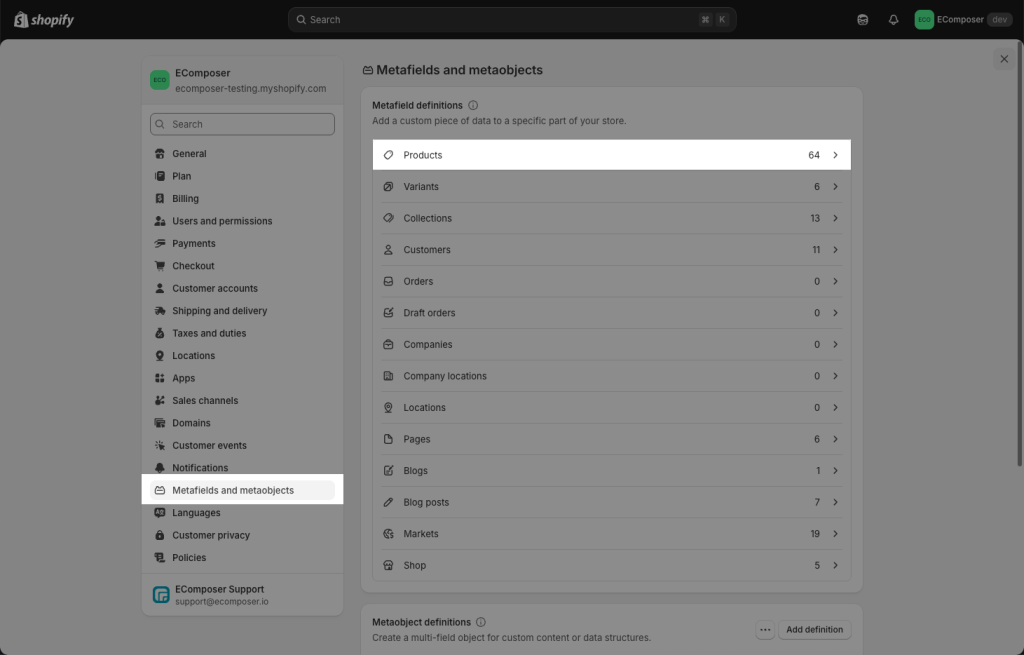
Step 4: Go to Shopify Admin -> Settings
Click Metafields and metaobjects -> Products
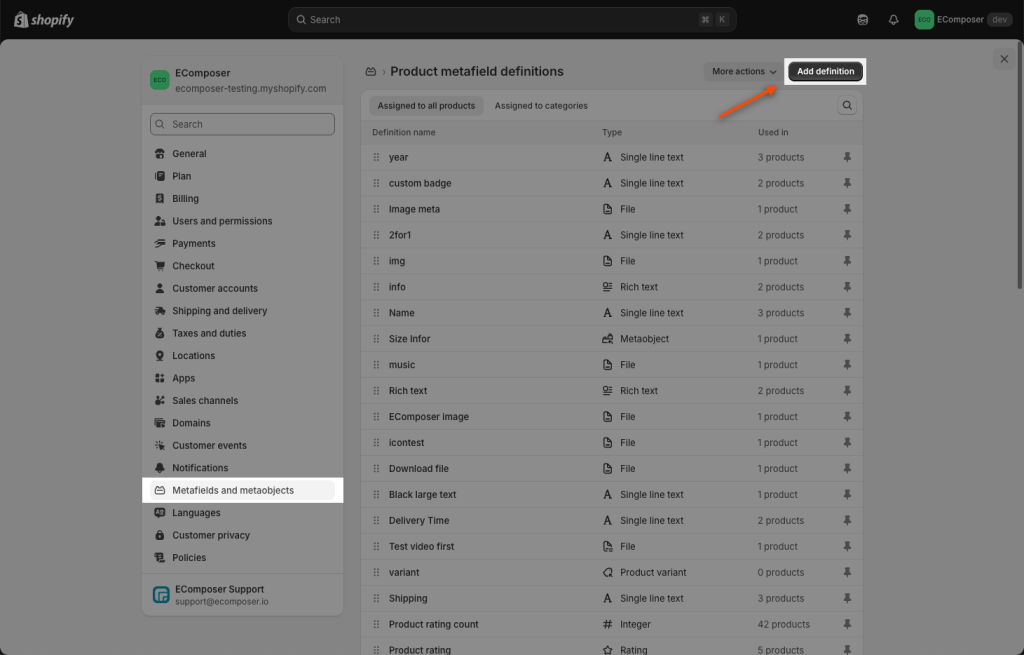
Step 5: Then Add definition
Put a name for this new metafield -> choose type Image (file) then copy the metafield code:
custom.size_chart_image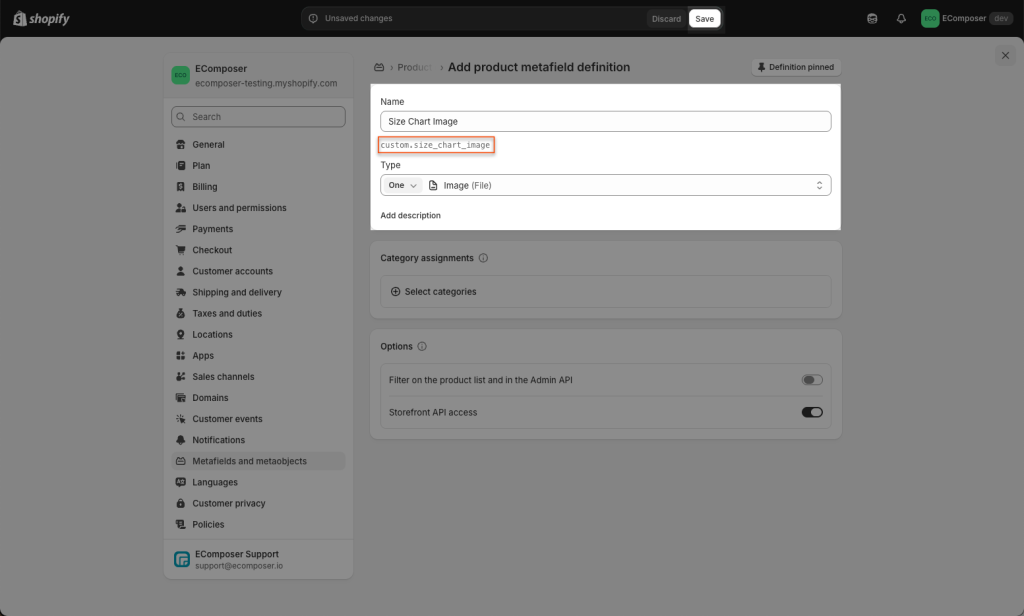
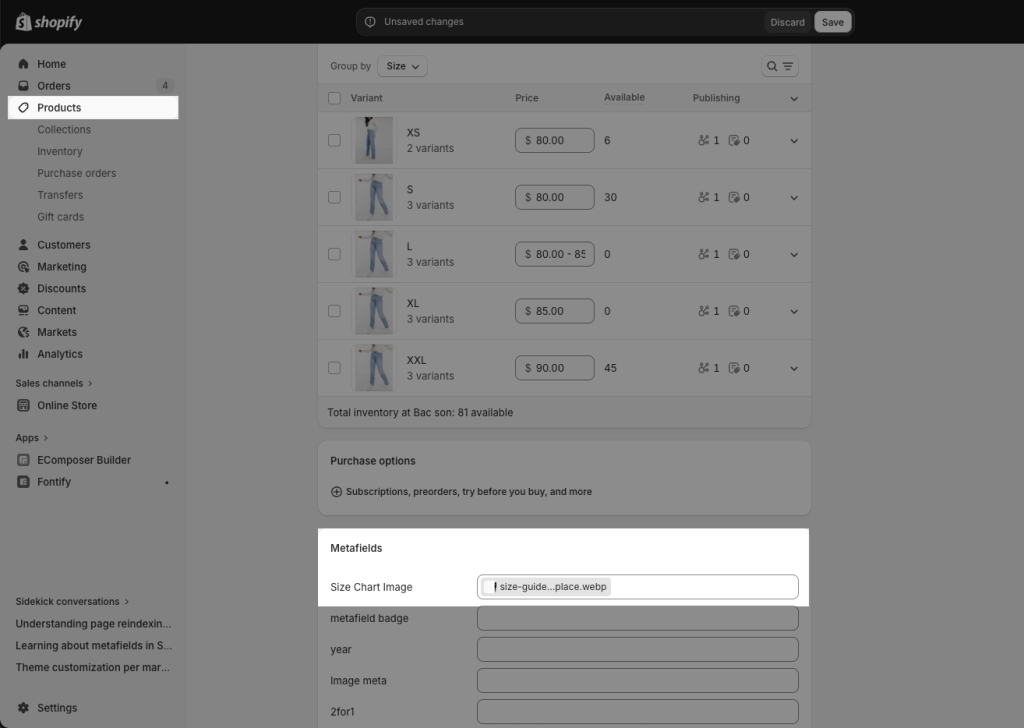
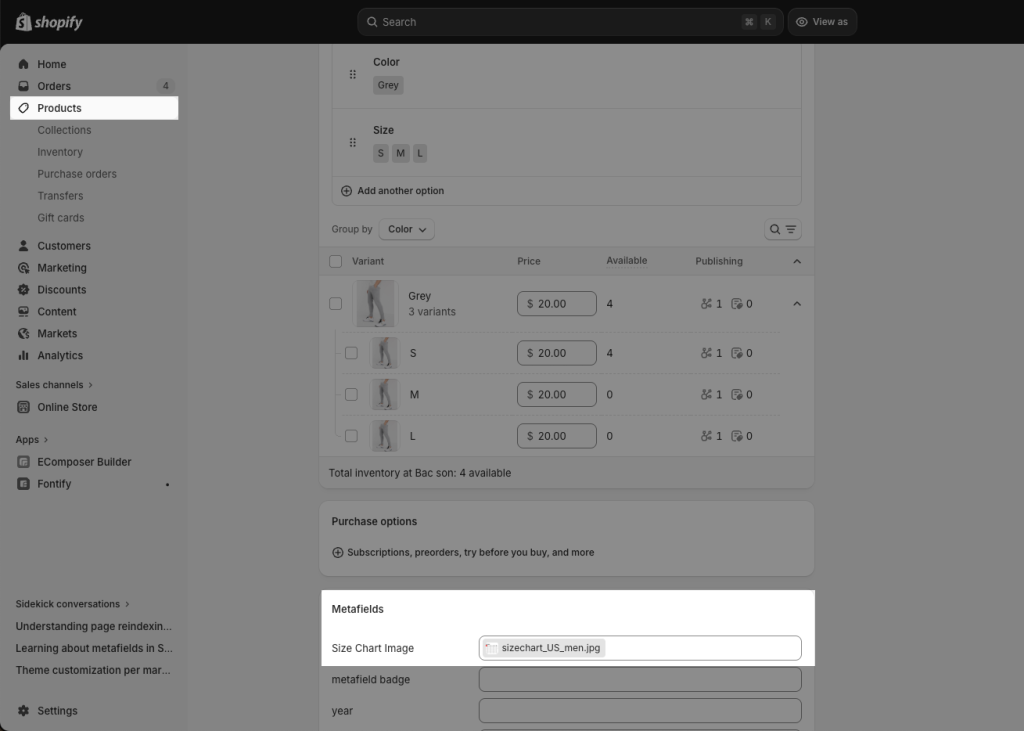
Step 6: Navigate to Products -> Edit a specific product -> Uploading an image of sizechart ( png, jpg, webp,..)
Step 7: Finally, go back to the App Editor -> fill in the metafield value in the box. The final code should be:
product.metafields.custom.size_chart_image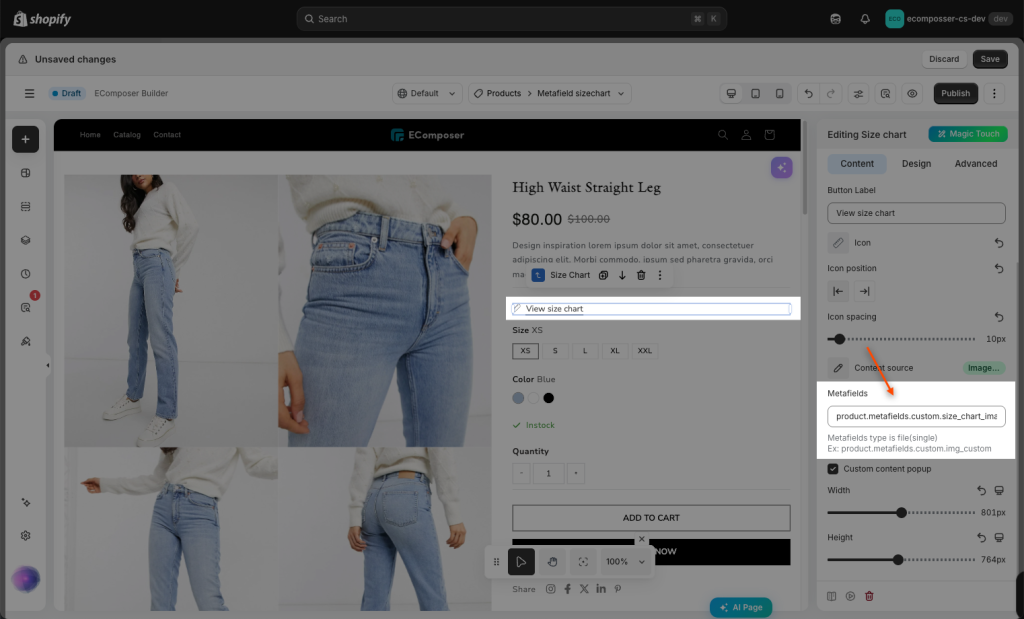
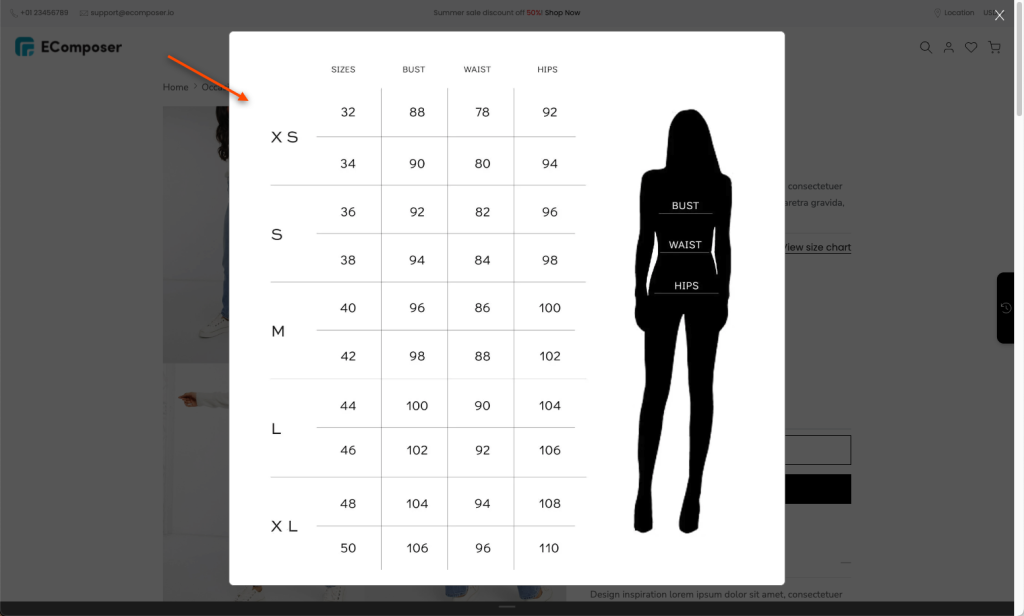
As a result, the Sizechart image is showing up when you click to Sizechart button on the product single page.
Repeat Step 4 to add more different sizechart images to other products.
If you can’t follow the steps above, please check this video: