How to set up fonts quickly with Global typography
Setting up fonts quickly using Global Typography involves creating a centralized style guide for your website’s headings and body text, allowing you to update the entire site instantly from one location. This is best achieved at the beginning of the site-building process.
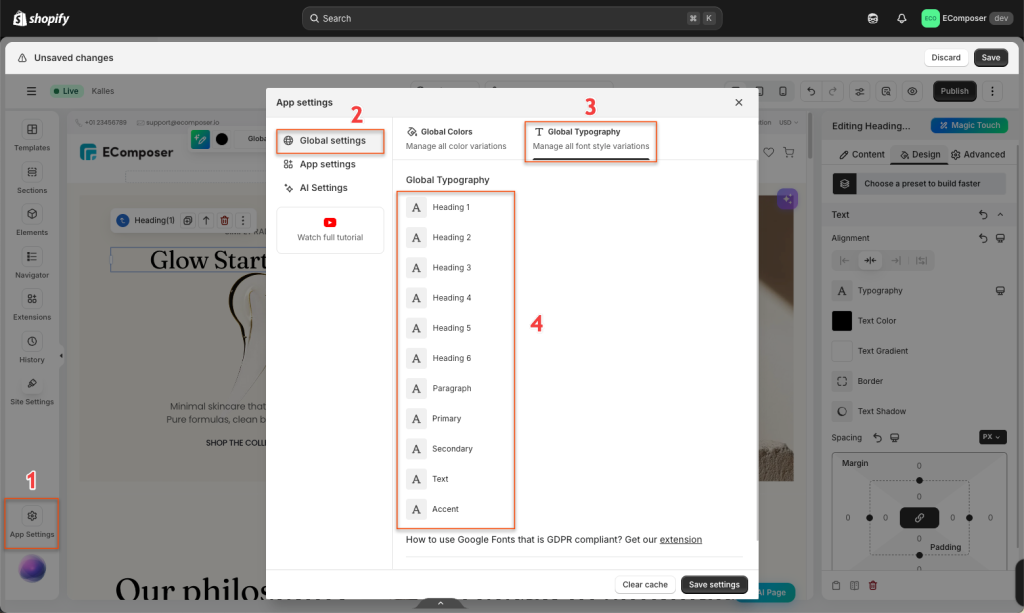
- Firstly, click the Site Settings icon (bottom left) -> Global settings -> Global Typography -> Global Font list item
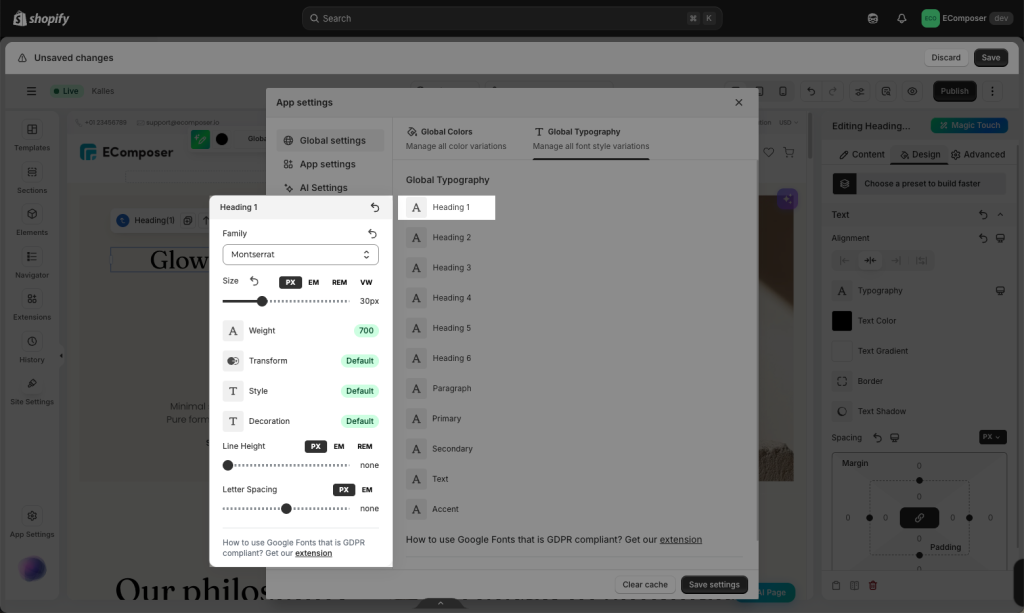
- Choose an item to edit its Font family, Size, Weight, Transform, Style, and Decoration,… as you want
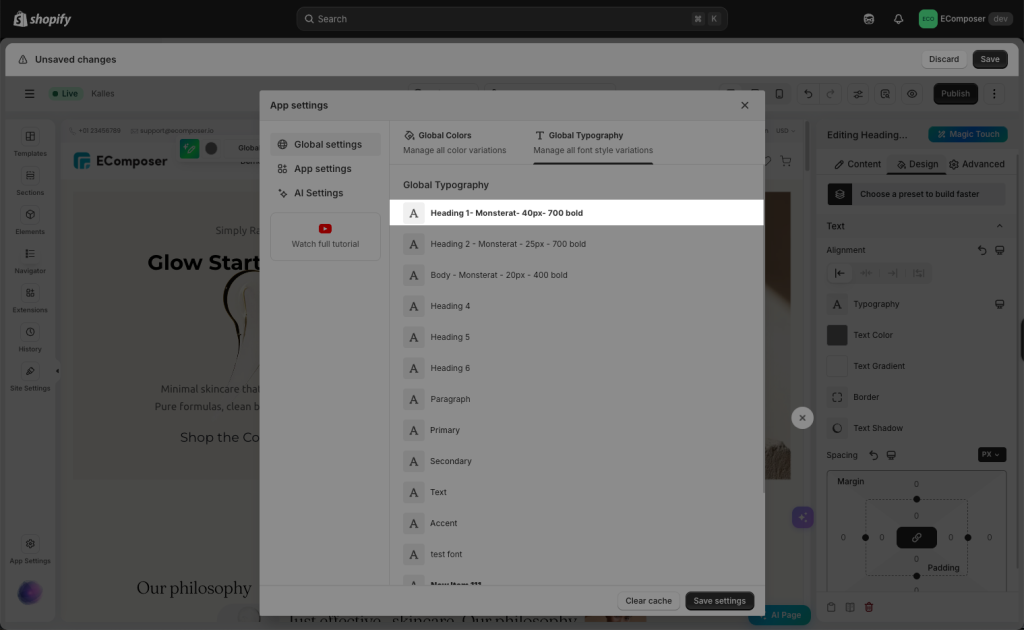
- Click on the item name to change the name of that Global font item so you can easily control it anytime.
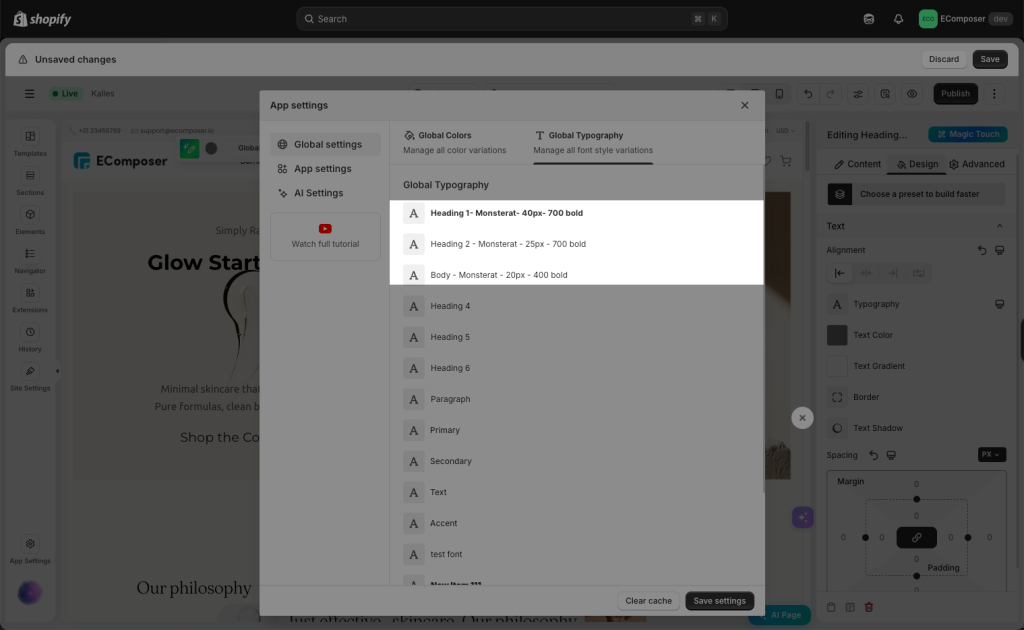
- Similarly, adjust font style for other items to make their appearance aligned to your needs. A good design principle is to pick one style of font for your heading and a different font style for your body text.
Next, after setting up Global fonts, you can close the pop-up, then start changing fonts on your actual page.
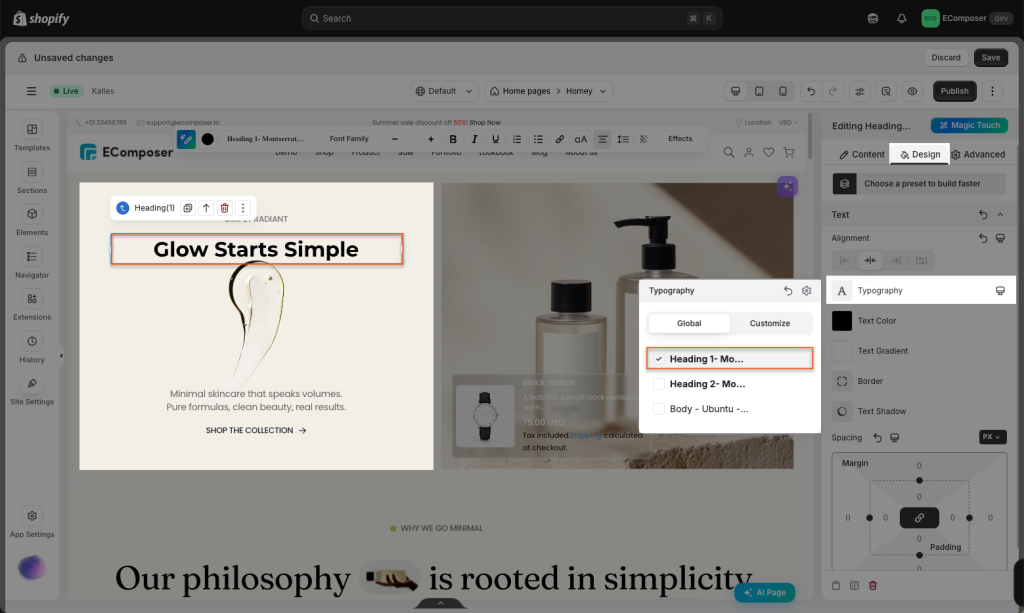
- Edit a specific heading text -> Design -> Typography -> Global. Then, you tick a box to assign the global font to that headline. As a result, that headline will adopt the new font style.
- Do the same steps with body text: assign a global body font by ticking the box.
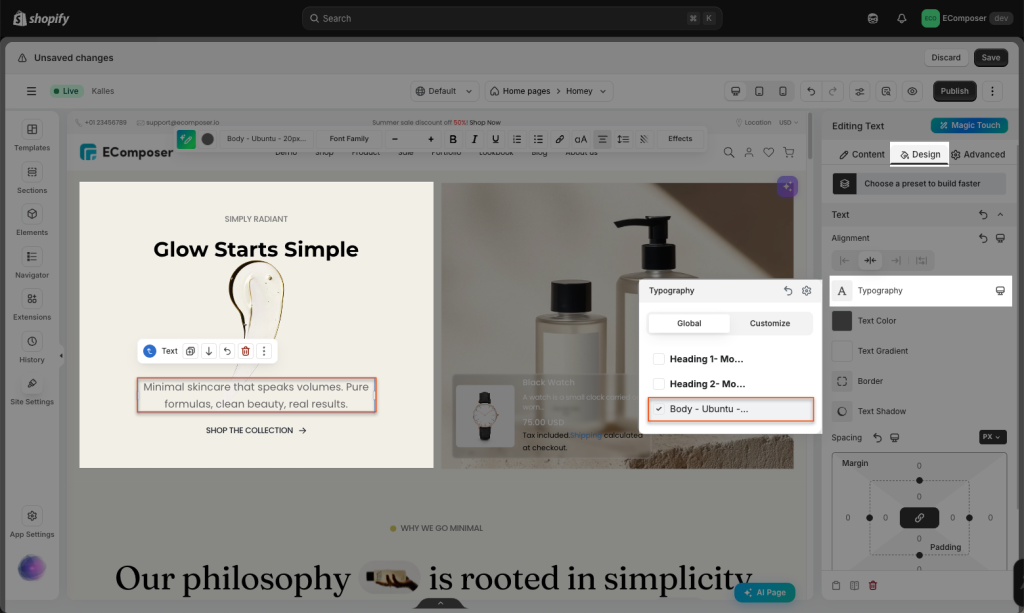
Now, if you make any change to the Global settings, all text tailored with that global font will be updated in bulk without manual changes. This is how your customized Global Typography settings will be applied all over the site.
If you still can’t follow up, please check this video below: