Compare-at Price Not Showing on Product or Collection Pages
This document explains why the compare-at price may not appear on your product or collection pages when using EComposer, and how to resolve the issue using Shopify settings.
Why is the compare-at price not showing?
Shopify allows merchants to control whether compare-at prices are included in a catalog, especially when using Markets or multiple catalogs.
If the Include compare-at price option is disabled in the active catalog:
- Shopify does not provide compare-at price data to the storefront
- Themes cannot display the compare-at price
- EComposer cannot display the compare-at price
This behavior applies to all storefront pages, regardless of the page builder used.
How to fix the issue
To display compare-at prices on your storefront, you must enable the corresponding option in your Shopify catalog. Please follow the steps below:
Step 1: Go to Shopify Admin → Markets → Catalogs
Step 2: Open the catalog that is applied to your active market
Step 3: Scroll to the Pricing section
Step 4: Enable the Include compare-at price option
Step 5: Save your changes
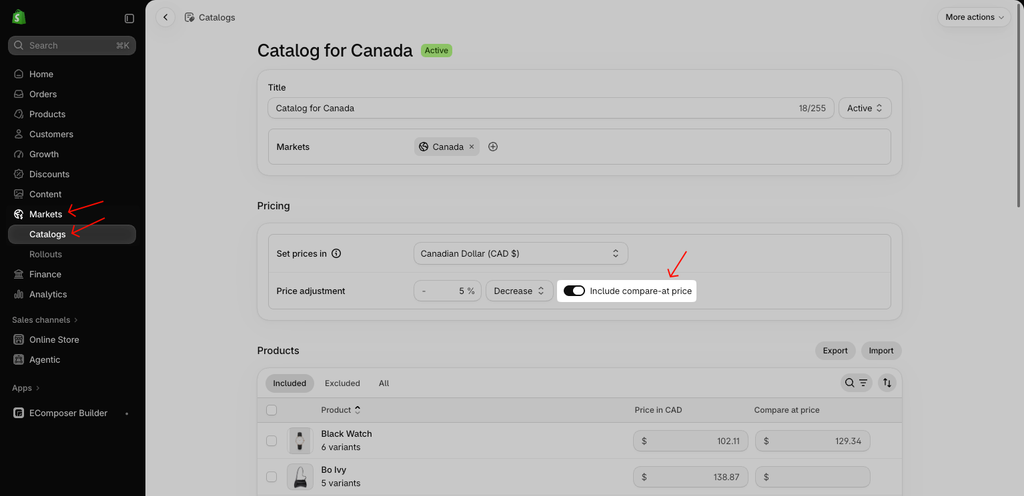
After this setting is enabled, Shopify will make compare-at-price data available on your storefront.
Do I need to change anything in EComposer?
Once Shopify allows compare-at prices in the catalog:
- EComposer will automatically display the compare-at price
- No additional configuration is required inside the app
Additional checks
If the compare-at price still does not appear, please verify the following:
- The product has a valid compare-at price that is higher than the regular price
- The correct catalog is assigned to the active market
- Your storefront cache has been refreshed
- If the compare-at price still does not appear after following the guide, we recommend contacting Shopify Support for further investigation.