
Explore Template Library
The Template Library was created to help clients of the EComposer application with suggestions for designs. Here you can easily select, add new, or insert sections and pages. The layouts are updated regularly and fully licensed for your website and your clients.
In addition, the Explore Library also provides a space for users to store their designs and reuse them many times.
1. Open the Explore Library
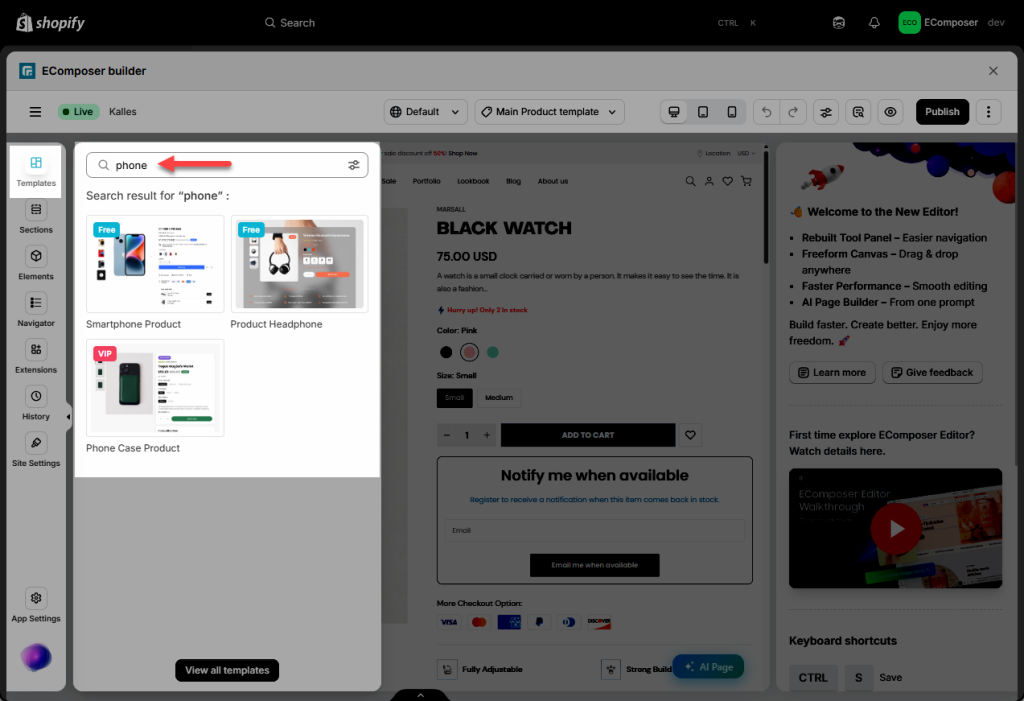
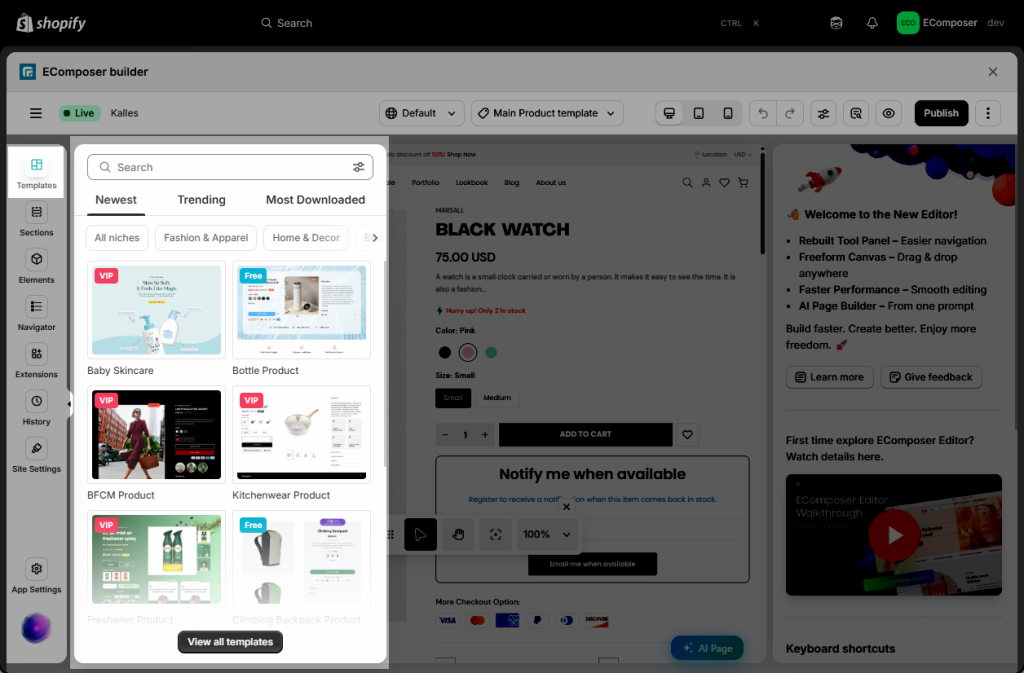
From the EComposer Editor → Templates → View all templates to start viewing the templates of the EComposer.
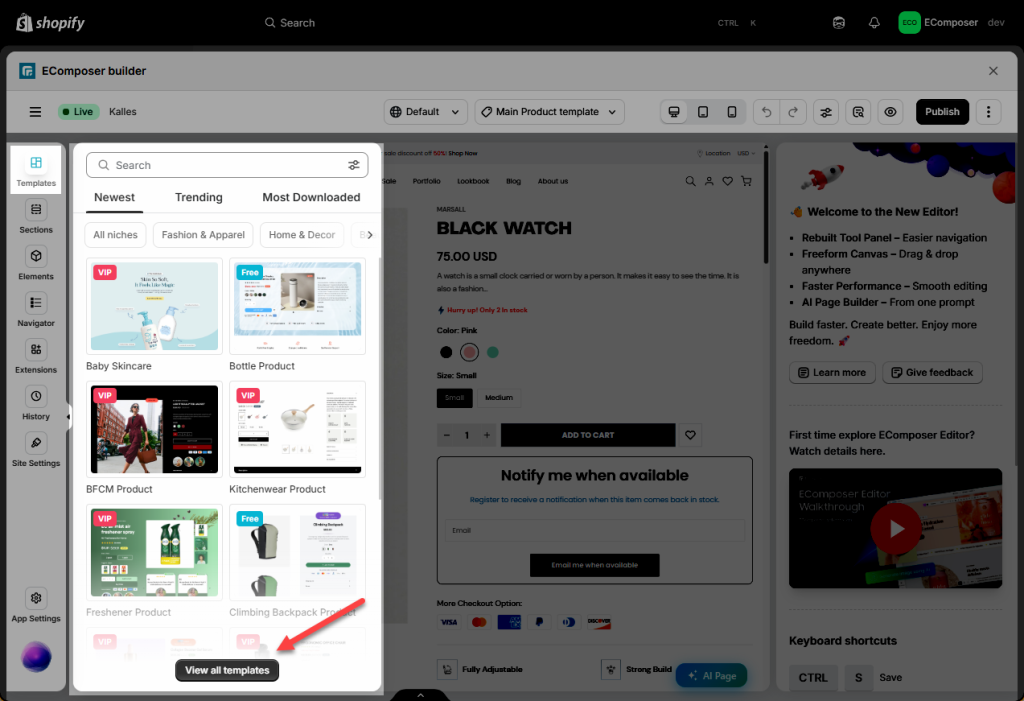
In there, you can browse our extensive library of layouts tailored for every business need. Easily identify available templates by their tags: Free templates are open to everyone, while VIP templates are exclusive to our paid plan subscribers.
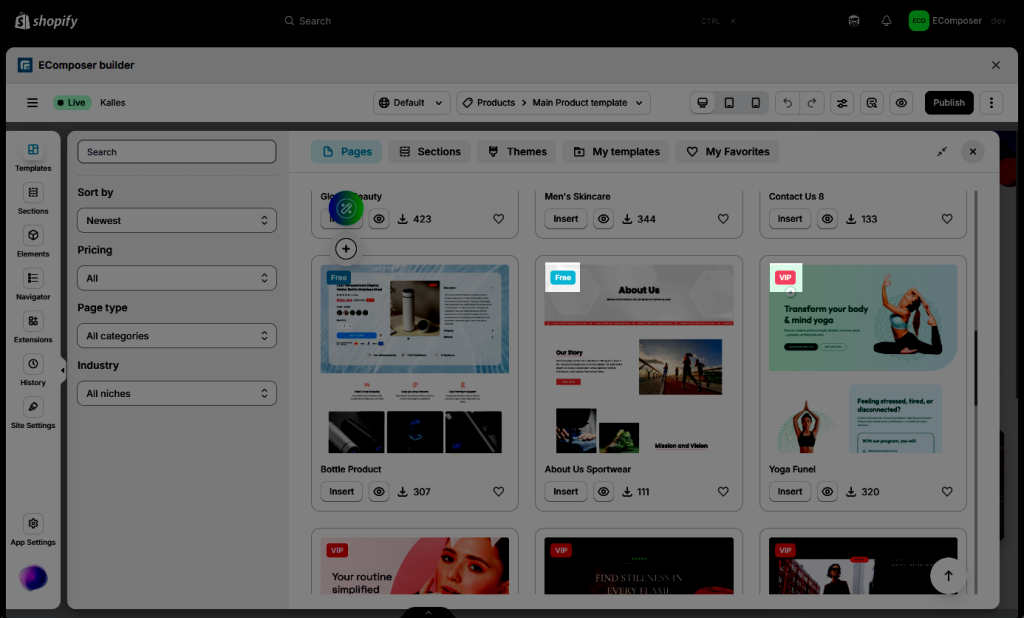
You can also visit here to see what’s included in our paid plans, check out the benefits, and find the perfect fit for your store.
You can also quickly search for a name/ keyword from the search bar right here.
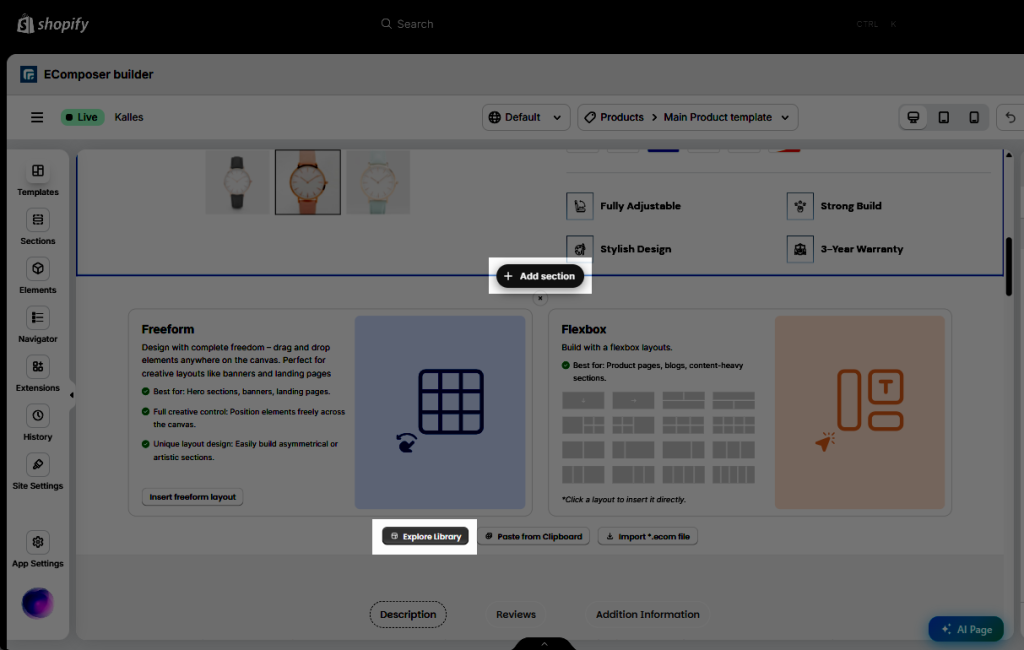
When you want to add a new section, you can also open the Explore Library.
2. How To Use the Template Library?
2.1. Sections
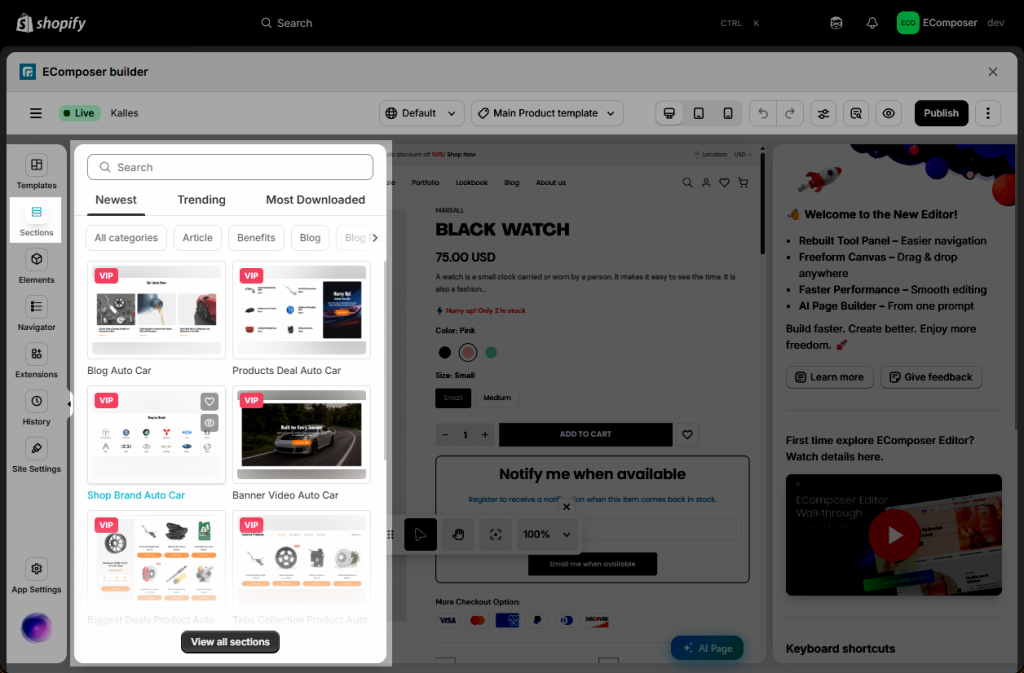
The Section Templates would be little parts of the page with widgets pre-configured and designed like Banner, Slider, Brand logos, FAQ, Testimonial, etc…
The left side is the section categories that help you quickly find a desired section. The Search Bar on the top right of the Sections is used to find a specific template in terms of website theme, for example: plant, pet, skincare, etc.
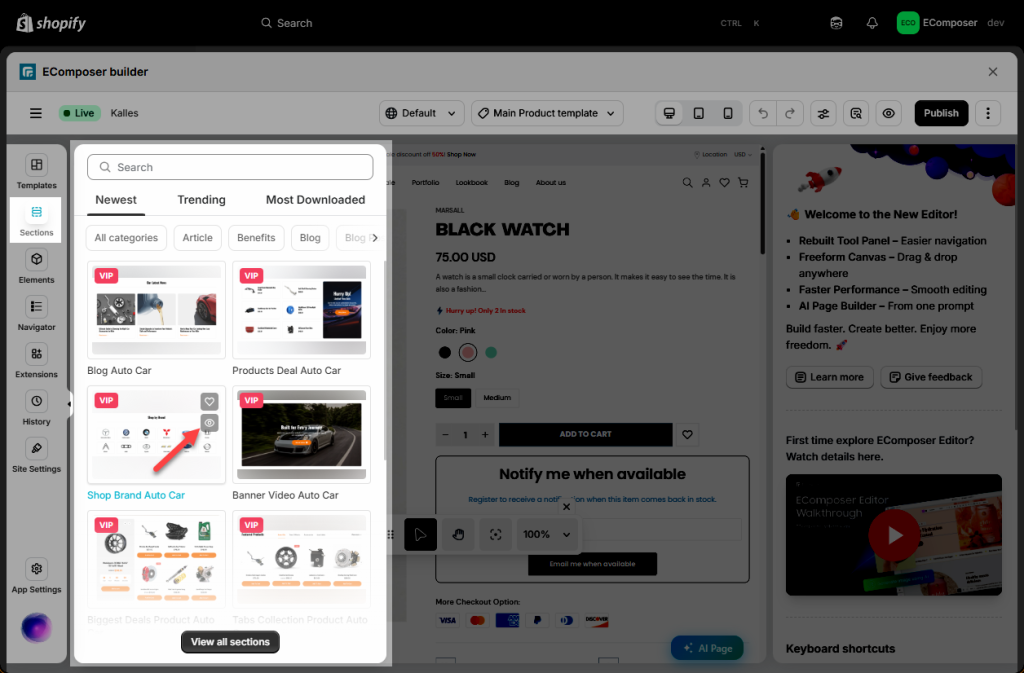
You can especially preview the design through the Preview icon.
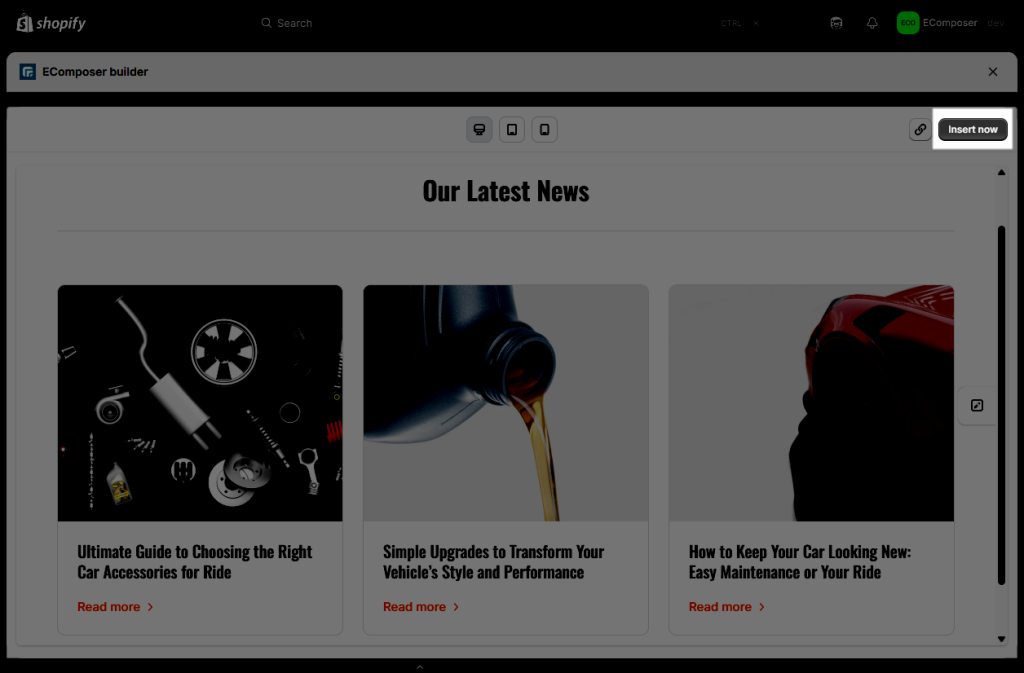
You can click on the section that you prefer → Insert Now to use.
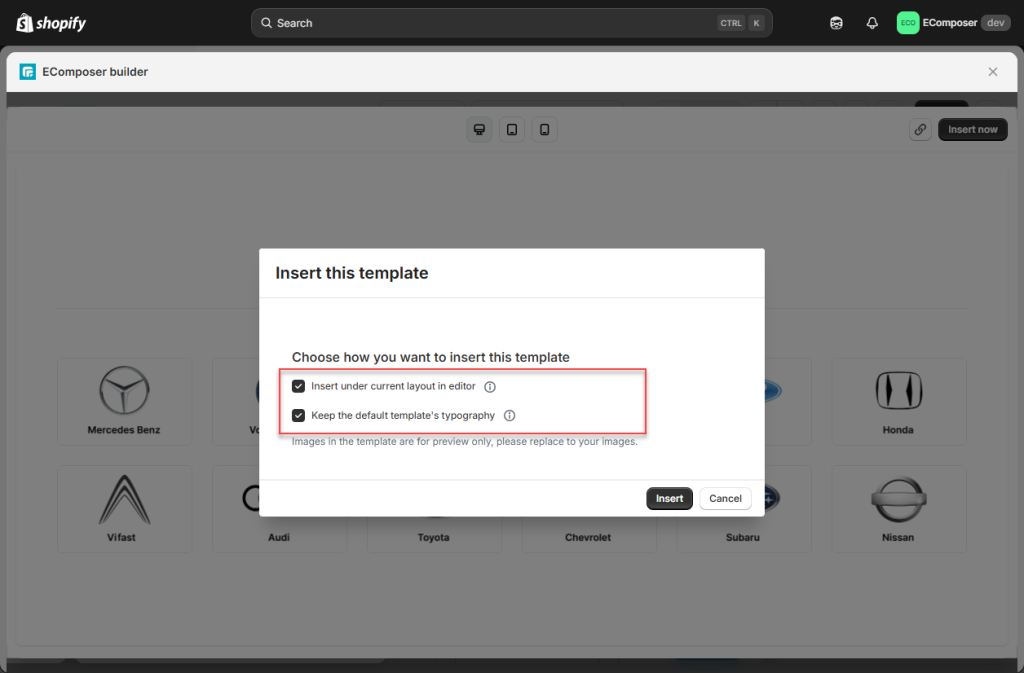
Choose how you want to insert this template
- Insert under current layout in editor: Add this design to the very bottom of your current viewport that you’re working on.
- Keep the default template’s typography:
- If checked: The app will import both the demo content and the element styles from the template (e.g., heading, text, image), which will override your theme’s default styles.
- If unchecked: The app will use the typography from your Site Style settings (if available) or from your theme settings (if no Site Style is set).
2.2. Pages
Page Templates would be a pre-made page fully layout, with sections and widgets pre-configured and designed like Homepage, Landing Page, etc. The functions of tabs are the same as Sections.
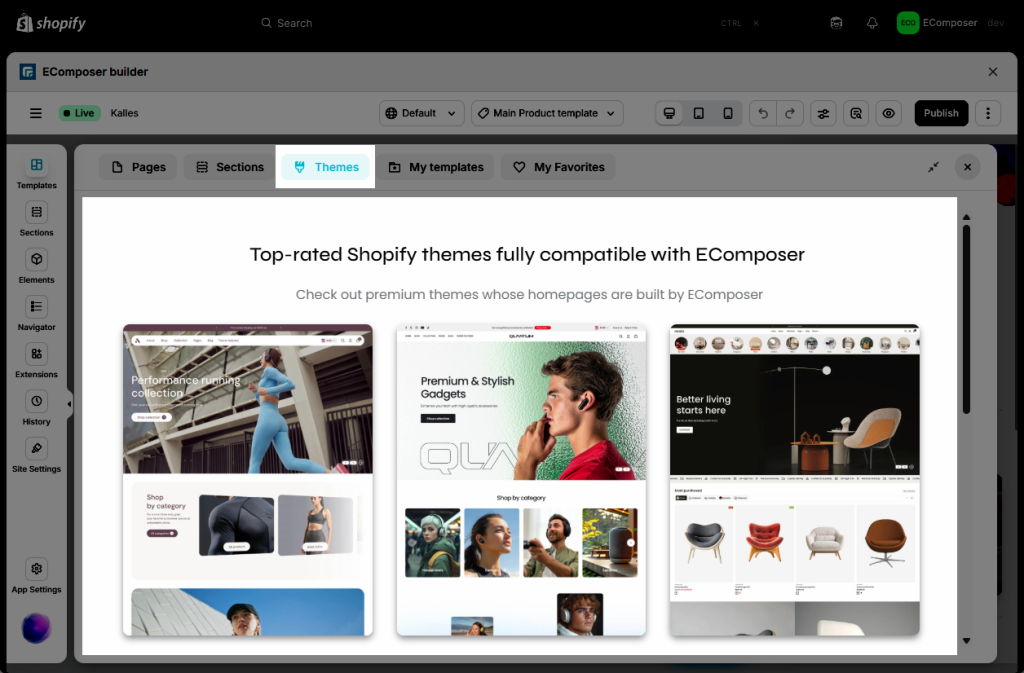
2.3. Themes
Here you can check out the premium Shopify theme list that is built with our partner. There is an exclusive Offer for buyers that you will get the EComposer Standard plan for free for 6 months!
More details: https://ecomposer.io/pages/theme-partners
2.4. My Templates
This function mainly helps you save your designs and reuse them on other pages.
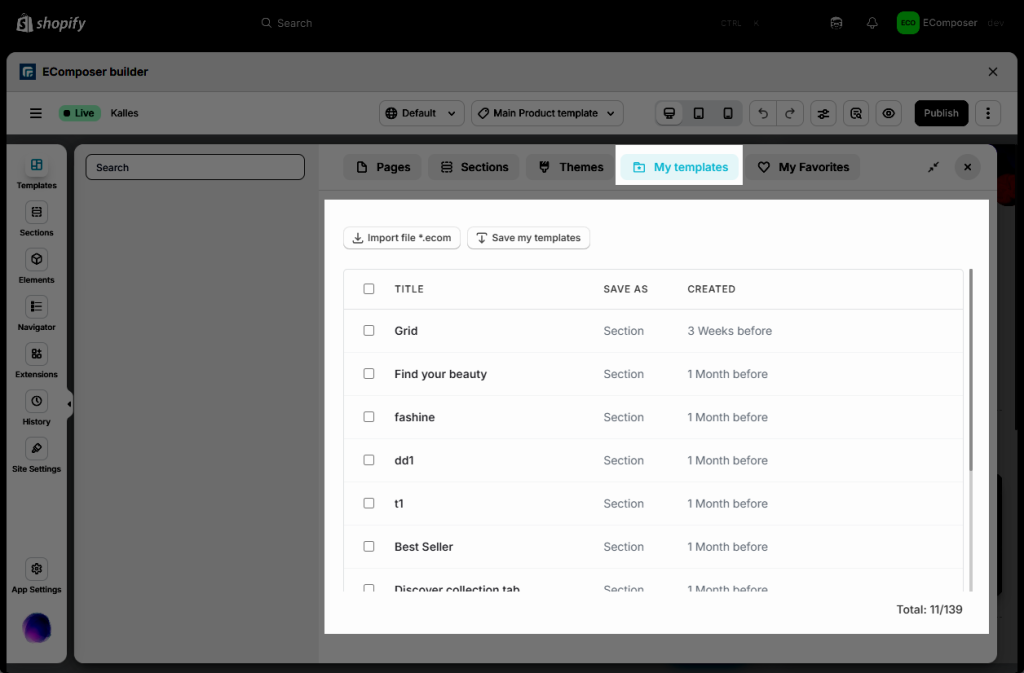
- First, you can right-click to see the Save as template option.
- Then enter the template name > Click the OK button.
- Navigate to the target page from the top bar.
- Open the Templates > My templates > click Insert now on the section you just saved.
Result: the section will appear on the second page at the very bottom.
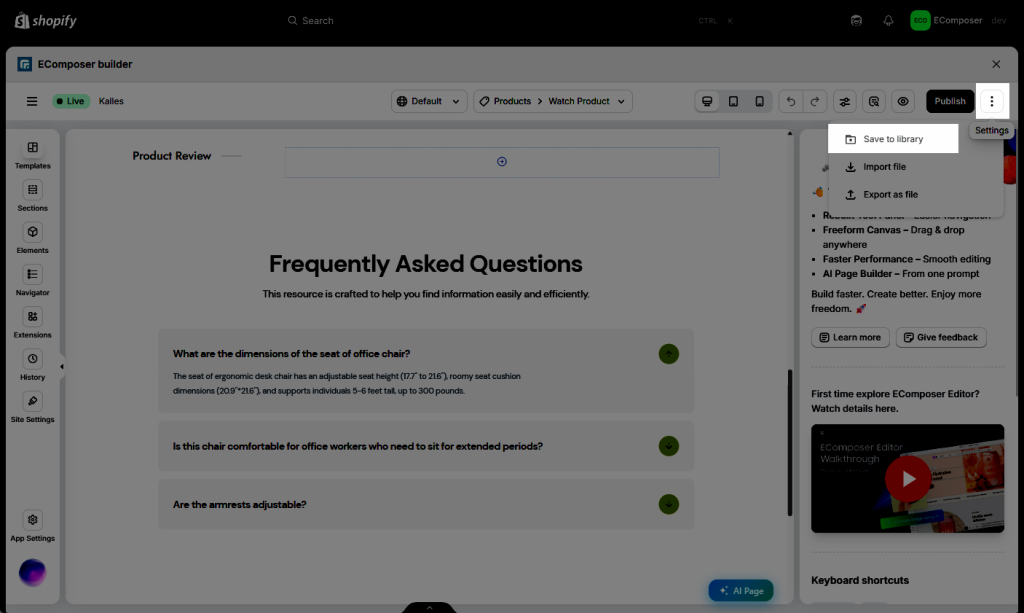
In addition, if you want to save the full layout of your page, please top right icon -> Save To Library -> Enter template name -> Save.
Note: You can also upload section files from your computer to My Templates via Import file with file /*.ecom/. Finally, you select Insert to use it.
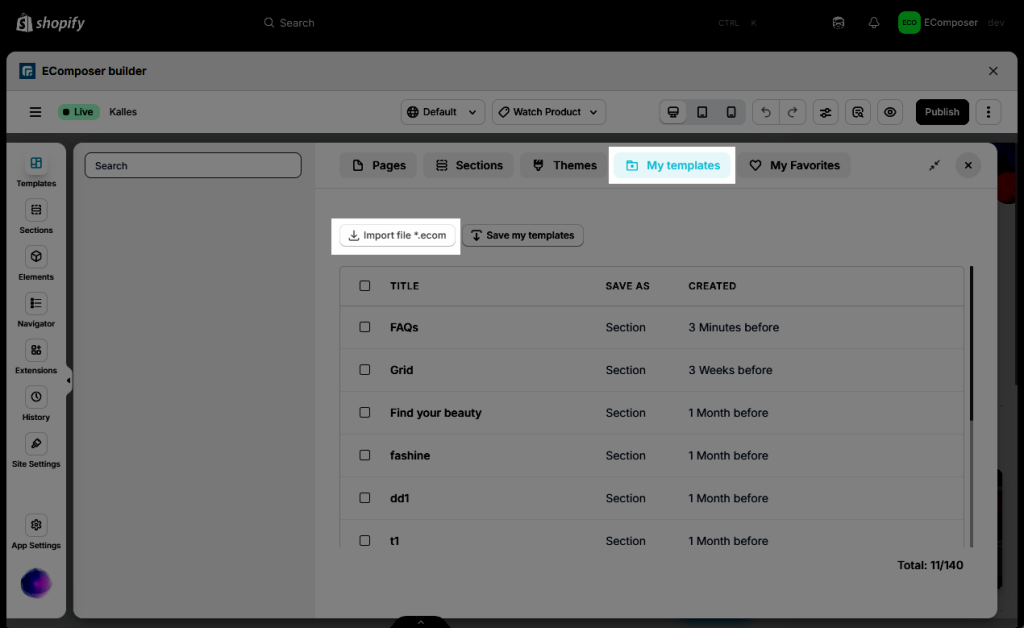
How to create an Import file: https://help.ecomposer.io/docs/editor-elements/advanced-features/import-and-export/
2.5. How to pick and then use a certain section of a Page in the Library?
Kindly watch and follow this video: