Cart Trust Badge
A Cart Trust Badge is a visual element, such as an icon, image, or logo, displayed on your store to enhance credibility and strengthen customer confidence in your brand, products, or services. Cart Trust Badges are typically used to showcase secure payment methods, money-back guarantees, certifications, or other signals of reliability.
Adding a Cart Trust Badge to your Cart page helps reassure customers at a critical decision point and encourages them to proceed to checkout with greater confidence.
To add a Cart Trust Badge, go to the Cart tab in the builder and select the Cart Trust Badge element.
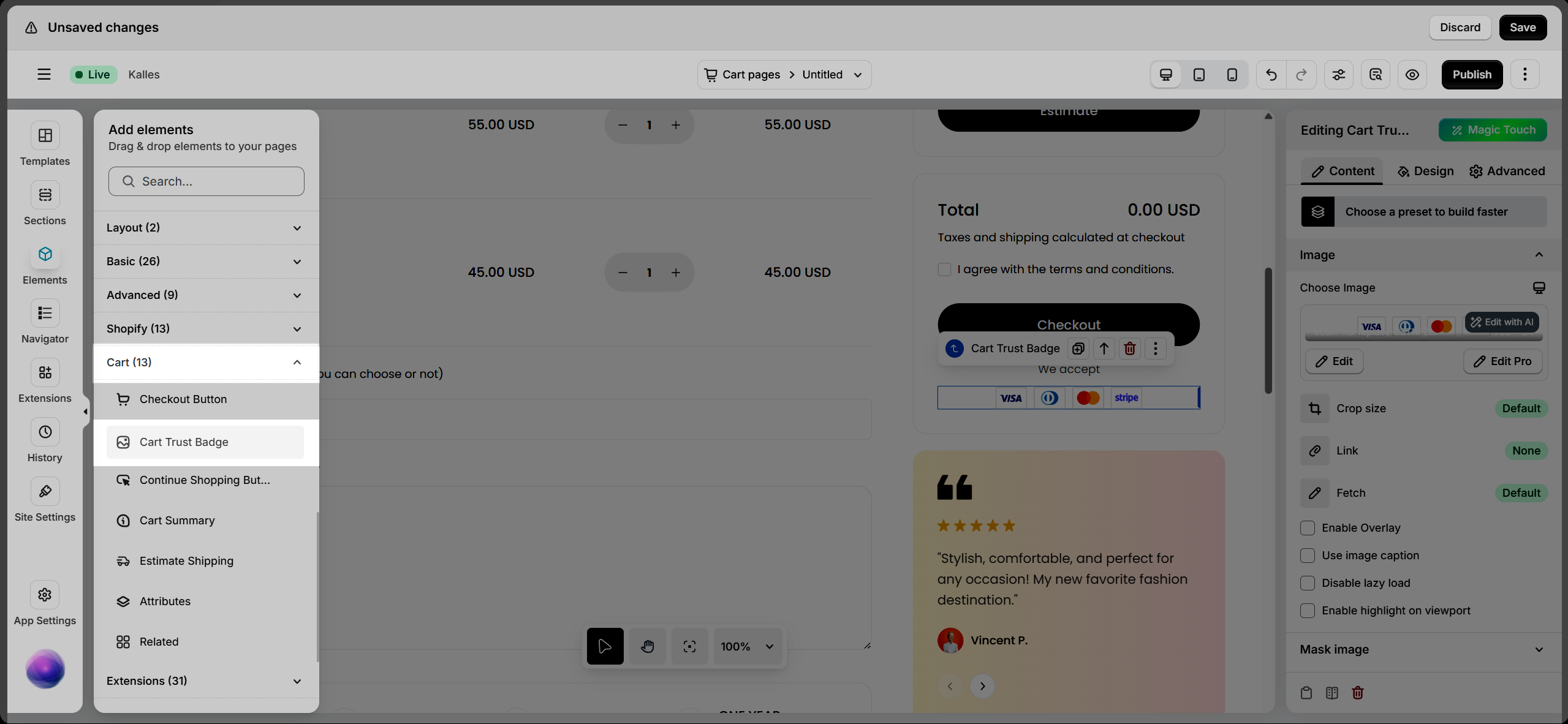
1. Adding Cart Trust Badge Element
- Go to Elements → Cart → Cart Trust Badge.
- Drag the Cart Trust Badge element from the left sidebar and drop it wherever you want it to appear.
2. Configure Cart Trust Badge
2.1.Content Settings
Choose Image
You can fully manage the Cart Trust Badge image:
- Upload / Change Image: Upload a new Cart Trust Badge image or replace the existing one.
- Delete Image: Remove the image if it is no longer needed.
- Alt Text: Add or edit alternative text to improve SEO and accessibility.
- Crop Size: Adjust the image size using preset options.
- Fetch: Control how the image is loaded based on the default fetch priority settings.
- Link: Add a clickable link to the Cart Trust Badge image. Available options include:
- None: No action when the image is clicked.
- Media File: Open the original image file when clicked.
- Custom URL: Redirect customers to a specific URL.
Available Content Options
- Enable Overlay: When enabled, additional settings will appear:
- Title Source: Choose to use the image Alt Text or enter a Custom Title.
The selected text will appear as an overlay on the Cart Trust Badge image.
- Title Source: Choose to use the image Alt Text or enter a Custom Title.
- Use Image Caption: When enabled, a text field will appear, allowing you to enter a caption displayed below the Cart Trust Badge image.
- Disable Lazy Load: When enabled, the image will load immediately instead of using lazy loading.
- Enable Highlight on Viewport: When enabled, the Cart Trust Badge will be visually highlighted when it enters the viewport during scrolling.
2.2. Design
Image
Customize how the Cart Trust Badge image appears on your Cart page:
- Alignment: Position the Cart Trust Badge to the left, center, or right.
- Width / Max Width / Height: Control the image dimensions. You can adjust values using different units such as %, px, vw, or vh (depending on the setting).
- Image Fit: Define how the image fits inside its container (e.g., Cover).
- Normal / Hover: Configure styles for both default and hover states.
- Opacity: Adjust the transparency level of the Cart Trust Badge image.
- CSS Filters: Apply visual effects such as blur, brightness, contrast, and more.
- Box Shadow: Add shadow effects around the image.
- Border: Customize the border style, width, and color.
- Border Radius: Adjust the corner roundness of the image.
Caption
If Use Image Caption is enabled in the Content tab, you can customize how the caption appears below the Cart Trust Badge image:
- Alignment: Set the caption position (left, center, or right) within its container.
- Typography: Customize the font family, size, weight, and style of the caption text.
- Text Color / Gradient: Change the caption text color or apply a gradient effect.
- Text Shadow: Add a shadow effect to improve readability or create visual emphasis.
- Spacing (Margin & Padding): Adjust the spacing around the caption to control its distance from the image and surrounding elements.
Overlay
If Enable Overlay is turned on in the Content tab, you can customize how the overlay appears on the Cart Trust Badge image:
- Typography: Customize the font family, size, weight, and style of the caption text.
- Normal / Hover: Configure styles for both default and hover states.
- Opacity: Control the transparency level of the overlay.
- Text Shadow: Add shadow to overlay text.
- Text Color: Text color settings.
- Background Color: Set the overlay background color to improve text visibility.
- CSS Filter: Apply visual effects such as blur, brightness, or contrast to the overlay area.
Image Scrolling Highlight
If Enable Highlight on Viewport is enabled in the Content tab, you can adjust:
- Opacity Level
Define the visual intensity of the highlight effect when the Cart Trust Badge enters the viewport during scrolling.
3. Usage Tips
- Use simple and recognizable icons to quickly build trust on the Cart page.
- Avoid overcrowding — 3 to 5 Cart Trust Badges are usually enough.
- Keep your Cart Trust Badge styles consistent with your store’s overall design.
- Focus on badges that matter most at checkout (e.g., secure payment, fast shipping, easy returns).
Summary
The Cart Trust Badge is a lightweight yet powerful element that helps reinforce trust at a critical stage of the buying journey, the Cart page. When placed and styled effectively, it reassures customers before checkout and encourages them to complete their purchase with confidence.
Explore other EComposer elements to further optimize your Cart page experience.