AI Layout Builder
AI Layout Builder is a feature in EComposer that helps you build high-quality page layouts faster and more efficiently. It can generate content structure, text, and layout ideas directly inside the editor, helping streamline the page-building process and improve SEO readiness.
Each time you generate content, AI Layout Builder creates a single layout only. After generation, you still need to manually customize the layout, such as selecting product lists, uploading brand images, adjusting content, and fine-tuning design details to match your store’s needs.
You can explore this feature by clicking the AI logo at the bottom left of the Editor page here:
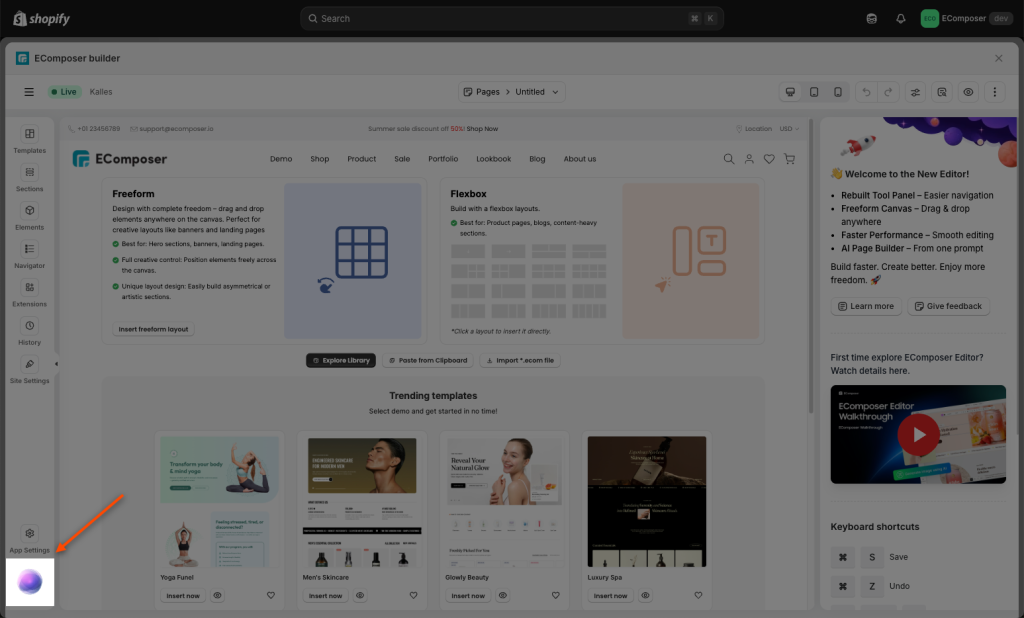
Then, please follow the steps below to create your page/section by using this feature:
Step 1: Tell Us What You Need
You’ll see a prompt box where you can describe the page or section you want to generate (up to 1000 characters).
Prompt example: “Create a men’s fashion web page focused on tailored and sustainable clothing, with an urban minimalist style. The brand conveys understated sophistication, environmental awareness, and functionality. The target audience is modern, urban men who value quality, clean design, comfort and ecological responsibility.
Visual aesthetics:
– Contemporary minimalism
– Neutral color palette (black, gray, off-white, moss green, earthy tones)
– Clean and modern typography
– Spacious, elegant and intuitive layout
Page content
– Emphasis on the concept of tailor-made clothing
– Emphasis on eco-friendly materials, conscious production and durability
– Direct, masculine and sophisticated language“
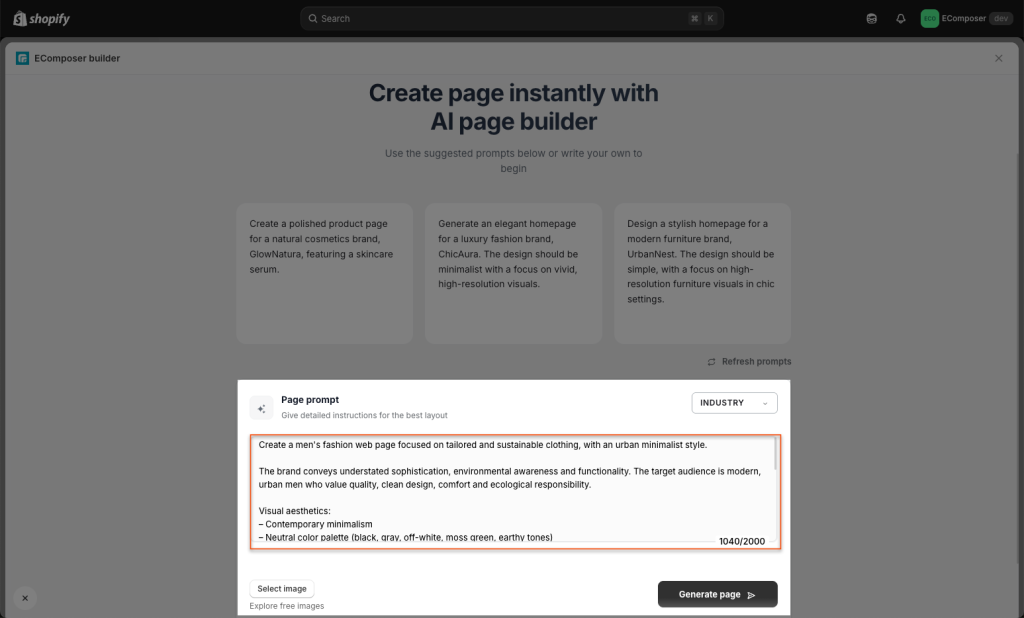
Selecting an image means using a picture as a prompt instead of typing text. You upload or show an image to the AI, and the AI analyzes the image to understand your request. You can also select a niche for your AI layout.
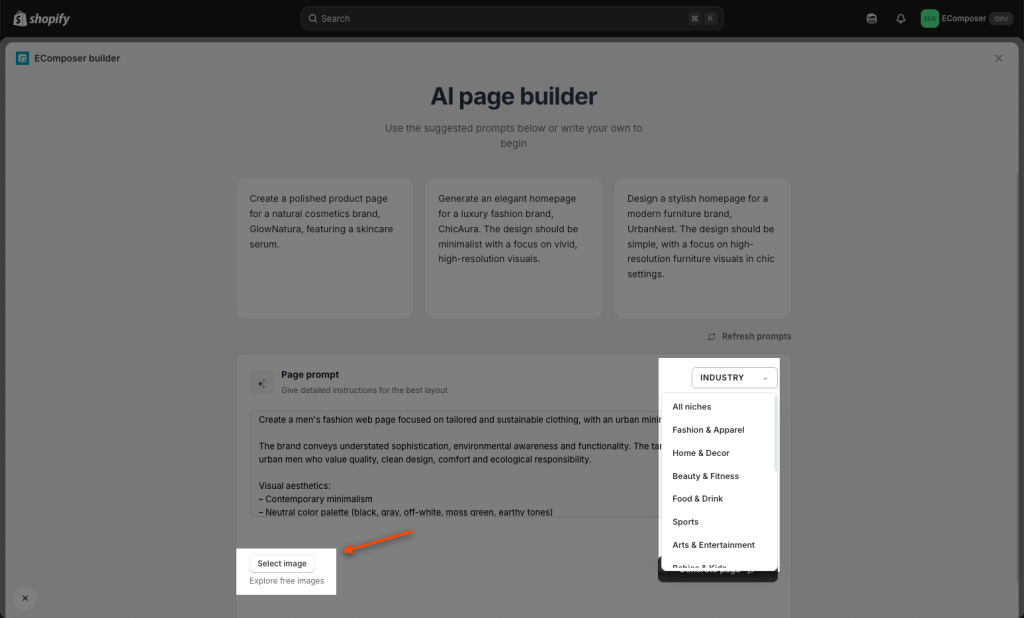
Step 2: Tweak the Layout
AI will generate a fully structured page in seconds – no coding or design skills needed. The page includes multiple sections that you can also tweak individually.
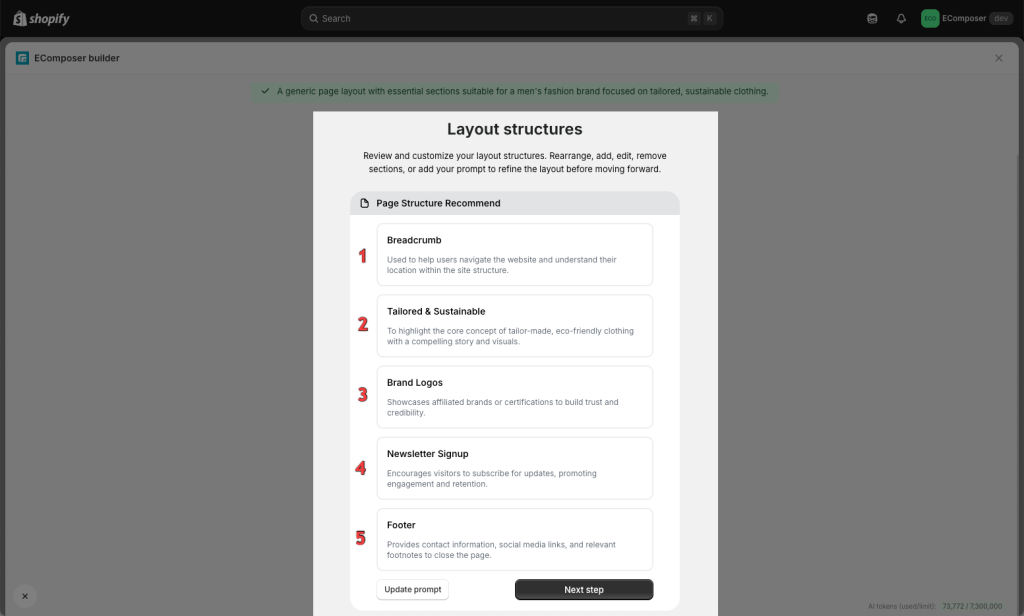
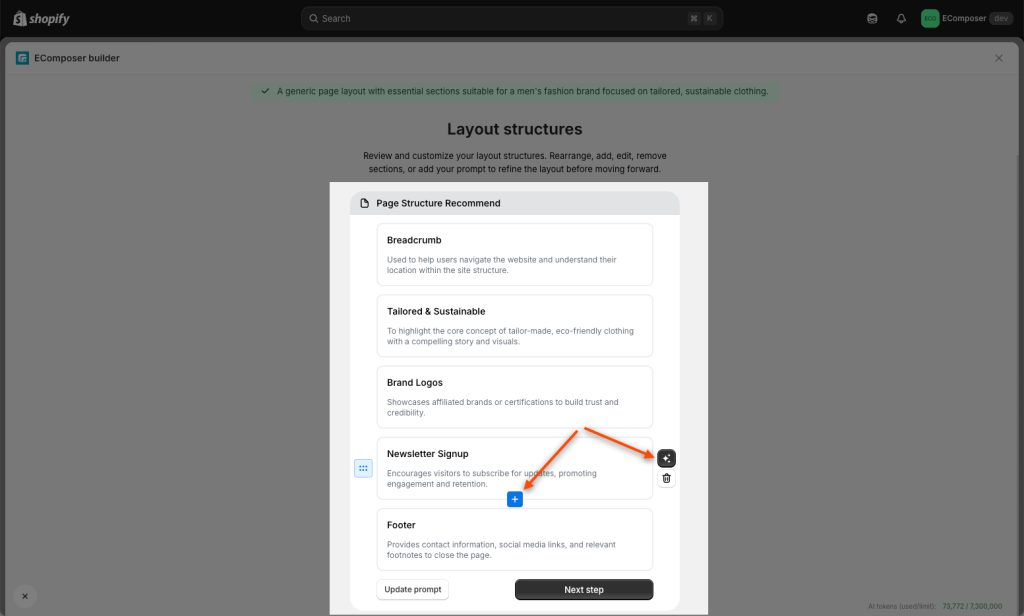
- You can click the (+) icon if you want to generate more AI sections and then add them to the page. The Magic Wand icon is for editing a specific section with the AI command, and the Trash Can icon represents the “Delete” section function.
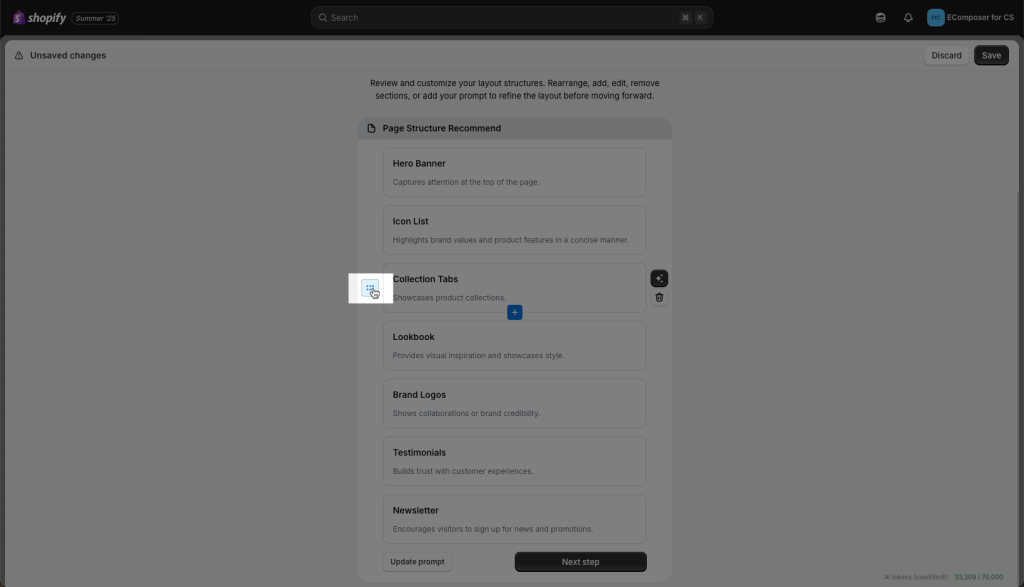
- Move the position of sections by dragging and dropping blue dots up and down.
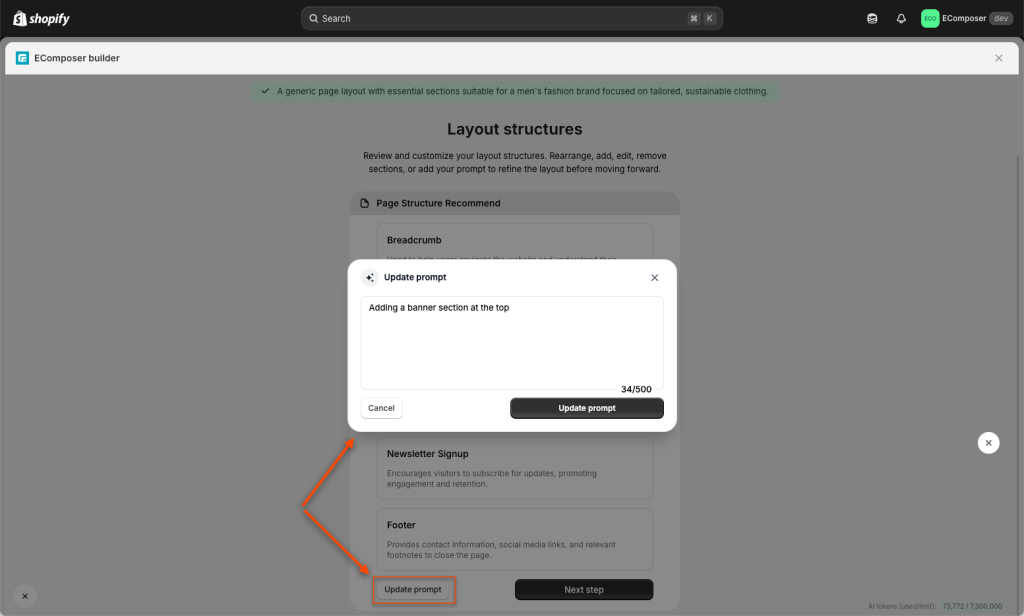
- Update prompt: Describe what you want to change on this page or change to a specific section.
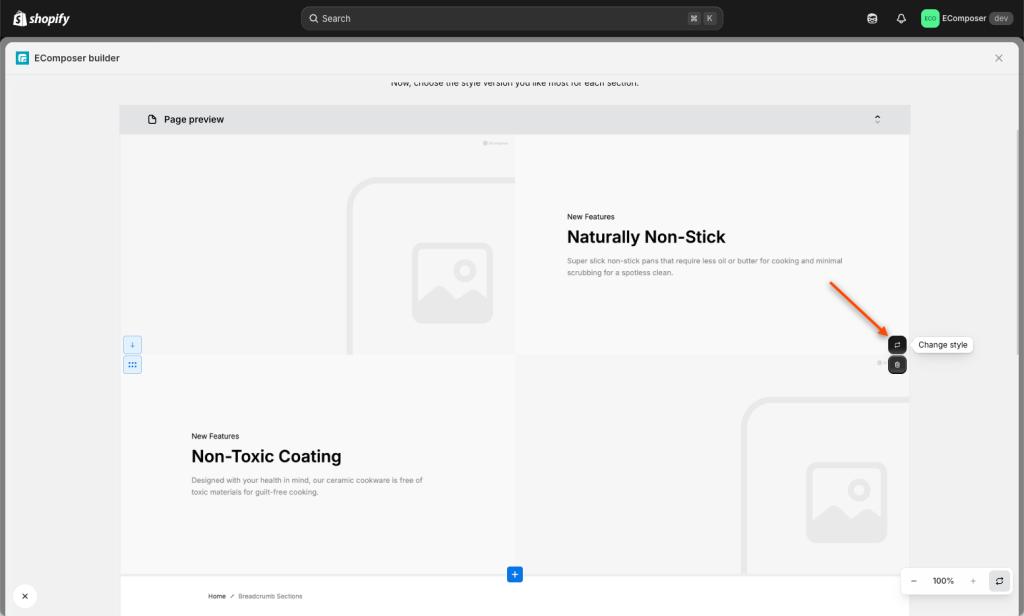
Step 3: Pick your style
Each section allows you to switch between different designs. Feel free to browse and apply different design styles until you find one that best fits your brand.
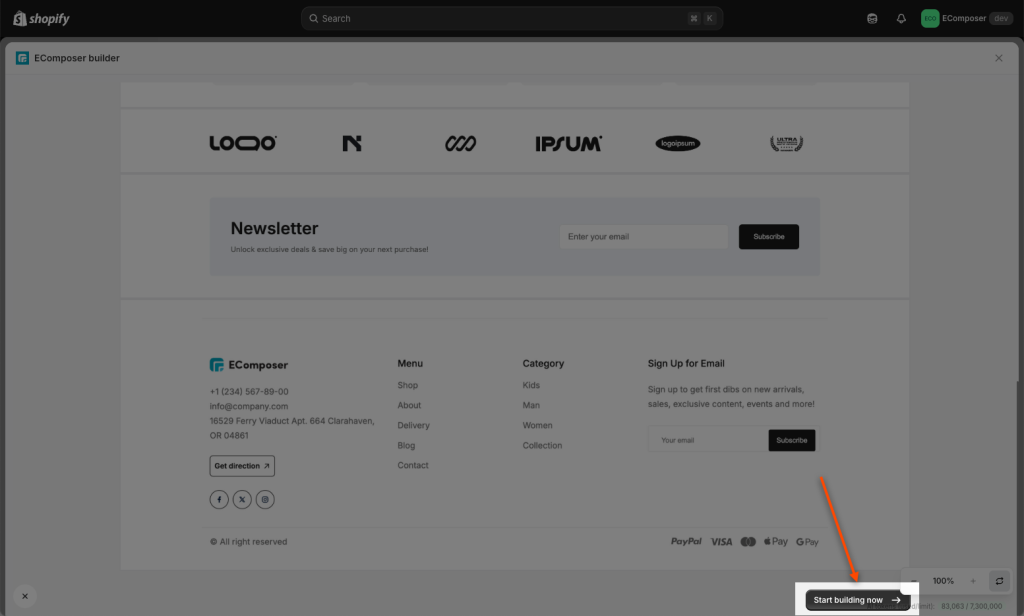
After reviewing all sections of your AI page completely, you click Start building now to go ahead and edit the page content.
- Insert under the current layout in the editor: Adding AI sections at the bottom of the page.
- Keep the default template’s typography: Continue using the typography of these AI sections.
- Replace demo images: Images in the template are for preview only, please replace to your images. If not, the demo images will be displayed as they are.
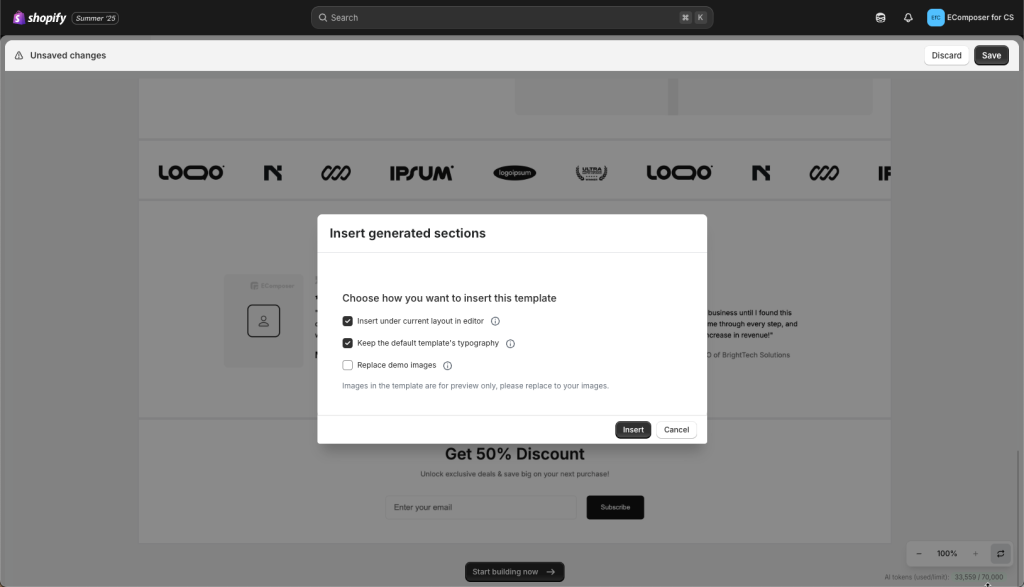
Step 4: Final Touch & Edit
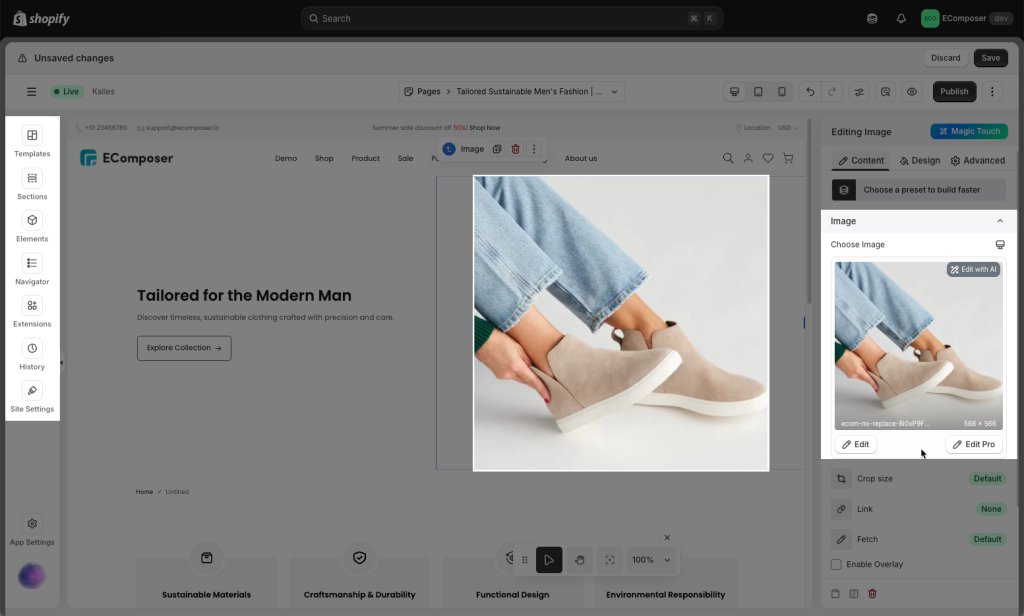
Some AI sections are generated on your page and immediately connected to your store data.
You can continue using our drag-and-drop editor to adjust the design, personalize content, and fine-tune the layout in real-time.
AI tokens (used/ limit): Every time you write an input, it deducts a certain number of tokens. You should pay attention to your token limit to write prompts properly. For more details on the token calculation, please refer to this guide.
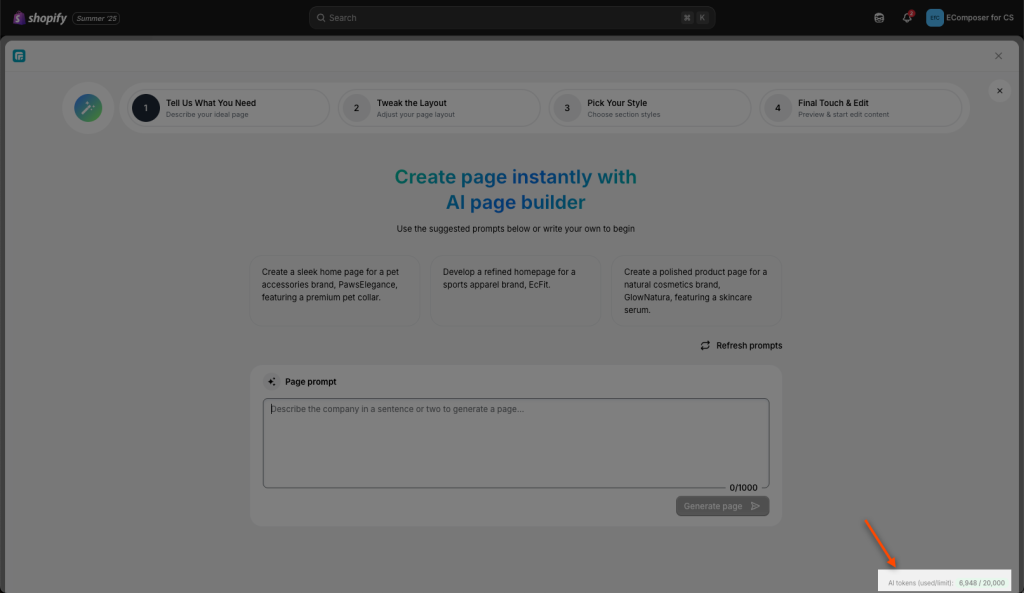
Each subscription plan includes a specific monthly limit of AI tokens.
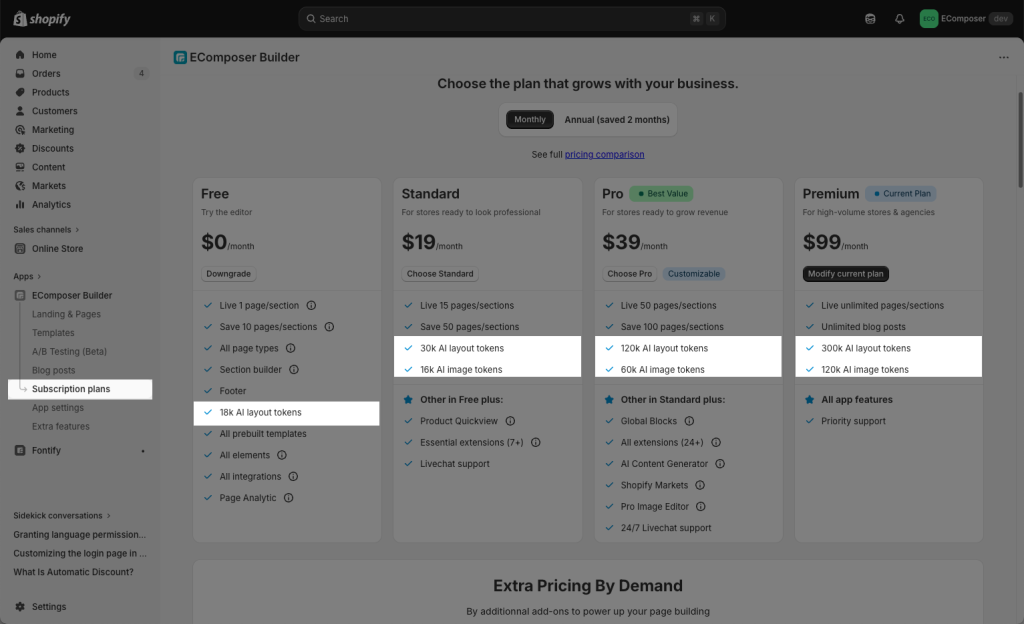
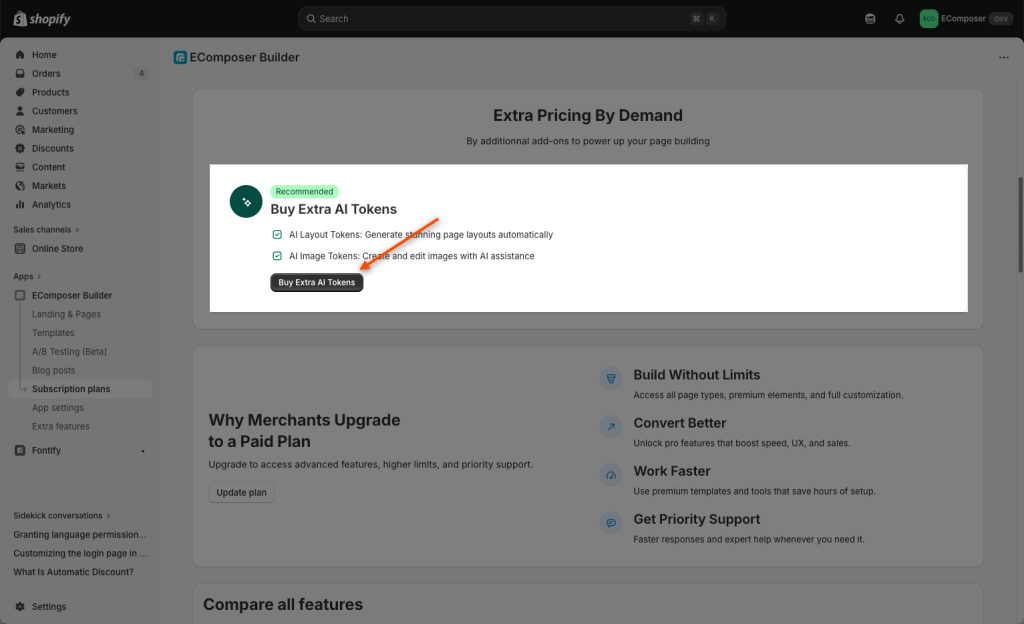
You can also buy more AI layout tokens when you run out to keep creating.
You can check this video if you still can not follow all the steps above: