How to Translate EComposer Content on SHOPLINE
If your store uses multiple languages, you can translate all content created with EComposer into different languages using SHOPLINE’s native multi-language system. This guide will walk you through the complete setup process.
Important Before You Start
- Your store must have multiple languages enabled.
- Your page content should be created in your default language first.
- Example: If your default language is English, all content entered in EComposer must be in English first. Then you will translate from English into other languages (e.g., Vietnamese).
1. Add Additional Languages in SHOPLINE
First, you need to add the languages you want to translate into. Go to SHOPLINE Admin → Settings → Languages. Click Add languages and select the language you want to add.
Example: Add Vietnamese as your second language.
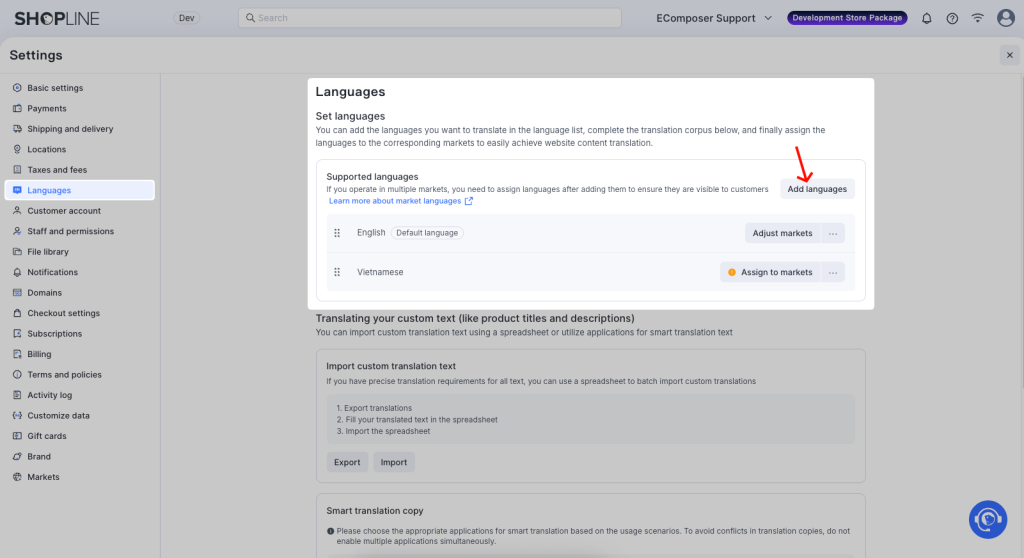
Once added, make sure the language is properly assigned to your market if needed.
2. Enable Multi-language in EComposer
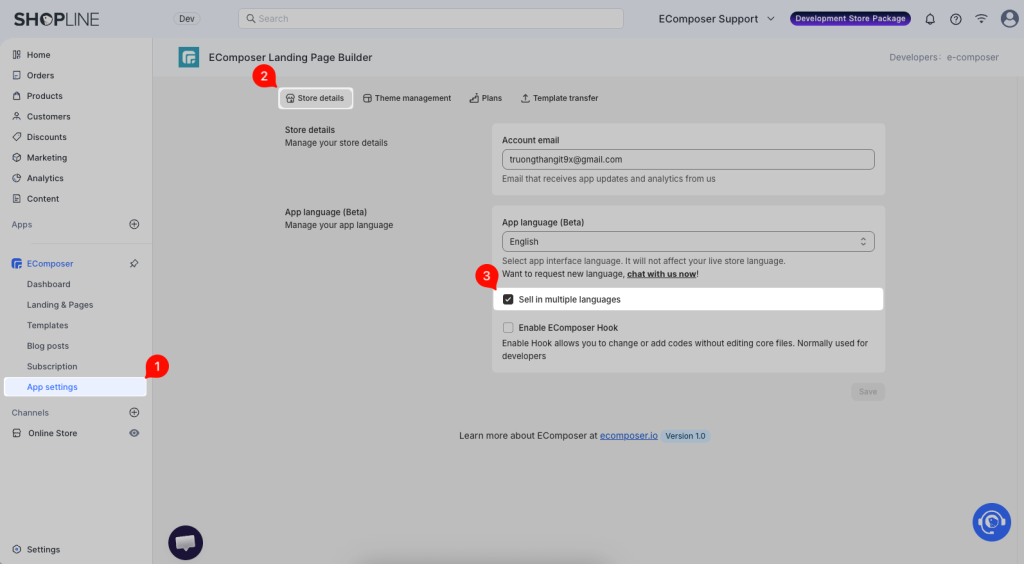
Before translating, you need to activate multi-language support inside the EComposer app. Go to EComposer → App Settings to enable the “Sell in multiple languages” option.
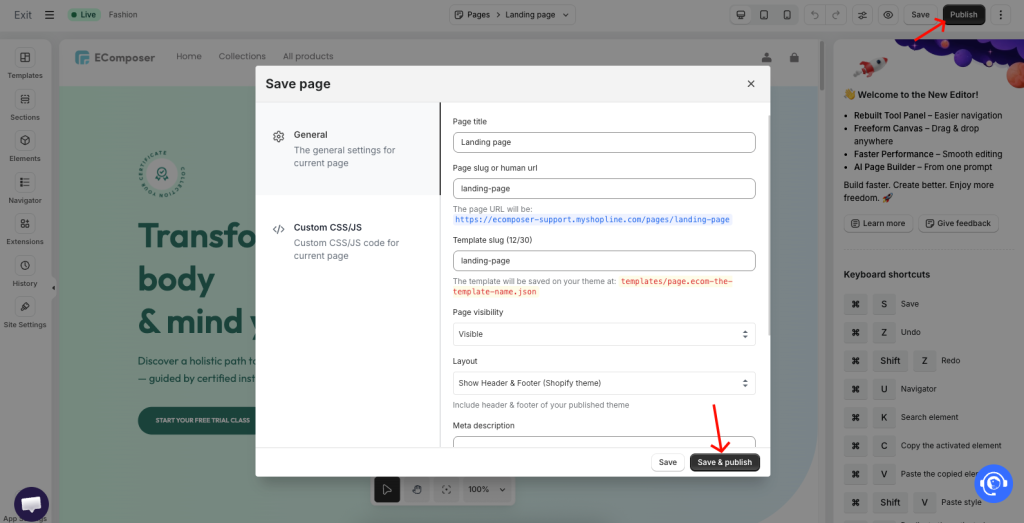
Then, republish all pages you created with EComposer. You open the pages and click the Publish button. This ensures the content is pushed correctly into the theme for translation.
3. Translate EComposer Content
Now you can begin translating your page content. Go to Online Store → Click three dots -> select Edit default text
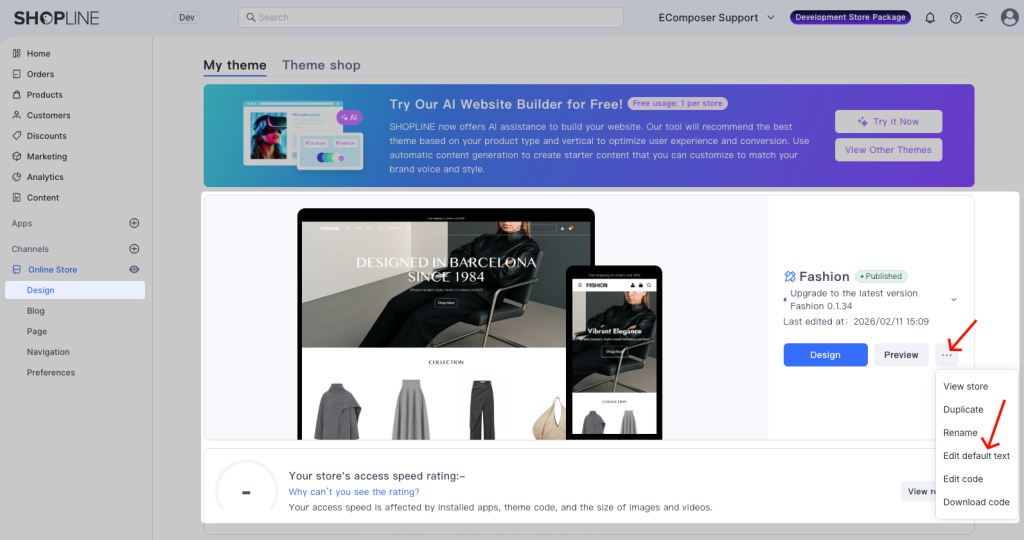
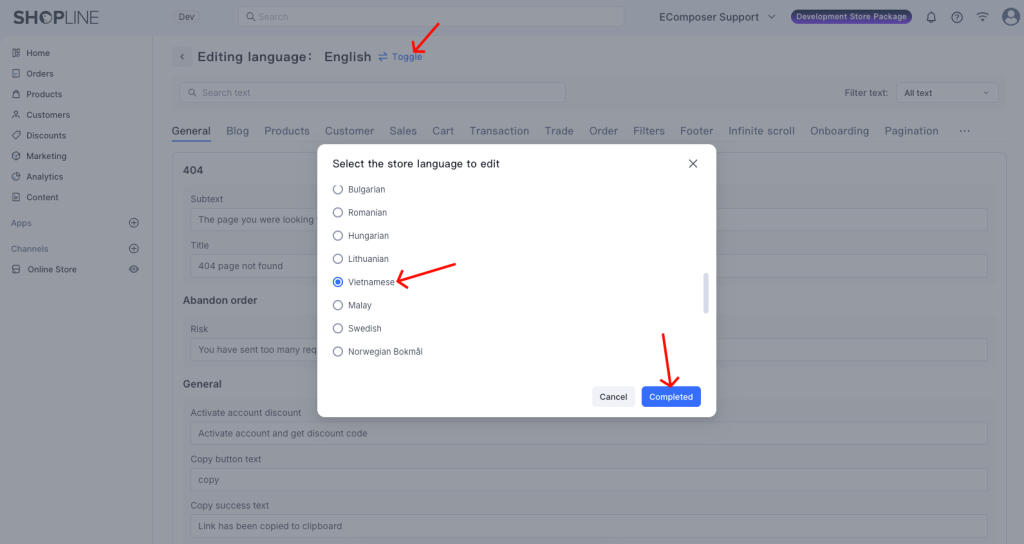
At the top of the page, find the Editing language -> click Toggle -> Choose the store language you want to translate into and click Completed.
Open the Sections tab, and you will now see editable text fields to translate
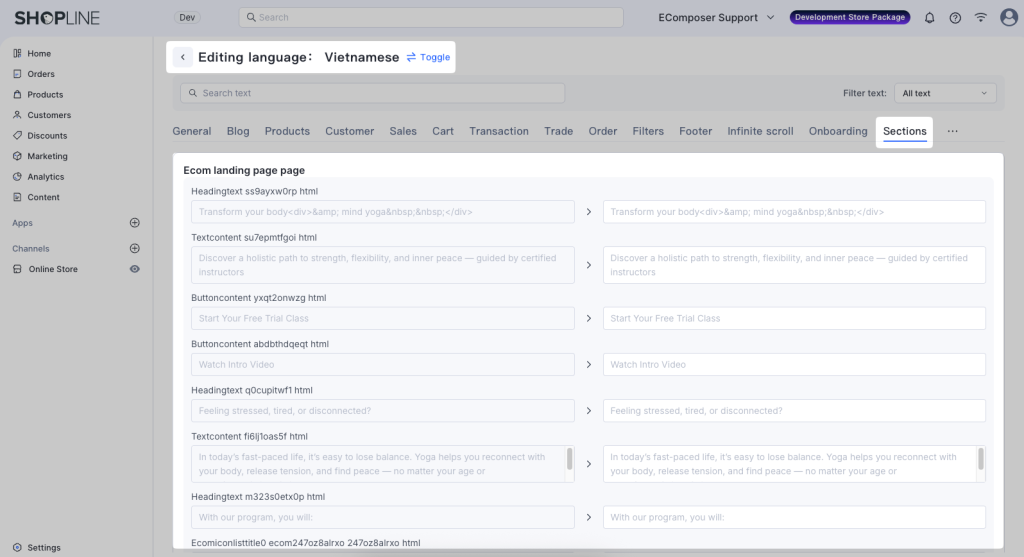
After finishing, click the Update button to save the changes.