Template transfer – Bulk import/export
Template Transfer (Bulk Import/Export) is a powerful feature that allows you to easily copy all pages created with EComposer from one store to another in just a few simple steps. Instead of rebuilding each page manually, you can export all existing templates and quickly import them into a new store, saving time, maintaining design consistency, and improving your overall workflow efficiency.
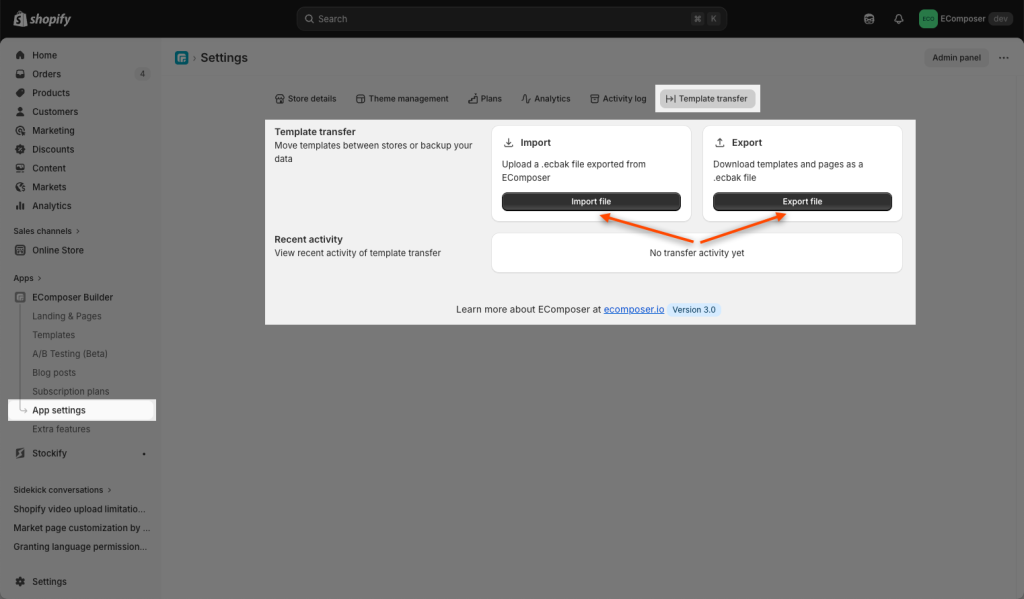
To open this feature, you can go to the EComposer App Dashboard -> App settings -> Template transfer.
1. Export
Follow these steps to export your templates or pages:
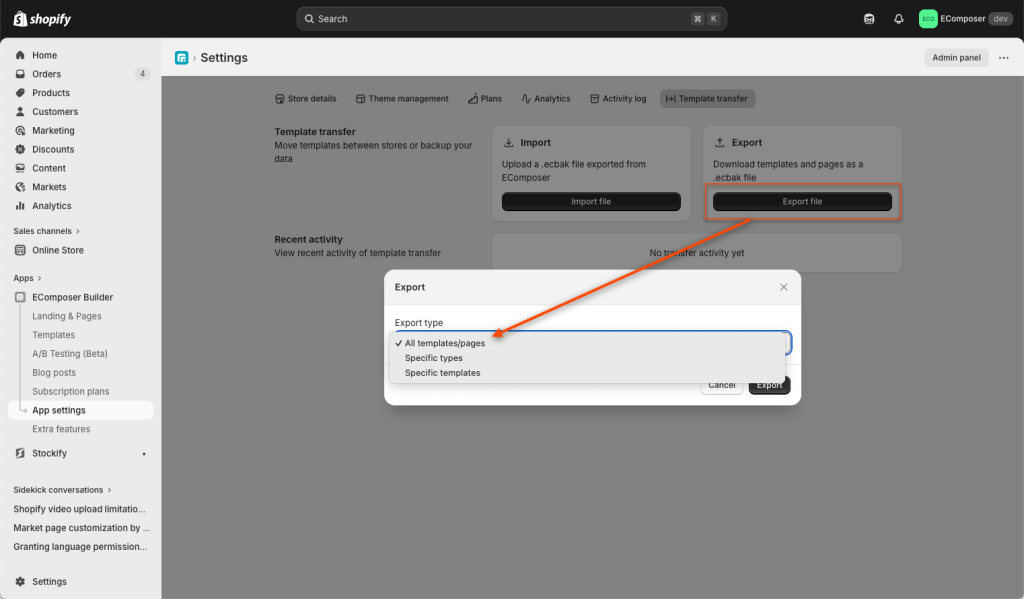
Step 1: Click on the Export file button to initiate the export process.
Step 2: In the dialog box, select whether to export all templates/pages or only specific types/templates.
Step 3: Click the Export button. An .ECBAk file will be generated and downloaded to your computer.
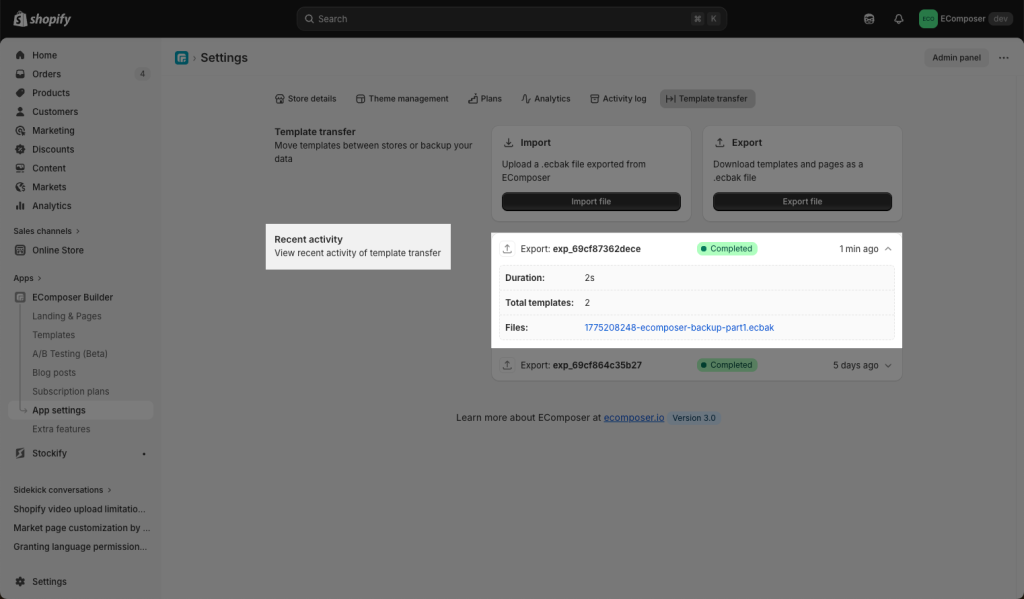
Recent activity: These logs typically show details of the duration, time, file format, and status of the export. If the status is Completed, that means you have exported successfully.
2. Import
Follow these steps to import templates or pages into another store:
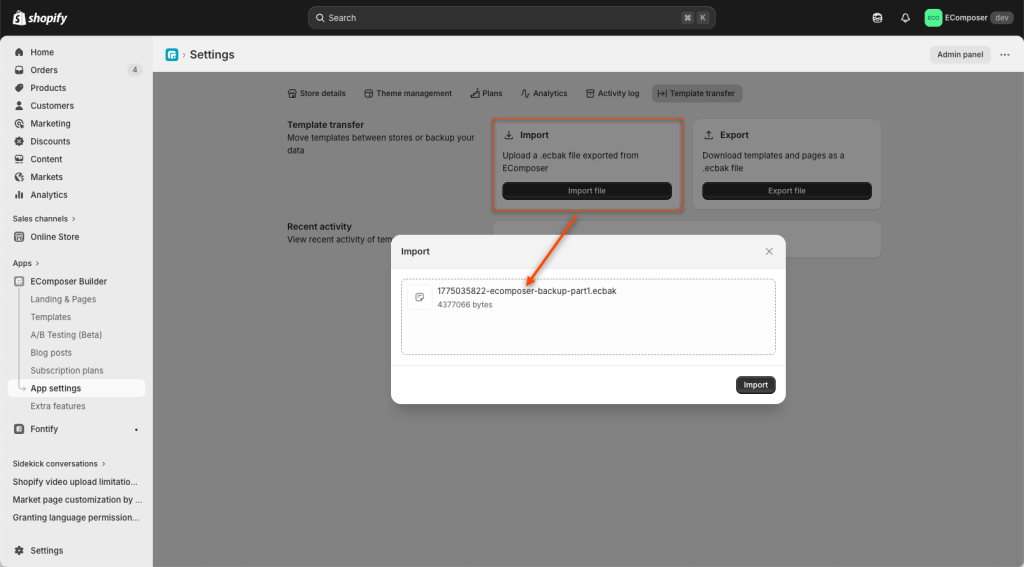
Step 1: Click on the Import file button to start the import process.
Step 2: In the dialog box, select the exported file from your computer.
Step 3: Click the Import button.
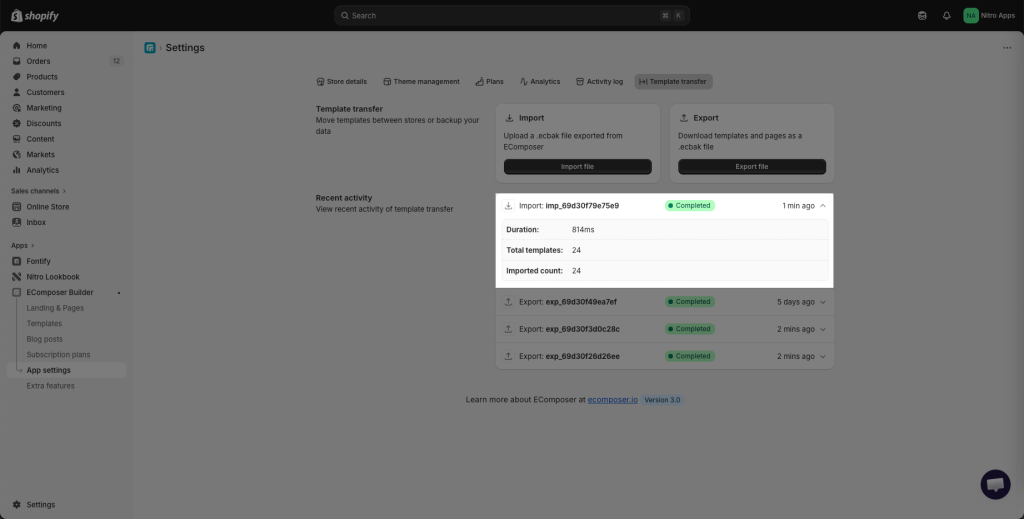
Recent activity: These logs show details such as duration, time, file format, and import status. If the status is Completed, your import has been successful.
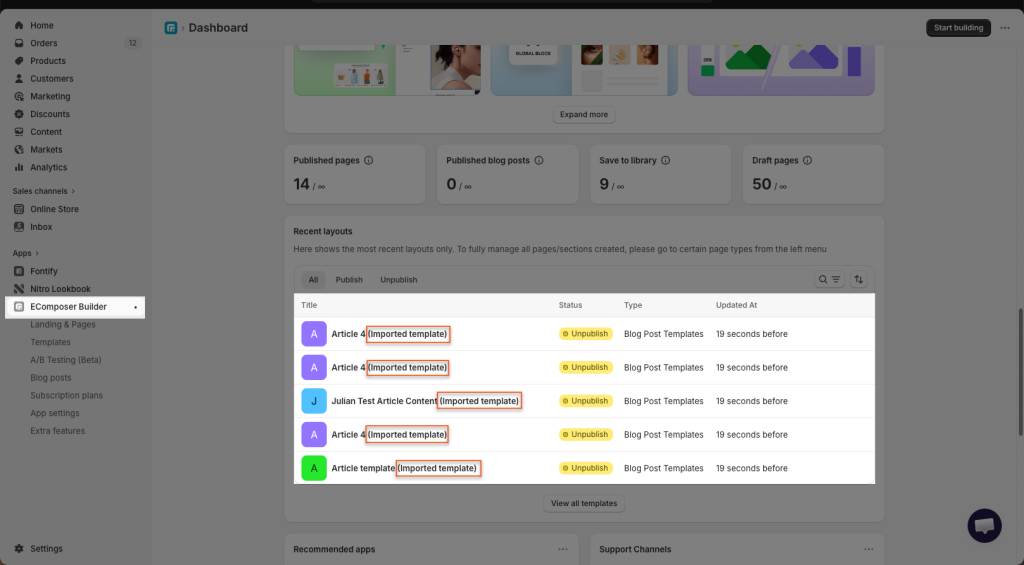
Result: After importing, go to the EComposer app dashboard to check your page or template list. All imported templates and pages will retain their original names from the source store, with an additional label Imported template displayed next to the name and their status set to Unpublish. You can open them in the editor to update the page name if needed, adjust the design, and then publish them as normal.
If you can’t follow the steps above, you can check out this video for more details: