Pro Image Editor
The Edit Pro feature in EComposer provides advanced image editing tools to help you customize and refine your images directly within the editor. You can crop, enhance, and adjust images to better fit your design.
Note: This feature is available on the Pro and Premium plans only.
1. How to access the Edit Pro option
The Edit Pro option is available on most elements that include the Choose Image setting. It is not supported for background images and product images.
You can access Edit Pro in the following ways:
- Option 1: Click the Edit Pro button when selecting an image.
- Option 2: Click the pen icon at the bottom-right corner of the image inside the image selection box.
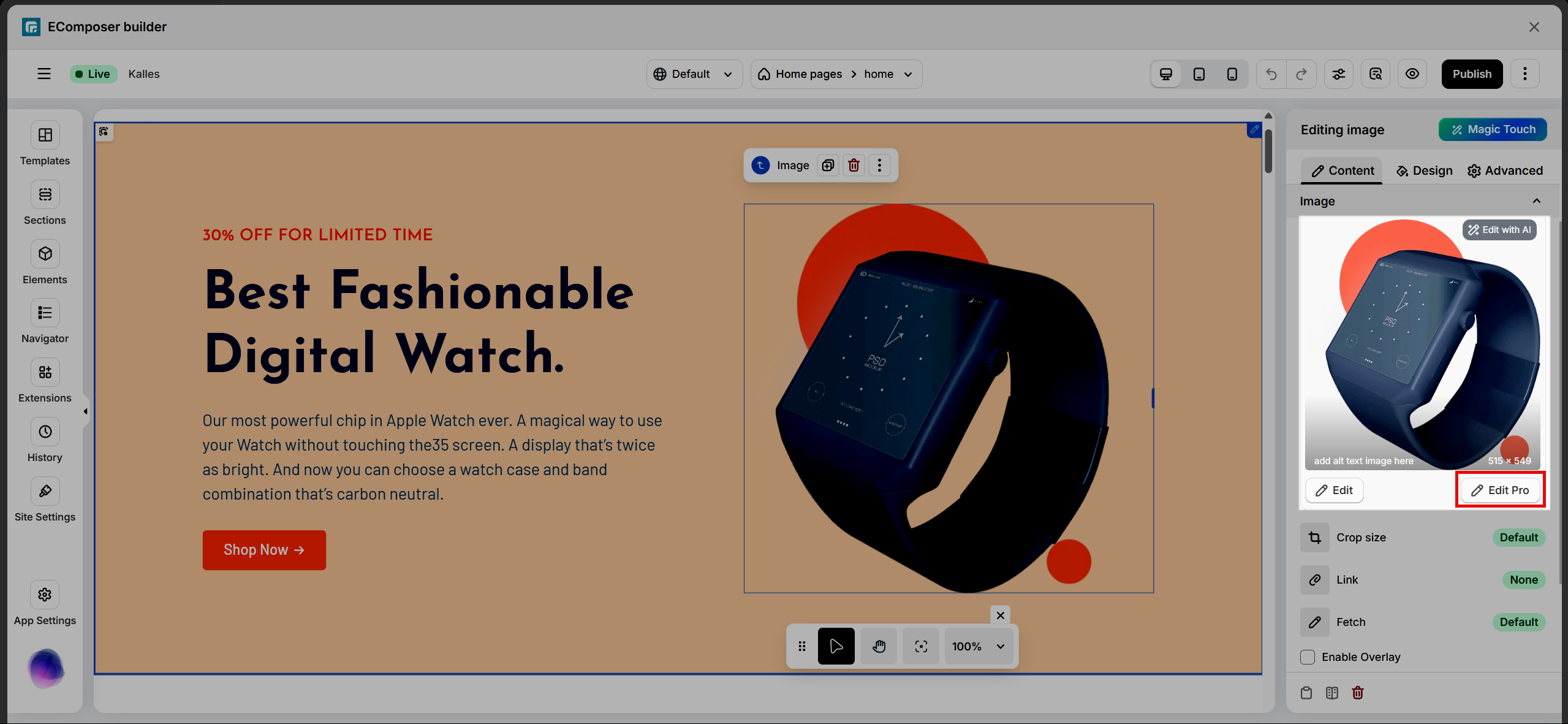
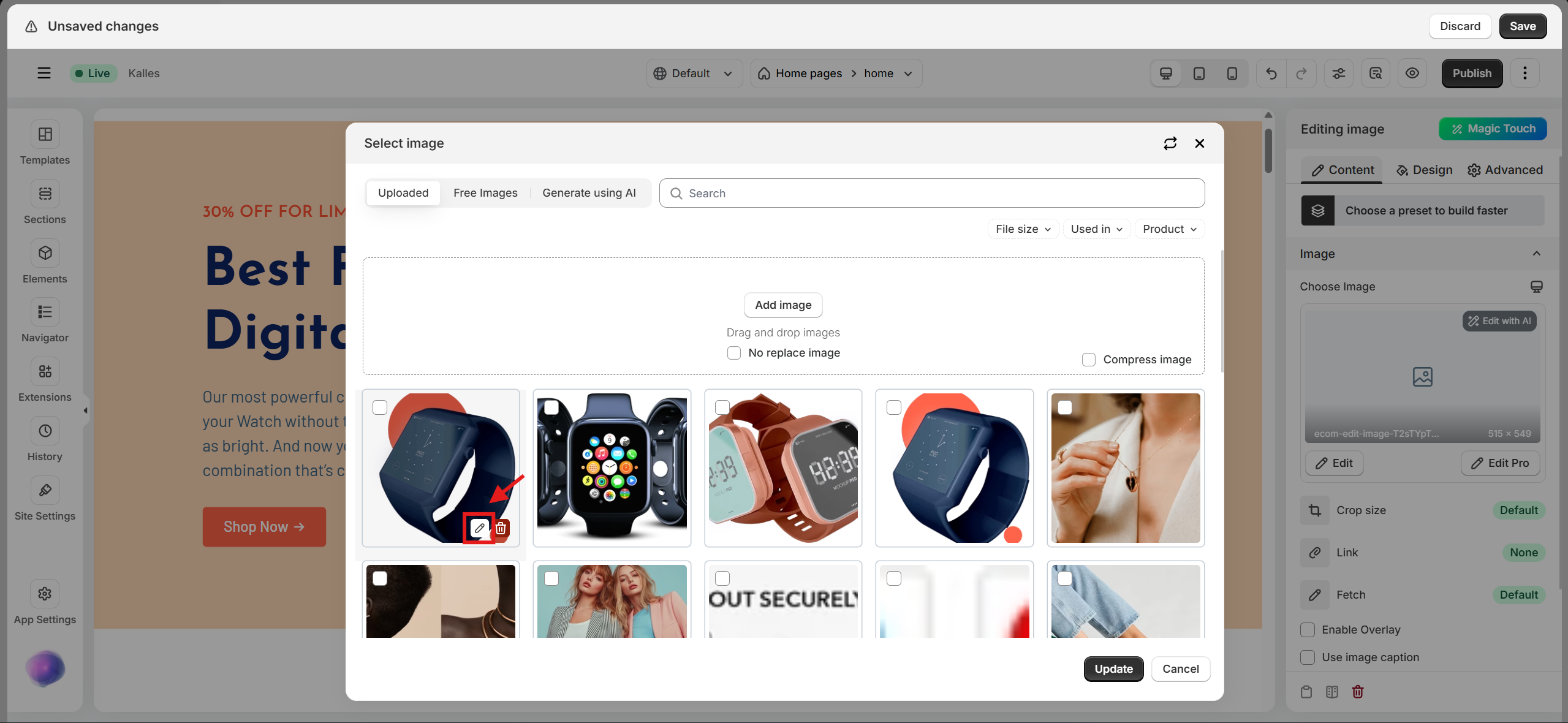
2. Editing the image
The Edit Pro editor provides a range of tools to help you adjust and enhance your image. Below are the main settings available:
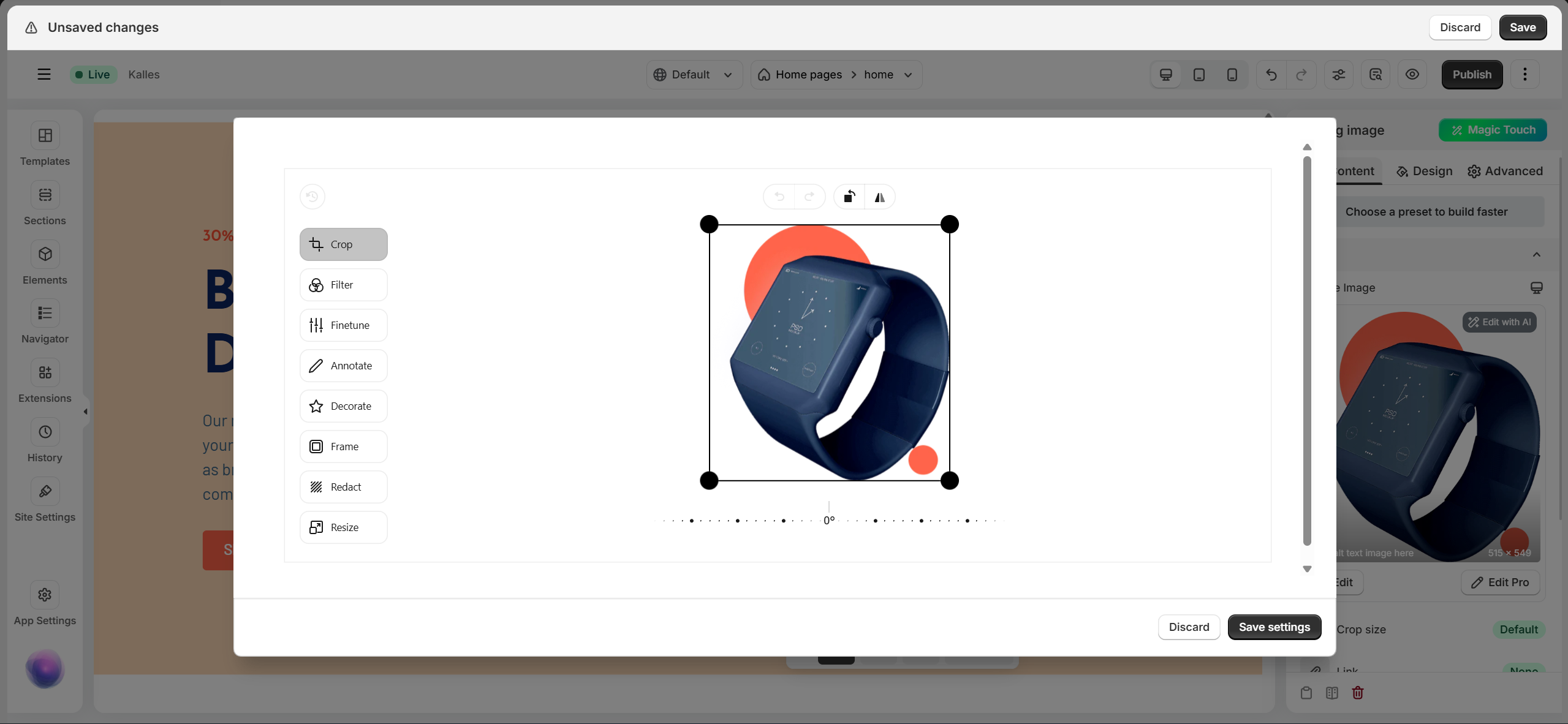
- Crop: Adjust the image area and orientation.
- Filter: Apply color filters to change the overall look of the image.
- Finetune: Adjust color settings such as brightness, contrast, and other visual properties.
- Annotate: Add drawings or shapes directly onto the image.
- Decorate: Add design elements or shapes within the cropped area.
- Frame: Add and customize a frame around the image.
- Redact: Hide or blur sensitive parts of the image.
- Resize: Set custom width and height for the output image.
For a better understanding of each setting, refer to the video below.