

Accordion
This section will help you to build your tabs in Accordion style with smooth animation. It’s considered one of the best elements to optimize your page’s content with just a few simple steps.
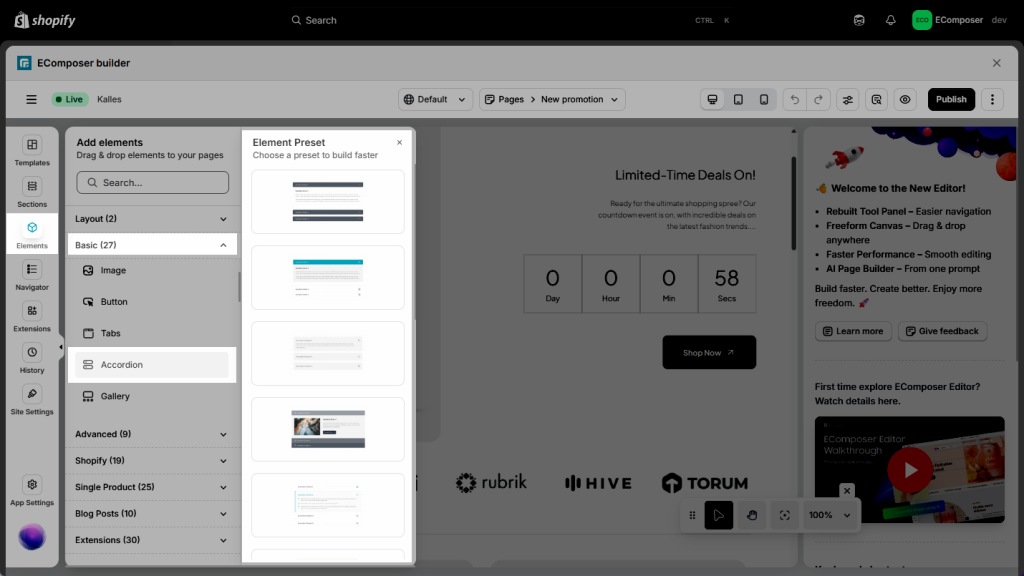
- Step 1: Click into Elements > Basic > Accordion
- Step 2: Drag/Drop the Accordion element wherever you want it to stay.
1. Content
1.1. Items
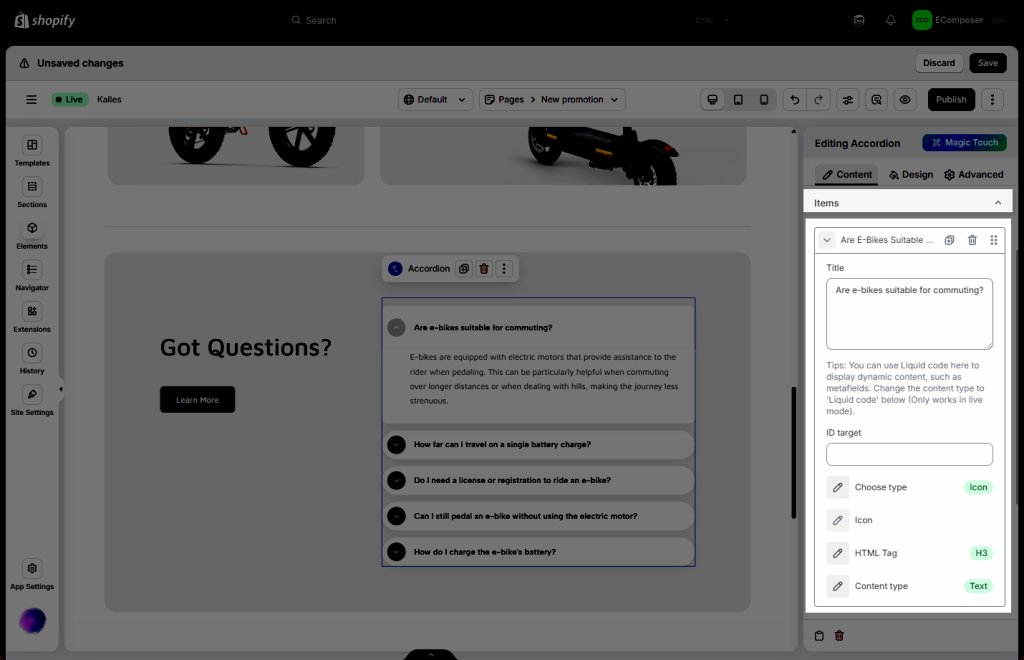
- In each item tab, it will go with the basic settings below:
- Add New Item – create additional item.
- Duplicate – clone an existing item.
- Delete – remove any item.
- Reorder – drag item to change display order.
- Move to deeper inside the Item setting, you can modify:
- Title: That tells users what information is hidden inside before they decide to click.
- ID target: A unique identifier used primarily for linking (via code) and functionality.
- Choose type: This will enable you to place an Icon or an Image next to the title of the accordion. When you choose Icon or Image, the respective setting will be shown to continue modifying.
- HTML tag: The HTML structure of the Accordion element serves primary purposes of interactivity and SEO.
- Content type: Below are the descriptions of choosing to use Text or Liquid code (use for metafield) in this case.
- Text (Static Titles): With this, you will enter the information manually. This is for information that is the same for all pages.
- Liquid / Metafield (Dynamic Titles): With this, the different titles will be used for each page. Click ‘here’ to see the guideline.
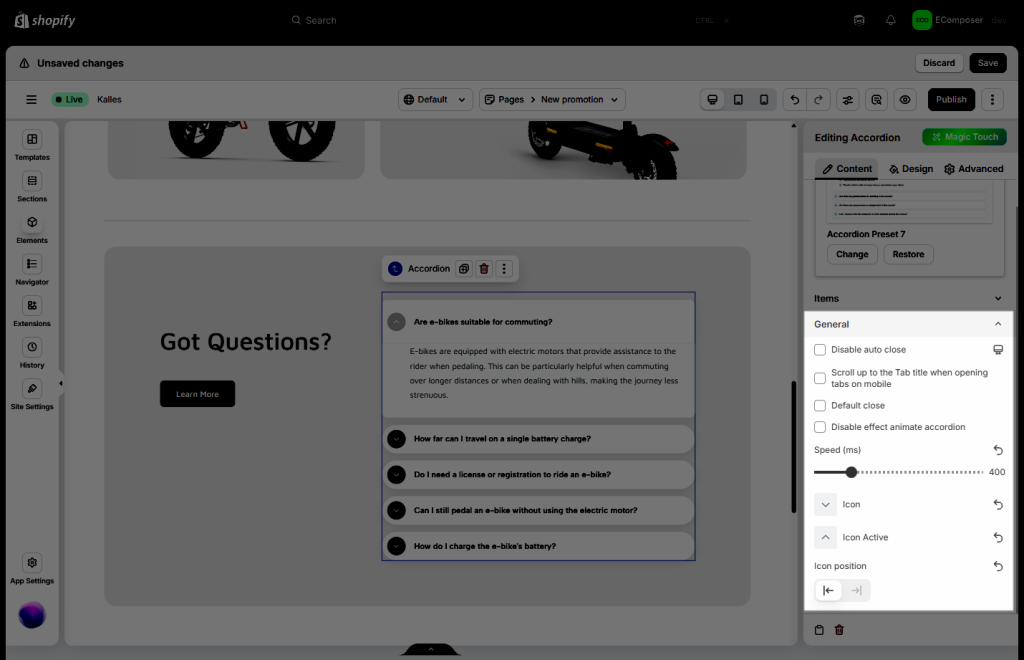
1.2. General
- Disable auto close: Disabling this feature allows multiple sections of the accordion to remain open simultaneously, giving users the flexibility
- Scroll up to the Tab title when opening tabs on mobile: Enhance user experience by ensuring that when a tab is opened on mobile, the page scrolls up automatically to display the tab title.
- Default close: automatically close when the page loads or when a user interacts elsewhere.
- Disable effect animate accordion: Simplify interactions and speed up navigation by removing animation effects from your accordion components.
- Speed (ms): Adjust the animation speed to control how quickly sections open and close
- Icon: Choose the Icon for the tab title in a non-active mode.
- Icon Active: Choose the Icon of the accordion title in active mode.
- Icon Position: A flexible option that allows you to choose where to put the Icon of the accordion title (to the left or right).
2. Design
- Box title:
- Alignment: Control the alignment of your accordion’s text and icons for a clean and professional look
- Box Shadow: Add depth and emphasis to your accordion with shadow effects
- Width, Background, Border, and Border Radius: Style your accordion’s container and tabs to align with your brand aesthetics while it’s normal, hover, or active.
- Spacing: Control padding and margin to improve readability and design flow.
- Tab icon & Title icon
- Size: You can change the size of icons (available for desktop, tablet, and mobile devices).
- Rotate: Set rotation value for icons (available for desktop, tablet, and mobile devices).
- You are also allowed to change Color, Background, Border, and Box Shadow for all Normal, Hover, and Active states.
- Title
- Typography: Customize the typo option for you to make.
- Text Shadow: Adjust the shadow effect for your text.
- Text Color: Choose a color for your text.
- Image
- You can set Width, Max width, Height for Image
- Choose Image fit: Default, Fill, Contain, Cover, Scale down
- By customizing Opacity, CSS filters, Box shadows, Border, and Border radius for normal and hover states, you can create a dynamic and visually engaging experience for users.
- Content
- Background: Set background color for tab’s content area.
- Box Shadow: Set box-shadow value for the content.
- Border: You can customize the border style, width, and color for the tab’s content area.
- Border Radius: Define how round the corners of the tab’s content area are (available for desktop, tablet, and mobile devices).
- Spacing: Set margin or padding value tab’s content (available for desktop, tablet, and mobile devices).
3. Liquid / Metafield (Dynamic Titles)
Using dynamic titles means you are telling the app to pull the text from a specific “container” in your Shopify database rather than typing a static word. So what is the difference between Static and Dynamic:
- Static Title: You type “Care Instructions” into the EComposer Accordion title box. Every product using that layout will show “Care Instructions.”
- Dynamic Title: If you have 50 different products, each with a different FAQ title, you don’t want to edit 50 pages (templates) manually. Then you can set it up using the Liquid source for the Accordion. In this case, to display different FAQ titles while building 1 template.
Step 1: Go to Shopify admin > Settings > Metafields and Metaobjects > Products.
Step 2: Click Add definition to create > Enter the Name > choose Single line text to use.
Step 3: Go to the Products > Open the prodcut that you need
Step 4: Find the Metafield that you just created > Enter the title content.
Step 5: Open your page in the EComposer app > Enter the metafield code in the Title field.
{{ product.metafields.custom.accordion_title | metafield_tag }}custom.accordion_title will be changed based on what you named in the Metafield from Step 2.





2 Comments
JINUK KIM
https://9dd7db.myshopify.com/pages/ec-firstuse
–>
Hi
How do I align the accordion on the page I worked on?
Anna Nguyen
Hi,
I’m Anna from EComposer team. Can you please contact our support team via live chat and tell them about what you want? You can see the live chat circle in the app. Our support team will assist you with this.
Best Regards,
Anna