How to set up Metafields Badge in Product Grid element.
By default, the badge such as Sale, Hot, Sold-out will display the same to all products in a Grid. But If you would like to display additional dynamic badges using metafield, it’s still possible.
With Metafield Badge, you can provide more information to your customers, make your design attractive, and boost sales.
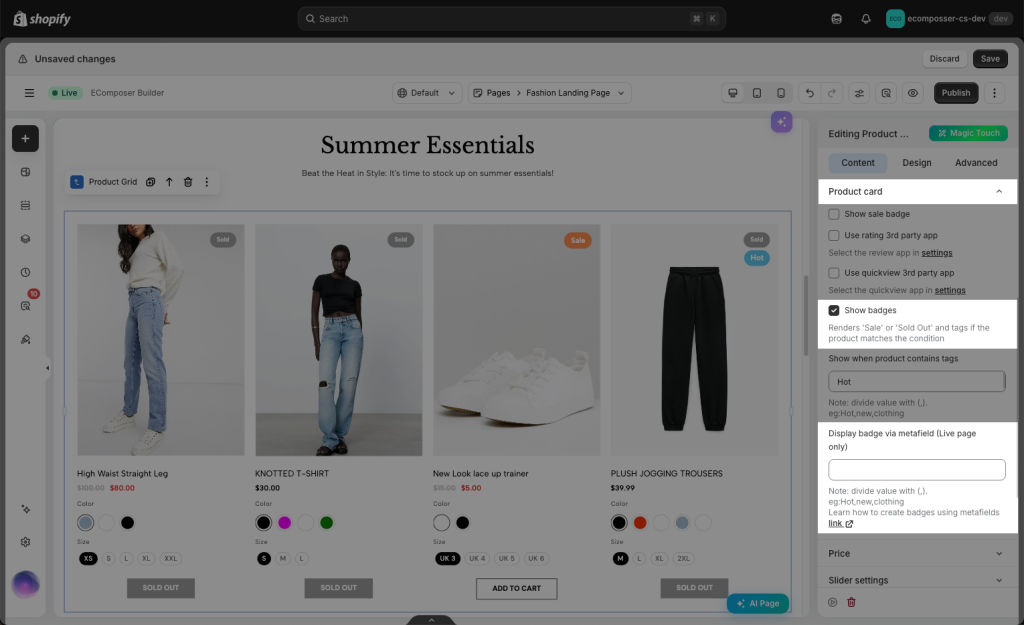
Step 1. Turn on the Custom badge by ticking the Show badge checkbox under Product card. Now, you need to fill in the Metafield value.
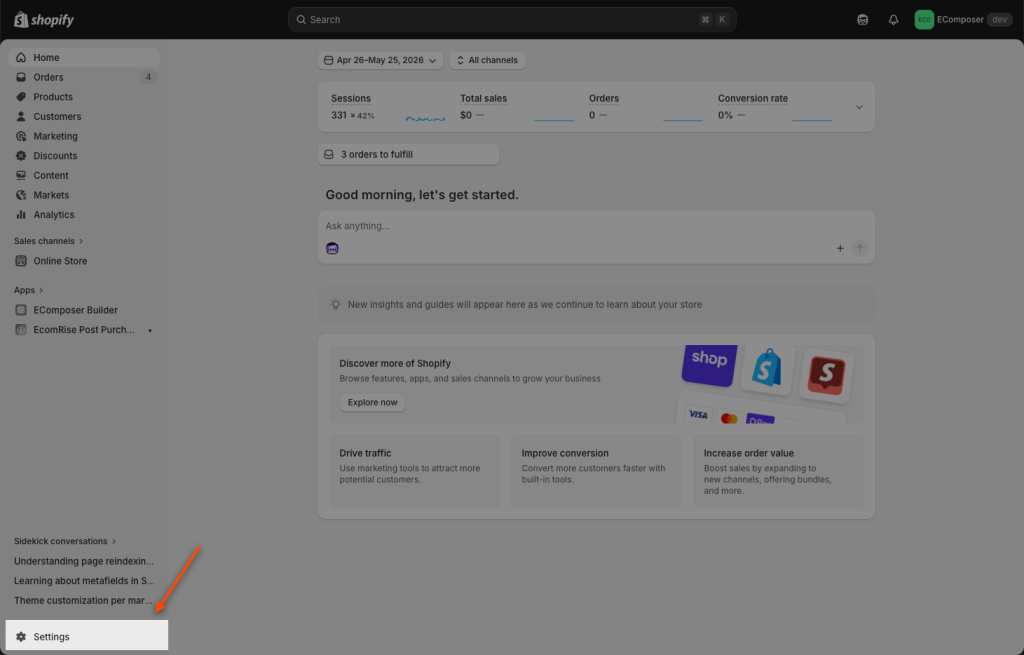
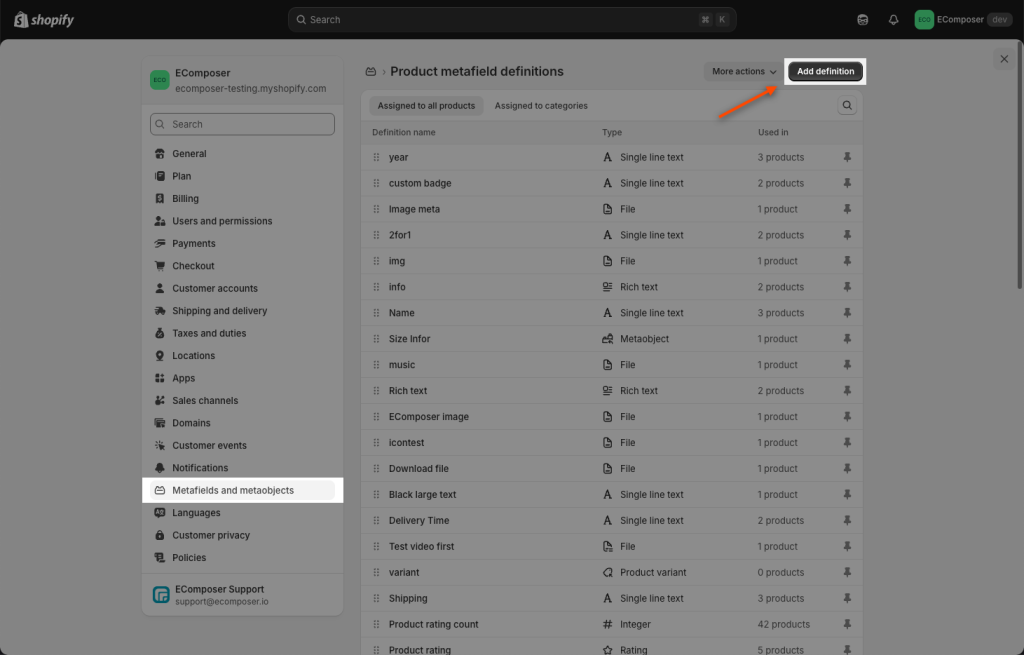
Step 2: Go to Shopify Admin -> Setings
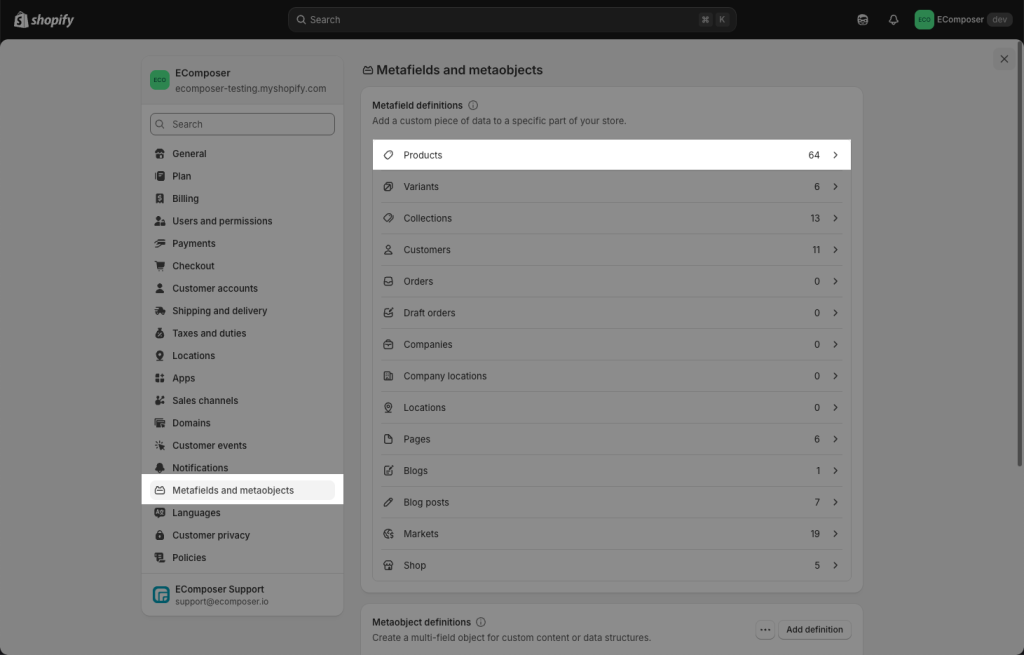
Click Metafields and metaobjects -> Products
Step 3: Then Add definition
Put a name for this new metafield -> choose type Single line text then copy the metafield code:
custom.custom_badge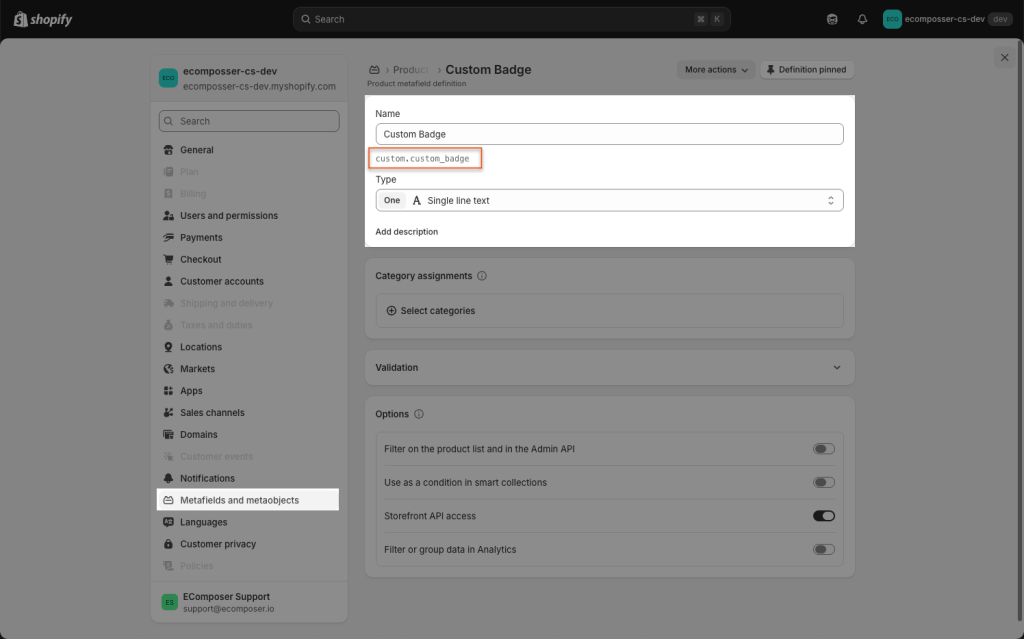
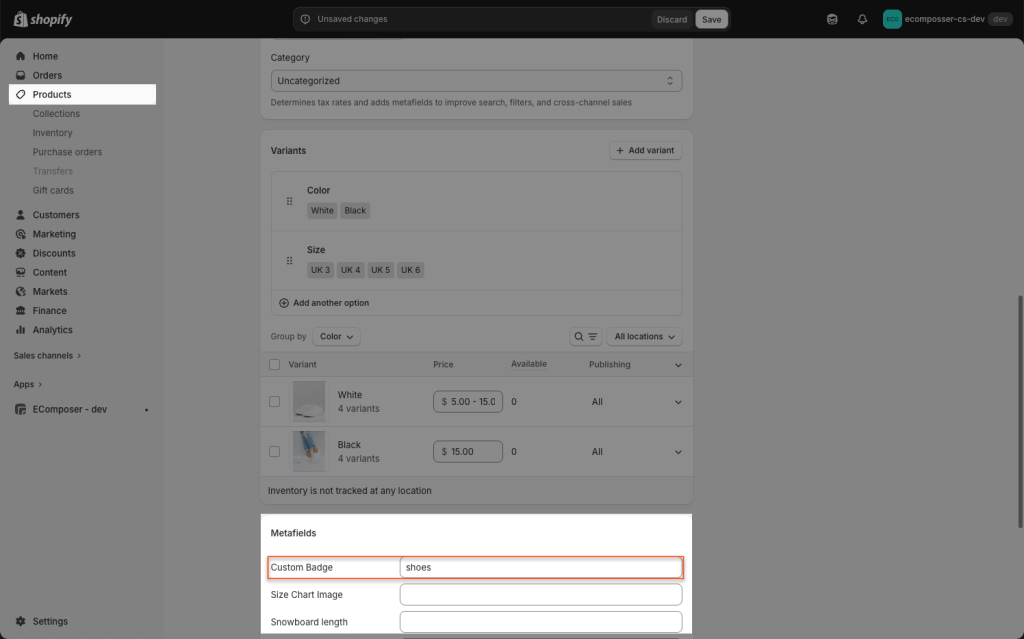
Step 4. Navigate to Products -> Edit the Product -> Adding metafield content “shoes“
Step 5. Finally, you go back to the App Editor -> fill in metafield value to the box. The final code should be:
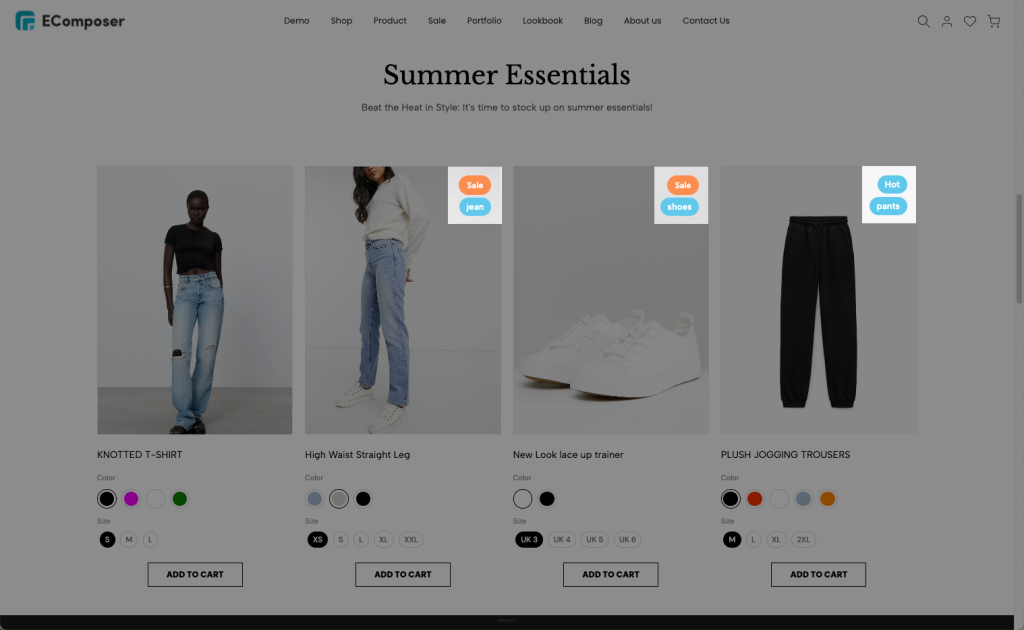
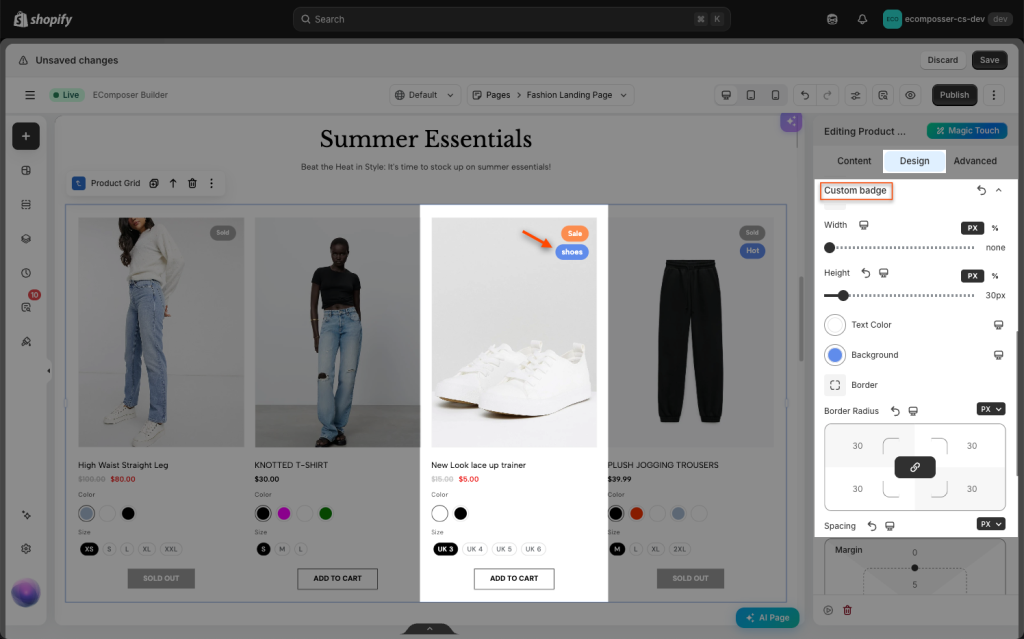
product.metafields.custom.custom_badgeAs a result, the custom badge “shoes” is showing up on top of the product image. Repeat step 4 to add more badges to other products.
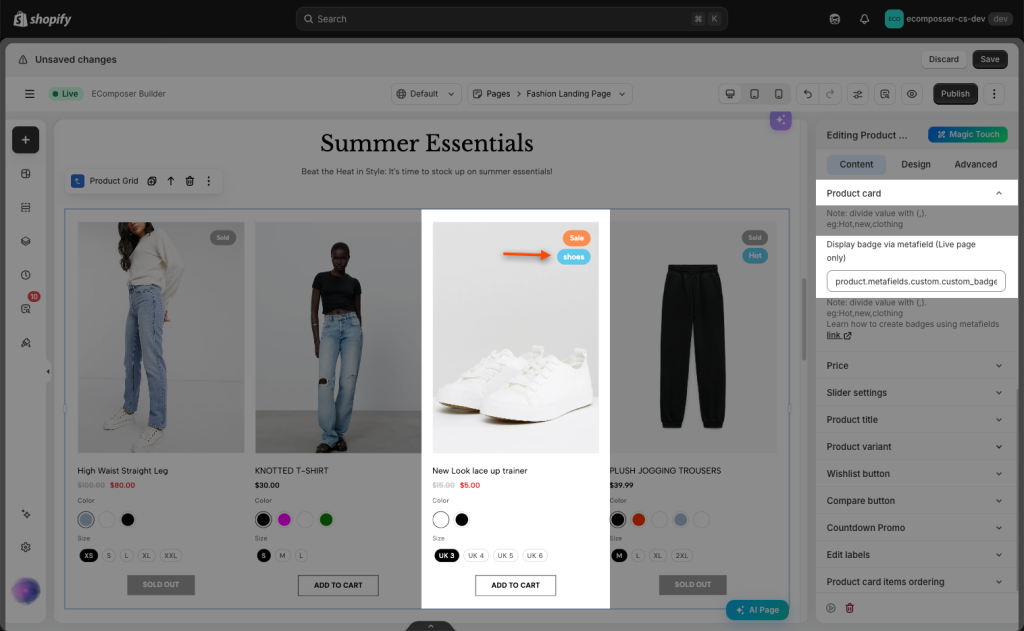
Customize design of the badge such as color, text size, fonts,…
If you can’t follow the steps above, please check this video: