Code
If you want to add custom HTML or CSS code directly to your pagem you can use the Code element in EComposer. This element is designed for cases where you need more flexibility and want to insert custom code into your layout. It is commonly used for embedding external app code, displaying custom tables, or adding special HTML sections that are not available in default elements. Please note that this is an advanced feature and requires basic knowledge of HTML and CSS to use effectively.
1. General
Drag and drop the Code element to any position you would like to.
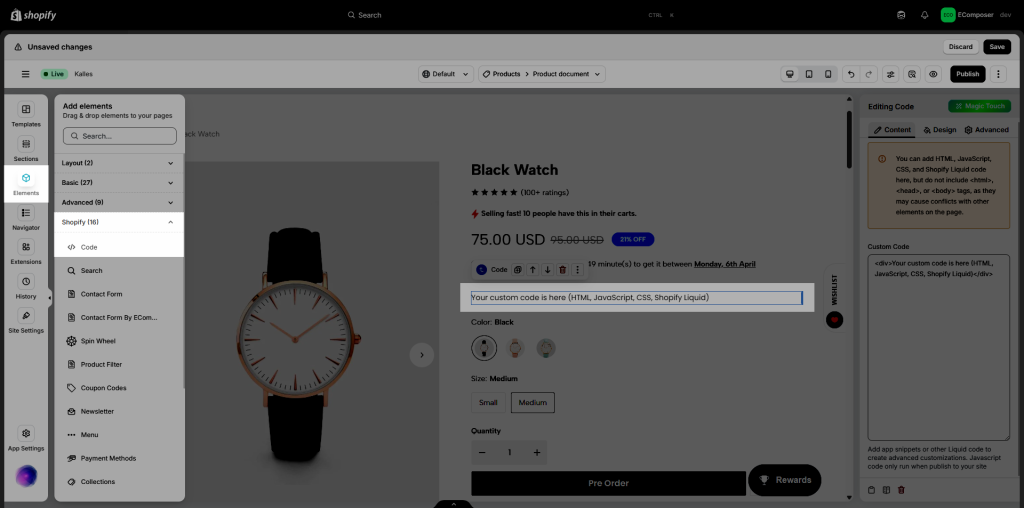
Note: Liquid code is also supported. Learn more about Shopify Liquid code. Javascript code only runs when you publish this page to your site
2. Content
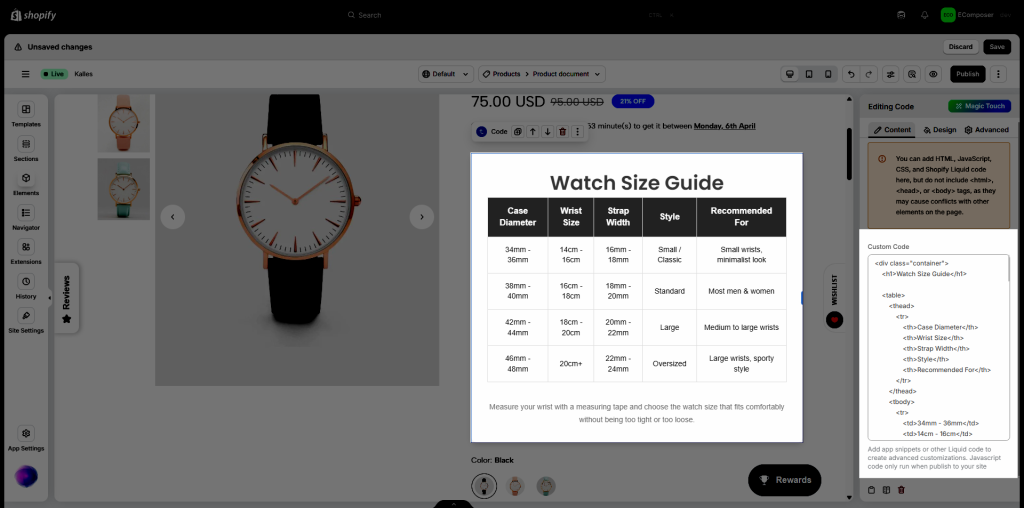
You need to add the HTML, JavaScript, CSS, or Shopify Liquid in the Custom Code.
Note: You must create the correct code structure for Custom Code to work and do not insert full HTML structures containing <html>, <head>, or <body> tags inside the Code element. Doing so may cause conflicts or errors with other elements on the page.
Also, we do not support adding custom code with a {% schema %} to create custom settings for a section. Custom schemas may conflict with EComposer and affect the app’s functionality.
Please follow the example below. I have added HTML code to show the size guide.
3. Design
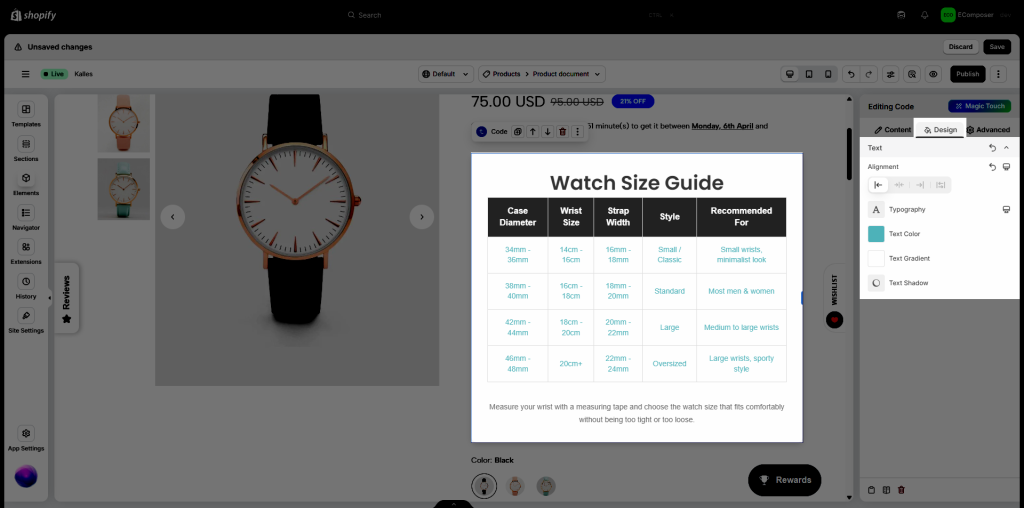
These options allow you to change the style of the Custom Code. With Alignment and Typography are available for desktop, tablet, and mobile devices.
- Alignment: Allow you to align the Custom Code. You can choose Align Left, Align Right, or Align Center.
- Typography: Change the style of the content of the Custom Code.
- Text color: Change the color of the content.
- Text Gradient: Change a gradient from one color to another.
- Text Shadow: Choose a color > Adjust the position of Shadow using Horizontal and Vertical attributes.
This is the video to guide you uses the Code element.